This tutorial provides a walkthrough of the basics of the Kubernetes cluster orchestration system. Each module contains some background information on major Kubernetes features and concepts, and a tutorial for you to follow along.
Using the tutorials, you can learn to:
With modern web services, users expect applications to be available 24/7, and developers expect to deploy new versions of those applications several times a day. Containerization helps package software to serve these goals, enabling applications to be released and updated without downtime. Kubernetes helps you make sure those containerized applications run where and when you want, and helps them find the resources and tools they need to work. Kubernetes is a production-ready, open source platform designed with Google's accumulated experience in container orchestration, combined with best-of-breed ideas from the community.
Learn about Kubernetes cluster and create a simple cluster using Minikube.
The shell commands in this tutorial use POSIX shell syntax, which is supported by
the default shells on most Linux and macOS systems (for example, bash, zsh, or sh).
Windows users must use a POSIX-compatible shell such as
Windows Subsystem for Linux (WSL)
or Git Bash to run the commands as written.
Commands that use export, $(), and similar constructs are not compatible
with PowerShell or the Windows Command Prompt.
Kubernetes coordinates a highly available cluster of computers that are connected to work as a single unit. The abstractions in Kubernetes allow you to deploy containerized applications to a cluster without tying them specifically to individual machines. To make use of this new model of deployment, applications need to be packaged in a way that decouples them from individual hosts: they need to be containerized. Containerized applications are more flexible and available than in past deployment models, where applications were installed directly onto specific machines as packages deeply integrated into the host. Kubernetes automates the distribution and scheduling of application containers across a cluster in a more efficient way. Kubernetes is an open-source platform and is production-ready.
A Kubernetes cluster consists of two types of resources:
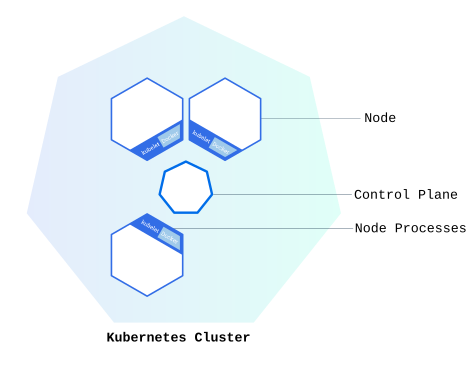
The Control Plane is responsible for managing the cluster. The Control Plane coordinates all activities in your cluster, such as scheduling applications, maintaining applications' desired state, scaling applications, and rolling out new updates.
A node is a VM or a physical computer that serves as a worker machine in a Kubernetes cluster. Each node has a Kubelet, which is an agent for managing the node and communicating with the Kubernetes control plane. The node should also have tools for handling container operations, such as containerd or CRI-O. A Kubernetes cluster that handles production traffic should have a minimum of three nodes because if one node goes down, both an etcd member and a control plane instance are lost, and redundancy is compromised. You can mitigate this risk by adding more control plane nodes.
When you deploy applications on Kubernetes, you tell the control plane to start the application containers. The control plane schedules the containers to run on the cluster's nodes. Node-level components, such as the kubelet, communicate with the control plane using the Kubernetes API, which the control plane exposes. End users can also use the Kubernetes API directly to interact with the cluster.
A Kubernetes cluster can be deployed on either physical or virtual machines. To get started with Kubernetes development, you can use Minikube. Minikube is a lightweight Kubernetes implementation that creates a VM on your local machine and deploys a simple cluster containing only one node. Minikube is available for Linux, macOS, and Windows systems. The Minikube CLI provides basic bootstrapping operations for working with your cluster, including start, stop, status, and delete.
The shell commands in this tutorial use POSIX shell syntax, which is supported by
the default shells on most Linux and macOS systems (for example, bash, zsh, or sh).
Windows users must use a POSIX-compatible shell such as
Windows Subsystem for Linux (WSL)
or Git Bash to run the commands as written.
Commands that use export, $(), and similar constructs are not compatible
with PowerShell or the Windows Command Prompt.
Once you have a running Kubernetes cluster, you can deploy your containerized applications on top of it. To do so, you create a Kubernetes Deployment. The Deployment instructs Kubernetes how to create and update instances of your application. Once you've created a Deployment, the Kubernetes control plane schedules the application instances included in that Deployment to run on individual Nodes in the cluster.
Once the application instances are created, a Kubernetes Deployment controller continuously monitors those instances. If the Node hosting an instance goes down or is deleted, the Deployment controller replaces the instance with an instance on another Node in the cluster. This provides a self-healing mechanism to address machine failure or maintenance.
In a pre-orchestration world, installation scripts would often be used to start applications, but they did not allow recovery from machine failure. By both creating your application instances and keeping them running across Nodes, Kubernetes Deployments provide a fundamentally different approach to application management.
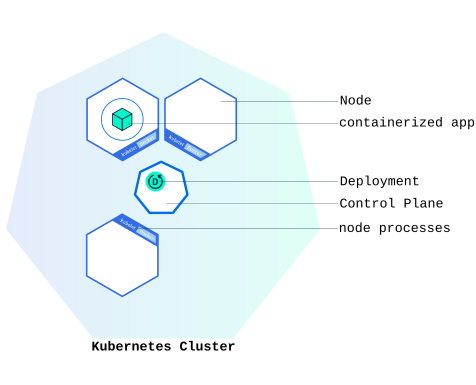
You can create and manage a Deployment by using the Kubernetes command line interface,
kubectl. kubectl uses the Kubernetes API to interact
with the cluster. In this module, you'll learn the most common kubectl commands
needed to create Deployments that run your applications on a Kubernetes cluster.
When you create a Deployment, you'll need to specify the container image for your application and the number of replicas that you want to run. You can change that information later by updating your Deployment; Module 5 and Module 6 of the bootcamp discuss how you can scale and update your Deployments.
For your first Deployment, you'll use a hello-node application packaged in a Docker container that uses NGINX to echo back all the requests. (If you didn't already try creating a hello-node application and deploying it using a container, you can do that first by following the instructions from the Hello Minikube tutorial.)
You will need to have installed kubectl as well. If you need to install it, visit install tools.
Now that you know what Deployments are, let's deploy our first app!
The common format of a kubectl command is: kubectl action resource.
This performs the specified action (like create, describe or delete) on the
specified resource (like node or deployment. You can use --help after the
subcommand to get additional info about possible parameters (for example: kubectl get nodes --help).
Check that kubectl is configured to talk to your cluster, by running the kubectl version command.
Check that kubectl is installed and that you can see both the client and the server versions.
To view the nodes in the cluster, run the kubectl get nodes command.
You see the available nodes. Later, Kubernetes will choose where to deploy our application based on Node available resources.
Let’s deploy our first app on Kubernetes with the kubectl create deployment command.
We need to provide the deployment name and app image location (include the full
repository url for images hosted outside Docker Hub).
kubectl create deployment kubernetes-bootcamp --image=gcr.io/google-samples/kubernetes-bootcamp:v1
Great! You just deployed your first application by creating a deployment. This performed a few things for you:
To list your deployments use the kubectl get deployments command:
kubectl get deployments
We see that there is 1 deployment running a single instance of your app. The instance is running inside a container on your node.
Pods that are running inside Kubernetes are running
on a private, isolated network. By default they are visible from other pods and services
within the same Kubernetes cluster, but not outside that network. When we use kubectl,
we're interacting through an API endpoint to communicate with our application.
We will cover other options on how to expose your application outside the Kubernetes
cluster later, in Module 4.
Also as a basic tutorial, we're not explaining what Pods are in any
detail here, it will be covered in later topics.
The kubectl proxy command can create a proxy that will forward communications
into the cluster-wide, private network. The proxy can be terminated by pressing
control-C and won't show any output while it's running.
You need to open a second terminal window to run the proxy.
kubectl proxy
We now have a connection between our host (the terminal) and the Kubernetes cluster. The proxy enables direct access to the API from these terminals.
You can see all those APIs hosted through the proxy endpoint. For example, we can
query the version directly through the API using the curl command:
curl http://localhost:8001/version
kubectl proxy that you started
above is running in the second terminal.The API server will automatically create an endpoint for each pod, based on the pod name, that is also accessible through the proxy.
First we need to get the Pod name, and we'll store it in the environment variable POD_NAME.
export POD_NAME=$(kubectl get pods -o go-template --template '{{range .items}}{{.metadata.name}}{{"\n"}}{{end}}')
echo Name of the Pod: $POD_NAME
You can access the Pod through the proxied API, by running:
curl http://localhost:8001/api/v1/namespaces/default/pods/$POD_NAME:8080/proxy/
In order for the new Deployment to be accessible without using the proxy, a Service is required which will be explained in Module 4.
The shell commands in this tutorial use POSIX shell syntax, which is supported by
the default shells on most Linux and macOS systems (for example, bash, zsh, or sh).
Windows users must use a POSIX-compatible shell such as
Windows Subsystem for Linux (WSL)
or Git Bash to run the commands as written.
Commands that use export, $(), and similar constructs are not compatible
with PowerShell or the Windows Command Prompt.
When you created a Deployment in Module 2, Kubernetes created a Pod to host your application instance. A Pod is a Kubernetes abstraction that represents a group of one or more application containers (such as Docker), and some shared resources for those containers. Those resources include:
A Pod models an application-specific "logical host" and can contain different application containers which are relatively tightly coupled. For example, a Pod might include both the container with your Node.js app as well as a different container that feeds the data to be published by the Node.js webserver. The containers in a Pod share an IP Address and port space, are always co-located and co-scheduled, and run in a shared context on the same Node.
Pods are the atomic unit on the Kubernetes platform. When we create a Deployment on Kubernetes, that Deployment creates Pods with containers inside them (as opposed to creating containers directly). Each Pod is tied to the Node where it is scheduled, and remains there until termination (according to restart policy) or deletion. In case of a Node failure, identical Pods are scheduled on other available Nodes in the cluster.
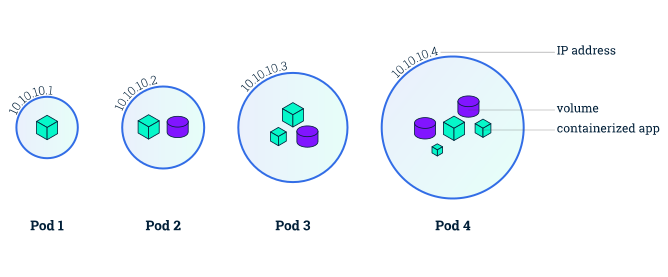
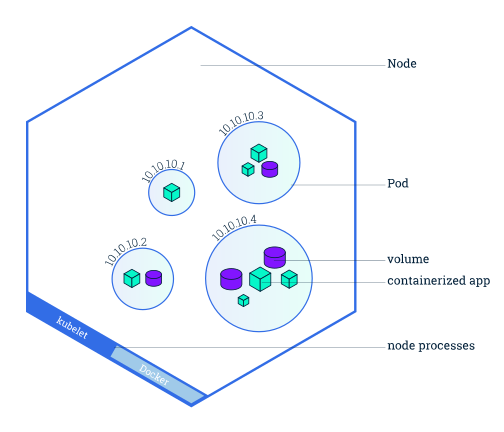
A Pod always runs on a Node. A Node is a worker machine in Kubernetes and may be either a virtual or a physical machine, depending on the cluster. Each Node is managed by the control plane. A Node can have multiple pods, and the Kubernetes control plane automatically handles scheduling the pods across the Nodes in the cluster. The control plane's automatic scheduling takes into account the available resources on each Node.
Every Kubernetes Node runs at least:
Kubelet, a process responsible for communication between the Kubernetes control plane and the Node; it manages the Pods and the containers running on a machine.
A container runtime (like Docker) responsible for pulling the container image from a registry, unpacking the container, and running the application.
In Module 2, you used the kubectl command-line interface. You'll continue to use it in Module 3 to get information about deployed applications and their environments. The most common operations can be done with the following kubectl subcommands:
kubectl get - list resourceskubectl describe - show detailed information about a resourcekubectl logs - print the logs from a container in a podkubectl exec - execute a command on a container in a podYou can use these commands to see when applications were deployed, what their current statuses are, where they are running and what their configurations are.
Now that we know more about our cluster components and the command line, let's explore our application.
Let's verify that the application we deployed in the previous scenario is running.
We'll use the kubectl get command and look for existing Pods:
kubectl get pods
If no pods are running, please wait a couple of seconds and list the Pods again. You can continue once you see one Pod running.
Next, to view what containers are inside that Pod and what images are used to build
those containers we run the kubectl describe pods command:
kubectl describe pods
We see here details about the Pod’s container: IP address, the ports used and a list of events related to the lifecycle of the Pod.
The output of the describe subcommand is extensive and covers some concepts that
we didn’t explain yet, but don’t worry, they will become familiar by the end of this tutorial.
describe subcommand can be used to get detailed information about most of the
Kubernetes primitives, including Nodes, Pods, and Deployments. The describe output is
designed to be human readable, not to be scripted against.Recall that Pods are running in an isolated, private network - so we need to proxy access
to them so we can debug and interact with them. To do this, we'll use the kubectl proxy
command to run a proxy in a second terminal. Open a new terminal window, and
in that new terminal, run:
kubectl proxy
Now again, we'll get the Pod name and query that pod directly through the proxy.
To get the Pod name and store it in the POD_NAME environment variable:
export POD_NAME="$(kubectl get pods -o go-template --template '{{range .items}}{{.metadata.name}}{{"\n"}}{{end}}')"
echo Name of the Pod: $POD_NAME
To see the output of our application, run a curl request:
curl http://localhost:8001/api/v1/namespaces/default/pods/$POD_NAME:8080/proxy/
The URL is the route to the API of the Pod.
We can execute commands directly on the container once the Pod is up and running.
For this, we use the exec subcommand and use the name of the Pod as a parameter.
Let’s list the environment variables:
kubectl exec "$POD_NAME" -- env
Again, it's worth mentioning that the name of the container itself can be omitted since we only have a single container in the Pod.
Next let’s start a bash session in the Pod’s container:
kubectl exec -ti $POD_NAME -- bash
We have now an open console on the container where we run our NodeJS application.
The source code of the app is in the server.js file:
cat server.js
You can check that the application is up by running a curl command:
curl http://localhost:8080
localhost because we executed the command inside the NodeJS Pod.
If you cannot connect to localhost:8080, check to make sure you have run the
kubectl exec command and are launching the command from within the Pod.To close your container connection, type exit.
The shell commands in this tutorial use POSIX shell syntax, which is supported by
the default shells on most Linux and macOS systems (for example, bash, zsh, or sh).
Windows users must use a POSIX-compatible shell such as
Windows Subsystem for Linux (WSL)
or Git Bash to run the commands as written.
Commands that use export, $(), and similar constructs are not compatible
with PowerShell or the Windows Command Prompt.
Kubernetes Pods are mortal. Pods have a lifecycle. When a worker node dies, the Pods running on the Node are also lost. A Replicaset might then dynamically drive the cluster back to the desired state via the creation of new Pods to keep your application running. As another example, consider an image-processing backend with 3 replicas. Those replicas are exchangeable; the front-end system should not care about backend replicas or even if a Pod is lost and recreated. That said, each Pod in a Kubernetes cluster has a unique IP address, even Pods on the same Node, so there needs to be a way of automatically reconciling changes among Pods so that your applications continue to function.
A Service in Kubernetes is an abstraction
which defines a logical set of Pods and a policy by which to access them. Services
enable a loose coupling between dependent Pods. A Service is defined using YAML or JSON,
like all Kubernetes object manifests. The set of Pods targeted by a Service is usually
determined by a label selector (see below for why you might want a Service without
including a selector in the spec).
Although each Pod has a unique IP address, those IPs are not exposed outside the
cluster without a Service. Services allow your applications to receive traffic.
Services can be exposed in different ways by specifying a type in the spec of the Service:
ClusterIP (default) - Exposes the Service on an internal IP in the cluster. This type makes the Service only reachable from within the cluster.
NodePort - Exposes the Service on the same port of each selected Node in the cluster using NAT.
Makes a Service accessible from outside the cluster using NodeIP:NodePort. Superset of ClusterIP.
LoadBalancer - Creates an external load balancer in the current cloud (if supported) and assigns a fixed, external IP to the Service. Superset of NodePort.
ExternalName - Maps the Service to the contents of the externalName field
(e.g. foo.bar.example.com), by returning a CNAME record with its value.
No proxying of any kind is set up. This type requires v1.7 or higher of kube-dns,
or CoreDNS version 0.0.8 or higher.
More information about the different types of Services can be found in the Using Source IP tutorial. Also see Connecting Applications with Services.
Additionally, note that there are some use cases with Services that involve not defining
a selector in the spec. A Service created without selector will also not create
the corresponding Endpoints object. This allows users to manually map a Service to
specific endpoints. Another possibility why there may be no selector is you are strictly
using type: ExternalName.
A Service routes traffic across a set of Pods. Services are the abstraction that allows pods to die and replicate in Kubernetes without impacting your application. Discovery and routing among dependent Pods (such as the frontend and backend components in an application) are handled by Kubernetes Services.
Services match a set of Pods using labels and selectors, a grouping primitive that allows logical operation on objects in Kubernetes. Labels are key/value pairs attached to objects and can be used in any number of ways:
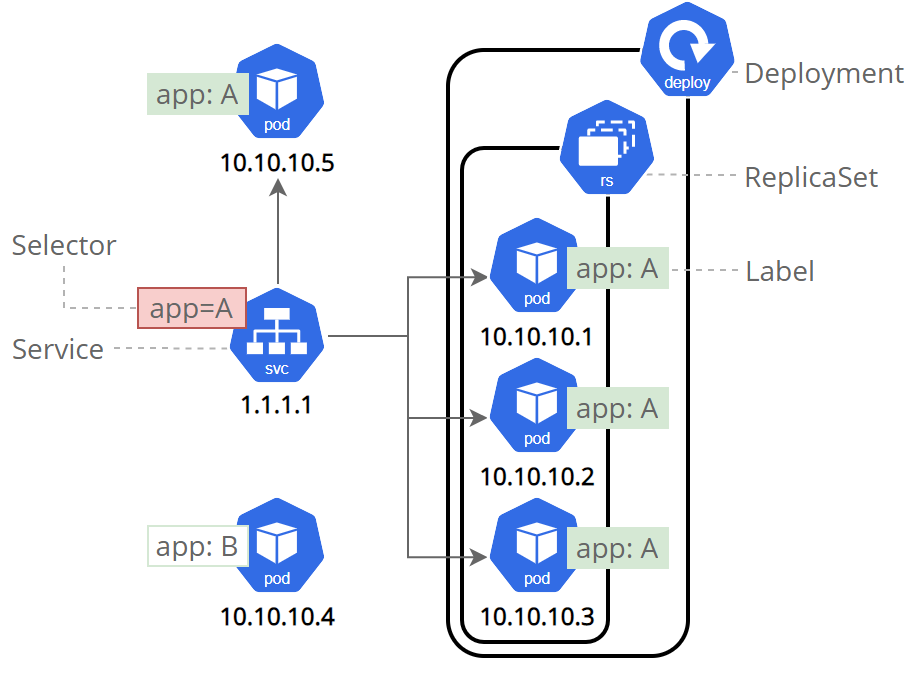
Labels can be attached to objects at creation time or later on. They can be modified at any time. Let's expose our application now using a Service and apply some labels.
Let’s verify that our application is running. We’ll use the kubectl get command
and look for existing Pods:
kubectl get pods
If no Pods are running then it means the objects from the previous tutorials were cleaned up. In this case, go back and recreate the deployment from the Using kubectl to create a Deployment tutorial. Please wait a couple of seconds and list the Pods again. You can continue once you see the one Pod running.
Next, let’s list the current Services from our cluster:
kubectl get services
To expose the deployment to external traffic, we'll use the kubectl expose command with the --type=NodePort option:
kubectl expose deployment/kubernetes-bootcamp --type="NodePort" --port 8080
We have now a running Service called kubernetes-bootcamp. Here we see that the Service received a unique cluster-IP, an internal port and an external-IP (the IP of the Node).
To find out what port was opened externally (for the type: NodePort Service) we’ll
run the describe service subcommand:
kubectl describe services/kubernetes-bootcamp
Create an environment variable called NODE_PORT that has the value of the Node
port assigned:
export NODE_PORT="$(kubectl get services/kubernetes-bootcamp -o go-template='{{(index .spec.ports 0).nodePort}}')"
echo "NODE_PORT=$NODE_PORT"
Now we can test that the app is exposed outside of the cluster using curl, the
IP address of the Node and the externally exposed port:
curl http://"$(minikube ip):$NODE_PORT"
If you're running minikube with Docker Desktop as the container driver, a minikube tunnel is needed. This is because containers inside Docker Desktop are isolated from your host computer.
In a separate terminal window, execute:
minikube service kubernetes-bootcamp --url
The output looks like this:
http://127.0.0.1:51082
!  Because you are using a Docker driver on darwin, the terminal needs to be open to run it.
Then use the given URL to access the app:
curl 127.0.0.1:51082
And we get a response from the server. The Service is exposed.
The Deployment created automatically a label for our Pod. With the describe deployment
subcommand you can see the name (the key) of that label:
kubectl describe deployment
Let’s use this label to query our list of Pods. We’ll use the kubectl get pods
command with -l as a parameter, followed by the label values:
kubectl get pods -l app=kubernetes-bootcamp
You can do the same to list the existing Services:
kubectl get services -l app=kubernetes-bootcamp
Get the name of the Pod and store it in the POD_NAME environment variable:
export POD_NAME="$(kubectl get pods -o go-template --template '{{range .items}}{{.metadata.name}}{{"\n"}}{{end}}')"
echo "Name of the Pod: $POD_NAME"
To apply a new label we use the label subcommand followed by the object type, object name and the new label:
kubectl label pods "$POD_NAME" version=v1
This will apply a new label to our Pod (we pinned the application version to the Pod),
and we can check it with the describe pod command:
kubectl describe pods "$POD_NAME"
We see here that the label is attached now to our Pod. And we can query now the list of pods using the new label:
kubectl get pods -l version=v1
And we see the Pod.
To delete Services you can use the delete service subcommand. Labels can be used
also here:
kubectl delete service -l app=kubernetes-bootcamp
Confirm that the Service is gone:
kubectl get services
This confirms that our Service was removed. To confirm that route is not exposed
anymore you can curl the previously exposed IP and port:
curl http://"$(minikube ip):$NODE_PORT"
This proves that the application is not reachable anymore from outside of the cluster.
You can confirm that the app is still running with a curl from inside the pod:
kubectl exec -ti $POD_NAME -- curl http://localhost:8080
We see here that the application is up. This is because the Deployment is managing the application. To shut down the application, you would need to delete the Deployment as well.
The shell commands in this tutorial use POSIX shell syntax, which is supported by
the default shells on most Linux and macOS systems (for example, bash, zsh, or sh).
Windows users must use a POSIX-compatible shell such as
Windows Subsystem for Linux (WSL)
or Git Bash to run the commands as written.
Commands that use export, $(), and similar constructs are not compatible
with PowerShell or the Windows Command Prompt.
Previously we created a Deployment, and then exposed it publicly via a Service. The Deployment created only one Pod for running our application. When traffic increases, we will need to scale the application to keep up with user demand.
If you haven't worked through the earlier sections, start from Using minikube to create a cluster.
Scaling is accomplished by changing the number of replicas in a Deployment.
If you are trying this after the
previous section, then you
may have deleted the service you created, or have created a Service of type: NodePort.
In this section, it is assumed that a service with type: LoadBalancer is created
for the kubernetes-bootcamp Deployment.
If you have not deleted the Service created in
the previous section,
first delete that Service and then run the following command to create a new Service
with its type set to LoadBalancer:
kubectl expose deployment/kubernetes-bootcamp --type="LoadBalancer" --port 8080
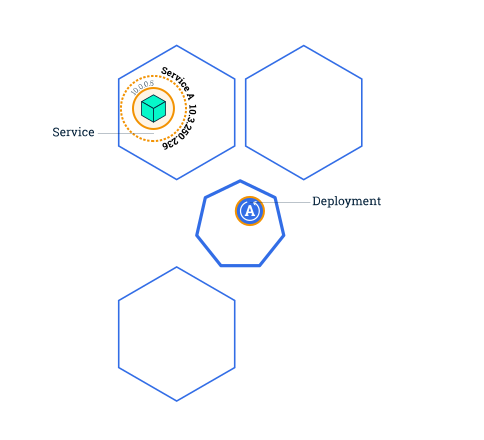
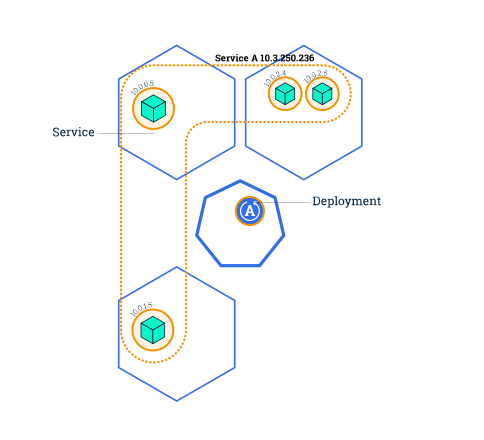
Scaling out a Deployment will ensure new Pods are created and scheduled to Nodes with available resources. Scaling will increase the number of Pods to the new desired state. Kubernetes also supports autoscaling of Pods, but it is outside of the scope of this tutorial. Scaling to zero is also possible, and it will terminate all Pods of the specified Deployment.
Running multiple instances of an application will require a way to distribute the traffic to all of them. Services have an integrated load-balancer that will distribute network traffic to all Pods of an exposed Deployment. Services will monitor continuously the running Pods using endpoints, to ensure the traffic is sent only to available Pods.
Once you have multiple instances of an application running, you would be able to do Rolling updates without downtime. We'll cover that in the next section of the tutorial. Now, let's go to the terminal and scale our application.
To list your Deployments, use the get deployments subcommand:
kubectl get deployments
The output should be similar to:
NAME                  READY   UP-TO-DATE   AVAILABLE   AGE
kubernetes-bootcamp   1/1     1            1           11m
We should have 1 Pod. If not, run the command again. This shows:
To see the ReplicaSet created by the Deployment, run:
kubectl get rs
Notice that the name of the ReplicaSet is always formatted as
Two important columns of this output are:
Next, let’s scale the Deployment to 4 replicas. We’ll use the kubectl scale command,
followed by the Deployment type, name and desired number of instances:
kubectl scale deployments/kubernetes-bootcamp --replicas=4
To list your Deployments once again, use get deployments:
kubectl get deployments
The change was applied, and we have 4 instances of the application available. Next, let’s check if the number of Pods changed:
kubectl get pods -o wide
There are 4 Pods now, with different IP addresses. The change was registered in
the Deployment events log. To check that, use the describe subcommand:
kubectl describe deployments/kubernetes-bootcamp
You can also view in the output of this command that there are 4 replicas now.
Let's check that the Service is load-balancing the traffic. To find out the exposed
IP and Port we can use describe service as we learned in the previous part of the tutorial:
kubectl describe services/kubernetes-bootcamp
Create an environment variable called NODE_PORT that has a value as the Node port:
export NODE_PORT="$(kubectl get services/kubernetes-bootcamp -o go-template='{{(index .spec.ports 0).nodePort}}')"
echo NODE_PORT=$NODE_PORT
Next, we’ll do a curl to the exposed IP address and port. Execute the command multiple times:
curl http://"$(minikube ip):$NODE_PORT"
We hit a different Pod with every request. This demonstrates that the load-balancing is working.
The output should be similar to:
Hello Kubernetes bootcamp! | Running on: kubernetes-bootcamp-644c5687f4-wp67j | v=1
Hello Kubernetes bootcamp! | Running on: kubernetes-bootcamp-644c5687f4-hs9dj | v=1
Hello Kubernetes bootcamp! | Running on: kubernetes-bootcamp-644c5687f4-4hjvf | v=1
Hello Kubernetes bootcamp! | Running on: kubernetes-bootcamp-644c5687f4-wp67j | v=1
Hello Kubernetes bootcamp! | Running on: kubernetes-bootcamp-644c5687f4-4hjvf | v=1
If you're running minikube with Docker Desktop as the container driver, a minikube tunnel is needed. This is because containers inside Docker Desktop are isolated from your host computer.
In a separate terminal window, execute:
minikube service kubernetes-bootcamp --url
The output looks like this:
http://127.0.0.1:51082
!  Because you are using a Docker driver on darwin, the terminal needs to be open to run it.
Then use the given URL to access the app:
curl 127.0.0.1:51082
To scale down the Deployment to 2 replicas, run again the scale subcommand:
kubectl scale deployments/kubernetes-bootcamp --replicas=2
List the Deployments to check if the change was applied with the get deployments subcommand:
kubectl get deployments
The number of replicas decreased to 2. List the number of Pods, with get pods:
kubectl get pods -o wide
This confirms that 2 Pods were terminated.
Perform a rolling update using kubectl.
The shell commands in this tutorial use POSIX shell syntax, which is supported by
the default shells on most Linux and macOS systems (for example, bash, zsh, or sh).
Windows users must use a POSIX-compatible shell such as
Windows Subsystem for Linux (WSL)
or Git Bash to run the commands as written.
Commands that use export, $(), and similar constructs are not compatible
with PowerShell or the Windows Command Prompt.
Users expect applications to be available all the time, and developers are expected to deploy new versions of them several times a day. In Kubernetes this is done with rolling updates. A rolling update allows a Deployment update to take place with zero downtime. It does this by incrementally replacing the current Pods with new ones. The new Pods are scheduled on Nodes with available resources, and Kubernetes waits for those new Pods to start before removing the old Pods.
In the previous module we scaled our application to run multiple instances. This is a requirement for performing updates without affecting application availability. By default, the maximum number of Pods that can be unavailable during the update and the maximum number of new Pods that can be created, is one. Both options can be configured to either numbers or percentages (of Pods). In Kubernetes, updates are versioned and any Deployment update can be reverted to a previous (stable) version.
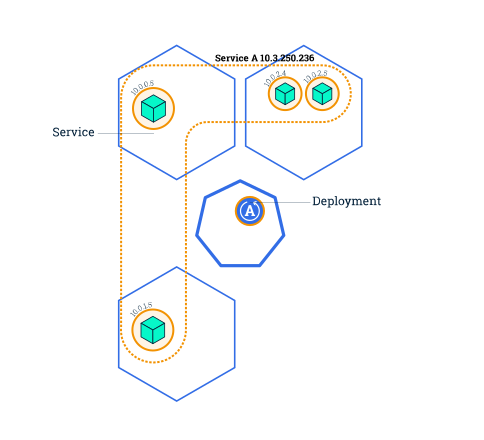
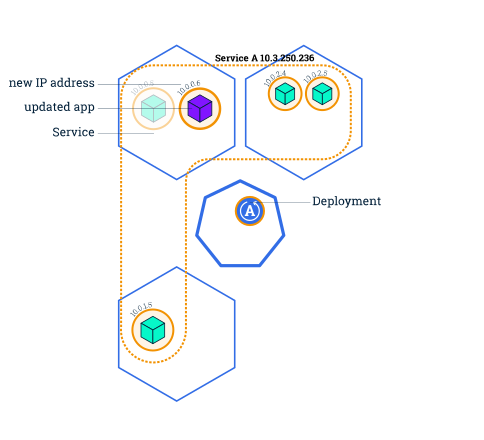
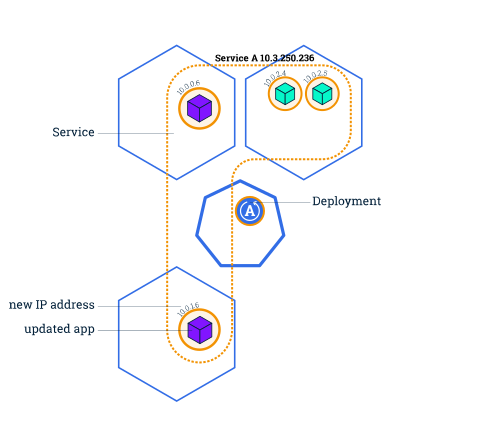
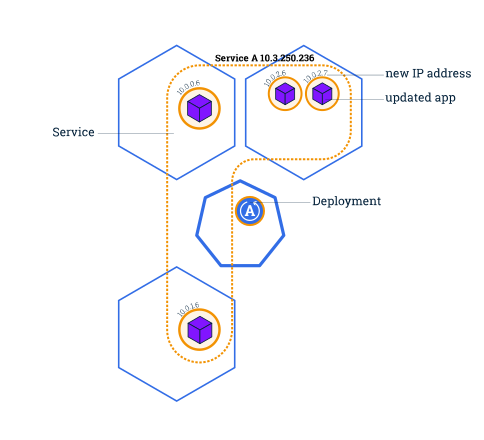
During a rolling update, this behavior keeps the application available by routing traffic only to Pods that are serving requests. Rolling updates allow the following actions:
In the following interactive tutorial, we'll update our application to a new version, and also perform a rollback.
To list your Deployments, run the get deployments subcommand:
kubectl get deployments
To list the running Pods, run the get pods subcommand:
kubectl get pods
To view the current image version of the app, run the describe pods subcommand
and look for the Image field:
kubectl describe pods
To update the image of the application to version 2, use the set image subcommand,
followed by the deployment name and the new image version:
kubectl set image deployments/kubernetes-bootcamp kubernetes-bootcamp=docker.io/jocatalin/kubernetes-bootcamp:v2
The command notified the Deployment to use a different image for your app and initiated
a rolling update. Check the status of the new Pods, and view the old one terminating
with the get pods subcommand:
kubectl get pods
First, check that the service is running, as you might have deleted it in previous
tutorial step, run describe services/kubernetes-bootcamp. If it's missing,
you can create it again with:
kubectl expose deployment/kubernetes-bootcamp --type="NodePort" --port 8080
Create an environment variable called NODE_PORT that has the value of the Node
port assigned:
export NODE_PORT="$(kubectl get services/kubernetes-bootcamp -o go-template='{{(index .spec.ports 0).nodePort}}')"
echo "NODE_PORT=$NODE_PORT"
Next, do a curl to the exposed IP and port:
curl http://"$(minikube ip):$NODE_PORT"
Every time you run the curl command, you will hit a different Pod. Notice that
all Pods are now running the latest version (v2).
You can also confirm the update by running the rollout status subcommand:
kubectl rollout status deployments/kubernetes-bootcamp
To view the current image version of the app, run the describe pods subcommand:
kubectl describe pods
In the Image field of the output, verify that you are running the latest image
version (v2).
Let’s perform another update, and try to deploy an image tagged with v10:
kubectl set image deployments/kubernetes-bootcamp kubernetes-bootcamp=gcr.io/google-samples/kubernetes-bootcamp:v10
Use get deployments to see the status of the deployment:
kubectl get deployments
Notice that the output doesn't list the desired number of available Pods. Run the
get pods subcommand to list all Pods:
kubectl get pods
Notice that some of the Pods have a status of ImagePullBackOff.
To get more insight into the problem, run the describe pods subcommand:
kubectl describe pods
In the Events section of the output for the affected Pods, notice that the v10
image version did not exist in the repository.
To roll back the deployment to your last working version, use the rollout undo
subcommand:
kubectl rollout undo deployments/kubernetes-bootcamp
The rollout undo command reverts the deployment to the previous known state
(v2 of the image). Updates are versioned and you can revert to any previously
known state of a Deployment.
Use the get pods subcommand to list the Pods again:
kubectl get pods
To check the image deployed on the running Pods, use the describe pods subcommand:
kubectl describe pods
The Deployment is once again using a stable version of the app (v2). The rollback
was successful.
Remember to clean up your local cluster.
kubectl delete deployments/kubernetes-bootcamp services/kubernetes-bootcamp


