This section of the Kubernetes documentation contains tutorials. A tutorial shows how to accomplish a goal that is larger than a single task. Typically a tutorial has several sections, each of which has a sequence of steps. Before walking through each tutorial, you may want to bookmark the Standardized Glossary page for later references.
If you would like to write a tutorial, see Content Page Types for information about the tutorial page type.
This tutorial shows you how to run a sample app on Kubernetes using minikube. The tutorial provides a container image that uses NGINX to echo back all the requests.
This tutorial assumes that you have already set up minikube.
See Step 1 in minikube start for installation instructions.
You also need to install kubectl.
See Install tools for installation instructions.
minikube start
Verify the status of the minikube cluster to ensure all the components are in a running state.
minikube status
The output from the above command should show all components Running or Configured, as shown in the example output below:
minikube
type: Control Plane
host: Running
kubelet: Running
apiserver: Running
kubeconfig: Configured
Open the Kubernetes dashboard. You can do this two different ways:
Open a new terminal, and run:
# Start a new terminal, and leave this running.
minikube dashboard
Now, switch back to the terminal where you ran minikube start.
The dashboard command enables the dashboard add-on and opens the proxy in the default web browser.
You can create Kubernetes resources on the dashboard such as Deployment and Service.
To find out how to avoid directly invoking the browser from the terminal and get a URL for the web dashboard, see the "URL copy and paste" tab.
By default, the dashboard is only accessible from within the internal Kubernetes virtual network.
The dashboard command creates a temporary proxy to make the dashboard accessible from outside the Kubernetes virtual network.
To stop the proxy, run Ctrl+C to exit the process.
After the command exits, the dashboard remains running in the Kubernetes cluster.
You can run the dashboard command again to create another proxy to access the dashboard.
If you don't want minikube to open a web browser for you, run the dashboard subcommand with the
--url flag. minikube outputs a URL that you can open in the browser you prefer.
Open a new terminal, and run:
# Start a new terminal, and leave this running.
minikube dashboard --url
Now, you can use this URL and switch back to the terminal where you ran minikube start.
A Kubernetes Pod is a group of one or more Containers, tied together for the purposes of administration and networking. The Pod in this tutorial has only one Container. A Kubernetes Deployment checks on the health of your Pod and restarts the Pod's Container if it terminates. Deployments are the recommended way to manage the creation and scaling of Pods.
Use the kubectl create command to create a Deployment that manages a Pod. The
Pod runs a Container based on the provided Docker image.
# Run a test container image that includes a webserver
kubectl create deployment hello-node --image=registry.k8s.io/e2e-test-images/agnhost:2.53 -- /agnhost netexec --http-port=8080
View the Deployment:
kubectl get deployments
The output is similar to:
NAME         READY   UP-TO-DATE   AVAILABLE   AGE
hello-node   1/1     1            1           1m
(It may take some time for the pod to become available. If you see "0/1", try again in a few seconds.)
View the Pod:
kubectl get pods
The output is similar to:
NAME                          READY     STATUS    RESTARTS   AGE
hello-node-5f76cf6ccf-br9b5   1/1       Running   0          1m
View cluster events:
kubectl get events
View the kubectl configuration:
kubectl config view
View application logs for a container in a pod (replace pod name with the one you got from kubectl get pods).
hello-node-5f76cf6ccf-br9b5 in the kubectl logs command with the name of the pod from the kubectl get pods command output.kubectl logs hello-node-5f76cf6ccf-br9b5
The output is similar to:
I0911 09:19:26.677397       1 log.go:195] Started HTTP server on port 8080
I0911 09:19:26.677586       1 log.go:195] Started UDP server on port  8081
By default, the Pod is only accessible by its internal IP address within the
Kubernetes cluster. To make the hello-node Container accessible from outside the
Kubernetes virtual network, you have to expose the Pod as a
Kubernetes Service.
/shell endpoint, which is useful for
debugging, but dangerous to expose to the public internet. Do not run this on an
internet-facing cluster, or a production cluster.Expose the Pod to the public internet using the kubectl expose command:
kubectl expose deployment hello-node --type=LoadBalancer --port=8080
The --type=LoadBalancer flag indicates that you want to expose your Service
outside of the cluster.
The application code inside the test image only listens on TCP port 8080. If you used
kubectl expose to expose a different port, clients could not connect to that other port.
View the Service you created:
kubectl get services
The output is similar to:
NAME         TYPE           CLUSTER-IP      EXTERNAL-IP   PORT(S)          AGE
hello-node   LoadBalancer   10.108.144.78   <pending>     8080:30369/TCP   21s
kubernetes   ClusterIP      10.96.0.1       <none>        443/TCP          23m
On cloud providers that support load balancers,
an external IP address would be provisioned to access the Service. On minikube,
the LoadBalancer type makes the Service accessible through the minikube service
command.
Run the following command:
minikube service hello-node
This opens up a browser window that serves your app and shows the app's response.
The minikube tool includes a set of built-in addons that can be enabled, disabled and opened in the local Kubernetes environment.
List the currently supported addons:
minikube addons list
The output is similar to:
addon-manager: enabled
dashboard: enabled
default-storageclass: enabled
efk: disabled
freshpod: disabled
gvisor: disabled
helm-tiller: disabled
ingress: disabled
ingress-dns: disabled
logviewer: disabled
metrics-server: disabled
nvidia-driver-installer: disabled
nvidia-gpu-device-plugin: disabled
registry: disabled
registry-creds: disabled
storage-provisioner: enabled
storage-provisioner-gluster: disabled
Enable an addon, for example, metrics-server:
minikube addons enable metrics-server
The output is similar to:
The 'metrics-server' addon is enabled
View the Pod and Service you created by installing that addon:
kubectl get pod,svc -n kube-system
The output is similar to:
NAME                                        READY     STATUS    RESTARTS   AGE
pod/coredns-5644d7b6d9-mh9ll                1/1       Running   0          34m
pod/coredns-5644d7b6d9-pqd2t                1/1       Running   0          34m
pod/metrics-server-67fb648c5                1/1       Running   0          26s
pod/etcd-minikube                           1/1       Running   0          34m
pod/influxdb-grafana-b29w8                  2/2       Running   0          26s
pod/kube-addon-manager-minikube             1/1       Running   0          34m
pod/kube-apiserver-minikube                 1/1       Running   0          34m
pod/kube-controller-manager-minikube        1/1       Running   0          34m
pod/kube-proxy-rnlps                        1/1       Running   0          34m
pod/kube-scheduler-minikube                 1/1       Running   0          34m
pod/storage-provisioner                     1/1       Running   0          34m

NAME                           TYPE        CLUSTER-IP      EXTERNAL-IP   PORT(S)             AGE
service/metrics-server         ClusterIP   10.96.241.45    <none>        80/TCP              26s
service/kube-dns               ClusterIP   10.96.0.10      <none>        53/UDP,53/TCP       34m
service/monitoring-grafana     NodePort    10.99.24.54     <none>        80:30002/TCP        26s
service/monitoring-influxdb    ClusterIP   10.111.169.94   <none>        8083/TCP,8086/TCP   26s
Check the output from metrics-server:
kubectl top pods
The output is similar to:
NAME                         CPU(cores)   MEMORY(bytes)
hello-node-ccf4b9788-4jn97   1m           6Mi
If you see the following message, wait, and try again:
error: Metrics API not available
Disable metrics-server:
minikube addons disable metrics-server
The output is similar to:
metrics-server was successfully disabled
Now you can clean up the resources you created in your cluster:
kubectl delete service hello-node
kubectl delete deployment hello-node
Stop the Minikube cluster
minikube stop
Optionally, delete the Minikube VM:
# Optional
minikube delete
If you want to use minikube again to learn more about Kubernetes, you don't need to delete it.
This page covered the basic aspects to get a minikube cluster up and running. You are now ready to deploy applications.
This tutorial provides a walkthrough of the basics of the Kubernetes cluster orchestration system. Each module contains some background information on major Kubernetes features and concepts, and a tutorial for you to follow along.
Using the tutorials, you can learn to:
With modern web services, users expect applications to be available 24/7, and developers expect to deploy new versions of those applications several times a day. Containerization helps package software to serve these goals, enabling applications to be released and updated without downtime. Kubernetes helps you make sure those containerized applications run where and when you want, and helps them find the resources and tools they need to work. Kubernetes is a production-ready, open source platform designed with Google's accumulated experience in container orchestration, combined with best-of-breed ideas from the community.
Learn about Kubernetes cluster and create a simple cluster using Minikube.
The shell commands in this tutorial use POSIX shell syntax, which is supported by
the default shells on most Linux and macOS systems (for example, bash, zsh, or sh).
Windows users must use a POSIX-compatible shell such as
Windows Subsystem for Linux (WSL)
or Git Bash to run the commands as written.
Commands that use export, $(), and similar constructs are not compatible
with PowerShell or the Windows Command Prompt.
Kubernetes coordinates a highly available cluster of computers that are connected to work as a single unit. The abstractions in Kubernetes allow you to deploy containerized applications to a cluster without tying them specifically to individual machines. To make use of this new model of deployment, applications need to be packaged in a way that decouples them from individual hosts: they need to be containerized. Containerized applications are more flexible and available than in past deployment models, where applications were installed directly onto specific machines as packages deeply integrated into the host. Kubernetes automates the distribution and scheduling of application containers across a cluster in a more efficient way. Kubernetes is an open-source platform and is production-ready.
A Kubernetes cluster consists of two types of resources:
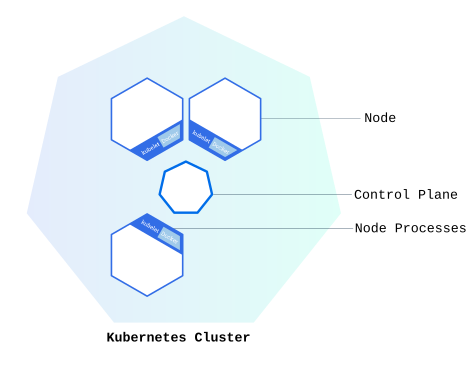
The Control Plane is responsible for managing the cluster. The Control Plane coordinates all activities in your cluster, such as scheduling applications, maintaining applications' desired state, scaling applications, and rolling out new updates.
A node is a VM or a physical computer that serves as a worker machine in a Kubernetes cluster. Each node has a Kubelet, which is an agent for managing the node and communicating with the Kubernetes control plane. The node should also have tools for handling container operations, such as containerd or CRI-O. A Kubernetes cluster that handles production traffic should have a minimum of three nodes because if one node goes down, both an etcd member and a control plane instance are lost, and redundancy is compromised. You can mitigate this risk by adding more control plane nodes.
When you deploy applications on Kubernetes, you tell the control plane to start the application containers. The control plane schedules the containers to run on the cluster's nodes. Node-level components, such as the kubelet, communicate with the control plane using the Kubernetes API, which the control plane exposes. End users can also use the Kubernetes API directly to interact with the cluster.
A Kubernetes cluster can be deployed on either physical or virtual machines. To get started with Kubernetes development, you can use Minikube. Minikube is a lightweight Kubernetes implementation that creates a VM on your local machine and deploys a simple cluster containing only one node. Minikube is available for Linux, macOS, and Windows systems. The Minikube CLI provides basic bootstrapping operations for working with your cluster, including start, stop, status, and delete.
The shell commands in this tutorial use POSIX shell syntax, which is supported by
the default shells on most Linux and macOS systems (for example, bash, zsh, or sh).
Windows users must use a POSIX-compatible shell such as
Windows Subsystem for Linux (WSL)
or Git Bash to run the commands as written.
Commands that use export, $(), and similar constructs are not compatible
with PowerShell or the Windows Command Prompt.
Once you have a running Kubernetes cluster, you can deploy your containerized applications on top of it. To do so, you create a Kubernetes Deployment. The Deployment instructs Kubernetes how to create and update instances of your application. Once you've created a Deployment, the Kubernetes control plane schedules the application instances included in that Deployment to run on individual Nodes in the cluster.
Once the application instances are created, a Kubernetes Deployment controller continuously monitors those instances. If the Node hosting an instance goes down or is deleted, the Deployment controller replaces the instance with an instance on another Node in the cluster. This provides a self-healing mechanism to address machine failure or maintenance.
In a pre-orchestration world, installation scripts would often be used to start applications, but they did not allow recovery from machine failure. By both creating your application instances and keeping them running across Nodes, Kubernetes Deployments provide a fundamentally different approach to application management.
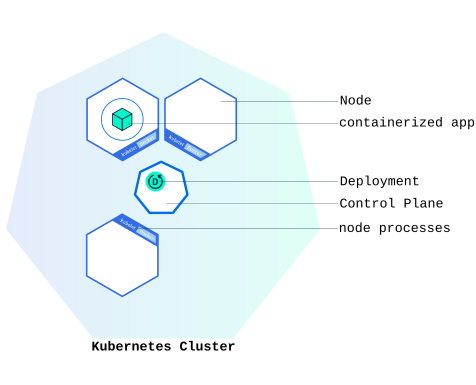
You can create and manage a Deployment by using the Kubernetes command line interface,
kubectl. kubectl uses the Kubernetes API to interact
with the cluster. In this module, you'll learn the most common kubectl commands
needed to create Deployments that run your applications on a Kubernetes cluster.
When you create a Deployment, you'll need to specify the container image for your application and the number of replicas that you want to run. You can change that information later by updating your Deployment; Module 5 and Module 6 of the bootcamp discuss how you can scale and update your Deployments.
For your first Deployment, you'll use a hello-node application packaged in a Docker container that uses NGINX to echo back all the requests. (If you didn't already try creating a hello-node application and deploying it using a container, you can do that first by following the instructions from the Hello Minikube tutorial.)
You will need to have installed kubectl as well. If you need to install it, visit install tools.
Now that you know what Deployments are, let's deploy our first app!
The common format of a kubectl command is: kubectl action resource.
This performs the specified action (like create, describe or delete) on the
specified resource (like node or deployment. You can use --help after the
subcommand to get additional info about possible parameters (for example: kubectl get nodes --help).
Check that kubectl is configured to talk to your cluster, by running the kubectl version command.
Check that kubectl is installed and that you can see both the client and the server versions.
To view the nodes in the cluster, run the kubectl get nodes command.
You see the available nodes. Later, Kubernetes will choose where to deploy our application based on Node available resources.
Let’s deploy our first app on Kubernetes with the kubectl create deployment command.
We need to provide the deployment name and app image location (include the full
repository url for images hosted outside Docker Hub).
kubectl create deployment kubernetes-bootcamp --image=gcr.io/google-samples/kubernetes-bootcamp:v1
Great! You just deployed your first application by creating a deployment. This performed a few things for you:
To list your deployments use the kubectl get deployments command:
kubectl get deployments
We see that there is 1 deployment running a single instance of your app. The instance is running inside a container on your node.
Pods that are running inside Kubernetes are running
on a private, isolated network. By default they are visible from other pods and services
within the same Kubernetes cluster, but not outside that network. When we use kubectl,
we're interacting through an API endpoint to communicate with our application.
We will cover other options on how to expose your application outside the Kubernetes
cluster later, in Module 4.
Also as a basic tutorial, we're not explaining what Pods are in any
detail here, it will be covered in later topics.
The kubectl proxy command can create a proxy that will forward communications
into the cluster-wide, private network. The proxy can be terminated by pressing
control-C and won't show any output while it's running.
You need to open a second terminal window to run the proxy.
kubectl proxy
We now have a connection between our host (the terminal) and the Kubernetes cluster. The proxy enables direct access to the API from these terminals.
You can see all those APIs hosted through the proxy endpoint. For example, we can
query the version directly through the API using the curl command:
curl http://localhost:8001/version
kubectl proxy that you started
above is running in the second terminal.The API server will automatically create an endpoint for each pod, based on the pod name, that is also accessible through the proxy.
First we need to get the Pod name, and we'll store it in the environment variable POD_NAME.
export POD_NAME=$(kubectl get pods -o go-template --template '{{range .items}}{{.metadata.name}}{{"\n"}}{{end}}')
echo Name of the Pod: $POD_NAME
You can access the Pod through the proxied API, by running:
curl http://localhost:8001/api/v1/namespaces/default/pods/$POD_NAME:8080/proxy/
In order for the new Deployment to be accessible without using the proxy, a Service is required which will be explained in Module 4.
The shell commands in this tutorial use POSIX shell syntax, which is supported by
the default shells on most Linux and macOS systems (for example, bash, zsh, or sh).
Windows users must use a POSIX-compatible shell such as
Windows Subsystem for Linux (WSL)
or Git Bash to run the commands as written.
Commands that use export, $(), and similar constructs are not compatible
with PowerShell or the Windows Command Prompt.
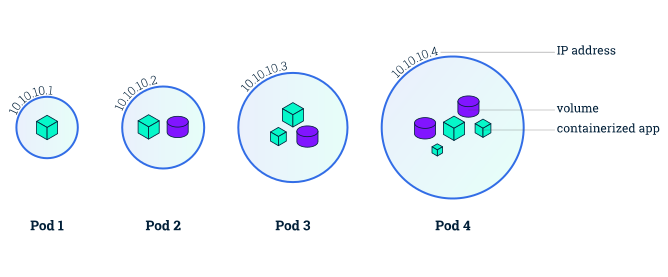
When you created a Deployment in Module 2, Kubernetes created a Pod to host your application instance. A Pod is a Kubernetes abstraction that represents a group of one or more application containers (such as Docker), and some shared resources for those containers. Those resources include:
A Pod models an application-specific "logical host" and can contain different application containers which are relatively tightly coupled. For example, a Pod might include both the container with your Node.js app as well as a different container that feeds the data to be published by the Node.js webserver. The containers in a Pod share an IP Address and port space, are always co-located and co-scheduled, and run in a shared context on the same Node.
Pods are the atomic unit on the Kubernetes platform. When we create a Deployment on Kubernetes, that Deployment creates Pods with containers inside them (as opposed to creating containers directly). Each Pod is tied to the Node where it is scheduled, and remains there until termination (according to restart policy) or deletion. In case of a Node failure, identical Pods are scheduled on other available Nodes in the cluster.
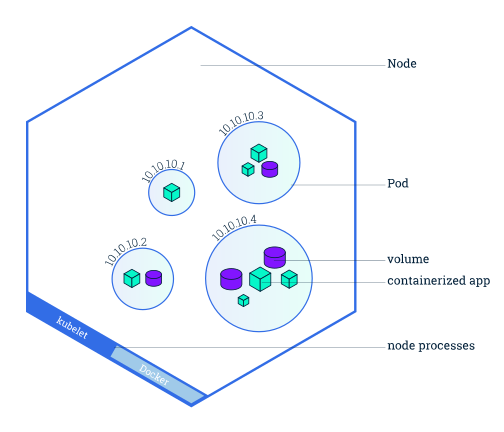
A Pod always runs on a Node. A Node is a worker machine in Kubernetes and may be either a virtual or a physical machine, depending on the cluster. Each Node is managed by the control plane. A Node can have multiple pods, and the Kubernetes control plane automatically handles scheduling the pods across the Nodes in the cluster. The control plane's automatic scheduling takes into account the available resources on each Node.
Every Kubernetes Node runs at least:
Kubelet, a process responsible for communication between the Kubernetes control plane and the Node; it manages the Pods and the containers running on a machine.
A container runtime (like Docker) responsible for pulling the container image from a registry, unpacking the container, and running the application.
In Module 2, you used the kubectl command-line interface. You'll continue to use it in Module 3 to get information about deployed applications and their environments. The most common operations can be done with the following kubectl subcommands:
kubectl get - list resourceskubectl describe - show detailed information about a resourcekubectl logs - print the logs from a container in a podkubectl exec - execute a command on a container in a podYou can use these commands to see when applications were deployed, what their current statuses are, where they are running and what their configurations are.
Now that we know more about our cluster components and the command line, let's explore our application.
Let's verify that the application we deployed in the previous scenario is running.
We'll use the kubectl get command and look for existing Pods:
kubectl get pods
If no pods are running, please wait a couple of seconds and list the Pods again. You can continue once you see one Pod running.
Next, to view what containers are inside that Pod and what images are used to build
those containers we run the kubectl describe pods command:
kubectl describe pods
We see here details about the Pod’s container: IP address, the ports used and a list of events related to the lifecycle of the Pod.
The output of the describe subcommand is extensive and covers some concepts that
we didn’t explain yet, but don’t worry, they will become familiar by the end of this tutorial.
describe subcommand can be used to get detailed information about most of the
Kubernetes primitives, including Nodes, Pods, and Deployments. The describe output is
designed to be human readable, not to be scripted against.Recall that Pods are running in an isolated, private network - so we need to proxy access
to them so we can debug and interact with them. To do this, we'll use the kubectl proxy
command to run a proxy in a second terminal. Open a new terminal window, and
in that new terminal, run:
kubectl proxy
Now again, we'll get the Pod name and query that pod directly through the proxy.
To get the Pod name and store it in the POD_NAME environment variable:
export POD_NAME="$(kubectl get pods -o go-template --template '{{range .items}}{{.metadata.name}}{{"\n"}}{{end}}')"
echo Name of the Pod: $POD_NAME
To see the output of our application, run a curl request:
curl http://localhost:8001/api/v1/namespaces/default/pods/$POD_NAME:8080/proxy/
The URL is the route to the API of the Pod.
We can execute commands directly on the container once the Pod is up and running.
For this, we use the exec subcommand and use the name of the Pod as a parameter.
Let’s list the environment variables:
kubectl exec "$POD_NAME" -- env
Again, it's worth mentioning that the name of the container itself can be omitted since we only have a single container in the Pod.
Next let’s start a bash session in the Pod’s container:
kubectl exec -ti $POD_NAME -- bash
We have now an open console on the container where we run our NodeJS application.
The source code of the app is in the server.js file:
cat server.js
You can check that the application is up by running a curl command:
curl http://localhost:8080
localhost because we executed the command inside the NodeJS Pod.
If you cannot connect to localhost:8080, check to make sure you have run the
kubectl exec command and are launching the command from within the Pod.To close your container connection, type exit.
The shell commands in this tutorial use POSIX shell syntax, which is supported by
the default shells on most Linux and macOS systems (for example, bash, zsh, or sh).
Windows users must use a POSIX-compatible shell such as
Windows Subsystem for Linux (WSL)
or Git Bash to run the commands as written.
Commands that use export, $(), and similar constructs are not compatible
with PowerShell or the Windows Command Prompt.
Kubernetes Pods are mortal. Pods have a lifecycle. When a worker node dies, the Pods running on the Node are also lost. A Replicaset might then dynamically drive the cluster back to the desired state via the creation of new Pods to keep your application running. As another example, consider an image-processing backend with 3 replicas. Those replicas are exchangeable; the front-end system should not care about backend replicas or even if a Pod is lost and recreated. That said, each Pod in a Kubernetes cluster has a unique IP address, even Pods on the same Node, so there needs to be a way of automatically reconciling changes among Pods so that your applications continue to function.
A Service in Kubernetes is an abstraction
which defines a logical set of Pods and a policy by which to access them. Services
enable a loose coupling between dependent Pods. A Service is defined using YAML or JSON,
like all Kubernetes object manifests. The set of Pods targeted by a Service is usually
determined by a label selector (see below for why you might want a Service without
including a selector in the spec).
Although each Pod has a unique IP address, those IPs are not exposed outside the
cluster without a Service. Services allow your applications to receive traffic.
Services can be exposed in different ways by specifying a type in the spec of the Service:
ClusterIP (default) - Exposes the Service on an internal IP in the cluster. This type makes the Service only reachable from within the cluster.
NodePort - Exposes the Service on the same port of each selected Node in the cluster using NAT.
Makes a Service accessible from outside the cluster using NodeIP:NodePort. Superset of ClusterIP.
LoadBalancer - Creates an external load balancer in the current cloud (if supported) and assigns a fixed, external IP to the Service. Superset of NodePort.
ExternalName - Maps the Service to the contents of the externalName field
(e.g. foo.bar.example.com), by returning a CNAME record with its value.
No proxying of any kind is set up. This type requires v1.7 or higher of kube-dns,
or CoreDNS version 0.0.8 or higher.
More information about the different types of Services can be found in the Using Source IP tutorial. Also see Connecting Applications with Services.
Additionally, note that there are some use cases with Services that involve not defining
a selector in the spec. A Service created without selector will also not create
the corresponding Endpoints object. This allows users to manually map a Service to
specific endpoints. Another possibility why there may be no selector is you are strictly
using type: ExternalName.
A Service routes traffic across a set of Pods. Services are the abstraction that allows pods to die and replicate in Kubernetes without impacting your application. Discovery and routing among dependent Pods (such as the frontend and backend components in an application) are handled by Kubernetes Services.
Services match a set of Pods using labels and selectors, a grouping primitive that allows logical operation on objects in Kubernetes. Labels are key/value pairs attached to objects and can be used in any number of ways:
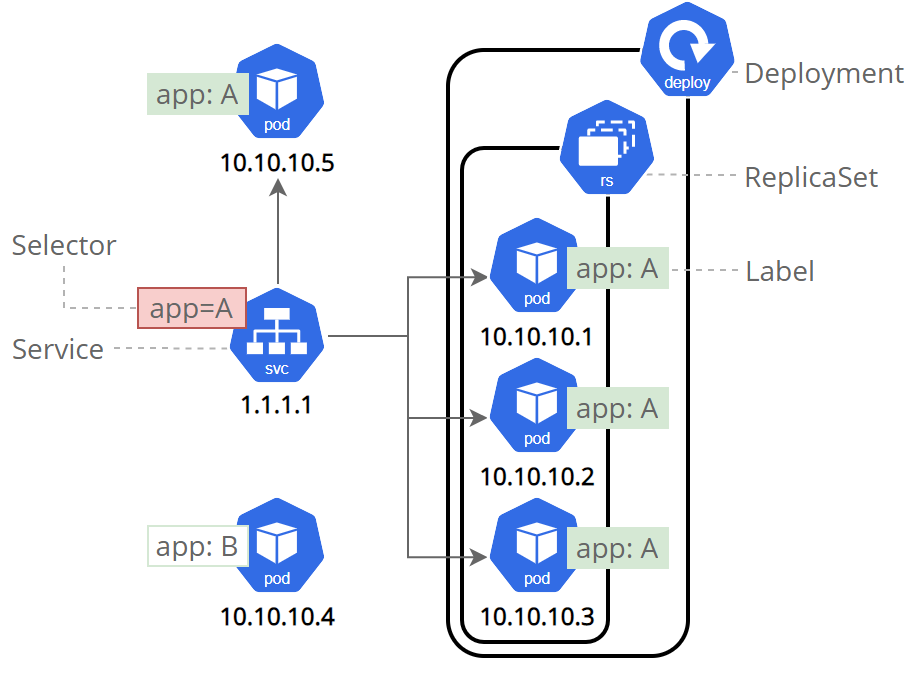
Labels can be attached to objects at creation time or later on. They can be modified at any time. Let's expose our application now using a Service and apply some labels.
Let’s verify that our application is running. We’ll use the kubectl get command
and look for existing Pods:
kubectl get pods
If no Pods are running then it means the objects from the previous tutorials were cleaned up. In this case, go back and recreate the deployment from the Using kubectl to create a Deployment tutorial. Please wait a couple of seconds and list the Pods again. You can continue once you see the one Pod running.
Next, let’s list the current Services from our cluster:
kubectl get services
To expose the deployment to external traffic, we'll use the kubectl expose command with the --type=NodePort option:
kubectl expose deployment/kubernetes-bootcamp --type="NodePort" --port 8080
We have now a running Service called kubernetes-bootcamp. Here we see that the Service received a unique cluster-IP, an internal port and an external-IP (the IP of the Node).
To find out what port was opened externally (for the type: NodePort Service) we’ll
run the describe service subcommand:
kubectl describe services/kubernetes-bootcamp
Create an environment variable called NODE_PORT that has the value of the Node
port assigned:
export NODE_PORT="$(kubectl get services/kubernetes-bootcamp -o go-template='{{(index .spec.ports 0).nodePort}}')"
echo "NODE_PORT=$NODE_PORT"
Now we can test that the app is exposed outside of the cluster using curl, the
IP address of the Node and the externally exposed port:
curl http://"$(minikube ip):$NODE_PORT"
If you're running minikube with Docker Desktop as the container driver, a minikube tunnel is needed. This is because containers inside Docker Desktop are isolated from your host computer.
In a separate terminal window, execute:
minikube service kubernetes-bootcamp --url
The output looks like this:
http://127.0.0.1:51082
!  Because you are using a Docker driver on darwin, the terminal needs to be open to run it.
Then use the given URL to access the app:
curl 127.0.0.1:51082
And we get a response from the server. The Service is exposed.
The Deployment created automatically a label for our Pod. With the describe deployment
subcommand you can see the name (the key) of that label:
kubectl describe deployment
Let’s use this label to query our list of Pods. We’ll use the kubectl get pods
command with -l as a parameter, followed by the label values:
kubectl get pods -l app=kubernetes-bootcamp
You can do the same to list the existing Services:
kubectl get services -l app=kubernetes-bootcamp
Get the name of the Pod and store it in the POD_NAME environment variable:
export POD_NAME="$(kubectl get pods -o go-template --template '{{range .items}}{{.metadata.name}}{{"\n"}}{{end}}')"
echo "Name of the Pod: $POD_NAME"
To apply a new label we use the label subcommand followed by the object type, object name and the new label:
kubectl label pods "$POD_NAME" version=v1
This will apply a new label to our Pod (we pinned the application version to the Pod),
and we can check it with the describe pod command:
kubectl describe pods "$POD_NAME"
We see here that the label is attached now to our Pod. And we can query now the list of pods using the new label:
kubectl get pods -l version=v1
And we see the Pod.
To delete Services you can use the delete service subcommand. Labels can be used
also here:
kubectl delete service -l app=kubernetes-bootcamp
Confirm that the Service is gone:
kubectl get services
This confirms that our Service was removed. To confirm that route is not exposed
anymore you can curl the previously exposed IP and port:
curl http://"$(minikube ip):$NODE_PORT"
This proves that the application is not reachable anymore from outside of the cluster.
You can confirm that the app is still running with a curl from inside the pod:
kubectl exec -ti $POD_NAME -- curl http://localhost:8080
We see here that the application is up. This is because the Deployment is managing the application. To shut down the application, you would need to delete the Deployment as well.
The shell commands in this tutorial use POSIX shell syntax, which is supported by
the default shells on most Linux and macOS systems (for example, bash, zsh, or sh).
Windows users must use a POSIX-compatible shell such as
Windows Subsystem for Linux (WSL)
or Git Bash to run the commands as written.
Commands that use export, $(), and similar constructs are not compatible
with PowerShell or the Windows Command Prompt.
Previously we created a Deployment, and then exposed it publicly via a Service. The Deployment created only one Pod for running our application. When traffic increases, we will need to scale the application to keep up with user demand.
If you haven't worked through the earlier sections, start from Using minikube to create a cluster.
Scaling is accomplished by changing the number of replicas in a Deployment.
If you are trying this after the
previous section, then you
may have deleted the service you created, or have created a Service of type: NodePort.
In this section, it is assumed that a service with type: LoadBalancer is created
for the kubernetes-bootcamp Deployment.
If you have not deleted the Service created in
the previous section,
first delete that Service and then run the following command to create a new Service
with its type set to LoadBalancer:
kubectl expose deployment/kubernetes-bootcamp --type="LoadBalancer" --port 8080
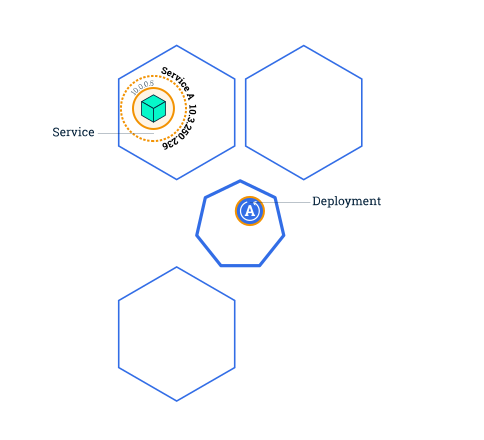
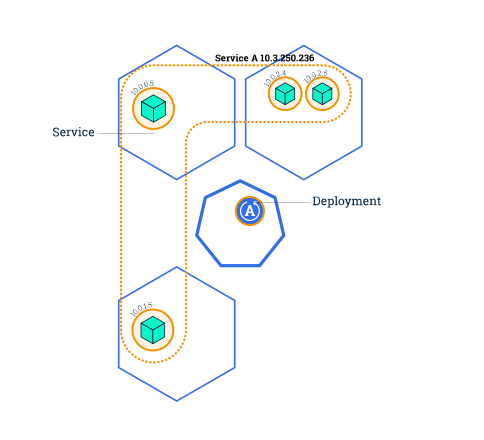
Scaling out a Deployment will ensure new Pods are created and scheduled to Nodes with available resources. Scaling will increase the number of Pods to the new desired state. Kubernetes also supports autoscaling of Pods, but it is outside of the scope of this tutorial. Scaling to zero is also possible, and it will terminate all Pods of the specified Deployment.
Running multiple instances of an application will require a way to distribute the traffic to all of them. Services have an integrated load-balancer that will distribute network traffic to all Pods of an exposed Deployment. Services will monitor continuously the running Pods using endpoints, to ensure the traffic is sent only to available Pods.
Once you have multiple instances of an application running, you would be able to do Rolling updates without downtime. We'll cover that in the next section of the tutorial. Now, let's go to the terminal and scale our application.
To list your Deployments, use the get deployments subcommand:
kubectl get deployments
The output should be similar to:
NAME                  READY   UP-TO-DATE   AVAILABLE   AGE
kubernetes-bootcamp   1/1     1            1           11m
We should have 1 Pod. If not, run the command again. This shows:
To see the ReplicaSet created by the Deployment, run:
kubectl get rs
Notice that the name of the ReplicaSet is always formatted as
Two important columns of this output are:
Next, let’s scale the Deployment to 4 replicas. We’ll use the kubectl scale command,
followed by the Deployment type, name and desired number of instances:
kubectl scale deployments/kubernetes-bootcamp --replicas=4
To list your Deployments once again, use get deployments:
kubectl get deployments
The change was applied, and we have 4 instances of the application available. Next, let’s check if the number of Pods changed:
kubectl get pods -o wide
There are 4 Pods now, with different IP addresses. The change was registered in
the Deployment events log. To check that, use the describe subcommand:
kubectl describe deployments/kubernetes-bootcamp
You can also view in the output of this command that there are 4 replicas now.
Let's check that the Service is load-balancing the traffic. To find out the exposed
IP and Port we can use describe service as we learned in the previous part of the tutorial:
kubectl describe services/kubernetes-bootcamp
Create an environment variable called NODE_PORT that has a value as the Node port:
export NODE_PORT="$(kubectl get services/kubernetes-bootcamp -o go-template='{{(index .spec.ports 0).nodePort}}')"
echo NODE_PORT=$NODE_PORT
Next, we’ll do a curl to the exposed IP address and port. Execute the command multiple times:
curl http://"$(minikube ip):$NODE_PORT"
We hit a different Pod with every request. This demonstrates that the load-balancing is working.
The output should be similar to:
Hello Kubernetes bootcamp! | Running on: kubernetes-bootcamp-644c5687f4-wp67j | v=1
Hello Kubernetes bootcamp! | Running on: kubernetes-bootcamp-644c5687f4-hs9dj | v=1
Hello Kubernetes bootcamp! | Running on: kubernetes-bootcamp-644c5687f4-4hjvf | v=1
Hello Kubernetes bootcamp! | Running on: kubernetes-bootcamp-644c5687f4-wp67j | v=1
Hello Kubernetes bootcamp! | Running on: kubernetes-bootcamp-644c5687f4-4hjvf | v=1
If you're running minikube with Docker Desktop as the container driver, a minikube tunnel is needed. This is because containers inside Docker Desktop are isolated from your host computer.
In a separate terminal window, execute:
minikube service kubernetes-bootcamp --url
The output looks like this:
http://127.0.0.1:51082
!  Because you are using a Docker driver on darwin, the terminal needs to be open to run it.
Then use the given URL to access the app:
curl 127.0.0.1:51082
To scale down the Deployment to 2 replicas, run again the scale subcommand:
kubectl scale deployments/kubernetes-bootcamp --replicas=2
List the Deployments to check if the change was applied with the get deployments subcommand:
kubectl get deployments
The number of replicas decreased to 2. List the number of Pods, with get pods:
kubectl get pods -o wide
This confirms that 2 Pods were terminated.
Perform a rolling update using kubectl.
The shell commands in this tutorial use POSIX shell syntax, which is supported by
the default shells on most Linux and macOS systems (for example, bash, zsh, or sh).
Windows users must use a POSIX-compatible shell such as
Windows Subsystem for Linux (WSL)
or Git Bash to run the commands as written.
Commands that use export, $(), and similar constructs are not compatible
with PowerShell or the Windows Command Prompt.
Users expect applications to be available all the time, and developers are expected to deploy new versions of them several times a day. In Kubernetes this is done with rolling updates. A rolling update allows a Deployment update to take place with zero downtime. It does this by incrementally replacing the current Pods with new ones. The new Pods are scheduled on Nodes with available resources, and Kubernetes waits for those new Pods to start before removing the old Pods.
In the previous module we scaled our application to run multiple instances. This is a requirement for performing updates without affecting application availability. By default, the maximum number of Pods that can be unavailable during the update and the maximum number of new Pods that can be created, is one. Both options can be configured to either numbers or percentages (of Pods). In Kubernetes, updates are versioned and any Deployment update can be reverted to a previous (stable) version.
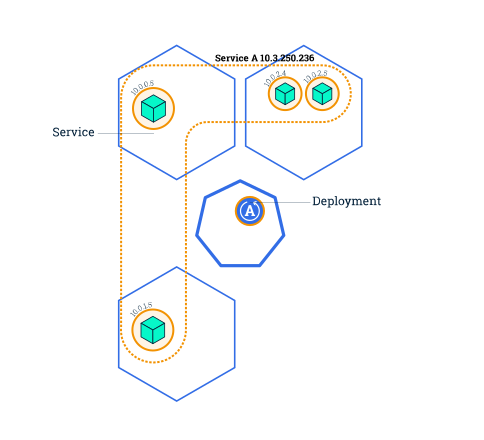
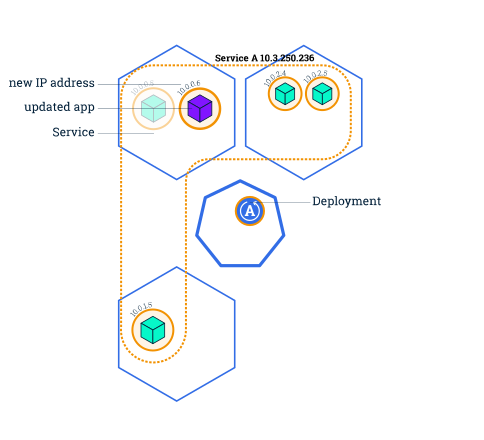
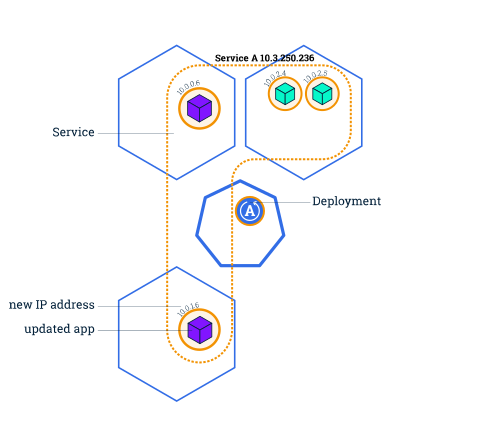
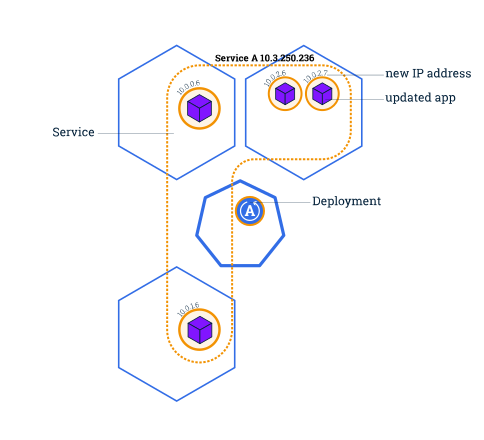
During a rolling update, this behavior keeps the application available by routing traffic only to Pods that are serving requests. Rolling updates allow the following actions:
In the following interactive tutorial, we'll update our application to a new version, and also perform a rollback.
To list your Deployments, run the get deployments subcommand:
kubectl get deployments
To list the running Pods, run the get pods subcommand:
kubectl get pods
To view the current image version of the app, run the describe pods subcommand
and look for the Image field:
kubectl describe pods
To update the image of the application to version 2, use the set image subcommand,
followed by the deployment name and the new image version:
kubectl set image deployments/kubernetes-bootcamp kubernetes-bootcamp=docker.io/jocatalin/kubernetes-bootcamp:v2
The command notified the Deployment to use a different image for your app and initiated
a rolling update. Check the status of the new Pods, and view the old one terminating
with the get pods subcommand:
kubectl get pods
First, check that the service is running, as you might have deleted it in previous
tutorial step, run describe services/kubernetes-bootcamp. If it's missing,
you can create it again with:
kubectl expose deployment/kubernetes-bootcamp --type="NodePort" --port 8080
Create an environment variable called NODE_PORT that has the value of the Node
port assigned:
export NODE_PORT="$(kubectl get services/kubernetes-bootcamp -o go-template='{{(index .spec.ports 0).nodePort}}')"
echo "NODE_PORT=$NODE_PORT"
Next, do a curl to the exposed IP and port:
curl http://"$(minikube ip):$NODE_PORT"
Every time you run the curl command, you will hit a different Pod. Notice that
all Pods are now running the latest version (v2).
You can also confirm the update by running the rollout status subcommand:
kubectl rollout status deployments/kubernetes-bootcamp
To view the current image version of the app, run the describe pods subcommand:
kubectl describe pods
In the Image field of the output, verify that you are running the latest image
version (v2).
Let’s perform another update, and try to deploy an image tagged with v10:
kubectl set image deployments/kubernetes-bootcamp kubernetes-bootcamp=gcr.io/google-samples/kubernetes-bootcamp:v10
Use get deployments to see the status of the deployment:
kubectl get deployments
Notice that the output doesn't list the desired number of available Pods. Run the
get pods subcommand to list all Pods:
kubectl get pods
Notice that some of the Pods have a status of ImagePullBackOff.
To get more insight into the problem, run the describe pods subcommand:
kubectl describe pods
In the Events section of the output for the affected Pods, notice that the v10
image version did not exist in the repository.
To roll back the deployment to your last working version, use the rollout undo
subcommand:
kubectl rollout undo deployments/kubernetes-bootcamp
The rollout undo command reverts the deployment to the previous known state
(v2 of the image). Updates are versioned and you can revert to any previously
known state of a Deployment.
Use the get pods subcommand to list the Pods again:
kubectl get pods
To check the image deployed on the running Pods, use the describe pods subcommand:
kubectl describe pods
The Deployment is once again using a stable version of the app (v2). The rollback
was successful.
Remember to clean up your local cluster.
kubectl delete deployments/kubernetes-bootcamp services/kubernetes-bootcamp
This page provides a step-by-step example of updating configuration within a Pod via a ConfigMap
and builds upon the Configure a Pod to Use a ConfigMap task.
At the end of this tutorial, you will understand how to change the configuration for a running application.
This tutorial uses the alpine and nginx images as examples.
You need to have a Kubernetes cluster, and the kubectl command-line tool must be configured to communicate with your cluster. It is recommended to run this tutorial on a cluster with at least two nodes that are not acting as control plane hosts. If you do not already have a cluster, you can create one by using minikube or you can use one of these Kubernetes playgrounds:
You need to have the curl command-line tool for making HTTP requests from
the terminal or command prompt. If you do not have curl available, you can install it. Check the
documentation for your local operating system.
Use the kubectl create configmap command to create a ConfigMap from
literal values:
kubectl create configmap sport --from-literal=sport=football
Below is an example of a Deployment manifest with the ConfigMap sport mounted as a
volume into the Pod's only container.
apiVersion: apps/v1
kind: Deployment
metadata:
  name: configmap-volume
  labels:
    app.kubernetes.io/name: configmap-volume
spec:
  replicas: 3
  selector:
    matchLabels:
      app.kubernetes.io/name: configmap-volume
  template:
    metadata:
      labels:
        app.kubernetes.io/name: configmap-volume
    spec:
      containers:
        - name: alpine
          image: alpine:3
          command:
            - /bin/sh
            - -c
            - while true; do echo "$(date) My preferred sport is $(cat /etc/config/sport)";
              sleep 10; done;
          ports:
            - containerPort: 80
          volumeMounts:
            - name: config-volume
              mountPath: /etc/config
      volumes:
        - name: config-volume
          configMap:
            name: sport
Create the Deployment:
kubectl apply -f https://k8s.io/examples/deployments/deployment-with-configmap-as-volume.yaml
Check the pods for this Deployment to ensure they are ready (matching by selector):
kubectl get pods --selector=app.kubernetes.io/name=configmap-volume
You should see an output similar to:
NAME                                READY   STATUS    RESTARTS   AGE
configmap-volume-6b976dfdcf-qxvbm   1/1     Running   0          72s
configmap-volume-6b976dfdcf-skpvm   1/1     Running   0          72s
configmap-volume-6b976dfdcf-tbc6r   1/1     Running   0          72s
On each node where one of these Pods is running, the kubelet fetches the data for that ConfigMap and translates it to files in a local volume. The kubelet then mounts that volume into the container, as specified in the Pod template. The code running in that container loads the information from the file and uses it to print a report to stdout. You can check this report by viewing the logs for one of the Pods in that Deployment:
# Pick one Pod that belongs to the Deployment, and view its logs
kubectl logs deployments/configmap-volume
You should see an output similar to:
Found 3 pods, using pod/configmap-volume-76d9c5678f-x5rgj
Thu Jan  4 14:06:46 UTC 2024 My preferred sport is football
Thu Jan  4 14:06:56 UTC 2024 My preferred sport is football
Thu Jan  4 14:07:06 UTC 2024 My preferred sport is football
Thu Jan  4 14:07:16 UTC 2024 My preferred sport is football
Thu Jan  4 14:07:26 UTC 2024 My preferred sport is football
Edit the ConfigMap:
kubectl edit configmap sport
In the editor that appears, change the value of key sport from football to cricket. Save your changes.
The kubectl tool updates the ConfigMap accordingly (if you see an error, try again).
Here's an example of how that manifest could look after you edit it:
apiVersion: v1
data:
  sport: cricket
kind: ConfigMap
# You can leave the existing metadata as they are.
# The values you'll see won't exactly match these.
metadata:
  creationTimestamp: "2024-01-04T14:05:06Z"
  name: sport
  namespace: default
  resourceVersion: "1743935"
  uid: 024ee001-fe72-487e-872e-34d6464a8a23
You should see the following output:
configmap/sport edited
Tail (follow the latest entries in) the logs of one of the pods that belongs to this Deployment:
kubectl logs deployments/configmap-volume --follow
After few seconds, you should see the log output change as follows:
Thu Jan  4 14:11:36 UTC 2024 My preferred sport is football
Thu Jan  4 14:11:46 UTC 2024 My preferred sport is football
Thu Jan  4 14:11:56 UTC 2024 My preferred sport is football
Thu Jan  4 14:12:06 UTC 2024 My preferred sport is cricket
Thu Jan  4 14:12:16 UTC 2024 My preferred sport is cricket
When you have a ConfigMap that is mapped into a running Pod using either a
configMap volume or a projected volume, and you update that ConfigMap,
the running Pod sees the update almost immediately.
However, your application only sees the change if it is written to either poll for changes,
or watch for file updates.
An application that loads its configuration once at startup will not notice a change.
Use the kubectl create configmap command to create a ConfigMap from
literal values:
kubectl create configmap fruits --from-literal=fruits=apples
Below is an example of a Deployment manifest with an environment variable configured via the ConfigMap fruits.
apiVersion: apps/v1
kind: Deployment
metadata:
  name: configmap-env-var
  labels:
    app.kubernetes.io/name: configmap-env-var
spec:
  replicas: 3
  selector:
    matchLabels:
      app.kubernetes.io/name: configmap-env-var
  template:
    metadata:
      labels:
        app.kubernetes.io/name: configmap-env-var
    spec:
      containers:
        - name: alpine
          image: alpine:3
          env:
            - name: FRUITS
              valueFrom:
                configMapKeyRef:
                  key: fruits
                  name: fruits
          command:
            - /bin/sh
            - -c
            - while true; do echo "$(date) The basket is full of $FRUITS";
                sleep 10; done;
          ports:
            - containerPort: 80
Create the Deployment:
kubectl apply -f https://k8s.io/examples/deployments/deployment-with-configmap-as-envvar.yaml
Check the pods for this Deployment to ensure they are ready (matching by selector):
kubectl get pods --selector=app.kubernetes.io/name=configmap-env-var
You should see an output similar to:
NAME                                 READY   STATUS    RESTARTS   AGE
configmap-env-var-59cfc64f7d-74d7z   1/1     Running   0          46s
configmap-env-var-59cfc64f7d-c4wmj   1/1     Running   0          46s
configmap-env-var-59cfc64f7d-dpr98   1/1     Running   0          46s
The key-value pair in the ConfigMap is configured as an environment variable in the container of the Pod. Check this by viewing the logs of one Pod that belongs to the Deployment.
kubectl logs deployment/configmap-env-var
You should see an output similar to:
Found 3 pods, using pod/configmap-env-var-7c994f7769-l74nq
Thu Jan  4 16:07:06 UTC 2024 The basket is full of apples
Thu Jan  4 16:07:16 UTC 2024 The basket is full of apples
Thu Jan  4 16:07:26 UTC 2024 The basket is full of apples
Edit the ConfigMap:
kubectl edit configmap fruits
In the editor that appears, change the value of key fruits from apples to mangoes. Save your changes.
The kubectl tool updates the ConfigMap accordingly (if you see an error, try again).
Here's an example of how that manifest could look after you edit it:
apiVersion: v1
data:
  fruits: mangoes
kind: ConfigMap
# You can leave the existing metadata as they are.
# The values you'll see won't exactly match these.
metadata:
  creationTimestamp: "2024-01-04T16:04:19Z"
  name: fruits
  namespace: default
  resourceVersion: "1749472"
You should see the following output:
configmap/fruits edited
Tail the logs of the Deployment and observe the output for few seconds:
# As the text explains, the output does NOT change
kubectl logs deployments/configmap-env-var --follow
Notice that the output remains unchanged, even though you edited the ConfigMap:
Thu Jan  4 16:12:56 UTC 2024 The basket is full of apples
Thu Jan  4 16:13:06 UTC 2024 The basket is full of apples
Thu Jan  4 16:13:16 UTC 2024 The basket is full of apples
Thu Jan  4 16:13:26 UTC 2024 The basket is full of apples
You can trigger that replacement. Perform a rollout for the Deployment, using
kubectl rollout:
# Trigger the rollout
kubectl rollout restart deployment configmap-env-var

# Wait for the rollout to complete
kubectl rollout status deployment configmap-env-var --watch=true
Next, check the Deployment:
kubectl get deployment configmap-env-var
You should see an output similar to:
NAME                READY   UP-TO-DATE   AVAILABLE   AGE
configmap-env-var   3/3     3            3           12m
Check the Pods:
kubectl get pods --selector=app.kubernetes.io/name=configmap-env-var
The rollout causes Kubernetes to make a new ReplicaSet for the Deployment; that means the existing Pods eventually terminate, and new ones are created. After few seconds, you should see an output similar to:
NAME                                 READY   STATUS        RESTARTS   AGE
configmap-env-var-6d94d89bf5-2ph2l   1/1     Running       0          13s
configmap-env-var-6d94d89bf5-74twx   1/1     Running       0          8s
configmap-env-var-6d94d89bf5-d5vx8   1/1     Running       0          11s
View the logs for a Pod in this Deployment:
# Pick one Pod that belongs to the Deployment, and view its logs
kubectl logs deployment/configmap-env-var
You should see an output similar to the below:
Found 3 pods, using pod/configmap-env-var-6d9ff89fb6-bzcf6
Thu Jan  4 16:30:35 UTC 2024 The basket is full of mangoes
Thu Jan  4 16:30:45 UTC 2024 The basket is full of mangoes
Thu Jan  4 16:30:55 UTC 2024 The basket is full of mangoes
This demonstrates the scenario of updating environment variables in a Pod that are derived from a ConfigMap. Changes to the ConfigMap values are applied to the Pod during the subsequent rollout. If Pods get created for another reason, such as scaling up the Deployment, then the new Pods also use the latest configuration values; if you don't trigger a rollout, then you might find that your app is running with a mix of old and new environment variable values.
Use the kubectl create configmap command to create a ConfigMap from
literal values:
kubectl create configmap color --from-literal=color=red
Below is an example manifest for a Deployment that manages a set of Pods, each with two containers.
The two containers share an emptyDir volume that they use to communicate.
The first container runs a web server (nginx). The mount path for the shared volume in the
web server container is /usr/share/nginx/html. The second helper container is based on alpine,
and for this container the emptyDir volume is mounted at /pod-data. The helper container writes
a file in HTML that has its content based on a ConfigMap. The web server container serves the HTML via HTTP.
apiVersion: apps/v1
kind: Deployment
metadata:
  name: configmap-two-containers
  labels:
    app.kubernetes.io/name: configmap-two-containers
spec:
  replicas: 3
  selector:
    matchLabels:
      app.kubernetes.io/name: configmap-two-containers
  template:
    metadata:
      labels:
        app.kubernetes.io/name: configmap-two-containers
    spec:
      volumes:
        - name: shared-data
          emptyDir: {}
        - name: config-volume
          configMap:
            name: color
      containers:
        - name: nginx
          image: nginx
          volumeMounts:
            - name: shared-data
              mountPath: /usr/share/nginx/html
        - name: alpine
          image: alpine:3
          volumeMounts:
            - name: shared-data
              mountPath: /pod-data
            - name: config-volume
              mountPath: /etc/config
          command:
            - /bin/sh
            - -c
            - while true; do echo "$(date) My preferred color is $(cat /etc/config/color)" > /pod-data/index.html;
              sleep 10; done;
Create the Deployment:
kubectl apply -f https://k8s.io/examples/deployments/deployment-with-configmap-two-containers.yaml
Check the pods for this Deployment to ensure they are ready (matching by selector):
kubectl get pods --selector=app.kubernetes.io/name=configmap-two-containers
You should see an output similar to:
NAME                                        READY   STATUS    RESTARTS   AGE
configmap-two-containers-565fb6d4f4-2xhxf   2/2     Running   0          20s
configmap-two-containers-565fb6d4f4-g5v4j   2/2     Running   0          20s
configmap-two-containers-565fb6d4f4-mzsmf   2/2     Running   0          20s
Expose the Deployment (the kubectl tool creates a
Service for you):
kubectl expose deployment configmap-two-containers --name=configmap-service --port=8080 --target-port=80
Use kubectl to forward the port:
# this stays running in the background
kubectl port-forward service/configmap-service 8080:8080 &
Access the service.
curl http://localhost:8080
You should see an output similar to:
Fri Jan 5 08:08:22 UTC 2024 My preferred color is red
Edit the ConfigMap:
kubectl edit configmap color
In the editor that appears, change the value of key color from red to blue. Save your changes.
The kubectl tool updates the ConfigMap accordingly (if you see an error, try again).
Here's an example of how that manifest could look after you edit it:
apiVersion: v1
data:
  color: blue
kind: ConfigMap
# You can leave the existing metadata as they are.
# The values you'll see won't exactly match these.
metadata:
  creationTimestamp: "2024-01-05T08:12:05Z"
  name: color
  namespace: configmap
  resourceVersion: "1801272"
  uid: 80d33e4a-cbb4-4bc9-ba8c-544c68e425d6
Loop over the service URL for few seconds.
# Cancel this when you're happy with it (Ctrl-C)
while true; do curl --connect-timeout 7.5 http://localhost:8080; sleep 10; done
You should see the output change as follows:
Fri Jan  5 08:14:00 UTC 2024 My preferred color is red
Fri Jan  5 08:14:02 UTC 2024 My preferred color is red
Fri Jan  5 08:14:20 UTC 2024 My preferred color is red
Fri Jan  5 08:14:22 UTC 2024 My preferred color is red
Fri Jan  5 08:14:32 UTC 2024 My preferred color is blue
Fri Jan  5 08:14:43 UTC 2024 My preferred color is blue
Fri Jan  5 08:15:00 UTC 2024 My preferred color is blue
The above scenario can be replicated by using a Sidecar Container
as a helper container to write the HTML file.
As a Sidecar Container is conceptually an Init Container, it is guaranteed to start before the main web server container.
This ensures that the HTML file is always available when the web server is ready to serve it.
If you are continuing from the previous scenario, you can reuse the ConfigMap named color for this scenario.
If you are executing this scenario independently, use the kubectl create configmap command to create a ConfigMap
from literal values:
kubectl create configmap color --from-literal=color=blue
Below is an example manifest for a Deployment that manages a set of Pods, each with a main container and
a sidecar container. The two containers share an emptyDir volume that they use to communicate.
The main container runs a web server (NGINX). The mount path for the shared volume in the web server container
is /usr/share/nginx/html. The second container is a Sidecar Container based on Alpine Linux which acts as
a helper container. For this container the emptyDir volume is mounted at /pod-data. The Sidecar Container
writes a file in HTML that has its content based on a ConfigMap. The web server container serves the HTML via HTTP.
apiVersion: apps/v1
kind: Deployment
metadata:
  name: configmap-sidecar-container
  labels:
    app.kubernetes.io/name: configmap-sidecar-container
spec:
  replicas: 3
  selector:
    matchLabels:
      app.kubernetes.io/name: configmap-sidecar-container
  template:
    metadata:
      labels:
        app.kubernetes.io/name: configmap-sidecar-container
    spec:
      volumes:
        - name: shared-data
          emptyDir: {}
        - name: config-volume
          configMap:
            name: color
      containers:
        - name: nginx
          image: nginx
          volumeMounts:
            - name: shared-data
              mountPath: /usr/share/nginx/html
      initContainers:
        - name: alpine
          image: alpine:3
          restartPolicy: Always
          volumeMounts:
            - name: shared-data
              mountPath: /pod-data
            - name: config-volume
              mountPath: /etc/config
          command:
            - /bin/sh
            - -c
            - while true; do echo "$(date) My preferred color is $(cat /etc/config/color)" > /pod-data/index.html;
              sleep 10; done;
Create the Deployment:
kubectl apply -f https://k8s.io/examples/deployments/deployment-with-configmap-and-sidecar-container.yaml
Check the pods for this Deployment to ensure they are ready (matching by selector):
kubectl get pods --selector=app.kubernetes.io/name=configmap-sidecar-container
You should see an output similar to:
NAME                                           READY   STATUS    RESTARTS   AGE
configmap-sidecar-container-5fb59f558b-87rp7   2/2     Running   0          94s
configmap-sidecar-container-5fb59f558b-ccs7s   2/2     Running   0          94s
configmap-sidecar-container-5fb59f558b-wnmgk   2/2     Running   0          94s
Expose the Deployment (the kubectl tool creates a
Service for you):
kubectl expose deployment configmap-sidecar-container --name=configmap-sidecar-service --port=8081 --target-port=80
Use kubectl to forward the port:
# this stays running in the background
kubectl port-forward service/configmap-sidecar-service 8081:8081 &
Access the service.
curl http://localhost:8081
You should see an output similar to:
Sat Feb 17 13:09:05 UTC 2024 My preferred color is blue
Edit the ConfigMap:
kubectl edit configmap color
In the editor that appears, change the value of key color from blue to green. Save your changes.
The kubectl tool updates the ConfigMap accordingly (if you see an error, try again).
Here's an example of how that manifest could look after you edit it:
apiVersion: v1
data:
  color: green
kind: ConfigMap
# You can leave the existing metadata as they are.
# The values you'll see won't exactly match these.
metadata:
  creationTimestamp: "2024-02-17T12:20:30Z"
  name: color
  namespace: default
  resourceVersion: "1054"
  uid: e40bb34c-58df-4280-8bea-6ed16edccfaa
Loop over the service URL for few seconds.
# Cancel this when you're happy with it (Ctrl-C)
while true; do curl --connect-timeout 7.5 http://localhost:8081; sleep 10; done
You should see the output change as follows:
Sat Feb 17 13:12:35 UTC 2024 My preferred color is blue
Sat Feb 17 13:12:45 UTC 2024 My preferred color is blue
Sat Feb 17 13:12:55 UTC 2024 My preferred color is blue
Sat Feb 17 13:13:05 UTC 2024 My preferred color is blue
Sat Feb 17 13:13:15 UTC 2024 My preferred color is green
Sat Feb 17 13:13:25 UTC 2024 My preferred color is green
Sat Feb 17 13:13:35 UTC 2024 My preferred color is green
Immutable ConfigMaps are especially used for configuration that is constant and is not expected to change over time. Marking a ConfigMap as immutable allows a performance improvement where the kubelet does not watch for changes.
If you do need to make a change, you should plan to either:
An example manifest for an Immutable ConfigMap is shown below.
apiVersion: v1
data:
  company_name: "ACME, Inc." # existing fictional company name
kind: ConfigMap
immutable: true
metadata:
  name: company-name-20150801
Create the Immutable ConfigMap:
kubectl apply -f https://k8s.io/examples/configmap/immutable-configmap.yaml
Below is an example of a Deployment manifest with the Immutable ConfigMap company-name-20150801 mounted as a
volume into the Pod's only container.
apiVersion: apps/v1
kind: Deployment
metadata:
  name: immutable-configmap-volume
  labels:
    app.kubernetes.io/name: immutable-configmap-volume
spec:
  replicas: 3
  selector:
    matchLabels:
      app.kubernetes.io/name: immutable-configmap-volume
  template:
    metadata:
      labels:
        app.kubernetes.io/name: immutable-configmap-volume
    spec:
      containers:
        - name: alpine
          image: alpine:3
          command:
            - /bin/sh
            - -c
            - while true; do echo "$(date) The name of the company is $(cat /etc/config/company_name)";
              sleep 10; done;
          ports:
            - containerPort: 80
          volumeMounts:
            - name: config-volume
              mountPath: /etc/config
      volumes:
        - name: config-volume
          configMap:
            name: company-name-20150801
Create the Deployment:
kubectl apply -f https://k8s.io/examples/deployments/deployment-with-immutable-configmap-as-volume.yaml
Check the pods for this Deployment to ensure they are ready (matching by selector):
kubectl get pods --selector=app.kubernetes.io/name=immutable-configmap-volume
You should see an output similar to:
NAME                                          READY   STATUS    RESTARTS   AGE
immutable-configmap-volume-78b6fbff95-5gsfh   1/1     Running   0          62s
immutable-configmap-volume-78b6fbff95-7vcj4   1/1     Running   0          62s
immutable-configmap-volume-78b6fbff95-vdslm   1/1     Running   0          62s
The Pod's container refers to the data defined in the ConfigMap and uses it to print a report to stdout. You can check this report by viewing the logs for one of the Pods in that Deployment:
# Pick one Pod that belongs to the Deployment, and view its logs
kubectl logs deployments/immutable-configmap-volume
You should see an output similar to:
Found 3 pods, using pod/immutable-configmap-volume-78b6fbff95-5gsfh
Wed Mar 20 03:52:34 UTC 2024 The name of the company is ACME, Inc.
Wed Mar 20 03:52:44 UTC 2024 The name of the company is ACME, Inc.
Wed Mar 20 03:52:54 UTC 2024 The name of the company is ACME, Inc.
Create a new immutable ConfigMap by using the manifest shown below:
apiVersion: v1
data:
  company_name: "Fiktivesunternehmen GmbH" # new fictional company name
kind: ConfigMap
immutable: true
metadata:
  name: company-name-20240312
kubectl apply -f https://k8s.io/examples/configmap/new-immutable-configmap.yaml
You should see an output similar to:
configmap/company-name-20240312 created
Check the newly created ConfigMap:
kubectl get configmap
You should see an output displaying both the old and new ConfigMaps:
NAME                    DATA   AGE
company-name-20150801   1      22m
company-name-20240312   1      24s
Modify the Deployment to reference the new ConfigMap.
Edit the Deployment:
kubectl edit deployment immutable-configmap-volume
In the editor that appears, update the existing volume definition to use the new ConfigMap.
volumes:
- configMap:
    defaultMode: 420
    name: company-name-20240312 # Update this field
  name: config-volume
You should see the following output:
deployment.apps/immutable-configmap-volume edited
This will trigger a rollout. Wait for all the previous Pods to terminate and the new Pods to be in a ready state.
Monitor the status of the Pods:
kubectl get pods --selector=app.kubernetes.io/name=immutable-configmap-volume
NAME                                          READY   STATUS        RESTARTS   AGE
immutable-configmap-volume-5fdb88fcc8-29v8n   1/1     Running       0          13s
immutable-configmap-volume-5fdb88fcc8-52ddd   1/1     Running       0          14s
immutable-configmap-volume-5fdb88fcc8-n5jx4   1/1     Running       0          15s
immutable-configmap-volume-78b6fbff95-5gsfh   1/1     Terminating   0          32m
immutable-configmap-volume-78b6fbff95-7vcj4   1/1     Terminating   0          32m
immutable-configmap-volume-78b6fbff95-vdslm   1/1     Terminating   0          32m
You should eventually see an output similar to:
NAME                                          READY   STATUS    RESTARTS   AGE
immutable-configmap-volume-5fdb88fcc8-29v8n   1/1     Running   0          43s
immutable-configmap-volume-5fdb88fcc8-52ddd   1/1     Running   0          44s
immutable-configmap-volume-5fdb88fcc8-n5jx4   1/1     Running   0          45s
View the logs for a Pod in this Deployment:
# Pick one Pod that belongs to the Deployment, and view its logs
kubectl logs deployment/immutable-configmap-volume
You should see an output similar to the below:
Found 3 pods, using pod/immutable-configmap-volume-5fdb88fcc8-n5jx4
Wed Mar 20 04:24:17 UTC 2024 The name of the company is Fiktivesunternehmen GmbH
Wed Mar 20 04:24:27 UTC 2024 The name of the company is Fiktivesunternehmen GmbH
Wed Mar 20 04:24:37 UTC 2024 The name of the company is Fiktivesunternehmen GmbH
Once all the deployments have migrated to use the new immutable ConfigMap, it is advised to delete the old one.
kubectl delete configmap company-name-20150801
Changes to a ConfigMap mounted as a Volume on a Pod are available seamlessly after the subsequent kubelet sync.
Changes to a ConfigMap that configures environment variables for a Pod are available after the subsequent rollout for the Pod.
Once a ConfigMap is marked as immutable, it is not possible to revert this change
(you cannot make an immutable ConfigMap mutable), and you also cannot make any change
to the contents of the data or the binaryData field. You can delete and recreate
the ConfigMap, or you can make a new different ConfigMap. When you delete a ConfigMap,
running containers and their Pods maintain a mount point to any volume that referenced
that existing ConfigMap.
Terminate the kubectl port-forward commands in case they are running.
Delete the resources created during the tutorial:
kubectl delete deployment configmap-volume configmap-env-var configmap-two-containers configmap-sidecar-container immutable-configmap-volume
kubectl delete service configmap-service configmap-sidecar-service
kubectl delete configmap sport fruits color company-name-20240312

kubectl delete configmap company-name-20150801 # In case it was not handled during the task execution
This page provides a real world example of how to configure Redis using a ConfigMap and builds upon the Configure a Pod to Use a ConfigMap task.
You need to have a Kubernetes cluster, and the kubectl command-line tool must be configured to communicate with your cluster. It is recommended to run this tutorial on a cluster with at least two nodes that are not acting as control plane hosts. If you do not already have a cluster, you can create one by using minikube or you can use one of these Kubernetes playgrounds:
To check the version, enter kubectl version.
kubectl 1.14 and above.Follow the steps below to configure a Redis cache using data stored in a ConfigMap.
First create a ConfigMap with an empty configuration block:
cat <<EOF >./example-redis-config.yaml
apiVersion: v1
kind: ConfigMap
metadata:
  name: example-redis-config
data:
  redis-config: ""
EOF
Apply the ConfigMap created above, along with a Redis pod manifest:
kubectl apply -f example-redis-config.yaml
kubectl apply -f https://raw.githubusercontent.com/kubernetes/website/main/content/en/examples/pods/config/redis-pod.yaml
Examine the contents of the Redis pod manifest and note the following:
config is created by spec.volumes[1]key and path under spec.volumes[1].configMap.items[0] exposes the redis-config key from the
example-redis-config ConfigMap as a file named redis.conf on the config volume.config volume is then mounted at /redis-master by spec.containers[0].volumeMounts[1].This has the net effect of exposing the data in data.redis-config from the example-redis-config
ConfigMap above as /redis-master/redis.conf inside the Pod.
apiVersion: v1
kind: Pod
metadata:
  name: redis
spec:
  containers:
  - name: redis
    image: redis:8.0.2
    command:
      - redis-server
      - "/redis-master/redis.conf"
    env:
    - name: MASTER
      value: "true"
    ports:
    - containerPort: 6379
    resources:
      limits:
        cpu: "0.1"
    volumeMounts:
    - mountPath: /redis-master-data
      name: data
    - mountPath: /redis-master
      name: config
  volumes:
    - name: data
      emptyDir: {}
    - name: config
      configMap:
        name: example-redis-config
        items:
        - key: redis-config
          path: redis.conf
Examine the created objects:
kubectl get pod/redis configmap/example-redis-config
You should see the following output:
NAME        READY   STATUS    RESTARTS   AGE
pod/redis   1/1     Running   0          8s

NAME                             DATA   AGE
configmap/example-redis-config   1      14s
Recall that we left redis-config key in the example-redis-config ConfigMap blank:
kubectl describe configmap/example-redis-config
You should see an empty redis-config key:
Name:         example-redis-config
Namespace:    default
Labels:       <none>
Annotations:  <none>

Data
====
redis-config:
Use kubectl exec to enter the pod and run the redis-cli tool to check the current configuration:
kubectl exec -it pod/redis -- redis-cli
Check maxmemory:
127.0.0.1:6379> CONFIG GET maxmemory
It should show the default value of 0:
1) "maxmemory"
2) "0"
Similarly, check maxmemory-policy:
127.0.0.1:6379> CONFIG GET maxmemory-policy
Which should also yield its default value of noeviction:
1) "maxmemory-policy"
2) "noeviction"
Now let's add some configuration values to the example-redis-config ConfigMap:
apiVersion: v1
kind: ConfigMap
metadata:
  name: example-redis-config
data:
  redis-config: |
    maxmemory 2mb
    maxmemory-policy allkeys-lru
Apply the updated ConfigMap:
kubectl apply -f example-redis-config.yaml
Confirm that the ConfigMap was updated:
kubectl describe configmap/example-redis-config
You should see the configuration values we just added:
Name:         example-redis-config
Namespace:    default
Labels:       <none>
Annotations:  <none>

Data
====
redis-config:
----
maxmemory 2mb
maxmemory-policy allkeys-lru
Check the Redis Pod again using redis-cli via kubectl exec to see if the configuration was applied:
kubectl exec -it pod/redis -- redis-cli
Check maxmemory:
127.0.0.1:6379> CONFIG GET maxmemory
It remains at the default value of 0:
1) "maxmemory"
2) "0"
Similarly, maxmemory-policy remains at the noeviction default setting:
127.0.0.1:6379> CONFIG GET maxmemory-policy
Returns:
1) "maxmemory-policy"
2) "noeviction"
The configuration values have not changed because the Pod needs to be restarted to grab updated values from associated ConfigMaps. Let's delete and recreate the Pod:
kubectl delete pod redis
kubectl apply -f https://raw.githubusercontent.com/kubernetes/website/main/content/en/examples/pods/config/redis-pod.yaml
Now re-check the configuration values one last time:
kubectl exec -it pod/redis -- redis-cli
Check maxmemory:
127.0.0.1:6379> CONFIG GET maxmemory
It should now return the updated value of 2097152:
1) "maxmemory"
2) "2097152"
Similarly, maxmemory-policy has also been updated:
127.0.0.1:6379> CONFIG GET maxmemory-policy
It now reflects the desired value of allkeys-lru:
1) "maxmemory-policy"
2) "allkeys-lru"
Clean up your work by deleting the created resources:
kubectl delete pod/redis configmap/example-redis-config
This section is relevant for people adopting a new built-in sidecar containers feature for their workloads.
Sidecar container is not a new concept as posted in the blog post. Kubernetes allows running multiple containers in a Pod to implement this concept. However, running a sidecar container as a regular container has a lot of limitations being fixed with the new built-in sidecar containers support.
Kubernetes v1.33 [stable](enabled by default)You need to have a Kubernetes cluster, and the kubectl command-line tool must be configured to communicate with your cluster. It is recommended to run this tutorial on a cluster with at least two nodes that are not acting as control plane hosts. If you do not already have a cluster, you can create one by using minikube or you can use one of these Kubernetes playgrounds:
Your Kubernetes server must be at or later than version 1.29.To check the version, enter kubectl version.
Sidecar containers are secondary containers that run along with the main application container within the same Pod. These containers are used to enhance or to extend the functionality of the primary app container by providing additional services, or functionalities such as logging, monitoring, security, or data synchronization, without directly altering the primary application code. You can read more in the Sidecar containers concept page.
The concept of sidecar containers is not new and there are multiple implementations of this concept. As well as sidecar containers that you, the person defining the Pod, want to run, you can also find that some addons modify Pods - before the Pods start running - so that there are extra sidecar containers. The mechanisms to inject those extra sidecars are often mutating webhooks. For example, a service mesh addon might inject a sidecar that configures mutual TLS and encryption in transit between different Pods.
While the concept of sidecar containers is not new, the native implementation of this feature in Kubernetes, however, is new. And as with every new feature, adopting this feature may present certain challenges.
This tutorial explores challenges and solutions that can be experienced by end users as well as by authors of sidecar containers.
Using Kubernetes' native support for sidecar containers provides several benefits:
SIGTERM signal once all the regular containers
are completed and terminated. If the sidecar container isn’t gracefully shut down, a
SIGKILL signal will be used to terminate it.restartPolicy: OnFailure or restartPolicy: Never,
native sidecar containers do not block Pod completion. With legacy sidecar containers,
special care is needed to handle this situation.restartPolicy: Never.See differences from init containers to learn more about it.
The SidecarContainers feature gate
is in beta state starting from Kubernetes version 1.29 and is enabled by default.
Some clusters may have this feature disabled or have software installed that is incompatible with the feature.
When this happens, the Pod may be rejected or the sidecar containers may block Pod startup, rendering the Pod useless. This condition is easy to detect as the Pod simply gets stuck on initialization. However, it is often unclear what caused the problem.
Here are the considerations and troubleshooting steps that one can take while adopting sidecar containers for their workload.
As a very first step, make sure that both API server and Nodes are at Kubernetes version v1.29 or later. The feature will break on clusters where Nodes are running earlier versions where it is not enabled.
You should ensure that the feature gate is enabled for the API server(s) within the control plane and for all nodes.
One of the ways to check the feature gate enablement is to run a command like this:
For API Server:
kubectl get --raw /metrics | grep kubernetes_feature_enabled | grep SidecarContainers
For the individual node:
kubectl get --raw /api/v1/nodes/<node-name>/proxy/metrics | grep kubernetes_feature_enabled | grep SidecarContainers
If you see something like this:
kubernetes_feature_enabled{name="SidecarContainers",stage="BETA"} 1
it means that the feature is enabled.
If you experience issues when validating the feature, it may be an indication that one of the 3rd party tools or mutating webhooks are broken.
When the SidecarContainers feature gate is enabled, Pods gain a new field in their API.
Some tools or mutating webhooks might have been built with an earlier version of Kubernetes API.
If tools pass unknown fields as-is using various patching strategies to mutate a Pod object, this will not be a problem. However, there are tools that will strip out unknown fields; if you have those, they must be recompiled with the v1.28+ version of Kubernetes API client code.
The way to check this is to use the kubectl describe pod command with your Pod that has passed through
mutating admission. If any tools stripped out the new field (restartPolicy:Always),
you will not see it in the command output.
If you hit an issue like this, please advise the author of the tools or the webhooks use one of the patching strategies for modifying objects instead of a full object update.
If you are using software that injects sidecars automatically, there are a few possible strategies you may follow to ensure that native sidecar containers can be used. All strategies are generally options you may choose to decide whether the Pod the sidecar will be injected to will land on a Node supporting the feature or not.
As an example, you can follow this conversation in Istio community. The discussion explores the options listed below.
NativeSidecar with restartPolicy=Always.NativeSidecar must write a file to an empty directory indicating the first run and exit
immediately with exit code 0.NativeSidecar on restart (when native sidecars are supported) checks that file already
exists in the empty dir and changes it - indicating that the built-in sidecar containers
are supported and running.OldWaySidecar.OldWaySidecar on start checks the presence of a file in an empty dir.NativeSidecar is NOT running, it assumes that the sidecar
feature is not supported and works assuming it is the sidecar.NativeSidecar is running, it either does nothing and sleeps
forever (in the case when Pod’s restartPolicy=Always) or exits immediately with exit code 0
(in the case when Pod’s restartPolicy!=Always).Security is an important concern for most organizations and people who run Kubernetes clusters. You can find a basic security checklist elsewhere in the Kubernetes documentation.
To learn how to deploy and manage security aspects of Kubernetes, you can follow the tutorials in this section.
Pod Security is an admission controller that carries out checks against the Kubernetes
Pod Security Standards when new pods are
created. It is a feature GA'ed in v1.25.
This tutorial shows you how to enforce the baseline Pod Security
Standard at the cluster level which applies a standard configuration
to all namespaces in a cluster.
To apply Pod Security Standards to specific namespaces, refer to Apply Pod Security Standards at the namespace level.
If you are running a version of Kubernetes other than v1.35, check the documentation for that version.
Install the following on your workstation:
This tutorial demonstrates what you can configure for a Kubernetes cluster that you fully control. If you are learning how to configure Pod Security Admission for a managed cluster where you are not able to configure the control plane, read Apply Pod Security Standards at the namespace level.
Pod Security Admission
lets you apply built-in Pod Security Standards
with the following modes: enforce, audit, and warn.
To gather information that helps you to choose the Pod Security Standards that are most appropriate for your configuration, do the following:
Create a cluster with no Pod Security Standards applied:
kind create cluster --name psa-wo-cluster-pss
The output is similar to:
Creating cluster "psa-wo-cluster-pss" ...
✓ Ensuring node image (kindest/node:v1.35.0) 🖼
✓ Preparing nodes 📦
✓ Writing configuration 📜
✓ Starting control-plane 🕹️
✓ Installing CNI 🔌
✓ Installing StorageClass 💾
Set kubectl context to "kind-psa-wo-cluster-pss"
You can now use your cluster with:

kubectl cluster-info --context kind-psa-wo-cluster-pss

Thanks for using kind! 😊
Set the kubectl context to the new cluster:
kubectl cluster-info --context kind-psa-wo-cluster-pss
The output is similar to this:
Kubernetes control plane is running at https://127.0.0.1:61350

CoreDNS is running at https://127.0.0.1:61350/api/v1/namespaces/kube-system/services/kube-dns:dns/proxy

To further debug and diagnose cluster problems, use 'kubectl cluster-info dump'.
Get a list of namespaces in the cluster:
kubectl get ns
The output is similar to this:
NAME                 STATUS   AGE
default              Active   9m30s
kube-node-lease      Active   9m32s
kube-public          Active   9m32s
kube-system          Active   9m32s
local-path-storage   Active   9m26s
Use --dry-run=server to understand what happens when different Pod Security Standards
are applied:
Privileged
kubectl label --dry-run=server --overwrite ns --all \
pod-security.kubernetes.io/enforce=privileged
The output is similar to:
namespace/default labeled
namespace/kube-node-lease labeled
namespace/kube-public labeled
namespace/kube-system labeled
namespace/local-path-storage labeled
Baseline
kubectl label --dry-run=server --overwrite ns --all \
pod-security.kubernetes.io/enforce=baseline
The output is similar to:
namespace/default labeled
namespace/kube-node-lease labeled
namespace/kube-public labeled
Warning: existing pods in namespace "kube-system" violate the new PodSecurity enforce level "baseline:latest"
Warning: etcd-psa-wo-cluster-pss-control-plane (and 3 other pods): host namespaces, hostPath volumes
Warning: kindnet-vzj42: non-default capabilities, host namespaces, hostPath volumes
Warning: kube-proxy-m6hwf: host namespaces, hostPath volumes, privileged
namespace/kube-system labeled
namespace/local-path-storage labeled
Restricted
kubectl label --dry-run=server --overwrite ns --all \
pod-security.kubernetes.io/enforce=restricted
The output is similar to:
namespace/default labeled
namespace/kube-node-lease labeled
namespace/kube-public labeled
Warning: existing pods in namespace "kube-system" violate the new PodSecurity enforce level "restricted:latest"
Warning: coredns-7bb9c7b568-hsptc (and 1 other pod): unrestricted capabilities, runAsNonRoot != true, seccompProfile
Warning: etcd-psa-wo-cluster-pss-control-plane (and 3 other pods): host namespaces, hostPath volumes, allowPrivilegeEscalation != false, unrestricted capabilities, restricted volume types, runAsNonRoot != true
Warning: kindnet-vzj42: non-default capabilities, host namespaces, hostPath volumes, allowPrivilegeEscalation != false, unrestricted capabilities, restricted volume types, runAsNonRoot != true, seccompProfile
Warning: kube-proxy-m6hwf: host namespaces, hostPath volumes, privileged, allowPrivilegeEscalation != false, unrestricted capabilities, restricted volume types, runAsNonRoot != true, seccompProfile
namespace/kube-system labeled
Warning: existing pods in namespace "local-path-storage" violate the new PodSecurity enforce level "restricted:latest"
Warning: local-path-provisioner-d6d9f7ffc-lw9lh: allowPrivilegeEscalation != false, unrestricted capabilities, runAsNonRoot != true, seccompProfile
namespace/local-path-storage labeled
From the previous output, you'll notice that applying the privileged Pod Security Standard shows no warnings
for any namespaces. However, baseline and restricted standards both have
warnings, specifically in the kube-system namespace.
In this section, you apply the following Pod Security Standards to the latest version:
baseline standard in enforce mode.restricted standard in warn and audit mode.The baseline Pod Security Standard provides a convenient
middle ground that allows keeping the exemption list short and prevents known
privilege escalations.
Additionally, to prevent pods from failing in kube-system, you'll exempt the namespace
from having Pod Security Standards applied.
When you implement Pod Security Admission in your own environment, consider the following:
Based on the risk posture applied to a cluster, a stricter Pod Security
Standard like restricted might be a better choice.
Exempting the kube-system namespace allows pods to run as
privileged in this namespace. For real world use, the Kubernetes project
strongly recommends that you apply strict RBAC
policies that limit access to kube-system, following the principle of least
privilege.
To implement the preceding standards, do the following:
Create a configuration file that can be consumed by the Pod Security Admission Controller to implement these Pod Security Standards:
mkdir -p /tmp/pss
cat <<EOF > /tmp/pss/cluster-level-pss.yaml
apiVersion: apiserver.config.k8s.io/v1
kind: AdmissionConfiguration
plugins:
- name: PodSecurity
  configuration:
    apiVersion: pod-security.admission.config.k8s.io/v1
    kind: PodSecurityConfiguration
    defaults:
      enforce: "baseline"
      enforce-version: "latest"
      audit: "restricted"
      audit-version: "latest"
      warn: "restricted"
      warn-version: "latest"
    exemptions:
      usernames: []
      runtimeClasses: []
      namespaces: [kube-system]
EOF
Configure the API server to consume this file during cluster creation:
cat <<EOF > /tmp/pss/cluster-config.yaml
kind: Cluster
apiVersion: kind.x-k8s.io/v1alpha4
nodes:
- role: control-plane
  kubeadmConfigPatches:
  - |
    kind: ClusterConfiguration
    apiServer:
        extraArgs:
          admission-control-config-file: /etc/config/cluster-level-pss.yaml
        extraVolumes:
          - name: accf
            hostPath: /etc/config
            mountPath: /etc/config
            readOnly: false
            pathType: "DirectoryOrCreate"
  extraMounts:
  - hostPath: /tmp/pss
    containerPath: /etc/config
    # optional: if set, the mount is read-only.
    # default false
    readOnly: false
    # optional: if set, the mount needs SELinux relabeling.
    # default false
    selinuxRelabel: false
    # optional: set propagation mode (None, HostToContainer or Bidirectional)
    # see https://kubernetes.io/docs/concepts/storage/volumes/#mount-propagation
    # default None
    propagation: None
EOF
/tmp as a Shared Directory under the menu item
Preferences > Resources > File Sharing.Create a cluster that uses Pod Security Admission to apply these Pod Security Standards:
kind create cluster --name psa-with-cluster-pss --config /tmp/pss/cluster-config.yaml
The output is similar to this:
Creating cluster "psa-with-cluster-pss" ...
 ✓ Ensuring node image (kindest/node:v1.35.0) 🖼
 ✓ Preparing nodes 📦
 ✓ Writing configuration 📜
 ✓ Starting control-plane 🕹️
 ✓ Installing CNI 🔌
 ✓ Installing StorageClass 💾
Set kubectl context to "kind-psa-with-cluster-pss"
You can now use your cluster with:

kubectl cluster-info --context kind-psa-with-cluster-pss

Have a question, bug, or feature request? Let us know! https://kind.sigs.k8s.io/#community 🙂
Point kubectl to the cluster:
kubectl cluster-info --context kind-psa-with-cluster-pss
The output is similar to this:
Kubernetes control plane is running at https://127.0.0.1:63855
CoreDNS is running at https://127.0.0.1:63855/api/v1/namespaces/kube-system/services/kube-dns:dns/proxy

To further debug and diagnose cluster problems, use 'kubectl cluster-info dump'.
Create a Pod in the default namespace:
apiVersion: v1
 kind: Pod
 metadata:
   name: nginx
 spec:
   containers:
     - image: nginx
       name: nginx
       ports:
         - containerPort: 80
kubectl apply -f https://k8s.io/examples/security/example-baseline-pod.yaml
The pod is started normally, but the output includes a warning:
Warning: would violate PodSecurity "restricted:latest": allowPrivilegeEscalation != false (container "nginx" must set securityContext.allowPrivilegeEscalation=false), unrestricted capabilities (container "nginx" must set securityContext.capabilities.drop=["ALL"]), runAsNonRoot != true (pod or container "nginx" must set securityContext.runAsNonRoot=true), seccompProfile (pod or container "nginx" must set securityContext.seccompProfile.type to "RuntimeDefault" or "Localhost")
pod/nginx created
Now delete the clusters which you created above by running the following command:
kind delete cluster --name psa-with-cluster-pss
kind delete cluster --name psa-wo-cluster-pss
Pod Security Admission is an admission controller that applies
Pod Security Standards
when pods are created. It is a feature GA'ed in v1.25.
In this tutorial, you will enforce the baseline Pod Security Standard,
one namespace at a time.
You can also apply Pod Security Standards to multiple namespaces at once at the cluster level. For instructions, refer to Apply Pod Security Standards at the cluster level.
Install the following on your workstation:
Create a kind cluster as follows:
kind create cluster --name psa-ns-level
The output is similar to this:
Creating cluster "psa-ns-level" ...
 ✓ Ensuring node image (kindest/node:v1.35.0) 🖼
 ✓ Preparing nodes 📦
 ✓ Writing configuration 📜
 ✓ Starting control-plane 🕹️
 ✓ Installing CNI 🔌
 ✓ Installing StorageClass 💾
Set kubectl context to "kind-psa-ns-level"
You can now use your cluster with:

kubectl cluster-info --context kind-psa-ns-level

Not sure what to do next? 😅  Check out https://kind.sigs.k8s.io/docs/user/quick-start/
Set the kubectl context to the new cluster:
kubectl cluster-info --context kind-psa-ns-level
The output is similar to this:
Kubernetes control plane is running at https://127.0.0.1:50996
CoreDNS is running at https://127.0.0.1:50996/api/v1/namespaces/kube-system/services/kube-dns:dns/proxy

To further debug and diagnose cluster problems, use 'kubectl cluster-info dump'.
Create a new namespace called example:
kubectl create ns example
The output is similar to this:
namespace/example created
Enable Pod Security Standards on this namespace using labels supported by built-in Pod Security Admission. In this step you will configure a check to warn on Pods that don't meet the latest version of the baseline pod security standard.
kubectl label --overwrite ns example \
   pod-security.kubernetes.io/warn=baseline \
   pod-security.kubernetes.io/warn-version=latest
You can configure multiple pod security standard checks on any namespace, using labels.
The following command will enforce the baseline Pod Security Standard, but
warn and audit for restricted Pod Security Standards as per the latest
version (default value)
kubectl label --overwrite ns example \
  pod-security.kubernetes.io/enforce=baseline \
  pod-security.kubernetes.io/enforce-version=latest \
  pod-security.kubernetes.io/warn=restricted \
  pod-security.kubernetes.io/warn-version=latest \
  pod-security.kubernetes.io/audit=restricted \
  pod-security.kubernetes.io/audit-version=latest
Create a baseline Pod in the example namespace:
kubectl apply -n example -f https://k8s.io/examples/security/example-baseline-pod.yaml
The Pod does start OK; the output includes a warning. For example:
Warning: would violate PodSecurity "restricted:latest": allowPrivilegeEscalation != false (container "nginx" must set securityContext.allowPrivilegeEscalation=false), unrestricted capabilities (container "nginx" must set securityContext.capabilities.drop=["ALL"]), runAsNonRoot != true (pod or container "nginx" must set securityContext.runAsNonRoot=true), seccompProfile (pod or container "nginx" must set securityContext.seccompProfile.type to "RuntimeDefault" or "Localhost")
pod/nginx created
Create a baseline Pod in the default namespace:
kubectl apply -n default -f https://k8s.io/examples/security/example-baseline-pod.yaml
Output is similar to this:
pod/nginx created
The Pod Security Standards enforcement and warning settings were applied only
to the example namespace. You could create the same Pod in the default
namespace with no warnings.
Now delete the cluster which you created above by running the following command:
kind delete cluster --name psa-ns-level
Run a shell script to perform all the preceding steps all at once.
baseline Pod Security Standard in enforce mode while applying
restricted Pod Security Standard also in warn and audit mode.Kubernetes v1.31 [stable](enabled by default)This page shows you how to load AppArmor profiles on your nodes and enforce those profiles in Pods. To learn more about how Kubernetes can confine Pods using AppArmor, see Linux kernel security constraints for Pods and containers.
AppArmor is an optional kernel module and Kubernetes feature, so verify it is supported on your Nodes before proceeding:
AppArmor kernel module is enabled -- For the Linux kernel to enforce an AppArmor profile, the
AppArmor kernel module must be installed and enabled. Several distributions enable the module by
default, such as Ubuntu and SUSE, and many others provide optional support. To check whether the
module is enabled, check the /sys/module/apparmor/parameters/enabled file:
cat /sys/module/apparmor/parameters/enabled
Y
The kubelet verifies that AppArmor is enabled on the host before admitting a pod with AppArmor explicitly configured.
Container runtime supports AppArmor -- All common Kubernetes-supported container runtimes should support AppArmor, including containerd and CRI-O. Please refer to the corresponding runtime documentation and verify that the cluster fulfills the requirements to use AppArmor.
Profile is loaded -- AppArmor is applied to a Pod by specifying an AppArmor profile that each
container should be run with. If any of the specified profiles are not loaded in the
kernel, the kubelet will reject the Pod. You can view which profiles are loaded on a
node by checking the /sys/kernel/security/apparmor/profiles file. For example:
ssh gke-test-default-pool-239f5d02-gyn2 "sudo cat /sys/kernel/security/apparmor/profiles | sort"
apparmor-test-deny-write (enforce)
apparmor-test-audit-write (enforce)
docker-default (enforce)
k8s-nginx (enforce)
For more details on loading profiles on nodes, see Setting up nodes with profiles.
AppArmor profiles can be specified at the pod level or container level. The container AppArmor profile takes precedence over the pod profile.
securityContext:
  appArmorProfile:
    type: <profile_type>
Where <profile_type> is one of:
RuntimeDefault to use the runtime's default profileLocalhost to use a profile loaded on the host (see below)Unconfined to run without AppArmorSee Specifying AppArmor Confinement for full details on the AppArmor profile API.
To verify that the profile was applied, you can check that the container's root process is running with the correct profile by examining its proc attr:
kubectl exec <pod_name> -- cat /proc/1/attr/current
The output should look something like this:
cri-containerd.apparmor.d (enforce)
This example assumes you have already set up a cluster with AppArmor support.
First, load the profile you want to use onto your Nodes. This profile blocks all file write operations:
#include <tunables/global>

profile k8s-apparmor-example-deny-write flags=(attach_disconnected) {
  #include <abstractions/base>

  file,

  # Deny all file writes.
  deny /** w,
}
The profile needs to be loaded onto all nodes, since you don't know where the pod will be scheduled. For this example you can use SSH to install the profiles, but other approaches are discussed in Setting up nodes with profiles.
# This example assumes that node names match host names, and are reachable via SSH.
NODES=($( kubectl get node -o jsonpath='{.items[*].status.addresses[?(.type == "Hostname")].address}' ))

for NODE in ${NODES[*]}; do ssh $NODE 'sudo apparmor_parser -q <<EOF
#include <tunables/global>

profile k8s-apparmor-example-deny-write flags=(attach_disconnected) {
  #include <abstractions/base>

  file,

  # Deny all file writes.
  deny /** w,
}
EOF'
done
Next, run a simple "Hello AppArmor" Pod with the deny-write profile:
apiVersion: v1
kind: Pod
metadata:
  name: hello-apparmor
spec:
  securityContext:
    appArmorProfile:
      type: Localhost
      localhostProfile: k8s-apparmor-example-deny-write
  containers:
  - name: hello
    image: busybox:1.28
    command: [ "sh", "-c", "echo 'Hello AppArmor!' && sleep 1h" ]
kubectl create -f hello-apparmor.yaml
You can verify that the container is actually running with that profile by checking /proc/1/attr/current:
kubectl exec hello-apparmor -- cat /proc/1/attr/current
The output should be:
k8s-apparmor-example-deny-write (enforce)
Finally, you can see what happens if you violate the profile by writing to a file:
kubectl exec hello-apparmor -- touch /tmp/test
touch: /tmp/test: Permission denied
error: error executing remote command: command terminated with non-zero exit code: Error executing in Docker Container: 1
To wrap up, see what happens if you try to specify a profile that hasn't been loaded:
kubectl create -f /dev/stdin <<EOF
apiVersion: v1
kind: Pod
metadata:
  name: hello-apparmor-2
spec:
  securityContext:
    appArmorProfile:
      type: Localhost
      localhostProfile: k8s-apparmor-example-allow-write
  containers:
  - name: hello
    image: busybox:1.28
    command: [ "sh", "-c", "echo 'Hello AppArmor!' && sleep 1h" ]
EOF
pod/hello-apparmor-2 created
Although the Pod was created successfully, further examination will show that it is stuck in pending:
kubectl describe pod hello-apparmor-2
Name:          hello-apparmor-2
Namespace:     default
Node:          gke-test-default-pool-239f5d02-x1kf/10.128.0.27
Start Time:    Tue, 30 Aug 2016 17:58:56 -0700
Labels:        <none>
Annotations:   container.apparmor.security.beta.kubernetes.io/hello=localhost/k8s-apparmor-example-allow-write
Status:        Pending
...
Events:
  Type     Reason     Age              From               Message
  ----     ------     ----             ----               -------
  Normal   Scheduled  10s              default-scheduler  Successfully assigned default/hello-apparmor to gke-test-default-pool-239f5d02-x1kf
  Normal   Pulled     8s               kubelet            Successfully pulled image "busybox:1.28" in 370.157088ms (370.172701ms including waiting)
  Normal   Pulling    7s (x2 over 9s)  kubelet            Pulling image "busybox:1.28"
  Warning  Failed     7s (x2 over 8s)  kubelet            Error: failed to get container spec opts: failed to generate apparmor spec opts: apparmor profile not found k8s-apparmor-example-allow-write
  Normal   Pulled     7s               kubelet            Successfully pulled image "busybox:1.28" in 90.980331ms (91.005869ms including waiting)
An Event provides the error message with the reason, the specific wording is runtime-dependent:
Warning Failed 7s (x2 over 8s) kubelet Error: failed to get container spec opts: failed to generate apparmor spec opts: apparmor profile not found
Kubernetes 1.35 does not provide any built-in mechanisms for loading AppArmor profiles onto Nodes. Profiles can be loaded through custom infrastructure or tools like the Kubernetes Security Profiles Operator.
The scheduler is not aware of which profiles are loaded onto which Node, so the full set of profiles must be loaded onto every Node. An alternative approach is to add a Node label for each profile (or class of profiles) on the Node, and use a node selector to ensure the Pod is run on a Node with the required profile.
Getting AppArmor profiles specified correctly can be a tricky business. Fortunately there are some tools to help with that:
aa-genprof and aa-logprof generate profile rules by monitoring an application's activity and
logs, and admitting the actions it takes. Further instructions are provided by the
AppArmor documentation.To debug problems with AppArmor, you can check the system logs to see what, specifically, was
denied. AppArmor logs verbose messages to dmesg, and errors can usually be found in the system
logs or through journalctl. More information is provided in
AppArmor failures.
You can specify the appArmorProfile on either a container's securityContext or on a Pod's
securityContext. If the profile is set at the pod level, it will be used as the default profile
for all containers in the pod (including init, sidecar, and ephemeral containers). If both a pod & container
AppArmor profile are set, the container's profile will be used.
An AppArmor profile has 2 fields:
type (required) - indicates which kind of AppArmor profile will be applied. Valid options are:
LocalhostlocalhostProfile).RuntimeDefaultUnconfinedlocalhostProfile - The name of a profile loaded on the node that should be used.
The profile must be preconfigured on the node to work.
This option must be provided if and only if the type is Localhost.
Additional resources:
Kubernetes v1.19 [stable]
Seccomp stands for secure computing mode and has been a feature of the Linux kernel since version 2.6.12. It can be used to sandbox the privileges of a process, restricting the calls it is able to make from userspace into the kernel. Kubernetes lets you automatically apply seccomp profiles loaded onto a node to your Pods and containers.
Identifying the privileges required for your workloads can be difficult. In this tutorial, you will go through how to load seccomp profiles into a local Kubernetes cluster, how to apply them to a Pod, and how you can begin to craft profiles that give only the necessary privileges to your container processes.
In order to complete all steps in this tutorial, you must install kind and kubectl.
The commands used in the tutorial assume that you are using
Docker as your container runtime. (The cluster that kind creates may
use a different container runtime internally). You could also use
Podman but in that case, you would have to follow specific
instructions in order to complete the tasks
successfully.
This tutorial shows some examples that are still beta (since v1.25) and others that use only generally available seccomp functionality. You should make sure that your cluster is configured correctly for the version you are using.
The tutorial also uses the curl tool for downloading examples to your computer.
You can adapt the steps to use a different tool if you prefer.
privileged: true set in the container's securityContext. Privileged containers always
run as Unconfined.The contents of these profiles will be explored later on, but for now go ahead
and download them into a directory named profiles/ so that they can be loaded
into the cluster.
{
    "defaultAction": "SCMP_ACT_LOG"
}
{
    "defaultAction": "SCMP_ACT_ERRNO"
}
{
    "defaultAction": "SCMP_ACT_ERRNO",
    "architectures": [
        "SCMP_ARCH_X86_64",
        "SCMP_ARCH_X86",
        "SCMP_ARCH_X32"
    ],
    "syscalls": [
        {
            "names": [
                "accept4",
                "epoll_wait",
                "pselect6",
                "futex",
                "madvise",
                "epoll_ctl",
                "getsockname",
                "setsockopt",
                "vfork",
                "mmap",
                "read",
                "write",
                "close",
                "arch_prctl",
                "sched_getaffinity",
                "munmap",
                "brk",
                "rt_sigaction",
                "rt_sigprocmask",
                "sigaltstack",
                "gettid",
                "clone",
                "bind",
                "socket",
                "openat",
                "readlinkat",
                "exit_group",
                "epoll_create1",
                "listen",
                "rt_sigreturn",
                "sched_yield",
                "clock_gettime",
                "connect",
                "dup2",
                "epoll_pwait",
                "execve",
                "exit",
                "fcntl",
                "getpid",
                "getuid",
                "ioctl",
                "mprotect",
                "nanosleep",
                "open",
                "poll",
                "recvfrom",
                "sendto",
                "set_tid_address",
                "setitimer",
                "writev",
                "fstatfs",
                "getdents64",
                "pipe2",
                "getrlimit"
            ],
            "action": "SCMP_ACT_ALLOW"
        }
    ]
}
Run these commands:
mkdir ./profiles
curl -L -o profiles/audit.json https://k8s.io/examples/pods/security/seccomp/profiles/audit.json
curl -L -o profiles/violation.json https://k8s.io/examples/pods/security/seccomp/profiles/violation.json
curl -L -o profiles/fine-grained.json https://k8s.io/examples/pods/security/seccomp/profiles/fine-grained.json
ls profiles
You should see three profiles listed at the end of the final step:
audit.json fine-grained.json violation.json
For simplicity, kind can be used to create a single node cluster with the seccomp profiles loaded. Kind runs Kubernetes in Docker, so each node of the cluster is a container. This allows for files to be mounted in the filesystem of each container similar to loading files onto a node.
apiVersion: kind.x-k8s.io/v1alpha4
kind: Cluster
nodes:
- role: control-plane
  extraMounts:
  - hostPath: "./profiles"
    containerPath: "/var/lib/kubelet/seccomp/profiles"
Download that example kind configuration, and save it to a file named kind.yaml:
curl -L -O https://k8s.io/examples/pods/security/seccomp/kind.yaml
You can set a specific Kubernetes version by setting the node's container image. See Nodes within the kind documentation about configuration for more details on this. This tutorial assumes you are using Kubernetes v1.35.
As a beta feature, you can configure Kubernetes to use the profile that the
container runtime
prefers by default, rather than falling back to Unconfined.
If you want to try that, see
enable the use of RuntimeDefault as the default seccomp profile for all workloads
before you continue.
Once you have a kind configuration in place, create the kind cluster with that configuration:
kind create cluster --config=kind.yaml
After the new Kubernetes cluster is ready, identify the Docker container running as the single node cluster:
docker ps
You should see output indicating that a container is running with name
kind-control-plane. The output is similar to:
CONTAINER ID        IMAGE                  COMMAND                  CREATED             STATUS              PORTS                       NAMES
6a96207fed4b        kindest/node:v1.18.2   "/usr/local/bin/entr…"   27 seconds ago      Up 24 seconds       127.0.0.1:42223->6443/tcp   kind-control-plane
If observing the filesystem of that container, you should see that the
profiles/ directory has been successfully loaded into the default seccomp path
of the kubelet. Use docker exec to run a command in the Pod:
docker exec -it kind-control-plane ls /var/lib/kubelet/seccomp/profiles
audit.json fine-grained.json violation.json
You have verified that these seccomp profiles are available to the kubelet running within kind.
Most container runtimes provide a sane set of default syscalls that are allowed
or not. You can adopt these defaults for your workload by setting the seccomp
type in the security context of a pod or container to RuntimeDefault.
seccompDefault configuration
enabled, then Pods use the RuntimeDefault seccomp profile whenever
no other seccomp profile is specified. Otherwise, the default is Unconfined.Here's a manifest for a Pod that requests the RuntimeDefault seccomp profile
for all its containers:
apiVersion: v1
kind: Pod
metadata:
  name: default-pod
  labels:
    app: default-pod
spec:
  securityContext:
    seccompProfile:
      type: RuntimeDefault
  containers:
  - name: test-container
    image: hashicorp/http-echo:1.0
    args:
    - "-text=just made some more syscalls!"
    securityContext:
      allowPrivilegeEscalation: false
Create that Pod:
kubectl apply -f https://k8s.io/examples/pods/security/seccomp/ga/default-pod.yaml
kubectl get pod default-pod
The Pod should be showing as having started successfully:
NAME        READY   STATUS    RESTARTS   AGE
default-pod 1/1     Running   0          20s
Delete the Pod before moving to the next section:
kubectl delete pod default-pod --wait --now
To start off, apply the audit.json profile, which will log all syscalls of the
process, to a new Pod.
Here's a manifest for that Pod:
apiVersion: v1
kind: Pod
metadata:
  name: audit-pod
  labels:
    app: audit-pod
spec:
  securityContext:
    seccompProfile:
      type: Localhost
      localhostProfile: profiles/audit.json
  containers:
  - name: test-container
    image: hashicorp/http-echo:1.0
    args:
    - "-text=just made some syscalls!"
    securityContext:
allowPrivilegeEscalation: false.spec.securityContext to configure seccomp, and this tutorial explains that
approach.Create the Pod in the cluster:
kubectl apply -f https://k8s.io/examples/pods/security/seccomp/ga/audit-pod.yaml
This profile does not restrict any syscalls, so the Pod should start successfully.
kubectl get pod audit-pod
NAME        READY   STATUS    RESTARTS   AGE
audit-pod   1/1     Running   0          30s
In order to be able to interact with this endpoint exposed by this container, create a NodePort Service that allows access to the endpoint from inside the kind control plane container.
kubectl expose pod audit-pod --type NodePort --port 5678
Check what port the Service has been assigned on the node.
kubectl get service audit-pod
The output is similar to:
NAME        TYPE       CLUSTER-IP      EXTERNAL-IP   PORT(S)          AGE
audit-pod   NodePort   10.111.36.142   <none>        5678:32373/TCP   72s
Now you can use curl to access that endpoint from inside the kind control plane container,
at the port exposed by this Service. Use docker exec to run the curl command within the
container belonging to that control plane container:
# Change 32373 to the port number you saw from "kubectl get service audit-pod"
docker exec -it kind-control-plane curl localhost:32373
just made some syscalls!
You can see that the process is running, but what syscalls did it actually make?
Because this Pod is running in a local cluster, you should be able to see those
in /var/log/syslog on your local system. Open up a new terminal window and tail the output for
calls from http-echo:
# The log path on your computer might be different from "/var/log/syslog"
tail -f /var/log/syslog | grep 'http-echo'
You should already see some logs of syscalls made by http-echo, and if you run curl again inside
the control plane container you will see more output written to the log.
For example:
Jul  6 15:37:40 my-machine kernel: [369128.669452] audit: type=1326 audit(1594067860.484:14536): auid=4294967295 uid=0 gid=0 ses=4294967295 pid=29064 comm="http-echo" exe="/http-echo" sig=0 arch=c000003e syscall=51 compat=0 ip=0x46fe1f code=0x7ffc0000
Jul  6 15:37:40 my-machine kernel: [369128.669453] audit: type=1326 audit(1594067860.484:14537): auid=4294967295 uid=0 gid=0 ses=4294967295 pid=29064 comm="http-echo" exe="/http-echo" sig=0 arch=c000003e syscall=54 compat=0 ip=0x46fdba code=0x7ffc0000
Jul  6 15:37:40 my-machine kernel: [369128.669455] audit: type=1326 audit(1594067860.484:14538): auid=4294967295 uid=0 gid=0 ses=4294967295 pid=29064 comm="http-echo" exe="/http-echo" sig=0 arch=c000003e syscall=202 compat=0 ip=0x455e53 code=0x7ffc0000
Jul  6 15:37:40 my-machine kernel: [369128.669456] audit: type=1326 audit(1594067860.484:14539): auid=4294967295 uid=0 gid=0 ses=4294967295 pid=29064 comm="http-echo" exe="/http-echo" sig=0 arch=c000003e syscall=288 compat=0 ip=0x46fdba code=0x7ffc0000
Jul  6 15:37:40 my-machine kernel: [369128.669517] audit: type=1326 audit(1594067860.484:14540): auid=4294967295 uid=0 gid=0 ses=4294967295 pid=29064 comm="http-echo" exe="/http-echo" sig=0 arch=c000003e syscall=0 compat=0 ip=0x46fd44 code=0x7ffc0000
Jul  6 15:37:40 my-machine kernel: [369128.669519] audit: type=1326 audit(1594067860.484:14541): auid=4294967295 uid=0 gid=0 ses=4294967295 pid=29064 comm="http-echo" exe="/http-echo" sig=0 arch=c000003e syscall=270 compat=0 ip=0x4559b1 code=0x7ffc0000
Jul  6 15:38:40 my-machine kernel: [369188.671648] audit: type=1326 audit(1594067920.488:14559): auid=4294967295 uid=0 gid=0 ses=4294967295 pid=29064 comm="http-echo" exe="/http-echo" sig=0 arch=c000003e syscall=270 compat=0 ip=0x4559b1 code=0x7ffc0000
Jul  6 15:38:40 my-machine kernel: [369188.671726] audit: type=1326 audit(1594067920.488:14560): auid=4294967295 uid=0 gid=0 ses=4294967295 pid=29064 comm="http-echo" exe="/http-echo" sig=0 arch=c000003e syscall=202 compat=0 ip=0x455e53 code=0x7ffc0000
You can begin to understand the syscalls required by the http-echo process by
looking at the syscall= entry on each line. While these are unlikely to
encompass all syscalls it uses, it can serve as a basis for a seccomp profile
for this container.
Delete the Service and the Pod before moving to the next section:
kubectl delete service audit-pod --wait
kubectl delete pod audit-pod --wait --now
For demonstration, apply a profile to the Pod that does not allow for any syscalls.
The manifest for this demonstration is:
apiVersion: v1
kind: Pod
metadata:
  name: violation-pod
  labels:
    app: violation-pod
spec:
  securityContext:
    seccompProfile:
      type: Localhost
      localhostProfile: profiles/violation.json
  containers:
  - name: test-container
    image: hashicorp/http-echo:1.0
    args:
    - "-text=just made some syscalls!"
    securityContext:
      allowPrivilegeEscalation: false
Attempt to create the Pod in the cluster:
kubectl apply -f https://k8s.io/examples/pods/security/seccomp/ga/violation-pod.yaml
The Pod creates, but there is an issue. If you check the status of the Pod, you should see that it failed to start.
kubectl get pod violation-pod
NAME            READY   STATUS             RESTARTS   AGE
violation-pod   0/1     CrashLoopBackOff   1          6s
As seen in the previous example, the http-echo process requires quite a few
syscalls. Here seccomp has been instructed to error on any syscall by setting
"defaultAction": "SCMP_ACT_ERRNO". This is extremely secure, but removes the
ability to do anything meaningful. What you really want is to give workloads
only the privileges they need.
Delete the Pod before moving to the next section:
kubectl delete pod violation-pod --wait --now
If you take a look at the fine-grained.json profile, you will notice some of the syscalls
seen in syslog of the first example where the profile set "defaultAction": "SCMP_ACT_LOG". Now the profile is setting "defaultAction": "SCMP_ACT_ERRNO",
but explicitly allowing a set of syscalls in the "action": "SCMP_ACT_ALLOW"
block. Ideally, the container will run successfully and you will see no messages
sent to syslog.
The manifest for this example is:
apiVersion: v1
kind: Pod
metadata:
  name: fine-pod
  labels:
    app: fine-pod
spec:
  securityContext:
    seccompProfile:
      type: Localhost
      localhostProfile: profiles/fine-grained.json
  containers:
  - name: test-container
    image: hashicorp/http-echo:1.0
    args:
    - "-text=just made some syscalls!"
    securityContext:
      allowPrivilegeEscalation: false
Create the Pod in your cluster:
kubectl apply -f https://k8s.io/examples/pods/security/seccomp/ga/fine-pod.yaml
kubectl get pod fine-pod
The Pod should be showing as having started successfully:
NAME        READY   STATUS    RESTARTS   AGE
fine-pod   1/1     Running   0          30s
Open up a new terminal window and use tail to monitor for log entries that
mention calls from http-echo:
# The log path on your computer might be different from "/var/log/syslog"
tail -f /var/log/syslog | grep 'http-echo'
Next, expose the Pod with a NodePort Service:
kubectl expose pod fine-pod --type NodePort --port 5678
Check what port the Service has been assigned on the node:
kubectl get service fine-pod
The output is similar to:
NAME        TYPE       CLUSTER-IP      EXTERNAL-IP   PORT(S)          AGE
fine-pod    NodePort   10.111.36.142   <none>        5678:32373/TCP   72s
Use curl to access that endpoint from inside the kind control plane container:
# Change 32373 to the port number you saw from "kubectl get service fine-pod"
docker exec -it kind-control-plane curl localhost:32373
just made some syscalls!
You should see no output in the syslog. This is because the profile allowed all
necessary syscalls and specified that an error should occur if one outside of
the list is invoked. This is an ideal situation from a security perspective, but
required some effort in analyzing the program. It would be nice if there was a
simple way to get closer to this security without requiring as much effort.
Delete the Service and the Pod before moving to the next section:
kubectl delete service fine-pod --wait
kubectl delete pod fine-pod --wait --now
RuntimeDefault as the default seccomp profile for all workloadsKubernetes v1.27 [stable]
To use seccomp profile defaulting, you must run the kubelet with the
--seccomp-default
command line flag
enabled for each node where you want to use it.
If enabled, the kubelet will use the RuntimeDefault seccomp profile by default, which is
defined by the container runtime, instead of using the Unconfined (seccomp disabled) mode.
The default profiles aim to provide a strong set
of security defaults while preserving the functionality of the workload. It is
possible that the default profiles differ between container runtimes and their
release versions, for example when comparing those from CRI-O and containerd.
securityContext.seccompProfile API field nor add the deprecated annotations of
the workload. This provides users the possibility to rollback anytime without
actually changing the workload configuration. Tools like
crictl inspect can be used to
verify which seccomp profile is being used by a container.Some workloads may require a lower amount of syscall restrictions than others.
This means that they can fail during runtime even with the RuntimeDefault
profile. To mitigate such a failure, you can:
Unconfined.SeccompDefault feature for the nodes. Also making sure that
workloads get scheduled on nodes where the feature is disabled.If you were introducing this feature into production-like cluster, the Kubernetes project recommends that you enable this feature gate on a subset of your nodes and then test workload execution before rolling the change out cluster-wide.
You can find more detailed information about a possible upgrade and downgrade strategy in the related Kubernetes Enhancement Proposal (KEP): Enable seccomp by default.
Kubernetes 1.35 lets you configure the seccomp profile that applies when the spec for a Pod doesn't define a specific seccomp profile. However, you still need to enable this defaulting for each node where you would like to use it.
If you are running a Kubernetes 1.35 cluster and want to
enable the feature, either run the kubelet with the --seccomp-default command
line flag, or enable it through the kubelet configuration
file. To enable the
feature gate in kind, ensure that kind provides
the minimum required Kubernetes version and enables the SeccompDefault feature
in the kind configuration:
kind: Cluster
apiVersion: kind.x-k8s.io/v1alpha4
nodes:
  - role: control-plane
    image: kindest/node:v1.28.0@sha256:9f3ff58f19dcf1a0611d11e8ac989fdb30a28f40f236f59f0bea31fb956ccf5c
    kubeadmConfigPatches:
      - |
        kind: JoinConfiguration
        nodeRegistration:
          kubeletExtraArgs:
            seccomp-default: "true"
  - role: worker
    image: kindest/node:v1.28.0@sha256:9f3ff58f19dcf1a0611d11e8ac989fdb30a28f40f236f59f0bea31fb956ccf5c
    kubeadmConfigPatches:
      - |
        kind: JoinConfiguration
        nodeRegistration:
          kubeletExtraArgs:
            seccomp-default: "true"
If the cluster is ready, then running a pod:
kubectl run --rm -it --restart=Never --image=alpine alpine -- sh
Should now have the default seccomp profile attached. This can be verified by
using docker exec to run crictl inspect for the container on the kind
worker:
docker exec -it kind-worker bash -c \
    'crictl inspect $(crictl ps --name=alpine -q) | jq .info.runtimeSpec.linux.seccomp'
{
  "defaultAction": "SCMP_ACT_ERRNO",
  "architectures": ["SCMP_ARCH_X86_64", "SCMP_ARCH_X86", "SCMP_ARCH_X32"],
  "syscalls": [
    {
      "names": ["..."]
    }
  ]
}
You can learn more about Linux seccomp:
This page shows how to create a Kubernetes Service object that exposes an external IP address.
kubectl to communicate with your Kubernetes API server. For instructions, see the
documentation for your cloud provider.Run a Hello World application in your cluster:
apiVersion: apps/v1
kind: Deployment
metadata:
  labels:
    app.kubernetes.io/name: load-balancer-example
  name: hello-world
spec:
  replicas: 5
  selector:
    matchLabels:
      app.kubernetes.io/name: load-balancer-example
  template:
    metadata:
      labels:
        app.kubernetes.io/name: load-balancer-example
    spec:
      containers:
      - image: gcr.io/google-samples/hello-app:2.0
        name: hello-world
        ports:
        - containerPort: 8080
kubectl apply -f https://k8s.io/examples/service/load-balancer-example.yaml
The preceding command creates a Deployment and an associated ReplicaSet. The ReplicaSet has five Pods each of which runs the Hello World application.
Display information about the Deployment:
kubectl get deployments hello-world
kubectl describe deployments hello-world
Display information about your ReplicaSet objects:
kubectl get replicasets
kubectl describe replicasets
Create a Service object that exposes the deployment:
kubectl expose deployment hello-world --type=LoadBalancer --name=my-service
Display information about the Service:
kubectl get services my-service
The output is similar to:
NAME         TYPE           CLUSTER-IP     EXTERNAL-IP      PORT(S)    AGE
my-service   LoadBalancer   10.3.245.137   104.198.205.71   8080/TCP   54s
type=LoadBalancer service is backed by external cloud providers, which is not covered in this example. Please refer to setting type: LoadBalancer for your Service for the details.Display detailed information about the Service:
kubectl describe services my-service
The output is similar to:
Name:           my-service
Namespace:      default
Labels:         app.kubernetes.io/name=load-balancer-example
Annotations:    <none>
Selector:       app.kubernetes.io/name=load-balancer-example
Type:           LoadBalancer
IP:             10.3.245.137
LoadBalancer Ingress:   104.198.205.71
Port:           <unset> 8080/TCP
NodePort:       <unset> 32377/TCP
Endpoints:      10.0.0.6:8080,10.0.1.6:8080,10.0.1.7:8080 + 2 more...
Session Affinity:   None
Events:         <none>
Make a note of the external IP address (LoadBalancer Ingress) exposed by
your service. In this example, the external IP address is 104.198.205.71.
Also note the value of Port and NodePort. In this example, the Port
is 8080 and the NodePort is 32377.
In the preceding output, you can see that the service has several endpoints: 10.0.0.6:8080,10.0.1.6:8080,10.0.1.7:8080 + 2 more. These are internal addresses of the pods that are running the Hello World application. To verify these are pod addresses, enter this command:
kubectl get pods --output=wide
The output is similar to:
NAME                         ...  IP         NODE
hello-world-2895499144-1jaz9 ...  10.0.1.6   gke-cluster-1-default-pool-e0b8d269-1afc
hello-world-2895499144-2e5uh ...  10.0.1.8   gke-cluster-1-default-pool-e0b8d269-1afc
hello-world-2895499144-9m4h1 ...  10.0.0.6   gke-cluster-1-default-pool-e0b8d269-5v7a
hello-world-2895499144-o4z13 ...  10.0.1.7   gke-cluster-1-default-pool-e0b8d269-1afc
hello-world-2895499144-segjf ...  10.0.2.5   gke-cluster-1-default-pool-e0b8d269-cpuc
Use the external IP address (LoadBalancer Ingress) to access the Hello
World application:
curl http://<external-ip>:<port>
where <external-ip> is the external IP address (LoadBalancer Ingress)
of your Service, and <port> is the value of Port in your Service
description.
If you are using minikube, typing minikube service my-service will
automatically open the Hello World application in a browser.
The response to a successful request is a hello message:
Hello, world!
Version: 2.0.0
Hostname: 0bd46b45f32f
To delete the Service, enter this command:
kubectl delete services my-service
To delete the Deployment, the ReplicaSet, and the Pods that are running the Hello World application, enter this command:
kubectl delete deployment hello-world
Learn more about connecting applications with services.
This tutorial shows you how to build and deploy a simple (not production ready), multi-tier web application using Kubernetes and Docker. This example consists of the following components:
You need to have a Kubernetes cluster, and the kubectl command-line tool must be configured to communicate with your cluster. It is recommended to run this tutorial on a cluster with at least two nodes that are not acting as control plane hosts. If you do not already have a cluster, you can create one by using minikube or you can use one of these Kubernetes playgrounds:
Your Kubernetes server must be at or later than version v1.14.To check the version, enter kubectl version.
The guestbook application uses Redis to store its data.
The manifest file, included below, specifies a Deployment controller that runs a single replica Redis Pod.
# SOURCE: https://cloud.google.com/kubernetes-engine/docs/tutorials/guestbook
apiVersion: apps/v1
kind: Deployment
metadata:
  name: redis-leader
  labels:
    app: redis
    role: leader
    tier: backend
spec:
  replicas: 1
  selector:
    matchLabels:
      app: redis
  template:
    metadata:
      labels:
        app: redis
        role: leader
        tier: backend
    spec:
      containers:
      - name: leader
        image: "registry.k8s.io/redis@sha256:cb111d1bd870a6a471385a4a69ad17469d326e9dd91e0e455350cacf36e1b3ee"
        resources:
          requests:
            cpu: 100m
            memory: 100Mi
        ports:
        - containerPort: 6379
Launch a terminal window in the directory you downloaded the manifest files.
Apply the Redis Deployment from the redis-leader-deployment.yaml file:
kubectl apply -f https://k8s.io/examples/application/guestbook/redis-leader-deployment.yaml
Query the list of Pods to verify that the Redis Pod is running:
kubectl get pods
The response should be similar to this:
NAME                           READY   STATUS    RESTARTS   AGE
redis-leader-fb76b4755-xjr2n   1/1     Running   0          13s
Run the following command to view the logs from the Redis leader Pod:
kubectl logs -f deployment/redis-leader
The guestbook application needs to communicate to the Redis to write its data. You need to apply a Service to proxy the traffic to the Redis Pod. A Service defines a policy to access the Pods.
# SOURCE: https://cloud.google.com/kubernetes-engine/docs/tutorials/guestbook
apiVersion: v1
kind: Service
metadata:
  name: redis-leader
  labels:
    app: redis
    role: leader
    tier: backend
spec:
  ports:
  - port: 6379
    targetPort: 6379
  selector:
    app: redis
    role: leader
    tier: backend
Apply the Redis Service from the following redis-leader-service.yaml file:
kubectl apply -f https://k8s.io/examples/application/guestbook/redis-leader-service.yaml
Query the list of Services to verify that the Redis Service is running:
kubectl get service
The response should be similar to this:
NAME           TYPE        CLUSTER-IP   EXTERNAL-IP   PORT(S)    AGE
kubernetes     ClusterIP   10.0.0.1     <none>        443/TCP    1m
redis-leader   ClusterIP   10.103.78.24 <none>        6379/TCP   16s
redis-leader with a set of labels
that match the labels previously defined, so the Service routes network
traffic to the Redis Pod.Although the Redis leader is a single Pod, you can make it highly available and meet traffic demands by adding a few Redis followers, or replicas.
# SOURCE: https://cloud.google.com/kubernetes-engine/docs/tutorials/guestbook
apiVersion: apps/v1
kind: Deployment
metadata:
  name: redis-follower
  labels:
    app: redis
    role: follower
    tier: backend
spec:
  replicas: 2
  selector:
    matchLabels:
      app: redis
  template:
    metadata:
      labels:
        app: redis
        role: follower
        tier: backend
    spec:
      containers:
      - name: follower
        image: us-docker.pkg.dev/google-samples/containers/gke/gb-redis-follower:v2
        resources:
          requests:
            cpu: 100m
            memory: 100Mi
        ports:
        - containerPort: 6379
Apply the Redis Deployment from the following redis-follower-deployment.yaml file:
kubectl apply -f https://k8s.io/examples/application/guestbook/redis-follower-deployment.yaml
Verify that the two Redis follower replicas are running by querying the list of Pods:
kubectl get pods
The response should be similar to this:
NAME                             READY   STATUS    RESTARTS   AGE
redis-follower-dddfbdcc9-82sfr   1/1     Running   0          37s
redis-follower-dddfbdcc9-qrt5k   1/1     Running   0          38s
redis-leader-fb76b4755-xjr2n     1/1     Running   0          11m
The guestbook application needs to communicate with the Redis followers to read data. To make the Redis followers discoverable, you must set up another Service.
# SOURCE: https://cloud.google.com/kubernetes-engine/docs/tutorials/guestbook
apiVersion: v1
kind: Service
metadata:
  name: redis-follower
  labels:
    app: redis
    role: follower
    tier: backend
spec:
  ports:
    # the port that this service should serve on
  - port: 6379
  selector:
    app: redis
    role: follower
    tier: backend
Apply the Redis Service from the following redis-follower-service.yaml file:
kubectl apply -f https://k8s.io/examples/application/guestbook/redis-follower-service.yaml
Query the list of Services to verify that the Redis Service is running:
kubectl get service
The response should be similar to this:
NAME             TYPE        CLUSTER-IP      EXTERNAL-IP   PORT(S)    AGE
kubernetes       ClusterIP   10.96.0.1       <none>        443/TCP    3d19h
redis-follower   ClusterIP   10.110.162.42   <none>        6379/TCP   9s
redis-leader     ClusterIP   10.103.78.24    <none>        6379/TCP   6m10s
redis-follower with a set of
labels that match the labels previously defined, so the Service routes network
traffic to the Redis Pod.Now that you have the Redis storage of your guestbook up and running, start the guestbook web servers. Like the Redis followers, the frontend is deployed using a Kubernetes Deployment.
The guestbook app uses a PHP frontend. It is configured to communicate with either the Redis follower or leader Services, depending on whether the request is a read or a write. The frontend exposes a JSON interface, and serves a jQuery-Ajax-based UX.
# SOURCE: https://cloud.google.com/kubernetes-engine/docs/tutorials/guestbook
apiVersion: apps/v1
kind: Deployment
metadata:
  name: frontend
spec:
  replicas: 3
  selector:
    matchLabels:
        app: guestbook
        tier: frontend
  template:
    metadata:
      labels:
        app: guestbook
        tier: frontend
    spec:
      containers:
      - name: php-redis
        image: us-docker.pkg.dev/google-samples/containers/gke/gb-frontend:v5
        env:
        - name: GET_HOSTS_FROM
          value: "dns"
        resources:
          requests:
            cpu: 100m
            memory: 100Mi
        ports:
        - containerPort: 80
Apply the frontend Deployment from the frontend-deployment.yaml file:
kubectl apply -f https://k8s.io/examples/application/guestbook/frontend-deployment.yaml
Query the list of Pods to verify that the three frontend replicas are running:
kubectl get pods -l app=guestbook -l tier=frontend
The response should be similar to this:
NAME                        READY   STATUS    RESTARTS   AGE
frontend-85595f5bf9-5tqhb   1/1     Running   0          47s
frontend-85595f5bf9-qbzwm   1/1     Running   0          47s
frontend-85595f5bf9-zchwc   1/1     Running   0          47s
The Redis Services you applied is only accessible within the Kubernetes
cluster because the default type for a Service is
ClusterIP.
ClusterIP provides a single IP address for the set of Pods the Service is
pointing to. This IP address is accessible only within the cluster.
If you want guests to be able to access your guestbook, you must configure the
frontend Service to be externally visible, so a client can request the Service
from outside the Kubernetes cluster. However a Kubernetes user can use
kubectl port-forward to access the service even though it uses a
ClusterIP.
type: LoadBalancer.# SOURCE: https://cloud.google.com/kubernetes-engine/docs/tutorials/guestbook
apiVersion: v1
kind: Service
metadata:
name: frontend
labels:
app: guestbook
tier: frontend
spec:
# if your cluster supports it, uncomment the following to automatically create
# an external load-balanced IP for the frontend service.
# type: LoadBalancer
#type: LoadBalancer
ports:
# the port that this service should serve on
- port: 80
selector:
app: guestbook
tier: frontendApply the frontend Service from the frontend-service.yaml file:
kubectl apply -f https://k8s.io/examples/application/guestbook/frontend-service.yaml
Query the list of Services to verify that the frontend Service is running:
kubectl get services
The response should be similar to this:
NAME             TYPE        CLUSTER-IP      EXTERNAL-IP   PORT(S)    AGE
frontend         ClusterIP   10.97.28.230    <none>        80/TCP     19s
kubernetes       ClusterIP   10.96.0.1       <none>        443/TCP    3d19h
redis-follower   ClusterIP   10.110.162.42   <none>        6379/TCP   5m48s
redis-leader     ClusterIP   10.103.78.24    <none>        6379/TCP   11m
kubectl port-forwardRun the following command to forward port 8080 on your local machine to port 80 on the service.
kubectl port-forward svc/frontend 8080:80
The response should be similar to this:
Forwarding from 127.0.0.1:8080 -> 80
Forwarding from [::1]:8080 -> 80
Load the page http://localhost:8080 in your browser to view your guestbook.
LoadBalancerIf you deployed the frontend-service.yaml manifest with type: LoadBalancer
you need to find the IP address to view your Guestbook.
Run the following command to get the IP address for the frontend Service.
kubectl get service frontend
The response should be similar to this:
NAME       TYPE           CLUSTER-IP      EXTERNAL-IP        PORT(S)        AGE
frontend   LoadBalancer   10.51.242.136   109.197.92.229     80:32372/TCP   1m
Copy the external IP address, and load the page in your browser to view your guestbook.
You can scale up or down as needed because your servers are defined as a Service that uses a Deployment controller.
Run the following command to scale up the number of frontend Pods:
kubectl scale deployment frontend --replicas=5
Query the list of Pods to verify the number of frontend Pods running:
kubectl get pods
The response should look similar to this:
NAME                             READY   STATUS    RESTARTS   AGE
frontend-85595f5bf9-5df5m        1/1     Running   0          83s
frontend-85595f5bf9-7zmg5        1/1     Running   0          83s
frontend-85595f5bf9-cpskg        1/1     Running   0          15m
frontend-85595f5bf9-l2l54        1/1     Running   0          14m
frontend-85595f5bf9-l9c8z        1/1     Running   0          14m
redis-follower-dddfbdcc9-82sfr   1/1     Running   0          97m
redis-follower-dddfbdcc9-qrt5k   1/1     Running   0          97m
redis-leader-fb76b4755-xjr2n     1/1     Running   0          108m
Run the following command to scale down the number of frontend Pods:
kubectl scale deployment frontend --replicas=2
Query the list of Pods to verify the number of frontend Pods running:
kubectl get pods
The response should look similar to this:
NAME                             READY   STATUS    RESTARTS   AGE
frontend-85595f5bf9-cpskg        1/1     Running   0          16m
frontend-85595f5bf9-l9c8z        1/1     Running   0          15m
redis-follower-dddfbdcc9-82sfr   1/1     Running   0          98m
redis-follower-dddfbdcc9-qrt5k   1/1     Running   0          98m
redis-leader-fb76b4755-xjr2n     1/1     Running   0          109m
Deleting the Deployments and Services also deletes any running Pods. Use labels to delete multiple resources with one command.
Run the following commands to delete all Pods, Deployments, and Services.
kubectl delete deployment -l app=redis
kubectl delete service -l app=redis
kubectl delete deployment frontend
kubectl delete service frontend
The response should look similar to this:
deployment.apps "redis-follower" deleted
deployment.apps "redis-leader" deleted
deployment.apps "frontend" deleted
service "frontend" deleted
Query the list of Pods to verify that no Pods are running:
kubectl get pods
The response should look similar to this:
No resources found in default namespace.
This tutorial provides an introduction to managing applications with StatefulSets. It demonstrates how to create, delete, scale, and update the Pods of StatefulSets.
Before you begin this tutorial, you should familiarize yourself with the following Kubernetes concepts:
You need to have a Kubernetes cluster, and the kubectl command-line tool must be configured to communicate with your cluster. It is recommended to run this tutorial on a cluster with at least two nodes that are not acting as control plane hosts. If you do not already have a cluster, you can create one by using minikube or you can use one of these Kubernetes playgrounds:
You should configure kubectl to use a context that uses the default
namespace.
If you are using an existing cluster, make sure that it's OK to use that
cluster's default namespace to practice. Ideally, practice in a cluster
that doesn't run any real workloads.
It's also useful to read the concept page about StatefulSets.
StatefulSets are intended to be used with stateful applications and distributed systems. However, the administration of stateful applications and distributed systems on Kubernetes is a broad, complex topic. In order to demonstrate the basic features of a StatefulSet, and not to conflate the former topic with the latter, you will deploy a simple web application using a StatefulSet.
After this tutorial, you will be familiar with the following.
Begin by creating a StatefulSet (and the Service that it relies upon) using
the example below. It is similar to the example presented in the
StatefulSets concept.
It creates a headless Service,
nginx, to publish the IP addresses of Pods in the StatefulSet, web.
apiVersion: v1
kind: Service
metadata:
  name: nginx
  labels:
    app: nginx
spec:
  ports:
  - port: 80
    name: web
  clusterIP: None
  selector:
    app: nginx
---
apiVersion: apps/v1
kind: StatefulSet
metadata:
  name: web
spec:
  serviceName: "nginx"
  replicas: 2
  selector:
    matchLabels:
      app: nginx
  template:
    metadata:
      labels:
        app: nginx
    spec:
      containers:
      - name: nginx
        image: registry.k8s.io/nginx-slim:0.21
        ports:
        - containerPort: 80
          name: web
        volumeMounts:
        - name: www
          mountPath: /usr/share/nginx/html
  volumeClaimTemplates:
  - metadata:
      name: www
    spec:
      accessModes: [ "ReadWriteOnce" ]
      resources:
        requests:
          storage: 1Gi
You will need to use at least two terminal windows. In the first terminal, use
kubectl get to watch the creation
of the StatefulSet's Pods.
# use this terminal to run commands that specify --watch
# end this watch when you are asked to start a new watch
kubectl get pods --watch -l app=nginx
In the second terminal, use
kubectl apply to create the
headless Service and StatefulSet:
kubectl apply -f https://k8s.io/examples/application/web/web.yaml
service/nginx created
statefulset.apps/web created
The command above creates two Pods, each running an
NGINX webserver. Get the nginx Service...
kubectl get service nginx
NAME      TYPE         CLUSTER-IP   EXTERNAL-IP   PORT(S)   AGE
nginx     ClusterIP    None         <none>        80/TCP    12s
...then get the web StatefulSet, to verify that both were created successfully:
kubectl get statefulset web
NAME   READY   AGE
web    2/2     37s
A StatefulSet defaults to creating its Pods in a strict order.
For a StatefulSet with n replicas, when Pods are being deployed, they are
created sequentially, ordered from {0..n-1}. Examine the output of the
kubectl get command in the first terminal. Eventually, the output will
look like the example below.
# Do not start a new watch;
# this should already be running
kubectl get pods --watch -l app=nginx
NAME      READY     STATUS    RESTARTS   AGE
web-0     0/1       Pending   0          0s
web-0     0/1       Pending   0         0s
web-0     0/1       ContainerCreating   0         0s
web-0     1/1       Running   0         19s
web-1     0/1       Pending   0         0s
web-1     0/1       Pending   0         0s
web-1     0/1       ContainerCreating   0         0s
web-1     1/1       Running   0         18s
Notice that the web-1 Pod is not launched until the web-0 Pod is
Running (see Pod Phase)
and Ready (see type in Pod Conditions).
Later in this tutorial you will practice parallel startup.
Pods in a StatefulSet have a unique ordinal index and a stable network identity.
Get the StatefulSet's Pods:
kubectl get pods -l app=nginx
NAME      READY     STATUS    RESTARTS   AGE
web-0     1/1       Running   0          1m
web-1     1/1       Running   0          1m
As mentioned in the StatefulSets
concept, the Pods in a StatefulSet have a sticky, unique identity. This identity
is based on a unique ordinal index that is assigned to each Pod by the
StatefulSet controller.
The Pods' names take the form <statefulset name>-<ordinal index>.
Since the web StatefulSet has two replicas, it creates two Pods, web-0 and web-1.
Each Pod has a stable hostname based on its ordinal index. Use
kubectl exec to execute the
hostname command in each Pod:
for i in 0 1; do kubectl exec "web-$i" -- sh -c 'hostname'; done
web-0
web-1
Use kubectl run to execute
a container that provides the nslookup command from the dnsutils package.
Using nslookup on the Pods' hostnames, you can examine their in-cluster DNS
addresses:
kubectl run -i --tty --image busybox:1.28 dns-test --restart=Never --rm
which starts a new shell. In that new shell, run:
# Run this in the dns-test container shell
nslookup web-0.nginx
The output is similar to:
Server:    10.0.0.10
Address 1: 10.0.0.10 kube-dns.kube-system.svc.cluster.local

Name:      web-0.nginx
Address 1: 10.244.1.6

nslookup web-1.nginx
Server:    10.0.0.10
Address 1: 10.0.0.10 kube-dns.kube-system.svc.cluster.local

Name:      web-1.nginx
Address 1: 10.244.2.6
(and now exit the container shell: exit)
The CNAME of the headless service points to SRV records (one for each Pod that is Running and Ready). The SRV records point to A record entries that contain the Pods' IP addresses.
In one terminal, watch the StatefulSet's Pods:
# Start a new watch
# End this watch when you've seen that the delete is finished
kubectl get pod --watch -l app=nginx
In a second terminal, use
kubectl delete to delete all
the Pods in the StatefulSet:
kubectl delete pod -l app=nginx
pod "web-0" deleted
pod "web-1" deleted
Wait for the StatefulSet to restart them, and for both Pods to transition to Running and Ready:
# This should already be running
kubectl get pod --watch -l app=nginx
NAME      READY     STATUS              RESTARTS   AGE
web-0     0/1       ContainerCreating   0          0s
NAME      READY     STATUS    RESTARTS   AGE
web-0     1/1       Running   0          2s
web-1     0/1       Pending   0         0s
web-1     0/1       Pending   0         0s
web-1     0/1       ContainerCreating   0         0s
web-1     1/1       Running   0         34s
Use kubectl exec and kubectl run to view the Pods' hostnames and in-cluster
DNS entries. First, view the Pods' hostnames:
for i in 0 1; do kubectl exec web-$i -- sh -c 'hostname'; done
web-0
web-1
then, run:
kubectl run -i --tty --image busybox:1.28 dns-test --restart=Never --rm
which starts a new shell.
In that new shell, run:
# Run this in the dns-test container shell
nslookup web-0.nginx
The output is similar to:
Server:    10.0.0.10
Address 1: 10.0.0.10 kube-dns.kube-system.svc.cluster.local

Name:      web-0.nginx
Address 1: 10.244.1.7

nslookup web-1.nginx
Server:    10.0.0.10
Address 1: 10.0.0.10 kube-dns.kube-system.svc.cluster.local

Name:      web-1.nginx
Address 1: 10.244.2.8
(and now exit the container shell: exit)
The Pods' ordinals, hostnames, SRV records, and A record names have not changed, but the IP addresses associated with the Pods may have changed. In the cluster used for this tutorial, they have. This is why it is important not to configure other applications to connect to Pods in a StatefulSet by the IP address of a particular Pod (it is OK to connect to Pods by resolving their hostname).
If you need to find and connect to the active members of a StatefulSet, you
should query the CNAME of the headless Service
(nginx.default.svc.cluster.local). The SRV records associated with the
CNAME will contain only the Pods in the StatefulSet that are Running and
Ready.
If your application already implements connection logic that tests for
liveness and readiness, you can use the SRV records of the Pods (
web-0.nginx.default.svc.cluster.local,
web-1.nginx.default.svc.cluster.local), as they are stable, and your
application will be able to discover the Pods' addresses when they transition
to Running and Ready.
If your application wants to find any healthy Pod in a StatefulSet,
and therefore does not need to track each specific Pod,
you could also connect to the IP address of a type: ClusterIP Service,
backed by the Pods in that StatefulSet. You can use the same Service that
tracks the StatefulSet (specified in the serviceName of the StatefulSet)
or a separate Service that selects the right set of Pods.
Get the PersistentVolumeClaims for web-0 and web-1:
kubectl get pvc -l app=nginx
The output is similar to:
NAME        STATUS    VOLUME                                     CAPACITY   ACCESSMODES   AGE
www-web-0   Bound     pvc-15c268c7-b507-11e6-932f-42010a800002   1Gi        RWO           48s
www-web-1   Bound     pvc-15c79307-b507-11e6-932f-42010a800002   1Gi        RWO           48s
The StatefulSet controller created two PersistentVolumeClaims that are bound to two PersistentVolumes.
As the cluster used in this tutorial is configured to dynamically provision PersistentVolumes, the PersistentVolumes were created and bound automatically.
The NGINX webserver, by default, serves an index file from
/usr/share/nginx/html/index.html. The volumeMounts field in the
StatefulSet's spec ensures that the /usr/share/nginx/html directory is
backed by a PersistentVolume.
Write the Pods' hostnames to their index.html files and verify that the NGINX
webservers serve the hostnames:
for i in 0 1; do kubectl exec "web-$i" -- sh -c 'echo "$(hostname)" > /usr/share/nginx/html/index.html'; done

for i in 0 1; do kubectl exec -i -t "web-$i" -- curl http://localhost/; done
web-0
web-1
If you instead see 403 Forbidden responses for the above curl command,
you will need to fix the permissions of the directory mounted by the volumeMounts
(due to a bug when using hostPath volumes),
by running:
for i in 0 1; do kubectl exec web-$i -- chmod 755 /usr/share/nginx/html; done
before retrying the curl command above.
In one terminal, watch the StatefulSet's Pods:
# End this watch when you've reached the end of the section.
# At the start of "Scaling a StatefulSet" you'll start a new watch.
kubectl get pod --watch -l app=nginx
In a second terminal, delete all of the StatefulSet's Pods:
kubectl delete pod -l app=nginx
pod "web-0" deleted
pod "web-1" deleted
Examine the output of the kubectl get command in the first terminal, and wait
for all of the Pods to transition to Running and Ready.
# This should already be running
kubectl get pod --watch -l app=nginx
NAME      READY     STATUS              RESTARTS   AGE
web-0     0/1       ContainerCreating   0          0s
NAME      READY     STATUS    RESTARTS   AGE
web-0     1/1       Running   0          2s
web-1     0/1       Pending   0         0s
web-1     0/1       Pending   0         0s
web-1     0/1       ContainerCreating   0         0s
web-1     1/1       Running   0         34s
Verify the web servers continue to serve their hostnames:
for i in 0 1; do kubectl exec -i -t "web-$i" -- curl http://localhost/; done
web-0
web-1
Even though web-0 and web-1 were rescheduled, they continue to serve their
hostnames because the PersistentVolumes associated with their
PersistentVolumeClaims are remounted to their volumeMounts. No matter what
node web-0and web-1 are scheduled on, their PersistentVolumes will be
mounted to the appropriate mount points.
Scaling a StatefulSet refers to increasing or decreasing the number of replicas
(horizontal scaling).
This is accomplished by updating the replicas field. You can use either
kubectl scale or
kubectl patch to scale a StatefulSet.
Scaling up means adding more replicas. Provided that your app is able to distribute work across the StatefulSet, the new larger set of Pods can perform more of that work.
In one terminal window, watch the Pods in the StatefulSet:
# If you already have a watch running, you can continue using that.
# Otherwise, start one.
# End this watch when there are 5 healthy Pods for the StatefulSet
kubectl get pods --watch -l app=nginx
In another terminal window, use kubectl scale to scale the number of replicas
to 5:
kubectl scale sts web --replicas=5
statefulset.apps/web scaled
Examine the output of the kubectl get command in the first terminal, and wait
for the three additional Pods to transition to Running and Ready.
# This should already be running
kubectl get pod --watch -l app=nginx
NAME      READY     STATUS    RESTARTS   AGE
web-0     1/1       Running   0          2h
web-1     1/1       Running   0          2h
NAME      READY     STATUS    RESTARTS   AGE
web-2     0/1       Pending   0          0s
web-2     0/1       Pending   0         0s
web-2     0/1       ContainerCreating   0         0s
web-2     1/1       Running   0         19s
web-3     0/1       Pending   0         0s
web-3     0/1       Pending   0         0s
web-3     0/1       ContainerCreating   0         0s
web-3     1/1       Running   0         18s
web-4     0/1       Pending   0         0s
web-4     0/1       Pending   0         0s
web-4     0/1       ContainerCreating   0         0s
web-4     1/1       Running   0         19s
The StatefulSet controller scaled the number of replicas. As with StatefulSet creation, the StatefulSet controller created each Pod sequentially with respect to its ordinal index, and it waited for each Pod's predecessor to be Running and Ready before launching the subsequent Pod.
Scaling down means reducing the number of replicas. For example, you might do this because the level of traffic to a service has decreased, and at the current scale there are idle resources.
In one terminal, watch the StatefulSet's Pods:
# End this watch when there are only 3 Pods for the StatefulSet
kubectl get pod --watch -l app=nginx
In another terminal, use kubectl patch to scale the StatefulSet back down to
three replicas:
kubectl patch sts web -p '{"spec":{"replicas":3}}'
statefulset.apps/web patched
Wait for web-4 and web-3 to transition to Terminating.
# This should already be running
kubectl get pods --watch -l app=nginx
NAME      READY     STATUS              RESTARTS   AGE
web-0     1/1       Running             0          3h
web-1     1/1       Running             0          3h
web-2     1/1       Running             0          55s
web-3     1/1       Running             0          36s
web-4     0/1       ContainerCreating   0          18s
NAME      READY     STATUS    RESTARTS   AGE
web-4     1/1       Running   0          19s
web-4     1/1       Terminating   0         24s
web-4     1/1       Terminating   0         24s
web-3     1/1       Terminating   0         42s
web-3     1/1       Terminating   0         42s
The control plane deleted one Pod at a time, in reverse order with respect to its ordinal index, and it waited for each Pod to be completely shut down before deleting the next one.
Get the StatefulSet's PersistentVolumeClaims:
kubectl get pvc -l app=nginx
NAME        STATUS    VOLUME                                     CAPACITY   ACCESSMODES   AGE
www-web-0   Bound     pvc-15c268c7-b507-11e6-932f-42010a800002   1Gi        RWO           13h
www-web-1   Bound     pvc-15c79307-b507-11e6-932f-42010a800002   1Gi        RWO           13h
www-web-2   Bound     pvc-e1125b27-b508-11e6-932f-42010a800002   1Gi        RWO           13h
www-web-3   Bound     pvc-e1176df6-b508-11e6-932f-42010a800002   1Gi        RWO           13h
www-web-4   Bound     pvc-e11bb5f8-b508-11e6-932f-42010a800002   1Gi        RWO           13h
There are still five PersistentVolumeClaims and five PersistentVolumes. When exploring a Pod's stable storage, you saw that the PersistentVolumes mounted to the Pods of a StatefulSet are not deleted when the StatefulSet's Pods are deleted. This is still true when Pod deletion is caused by scaling the StatefulSet down.
The StatefulSet controller supports automated updates. The
strategy used is determined by the spec.updateStrategy field of the
StatefulSet API object. This feature can be used to upgrade the container
images, resource requests and/or limits, labels, and annotations of the Pods in a
StatefulSet.
There are two valid update strategies, RollingUpdate (the default) and
OnDelete.
The RollingUpdate update strategy will update all Pods in a StatefulSet, in
reverse ordinal order, while respecting the StatefulSet guarantees.
You can split updates to a StatefulSet that uses the RollingUpdate strategy
into partitions, by specifying .spec.updateStrategy.rollingUpdate.partition.
You'll practice that later in this tutorial.
First, try a simple rolling update.
In one terminal window, patch the web StatefulSet to change the container
image again:
kubectl patch statefulset web --type='json' -p='[{"op": "replace", "path": "/spec/template/spec/containers/0/image", "value":"registry.k8s.io/nginx-slim:0.24"}]'
statefulset.apps/web patched
In another terminal, watch the Pods in the StatefulSet:
# End this watch when the rollout is complete
#
# If you're not sure, leave it running one more minute
kubectl get pod -l app=nginx --watch
The output is similar to:
NAME      READY     STATUS    RESTARTS   AGE
web-0     1/1       Running   0          7m
web-1     1/1       Running   0          7m
web-2     1/1       Running   0          8m
web-2     1/1       Terminating   0         8m
web-2     1/1       Terminating   0         8m
web-2     0/1       Terminating   0         8m
web-2     0/1       Terminating   0         8m
web-2     0/1       Terminating   0         8m
web-2     0/1       Terminating   0         8m
web-2     0/1       Pending   0         0s
web-2     0/1       Pending   0         0s
web-2     0/1       ContainerCreating   0         0s
web-2     1/1       Running   0         19s
web-1     1/1       Terminating   0         8m
web-1     0/1       Terminating   0         8m
web-1     0/1       Terminating   0         8m
web-1     0/1       Terminating   0         8m
web-1     0/1       Pending   0         0s
web-1     0/1       Pending   0         0s
web-1     0/1       ContainerCreating   0         0s
web-1     1/1       Running   0         6s
web-0     1/1       Terminating   0         7m
web-0     1/1       Terminating   0         7m
web-0     0/1       Terminating   0         7m
web-0     0/1       Terminating   0         7m
web-0     0/1       Terminating   0         7m
web-0     0/1       Terminating   0         7m
web-0     0/1       Pending   0         0s
web-0     0/1       Pending   0         0s
web-0     0/1       ContainerCreating   0         0s
web-0     1/1       Running   0         10s
The Pods in the StatefulSet are updated in reverse ordinal order. The StatefulSet controller terminates each Pod, and waits for it to transition to Running and Ready prior to updating the next Pod. Note that, even though the StatefulSet controller will not proceed to update the next Pod until its ordinal successor is Running and Ready, it will restore any Pod that fails during the update to that Pod's existing version.
Pods that have already received the update will be restored to the updated version, and Pods that have not yet received the update will be restored to the previous version. In this way, the controller attempts to continue to keep the application healthy and the update consistent in the presence of intermittent failures.
Get the Pods to view their container images:
for p in 0 1 2; do kubectl get pod "web-$p" --template '{{range $i, $c := .spec.containers}}{{$c.image}}{{end}}'; echo; done
registry.k8s.io/nginx-slim:0.24
registry.k8s.io/nginx-slim:0.24
registry.k8s.io/nginx-slim:0.24
All the Pods in the StatefulSet are now running the previous container image.
kubectl rollout status sts/<name> to view
the status of a rolling update to a StatefulSetYou can split updates to a StatefulSet that uses the RollingUpdate strategy
into partitions, by specifying .spec.updateStrategy.rollingUpdate.partition.
For more context, you can read Partitioned rolling updates in the StatefulSet concept page.
You can stage an update to a StatefulSet by using the partition field within
.spec.updateStrategy.rollingUpdate.
For this update, you will keep the existing Pods in the StatefulSet
unchanged whilst you change the pod template for the StatefulSet.
Then you - or, outside of a tutorial, some external automation - can
trigger that prepared update.
First, patch the web StatefulSet to add a partition to the updateStrategy field:
# The value of "partition" determines which ordinals a change applies to
# Make sure to use a number bigger than the last ordinal for the
# StatefulSet
kubectl patch statefulset web -p '{"spec":{"updateStrategy":{"type":"RollingUpdate","rollingUpdate":{"partition":3}}}}'
statefulset.apps/web patched
Patch the StatefulSet again to change the container image that this StatefulSet uses:
kubectl patch statefulset web --type='json' -p='[{"op": "replace", "path": "/spec/template/spec/containers/0/image", "value":"registry.k8s.io/nginx-slim:0.21"}]'
statefulset.apps/web patched
Delete a Pod in the StatefulSet:
kubectl delete pod web-2
pod "web-2" deleted
Wait for the replacement web-2 Pod to be Running and Ready:
# End the watch when you see that web-2 is healthy
kubectl get pod -l app=nginx --watch
NAME      READY     STATUS              RESTARTS   AGE
web-0     1/1       Running             0          4m
web-1     1/1       Running             0          4m
web-2     0/1       ContainerCreating   0          11s
web-2     1/1       Running   0         18s
Get the Pod's container image:
kubectl get pod web-2 --template '{{range $i, $c := .spec.containers}}{{$c.image}}{{end}}'
registry.k8s.io/nginx-slim:0.24
Notice that, even though the update strategy is RollingUpdate the StatefulSet
restored the Pod with the original container image. This is because the
ordinal of the Pod is less than the partition specified by the
updateStrategy.
You're now going to try a canary rollout of that staged change.
You can roll out a canary (to test the modified template) by decrementing the partition
you specified above.
Patch the StatefulSet to decrement the partition:
# The value of "partition" should match the highest existing ordinal for
# the StatefulSet
kubectl patch statefulset web -p '{"spec":{"updateStrategy":{"type":"RollingUpdate","rollingUpdate":{"partition":2}}}}'
statefulset.apps/web patched
The control plane triggers replacement for web-2 (implemented by
a graceful delete followed by creating a new Pod once the deletion
is complete).
Wait for the new web-2 Pod to be Running and Ready.
# This should already be running
kubectl get pod -l app=nginx --watch
NAME READY STATUS RESTARTS AGE
web-0 1/1 Running 0 4m
web-1 1/1 Running 0 4m
web-2 0/1 ContainerCreating 0 11s
web-2 1/1 Running 0 18s
Get the Pod's container:
kubectl get pod web-2 --template '{{range $i, $c := .spec.containers}}{{$c.image}}{{end}}'
registry.k8s.io/nginx-slim:0.21
When you changed the partition, the StatefulSet controller automatically
updated the web-2 Pod because the Pod's ordinal was greater than or equal to
the partition.
Delete the web-1 Pod:
kubectl delete pod web-1
pod "web-1" deleted
Wait for the web-1 Pod to be Running and Ready.
# This should already be running
kubectl get pod -l app=nginx --watch
The output is similar to:
NAME READY STATUS RESTARTS AGE
web-0 1/1 Running 0 6m
web-1 0/1 Terminating 0 6m
web-2 1/1 Running 0 2m
web-1 0/1 Terminating 0 6m
web-1 0/1 Terminating 0 6m
web-1 0/1 Terminating 0 6m
web-1 0/1 Pending 0 0s
web-1 0/1 Pending 0 0s
web-1 0/1 ContainerCreating 0 0s
web-1 1/1 Running 0 18s
Get the web-1 Pod's container image:
kubectl get pod web-1 --template '{{range $i, $c := .spec.containers}}{{$c.image}}{{end}}'
registry.k8s.io/nginx-slim:0.24
web-1 was restored to its original configuration because the Pod's ordinal
was less than the partition. When a partition is specified, all Pods with an
ordinal that is greater than or equal to the partition will be updated when the
StatefulSet's .spec.template is updated. If a Pod that has an ordinal less
than the partition is deleted or otherwise terminated, it will be restored to
its original configuration.
You can perform a phased roll out (e.g. a linear, geometric, or exponential
roll out) using a partitioned rolling update in a similar manner to how you
rolled out a canary. To perform a phased roll out, set
the partition to the ordinal at which you want the controller to pause the
update.
The partition is currently set to 2. Set the partition to 0:
kubectl patch statefulset web -p '{"spec":{"updateStrategy":{"type":"RollingUpdate","rollingUpdate":{"partition":0}}}}'
statefulset.apps/web patched
Wait for all of the Pods in the StatefulSet to become Running and Ready.
# This should already be running
kubectl get pod -l app=nginx --watch
The output is similar to:
NAME READY STATUS RESTARTS AGE
web-0 1/1 Running 0 3m
web-1 0/1 ContainerCreating 0 11s
web-2 1/1 Running 0 2m
web-1 1/1 Running 0 18s
web-0 1/1 Terminating 0 3m
web-0 1/1 Terminating 0 3m
web-0 0/1 Terminating 0 3m
web-0 0/1 Terminating 0 3m
web-0 0/1 Terminating 0 3m
web-0 0/1 Terminating 0 3m
web-0 0/1 Pending 0 0s
web-0 0/1 Pending 0 0s
web-0 0/1 ContainerCreating 0 0s
web-0 1/1 Running 0 3s
Get the container image details for the Pods in the StatefulSet:
for p in 0 1 2; do kubectl get pod "web-$p" --template '{{range $i, $c := .spec.containers}}{{$c.image}}{{end}}'; echo; done
registry.k8s.io/nginx-slim:0.21
registry.k8s.io/nginx-slim:0.21
registry.k8s.io/nginx-slim:0.21
By moving the partition to 0, you allowed the StatefulSet to
continue the update process.
You select this update strategy for a StatefulSet by setting the
.spec.updateStrategy.type to OnDelete.
Patch the web StatefulSet to use the OnDelete update strategy:
kubectl patch statefulset web -p '{"spec":{"updateStrategy":{"type":"OnDelete", "rollingUpdate": null}}}'
statefulset.apps/web patched
When you select this update strategy, the StatefulSet controller does not
automatically update Pods when a modification is made to the StatefulSet's
.spec.template field. You need to manage the rollout yourself - either
manually, or using separate automation.
StatefulSet supports both non-cascading and cascading deletion. In a non-cascading delete, the StatefulSet's Pods are not deleted when the StatefulSet is deleted. In a cascading delete, both the StatefulSet and its Pods are deleted.
Read Use Cascading Deletion in a Cluster to learn about cascading deletion generally.
In one terminal window, watch the Pods in the StatefulSet.
# End this watch when there are no Pods for the StatefulSet
kubectl get pods --watch -l app=nginx
Use kubectl delete to delete the
StatefulSet. Make sure to supply the --cascade=orphan parameter to the
command. This parameter tells Kubernetes to only delete the StatefulSet, and to
not delete any of its Pods.
kubectl delete statefulset web --cascade=orphan
statefulset.apps "web" deleted
Get the Pods, to examine their status:
kubectl get pods -l app=nginx
NAME READY STATUS RESTARTS AGE
web-0 1/1 Running 0 6m
web-1 1/1 Running 0 7m
web-2 1/1 Running 0 5m
Even though web has been deleted, all of the Pods are still Running and Ready.
Delete web-0:
kubectl delete pod web-0
pod "web-0" deleted
Get the StatefulSet's Pods:
kubectl get pods -l app=nginx
NAME READY STATUS RESTARTS AGE
web-1 1/1 Running 0 10m
web-2 1/1 Running 0 7m
As the web StatefulSet has been deleted, web-0 has not been relaunched.
In one terminal, watch the StatefulSet's Pods.
# Leave this watch running until the next time you start a watch
kubectl get pods --watch -l app=nginx
In a second terminal, recreate the StatefulSet. Note that, unless
you deleted the nginx Service (which you should not have), you will see
an error indicating that the Service already exists.
kubectl apply -f https://k8s.io/examples/application/web/web.yaml
statefulset.apps/web created
service/nginx unchanged
Ignore the error. It only indicates that an attempt was made to create the nginx headless Service even though that Service already exists.
Examine the output of the kubectl get command running in the first terminal.
# This should already be running
kubectl get pods --watch -l app=nginx
NAME READY STATUS RESTARTS AGE
web-1 1/1 Running 0 16m
web-2 1/1 Running 0 2m
NAME READY STATUS RESTARTS AGE
web-0 0/1 Pending 0 0s
web-0 0/1 Pending 0 0s
web-0 0/1 ContainerCreating 0 0s
web-0 1/1 Running 0 18s
web-2 1/1 Terminating 0 3m
web-2 0/1 Terminating 0 3m
web-2 0/1 Terminating 0 3m
web-2 0/1 Terminating 0 3m
When the web StatefulSet was recreated, it first relaunched web-0.
Since web-1 was already Running and Ready, when web-0 transitioned to
Running and Ready, it adopted this Pod. Since you recreated the StatefulSet
with replicas equal to 2, once web-0 had been recreated, and once
web-1 had been determined to already be Running and Ready, web-2 was
terminated.
Now take another look at the contents of the index.html file served by the
Pods' webservers:
for i in 0 1; do kubectl exec -i -t "web-$i" -- curl http://localhost/; done
web-0
web-1
Even though you deleted both the StatefulSet and the web-0 Pod, it still
serves the hostname originally entered into its index.html file. This is
because the StatefulSet never deletes the PersistentVolumes associated with a
Pod. When you recreated the StatefulSet and it relaunched web-0, its original
PersistentVolume was remounted.
In one terminal window, watch the Pods in the StatefulSet.
# Leave this running until the next page section
kubectl get pods --watch -l app=nginx
In another terminal, delete the StatefulSet again. This time, omit the
--cascade=orphan parameter.
kubectl delete statefulset web
statefulset.apps "web" deleted
Examine the output of the kubectl get command running in the first terminal,
and wait for all of the Pods to transition to Terminating.
# This should already be running
kubectl get pods --watch -l app=nginx
NAME READY STATUS RESTARTS AGE
web-0 1/1 Running 0 11m
web-1 1/1 Running 0 27m
NAME READY STATUS RESTARTS AGE
web-0 1/1 Terminating 0 12m
web-1 1/1 Terminating 0 29m
web-0 0/1 Terminating 0 12m
web-0 0/1 Terminating 0 12m
web-0 0/1 Terminating 0 12m
web-1 0/1 Terminating 0 29m
web-1 0/1 Terminating 0 29m
web-1 0/1 Terminating 0 29m
As you saw in the Scaling Down section, the Pods are terminated one at a time, with respect to the reverse order of their ordinal indices. Before terminating a Pod, the StatefulSet controller waits for the Pod's successor to be completely terminated.
nginx Service manually.kubectl delete service nginx
service "nginx" deleted
Recreate the StatefulSet and headless Service one more time:
kubectl apply -f https://k8s.io/examples/application/web/web.yaml
service/nginx created
statefulset.apps/web created
When all of the StatefulSet's Pods transition to Running and Ready, retrieve
the contents of their index.html files:
for i in 0 1; do kubectl exec -i -t "web-$i" -- curl http://localhost/; done
web-0
web-1
Even though you completely deleted the StatefulSet, and all of its Pods, the
Pods are recreated with their PersistentVolumes mounted, and web-0 and
web-1 continue to serve their hostnames.
Finally, delete the nginx Service...
kubectl delete service nginx
service "nginx" deleted
...and the web StatefulSet:
kubectl delete statefulset web
statefulset "web" deleted
For some distributed systems, the StatefulSet ordering guarantees are unnecessary and/or undesirable. These systems require only uniqueness and identity.
You can specify a Pod management policy
to avoid this strict ordering; either OrderedReady (the default), or Parallel.
OrderedReady pod management is the default for StatefulSets. It tells the
StatefulSet controller to respect the ordering guarantees demonstrated
above.
Use this when your application requires or expects that changes, such as rolling out a new
version of your application, happen in the strict order of the ordinal (pod number) that the StatefulSet provides.
In other words, if you have Pods app-0, app-1 and app-2, Kubernetes will update app-0 first and check it.
Once the checks are good, Kubernetes updates app-1 and finally app-2.
If you added two more Pods, Kubernetes would set up app-3 and wait for that to become healthy before deploying
app-4.
Because this is the default setting, you've already practised using it.
The alternative, Parallel pod management, tells the StatefulSet controller to launch or
terminate all Pods in parallel, and not to wait for Pods to become Running
and Ready or completely terminated prior to launching or terminating another
Pod.
The Parallel pod management option only affects the behavior for scaling operations. Updates are not affected;
Kubernetes still rolls out changes in order. For this tutorial, the application is very simple: a webserver that
tells you its hostname (because this is a StatefulSet, the hostname for each Pod is different and predictable).
apiVersion: v1
kind: Service
metadata:
name: nginx
labels:
app: nginx
spec:
ports:
- port: 80
name: web
clusterIP: None
selector:
app: nginx
---
apiVersion: apps/v1
kind: StatefulSet
metadata:
name: web
spec:
serviceName: "nginx"
podManagementPolicy: "Parallel"
replicas: 2
selector:
matchLabels:
app: nginx
template:
metadata:
labels:
app: nginx
spec:
containers:
- name: nginx
image: registry.k8s.io/nginx-slim:0.24
ports:
- containerPort: 80
name: web
volumeMounts:
- name: www
mountPath: /usr/share/nginx/html
volumeClaimTemplates:
- metadata:
name: www
spec:
accessModes: [ "ReadWriteOnce" ]
resources:
requests:
storage: 1Gi
This manifest is identical to the one you downloaded above except that the .spec.podManagementPolicy
of the web StatefulSet is set to Parallel.
In one terminal, watch the Pods in the StatefulSet.
# Leave this watch running until the end of the section
kubectl get pod -l app=nginx --watch
In another terminal, reconfigure the StatefulSet for Parallel Pod management:
kubectl apply -f https://k8s.io/examples/application/web/web-parallel.yaml
service/nginx updated
statefulset.apps/web updated
Keep the terminal open where you're running the watch. In another terminal window, scale the StatefulSet:
kubectl scale statefulset/web --replicas=5
statefulset.apps/web scaled
Examine the output of the terminal where the kubectl get command is running. It may look something like
web-3 0/1 Pending 0 0s
web-3 0/1 Pending 0 0s
web-3 0/1 Pending 0 7s
web-3 0/1 ContainerCreating 0 7s
web-2 0/1 Pending 0 0s
web-4 0/1 Pending 0 0s
web-2 1/1 Running 0 8s
web-4 0/1 ContainerCreating 0 4s
web-3 1/1 Running 0 26s
web-4 1/1 Running 0 2s
The StatefulSet launched three new Pods, and it did not wait for the first to become Running and Ready prior to launching the second and third Pods.
This approach is useful if your workload has a stateful element, or needs Pods to be able to identify each other with predictable naming, and especially if you sometimes need to provide a lot more capacity quickly. If this simple web service for the tutorial suddenly got an extra 1,000,000 requests per minute then you would want to run some more Pods - but you also would not want to wait for each new Pod to launch. Starting the extra Pods in parallel cuts the time between requesting the extra capacity and having it available for use.
You should have two terminals open, ready for you to run kubectl commands as
part of cleanup.
kubectl delete sts web
# sts is an abbreviation for statefulset
You can watch kubectl get to see those Pods being deleted.
# end the watch when you've seen what you need to
kubectl get pod -l app=nginx --watch
web-3 1/1 Terminating 0 9m
web-2 1/1 Terminating 0 9m
web-3 1/1 Terminating 0 9m
web-2 1/1 Terminating 0 9m
web-1 1/1 Terminating 0 44m
web-0 1/1 Terminating 0 44m
web-0 0/1 Terminating 0 44m
web-3 0/1 Terminating 0 9m
web-2 0/1 Terminating 0 9m
web-1 0/1 Terminating 0 44m
web-0 0/1 Terminating 0 44m
web-2 0/1 Terminating 0 9m
web-2 0/1 Terminating 0 9m
web-2 0/1 Terminating 0 9m
web-1 0/1 Terminating 0 44m
web-1 0/1 Terminating 0 44m
web-1 0/1 Terminating 0 44m
web-0 0/1 Terminating 0 44m
web-0 0/1 Terminating 0 44m
web-0 0/1 Terminating 0 44m
web-3 0/1 Terminating 0 9m
web-3 0/1 Terminating 0 9m
web-3 0/1 Terminating 0 9m
During deletion, a StatefulSet removes all Pods concurrently; it does not wait for a Pod's ordinal successor to terminate prior to deleting that Pod.
Close the terminal where the kubectl get command is running and delete the nginx
Service:
kubectl delete svc nginx
Delete the persistent storage media for the PersistentVolumes used in this tutorial.
kubectl get pvc
NAME STATUS VOLUME CAPACITY ACCESS MODES STORAGECLASS AGE
www-web-0 Bound pvc-2bf00408-d366-4a12-bad0-1869c65d0bee 1Gi RWO standard 25m
www-web-1 Bound pvc-ba3bfe9c-413e-4b95-a2c0-3ea8a54dbab4 1Gi RWO standard 24m
www-web-2 Bound pvc-cba6cfa6-3a47-486b-a138-db5930207eaf 1Gi RWO standard 15m
www-web-3 Bound pvc-0c04d7f0-787a-4977-8da3-d9d3a6d8d752 1Gi RWO standard 15m
www-web-4 Bound pvc-b2c73489-e70b-4a4e-9ec1-9eab439aa43e 1Gi RWO standard 14m
kubectl get pv
NAME CAPACITY ACCESS MODES RECLAIM POLICY STATUS CLAIM STORAGECLASS REASON AGE
pvc-0c04d7f0-787a-4977-8da3-d9d3a6d8d752 1Gi RWO Delete Bound default/www-web-3 standard 15m
pvc-2bf00408-d366-4a12-bad0-1869c65d0bee 1Gi RWO Delete Bound default/www-web-0 standard 25m
pvc-b2c73489-e70b-4a4e-9ec1-9eab439aa43e 1Gi RWO Delete Bound default/www-web-4 standard 14m
pvc-ba3bfe9c-413e-4b95-a2c0-3ea8a54dbab4 1Gi RWO Delete Bound default/www-web-1 standard 24m
pvc-cba6cfa6-3a47-486b-a138-db5930207eaf 1Gi RWO Delete Bound default/www-web-2 standard 15m
kubectl delete pvc www-web-0 www-web-1 www-web-2 www-web-3 www-web-4
persistentvolumeclaim "www-web-0" deleted
persistentvolumeclaim "www-web-1" deleted
persistentvolumeclaim "www-web-2" deleted
persistentvolumeclaim "www-web-3" deleted
persistentvolumeclaim "www-web-4" deleted
kubectl get pvc
No resources found in default namespace.
This tutorial shows you how to deploy a WordPress site and a MySQL database using Minikube. Both applications use PersistentVolumes and PersistentVolumeClaims to store data.
A PersistentVolume (PV) is a piece of storage in the cluster that has been manually provisioned by an administrator, or dynamically provisioned by Kubernetes using a StorageClass. A PersistentVolumeClaim (PVC) is a request for storage by a user that can be fulfilled by a PV. PersistentVolumes and PersistentVolumeClaims are independent from Pod lifecycles and preserve data through restarting, rescheduling, and even deleting Pods.
kustomization.yaml with
kubectl apply -k ./You need to have a Kubernetes cluster, and the kubectl command-line tool must be configured to communicate with your cluster. It is recommended to run this tutorial on a cluster with at least two nodes that are not acting as control plane hosts. If you do not already have a cluster, you can create one by using minikube or you can use one of these Kubernetes playgrounds:
To check the version, enter kubectl version.
The example shown on this page works with kubectl 1.27 and above.
Download the following configuration files:
MySQL and Wordpress each require a PersistentVolume to store data. Their PersistentVolumeClaims will be created at the deployment step.
Many cluster environments have a default StorageClass installed. When a StorageClass is not specified in the PersistentVolumeClaim, the cluster's default StorageClass is used instead.
When a PersistentVolumeClaim is created, a PersistentVolume is dynamically provisioned based on the StorageClass configuration.
hostPath provisioner.
hostPath volumes are only suitable for development and testing. With hostPath
volumes, your data lives in /tmp on the node the Pod is scheduled onto and does
not move between nodes. If a Pod dies and gets scheduled to another node in the
cluster, or the node is rebooted, the data is lost.hostPath provisioner,
the --enable-hostpath-provisioner flag must be set in the controller-manager component.A Secret is an object that stores a piece
of sensitive data like a password or key. Since 1.14, kubectl supports the
management of Kubernetes objects using a kustomization file. You can create a Secret
by generators in kustomization.yaml.
Add a Secret generator in kustomization.yaml from the following command.
You will need to replace YOUR_PASSWORD with the password you want to use.
cat <<EOF >./kustomization.yaml
secretGenerator:
- name: mysql-pass
literals:
- password=YOUR_PASSWORD
EOF
The following manifest describes a single-instance MySQL Deployment. The MySQL
container mounts the PersistentVolume at /var/lib/mysql. The MYSQL_ROOT_PASSWORD
environment variable sets the database password from the Secret.
apiVersion: v1
kind: Service
metadata:
name: wordpress-mysql
labels:
app: wordpress
spec:
ports:
- port: 3306
selector:
app: wordpress
tier: mysql
clusterIP: None
---
apiVersion: v1
kind: PersistentVolumeClaim
metadata:
name: mysql-pv-claim
labels:
app: wordpress
spec:
accessModes:
- ReadWriteOnce
resources:
requests:
storage: 20Gi
---
apiVersion: apps/v1
kind: Deployment
metadata:
name: wordpress-mysql
labels:
app: wordpress
spec:
selector:
matchLabels:
app: wordpress
tier: mysql
strategy:
type: Recreate
template:
metadata:
labels:
app: wordpress
tier: mysql
spec:
containers:
- image: mysql:8.0
name: mysql
env:
- name: MYSQL_ROOT_PASSWORD
valueFrom:
secretKeyRef:
name: mysql-pass
key: password
- name: MYSQL_DATABASE
value: wordpress
- name: MYSQL_USER
value: wordpress
- name: MYSQL_PASSWORD
valueFrom:
secretKeyRef:
name: mysql-pass
key: password
ports:
- containerPort: 3306
name: mysql
volumeMounts:
- name: mysql-persistent-storage
mountPath: /var/lib/mysql
volumes:
- name: mysql-persistent-storage
persistentVolumeClaim:
claimName: mysql-pv-claim
The following manifest describes a single-instance WordPress Deployment. The WordPress container mounts the
PersistentVolume at /var/www/html for website data files. The WORDPRESS_DB_HOST environment variable sets
the name of the MySQL Service defined above, and WordPress will access the database by Service. The
WORDPRESS_DB_PASSWORD environment variable sets the database password from the Secret kustomize generated.
apiVersion: v1
kind: Service
metadata:
name: wordpress
labels:
app: wordpress
spec:
ports:
- port: 80
selector:
app: wordpress
tier: frontend
type: LoadBalancer
---
apiVersion: v1
kind: PersistentVolumeClaim
metadata:
name: wp-pv-claim
labels:
app: wordpress
spec:
accessModes:
- ReadWriteOnce
resources:
requests:
storage: 20Gi
---
apiVersion: apps/v1
kind: Deployment
metadata:
name: wordpress
labels:
app: wordpress
spec:
selector:
matchLabels:
app: wordpress
tier: frontend
strategy:
type: Recreate
template:
metadata:
labels:
app: wordpress
tier: frontend
spec:
containers:
- image: wordpress:6.2.1-apache
name: wordpress
env:
- name: WORDPRESS_DB_HOST
value: wordpress-mysql
- name: WORDPRESS_DB_PASSWORD
valueFrom:
secretKeyRef:
name: mysql-pass
key: password
- name: WORDPRESS_DB_USER
value: wordpress
ports:
- containerPort: 80
name: wordpress
volumeMounts:
- name: wordpress-persistent-storage
mountPath: /var/www/html
volumes:
- name: wordpress-persistent-storage
persistentVolumeClaim:
claimName: wp-pv-claim
Download the MySQL deployment configuration file.
curl -LO https://k8s.io/examples/application/wordpress/mysql-deployment.yaml
Download the WordPress configuration file.
curl -LO https://k8s.io/examples/application/wordpress/wordpress-deployment.yaml
Add them to kustomization.yaml file.
cat <<EOF >>./kustomization.yaml
resources:
- mysql-deployment.yaml
- wordpress-deployment.yaml
EOF
The kustomization.yaml contains all the resources for deploying a WordPress site and a
MySQL database. You can apply the directory by
kubectl apply -k ./
Now you can verify that all objects exist.
Verify that the Secret exists by running the following command:
kubectl get secrets
The response should be like this:
NAME TYPE DATA AGE
mysql-pass-c57bb4t7mf Opaque 1 9s
Verify that a PersistentVolume got dynamically provisioned.
kubectl get pvc
The response should be like this:
NAME STATUS VOLUME CAPACITY ACCESS MODES STORAGECLASS AGE
mysql-pv-claim Bound pvc-8cbd7b2e-4044-11e9-b2bb-42010a800002 20Gi RWO standard 77s
wp-pv-claim Bound pvc-8cd0df54-4044-11e9-b2bb-42010a800002 20Gi RWO standard 77s
Verify that the Pod is running by running the following command:
kubectl get pods
RUNNING.The response should be like this:
NAME READY STATUS RESTARTS AGE
wordpress-mysql-1894417608-x5dzt 1/1 Running 0 40s
Verify that the Service is running by running the following command:
kubectl get services wordpress
The response should be like this:
NAME TYPE CLUSTER-IP EXTERNAL-IP PORT(S) AGE
wordpress LoadBalancer 10.0.0.89 <pending> 80:32406/TCP 4m
NodePort. The EXTERNAL-IP is always pending.Run the following command to get the IP Address for the WordPress Service:
minikube service wordpress --url
The response should be like this:
http://1.2.3.4:32406
Copy the IP address, and load the page in your browser to view your site.
You should see the WordPress set up page similar to the following screenshot.
Run the following command to delete your Secret, Deployments, Services and PersistentVolumeClaims:
kubectl delete -k ./
This tutorial shows you how to run Apache Cassandra on Kubernetes. Cassandra, a database, needs persistent storage to provide data durability (application state). In this example, a custom Cassandra seed provider lets the database discover new Cassandra instances as they join the Cassandra cluster.
StatefulSets make it easier to deploy stateful applications into your Kubernetes cluster. For more information on the features used in this tutorial, see StatefulSet.
Cassandra and Kubernetes both use the term node to mean a member of a cluster. In this tutorial, the Pods that belong to the StatefulSet are Cassandra nodes and are members of the Cassandra cluster (called a ring). When those Pods run in your Kubernetes cluster, the Kubernetes control plane schedules those Pods onto Kubernetes Nodes.
When a Cassandra node starts, it uses a seed list to bootstrap discovery of other nodes in the ring. This tutorial deploys a custom Cassandra seed provider that lets the database discover new Cassandra Pods as they appear inside your Kubernetes cluster.
You need to have a Kubernetes cluster, and the kubectl command-line tool must be configured to communicate with your cluster. It is recommended to run this tutorial on a cluster with at least two nodes that are not acting as control plane hosts. If you do not already have a cluster, you can create one by using minikube or you can use one of these Kubernetes playgrounds:
To complete this tutorial, you should already have a basic familiarity with Pods, Services, and StatefulSets.
Minikube defaults to 2048MB of memory and 2 CPU. Running Minikube with the default resource configuration results in insufficient resource errors during this tutorial. To avoid these errors, start Minikube with the following settings:
minikube start --memory 5120 --cpus=4
In Kubernetes, a Service describes a set of Pods that perform the same task.
The following Service is used for DNS lookups between Cassandra Pods and clients within your cluster:
apiVersion: v1
kind: Service
metadata:
labels:
app: cassandra
name: cassandra
spec:
clusterIP: None
ports:
- port: 9042
selector:
app: cassandra
Create a Service to track all Cassandra StatefulSet members from the cassandra-service.yaml file:
kubectl apply -f https://k8s.io/examples/application/cassandra/cassandra-service.yaml
Get the Cassandra Service.
kubectl get svc cassandra
The response is
NAME TYPE CLUSTER-IP EXTERNAL-IP PORT(S) AGE
cassandra ClusterIP None <none> 9042/TCP 45s
If you don't see a Service named cassandra, that means creation failed. Read
Debug Services
for help troubleshooting common issues.
The StatefulSet manifest, included below, creates a Cassandra ring that consists of three Pods.
apiVersion: apps/v1
kind: StatefulSet
metadata:
name: cassandra
labels:
app: cassandra
spec:
serviceName: cassandra
replicas: 3
selector:
matchLabels:
app: cassandra
template:
metadata:
labels:
app: cassandra
spec:
terminationGracePeriodSeconds: 500
containers:
- name: cassandra
image: gcr.io/google-samples/cassandra:v13
imagePullPolicy: Always
ports:
- containerPort: 7000
name: intra-node
- containerPort: 7001
name: tls-intra-node
- containerPort: 7199
name: jmx
- containerPort: 9042
name: cql
resources:
limits:
cpu: "500m"
memory: 1Gi
requests:
cpu: "500m"
memory: 1Gi
securityContext:
capabilities:
add:
- IPC_LOCK
lifecycle:
preStop:
exec:
command:
- /bin/sh
- -c
- nodetool drain
env:
- name: MAX_HEAP_SIZE
value: 512M
- name: HEAP_NEWSIZE
value: 100M
- name: CASSANDRA_SEEDS
value: "cassandra-0.cassandra.default.svc.cluster.local"
- name: CASSANDRA_CLUSTER_NAME
value: "K8Demo"
- name: CASSANDRA_DC
value: "DC1-K8Demo"
- name: CASSANDRA_RACK
value: "Rack1-K8Demo"
- name: POD_IP
valueFrom:
fieldRef:
fieldPath: status.podIP
readinessProbe:
exec:
command:
- /bin/bash
- -c
- /ready-probe.sh
initialDelaySeconds: 15
timeoutSeconds: 5
# These volume mounts are persistent. They are like inline claims,
# but not exactly because the names need to match exactly one of
# the stateful pod volumes.
volumeMounts:
- name: cassandra-data
mountPath: /cassandra_data
# These are converted to volume claims by the controller
# and mounted at the paths mentioned above.
# do not use these in production until ssd GCEPersistentDisk or other ssd pd
volumeClaimTemplates:
- metadata:
name: cassandra-data
spec:
accessModes: [ "ReadWriteOnce" ]
storageClassName: fast
resources:
requests:
storage: 1Gi
---
kind: StorageClass
apiVersion: storage.k8s.io/v1
metadata:
name: fast
provisioner: k8s.io/minikube-hostpath
parameters:
type: pd-ssd
Create the Cassandra StatefulSet from the cassandra-statefulset.yaml file:
# Use this if you are able to apply cassandra-statefulset.yaml unmodified
kubectl apply -f https://k8s.io/examples/application/cassandra/cassandra-statefulset.yaml
If you need to modify cassandra-statefulset.yaml to suit your cluster, download
https://k8s.io/examples/application/cassandra/cassandra-statefulset.yaml and then apply
that manifest, from the folder you saved the modified version into:
# Use this if you needed to modify cassandra-statefulset.yaml locally
kubectl apply -f cassandra-statefulset.yaml
Get the Cassandra StatefulSet:
kubectl get statefulset cassandra
The response should be similar to:
NAME DESIRED CURRENT AGE
cassandra 3 0 13s
The StatefulSet resource deploys Pods sequentially.
Get the Pods to see the ordered creation status:
kubectl get pods -l="app=cassandra"
The response should be similar to:
NAME READY STATUS RESTARTS AGE
cassandra-0 1/1 Running 0 1m
cassandra-1 0/1 ContainerCreating 0 8s
It can take several minutes for all three Pods to deploy. Once they are deployed, the same command returns output similar to:
NAME READY STATUS RESTARTS AGE
cassandra-0 1/1 Running 0 10m
cassandra-1 1/1 Running 0 9m
cassandra-2 1/1 Running 0 8m
Run the Cassandra nodetool inside the first Pod, to display the status of the ring.
kubectl exec -it cassandra-0 -- nodetool status
The response should look something like:
Datacenter: DC1-K8Demo
======================
Status=Up/Down
|/ State=Normal/Leaving/Joining/Moving
-- Address Load Tokens Owns (effective) Host ID Rack
UN 172.17.0.5 83.57 KiB 32 74.0% e2dd09e6-d9d3-477e-96c5-45094c08db0f Rack1-K8Demo
UN 172.17.0.4 101.04 KiB 32 58.8% f89d6835-3a42-4419-92b3-0e62cae1479c Rack1-K8Demo
UN 172.17.0.6 84.74 KiB 32 67.1% a6a1e8c2-3dc5-4417-b1a0-26507af2aaad Rack1-K8Demo
Use kubectl edit to modify the size of a Cassandra StatefulSet.
Run the following command:
kubectl edit statefulset cassandra
This command opens an editor in your terminal. The line you need to change is the replicas field.
The following sample is an excerpt of the StatefulSet file:
# Please edit the object below. Lines beginning with a '#' will be ignored,
# and an empty file will abort the edit. If an error occurs while saving this file will be
# reopened with the relevant failures.
#
apiVersion: apps/v1
kind: StatefulSet
metadata:
creationTimestamp: 2016-08-13T18:40:58Z
generation: 1
labels:
app: cassandra
name: cassandra
namespace: default
resourceVersion: "323"
uid: 7a219483-6185-11e6-a910-42010a8a0fc0
spec:
replicas: 3
Change the number of replicas to 4, and then save the manifest.
The StatefulSet now scales to run with 4 Pods.
Get the Cassandra StatefulSet to verify your change:
kubectl get statefulset cassandra
The response should be similar to:
NAME DESIRED CURRENT AGE
cassandra 4 4 36m
Deleting or scaling a StatefulSet down does not delete the volumes associated with the StatefulSet. This setting is for your safety because your data is more valuable than automatically purging all related StatefulSet resources.
Run the following commands (chained together into a single command) to delete everything in the Cassandra StatefulSet:
grace=$(kubectl get pod cassandra-0 -o=jsonpath='{.spec.terminationGracePeriodSeconds}') \
&& kubectl delete statefulset -l app=cassandra \
&& echo "Sleeping ${grace} seconds" 1>&2 \
&& sleep $grace \
&& kubectl delete persistentvolumeclaim -l app=cassandra
Run the following command to delete the Service you set up for Cassandra:
kubectl delete service -l app=cassandra
The Pods in this tutorial use the gcr.io/google-samples/cassandra:v13
image from Google's container registry.
The Docker image above is based on debian-base
and includes OpenJDK 8.
This image includes a standard Cassandra installation from the Apache Debian repo.
By using environment variables you can change values that are inserted into cassandra.yaml.
| Environment variable | Default value |
|---|---|
CASSANDRA_CLUSTER_NAME |
'Test Cluster' |
CASSANDRA_NUM_TOKENS |
32 |
CASSANDRA_RPC_ADDRESS |
0.0.0.0 |
This tutorial demonstrates running Apache Zookeeper on Kubernetes using StatefulSets, PodDisruptionBudgets, and PodAntiAffinity.
Before starting this tutorial, you should be familiar with the following Kubernetes concepts:
You must have a cluster with at least four nodes, and each node requires at least 2 CPUs and 4 GiB of memory. In this tutorial you will cordon and drain the cluster's nodes. This means that the cluster will terminate and evict all Pods on its nodes, and the nodes will temporarily become unschedulable. You should use a dedicated cluster for this tutorial, or you should ensure that the disruption you cause will not interfere with other tenants.
This tutorial assumes that you have configured your cluster to dynamically provision PersistentVolumes. If your cluster is not configured to do so, you will have to manually provision three 20 GiB volumes before starting this tutorial.
After this tutorial, you will know the following.
Apache ZooKeeper is a distributed, open-source coordination service for distributed applications. ZooKeeper allows you to read, write, and observe updates to data. Data are organized in a file system like hierarchy and replicated to all ZooKeeper servers in the ensemble (a set of ZooKeeper servers). All operations on data are atomic and sequentially consistent. ZooKeeper ensures this by using the Zab consensus protocol to replicate a state machine across all servers in the ensemble.
The ensemble uses the Zab protocol to elect a leader, and the ensemble cannot write data until that election is complete. Once complete, the ensemble uses Zab to ensure that it replicates all writes to a quorum before it acknowledges and makes them visible to clients. Without respect to weighted quorums, a quorum is a majority component of the ensemble containing the current leader. For instance, if the ensemble has three servers, a component that contains the leader and one other server constitutes a quorum. If the ensemble can not achieve a quorum, the ensemble cannot write data.
ZooKeeper servers keep their entire state machine in memory, and write every mutation to a durable WAL (Write Ahead Log) on storage media. When a server crashes, it can recover its previous state by replaying the WAL. To prevent the WAL from growing without bound, ZooKeeper servers will periodically snapshot them in memory state to storage media. These snapshots can be loaded directly into memory, and all WAL entries that preceded the snapshot may be discarded.
The manifest below contains a Headless Service, a Service, a PodDisruptionBudget, and a StatefulSet.
apiVersion: v1
kind: Service
metadata:
name: zk-hs
labels:
app: zk
spec:
ports:
- port: 2888
name: server
- port: 3888
name: leader-election
clusterIP: None
selector:
app: zk
---
apiVersion: v1
kind: Service
metadata:
name: zk-cs
labels:
app: zk
spec:
ports:
- port: 2181
name: client
selector:
app: zk
---
apiVersion: policy/v1
kind: PodDisruptionBudget
metadata:
name: zk-pdb
spec:
selector:
matchLabels:
app: zk
maxUnavailable: 1
---
apiVersion: apps/v1
kind: StatefulSet
metadata:
name: zk
spec:
selector:
matchLabels:
app: zk
serviceName: zk-hs
replicas: 3
updateStrategy:
type: RollingUpdate
podManagementPolicy: OrderedReady
template:
metadata:
labels:
app: zk
spec:
affinity:
podAntiAffinity:
requiredDuringSchedulingIgnoredDuringExecution:
- labelSelector:
matchExpressions:
- key: "app"
operator: In
values:
- zk
topologyKey: "kubernetes.io/hostname"
containers:
- name: kubernetes-zookeeper
imagePullPolicy: Always
image: "registry.k8s.io/kubernetes-zookeeper:1.0-3.4.10"
resources:
requests:
memory: "1Gi"
cpu: "0.5"
ports:
- containerPort: 2181
name: client
- containerPort: 2888
name: server
- containerPort: 3888
name: leader-election
command:
- sh
- -c
- "start-zookeeper \
--servers=3 \
--data_dir=/var/lib/zookeeper/data \
--data_log_dir=/var/lib/zookeeper/data/log \
--conf_dir=/opt/zookeeper/conf \
--client_port=2181 \
--election_port=3888 \
--server_port=2888 \
--tick_time=2000 \
--init_limit=10 \
--sync_limit=5 \
--heap=512M \
--max_client_cnxns=60 \
--snap_retain_count=3 \
--purge_interval=12 \
--max_session_timeout=40000 \
--min_session_timeout=4000 \
--log_level=INFO"
readinessProbe:
exec:
command:
- sh
- -c
- "zookeeper-ready 2181"
initialDelaySeconds: 10
timeoutSeconds: 5
livenessProbe:
exec:
command:
- sh
- -c
- "zookeeper-ready 2181"
initialDelaySeconds: 10
timeoutSeconds: 5
volumeMounts:
- name: datadir
mountPath: /var/lib/zookeeper
securityContext:
runAsUser: 1000
fsGroup: 1000
volumeClaimTemplates:
- metadata:
name: datadir
spec:
accessModes: [ "ReadWriteOnce" ]
resources:
requests:
storage: 10Gi
Open a terminal, and use the
kubectl apply command to create the
manifest.
kubectl apply -f https://k8s.io/examples/application/zookeeper/zookeeper.yaml
This creates the zk-hs Headless Service, the zk-cs Service,
the zk-pdb PodDisruptionBudget, and the zk StatefulSet.
service/zk-hs created
service/zk-cs created
poddisruptionbudget.policy/zk-pdb created
statefulset.apps/zk created
Use kubectl get to watch the
StatefulSet controller create the StatefulSet's Pods.
kubectl get pods -w -l app=zk
Once the zk-2 Pod is Running and Ready, use CTRL-C to terminate kubectl.
NAME READY STATUS RESTARTS AGE
zk-0 0/1 Pending 0 0s
zk-0 0/1 Pending 0 0s
zk-0 0/1 ContainerCreating 0 0s
zk-0 0/1 Running 0 19s
zk-0 1/1 Running 0 40s
zk-1 0/1 Pending 0 0s
zk-1 0/1 Pending 0 0s
zk-1 0/1 ContainerCreating 0 0s
zk-1 0/1 Running 0 18s
zk-1 1/1 Running 0 40s
zk-2 0/1 Pending 0 0s
zk-2 0/1 Pending 0 0s
zk-2 0/1 ContainerCreating 0 0s
zk-2 0/1 Running 0 19s
zk-2 1/1 Running 0 40s
The StatefulSet controller creates three Pods, and each Pod has a container with a ZooKeeper server.
Because there is no terminating algorithm for electing a leader in an anonymous network, Zab requires explicit membership configuration to perform leader election. Each server in the ensemble needs to have a unique identifier, all servers need to know the global set of identifiers, and each identifier needs to be associated with a network address.
Use kubectl exec to get the hostnames
of the Pods in the zk StatefulSet.
for i in 0 1 2; do kubectl exec zk-$i -- hostname; done
The StatefulSet controller provides each Pod with a unique hostname based on its ordinal index. The hostnames take the form of <statefulset name>-<ordinal index>. Because the replicas field of the zk StatefulSet is set to 3, the Set's controller creates three Pods with their hostnames set to zk-0, zk-1, and
zk-2.
zk-0
zk-1
zk-2
The servers in a ZooKeeper ensemble use natural numbers as unique identifiers, and store each server's identifier in a file called myid in the server's data directory.
To examine the contents of the myid file for each server use the following command.
for i in 0 1 2; do echo "myid zk-$i";kubectl exec zk-$i -- cat /var/lib/zookeeper/data/myid; done
Because the identifiers are natural numbers and the ordinal indices are non-negative integers, you can generate an identifier by adding 1 to the ordinal.
myid zk-0
1
myid zk-1
2
myid zk-2
3
To get the Fully Qualified Domain Name (FQDN) of each Pod in the zk StatefulSet use the following command.
for i in 0 1 2; do kubectl exec zk-$i -- hostname -f; done
The zk-hs Service creates a domain for all of the Pods,
zk-hs.default.svc.cluster.local.
zk-0.zk-hs.default.svc.cluster.local
zk-1.zk-hs.default.svc.cluster.local
zk-2.zk-hs.default.svc.cluster.local
The A records in Kubernetes DNS resolve the FQDNs to the Pods' IP addresses. If Kubernetes reschedules the Pods, it will update the A records with the Pods' new IP addresses, but the A records names will not change.
ZooKeeper stores its application configuration in a file named zoo.cfg. Use kubectl exec to view the contents of the zoo.cfg file in the zk-0 Pod.
kubectl exec zk-0 -- cat /opt/zookeeper/conf/zoo.cfg
In the server.1, server.2, and server.3 properties at the bottom of
the file, the 1, 2, and 3 correspond to the identifiers in the
ZooKeeper servers' myid files. They are set to the FQDNs for the Pods in
the zk StatefulSet.
clientPort=2181
dataDir=/var/lib/zookeeper/data
dataLogDir=/var/lib/zookeeper/log
tickTime=2000
initLimit=10
syncLimit=2000
maxClientCnxns=60
minSessionTimeout= 4000
maxSessionTimeout= 40000
autopurge.snapRetainCount=3
autopurge.purgeInterval=0
server.1=zk-0.zk-hs.default.svc.cluster.local:2888:3888
server.2=zk-1.zk-hs.default.svc.cluster.local:2888:3888
server.3=zk-2.zk-hs.default.svc.cluster.local:2888:3888
Consensus protocols require that the identifiers of each participant be unique. No two participants in the Zab protocol should claim the same unique identifier. This is necessary to allow the processes in the system to agree on which processes have committed which data. If two Pods are launched with the same ordinal, two ZooKeeper servers would both identify themselves as the same server.
kubectl get pods -w -l app=zk
NAME READY STATUS RESTARTS AGE
zk-0 0/1 Pending 0 0s
zk-0 0/1 Pending 0 0s
zk-0 0/1 ContainerCreating 0 0s
zk-0 0/1 Running 0 19s
zk-0 1/1 Running 0 40s
zk-1 0/1 Pending 0 0s
zk-1 0/1 Pending 0 0s
zk-1 0/1 ContainerCreating 0 0s
zk-1 0/1 Running 0 18s
zk-1 1/1 Running 0 40s
zk-2 0/1 Pending 0 0s
zk-2 0/1 Pending 0 0s
zk-2 0/1 ContainerCreating 0 0s
zk-2 0/1 Running 0 19s
zk-2 1/1 Running 0 40s
The A records for each Pod are entered when the Pod becomes Ready. Therefore,
the FQDNs of the ZooKeeper servers will resolve to a single endpoint, and that
endpoint will be the unique ZooKeeper server claiming the identity configured
in its myid file.
zk-0.zk-hs.default.svc.cluster.local
zk-1.zk-hs.default.svc.cluster.local
zk-2.zk-hs.default.svc.cluster.local
This ensures that the servers properties in the ZooKeepers' zoo.cfg files
represents a correctly configured ensemble.
server.1=zk-0.zk-hs.default.svc.cluster.local:2888:3888
server.2=zk-1.zk-hs.default.svc.cluster.local:2888:3888
server.3=zk-2.zk-hs.default.svc.cluster.local:2888:3888
When the servers use the Zab protocol to attempt to commit a value, they will either achieve consensus and commit the value (if leader election has succeeded and at least two of the Pods are Running and Ready), or they will fail to do so (if either of the conditions are not met). No state will arise where one server acknowledges a write on behalf of another.
The most basic sanity test is to write data to one ZooKeeper server and to read the data from another.
The command below executes the zkCli.sh script to write world to the path /hello on the zk-0 Pod in the ensemble.
kubectl exec zk-0 -- zkCli.sh create /hello world
WATCHER::
WatchedEvent state:SyncConnected type:None path:null
Created /hello
To get the data from the zk-1 Pod use the following command.
kubectl exec zk-1 -- zkCli.sh get /hello
The data that you created on zk-0 is available on all the servers in the
ensemble.
WATCHER::
WatchedEvent state:SyncConnected type:None path:null
world
cZxid = 0x100000002
ctime = Thu Dec 08 15:13:30 UTC 2016
mZxid = 0x100000002
mtime = Thu Dec 08 15:13:30 UTC 2016
pZxid = 0x100000002
cversion = 0
dataVersion = 0
aclVersion = 0
ephemeralOwner = 0x0
dataLength = 5
numChildren = 0
As mentioned in the ZooKeeper Basics section, ZooKeeper commits all entries to a durable WAL, and periodically writes snapshots in memory state, to storage media. Using WALs to provide durability is a common technique for applications that use consensus protocols to achieve a replicated state machine.
Use the kubectl delete command to delete the
zk StatefulSet.
kubectl delete statefulset zk
statefulset.apps "zk" deleted
Watch the termination of the Pods in the StatefulSet.
kubectl get pods -w -l app=zk
When zk-0 if fully terminated, use CTRL-C to terminate kubectl.
zk-2 1/1 Terminating 0 9m
zk-0 1/1 Terminating 0 11m
zk-1 1/1 Terminating 0 10m
zk-2 0/1 Terminating 0 9m
zk-2 0/1 Terminating 0 9m
zk-2 0/1 Terminating 0 9m
zk-1 0/1 Terminating 0 10m
zk-1 0/1 Terminating 0 10m
zk-1 0/1 Terminating 0 10m
zk-0 0/1 Terminating 0 11m
zk-0 0/1 Terminating 0 11m
zk-0 0/1 Terminating 0 11m
Reapply the manifest in zookeeper.yaml.
kubectl apply -f https://k8s.io/examples/application/zookeeper/zookeeper.yaml
This creates the zk StatefulSet object, but the other API objects in the manifest are not modified because they already exist.
Watch the StatefulSet controller recreate the StatefulSet's Pods.
kubectl get pods -w -l app=zk
Once the zk-2 Pod is Running and Ready, use CTRL-C to terminate kubectl.
NAME READY STATUS RESTARTS AGE
zk-0 0/1 Pending 0 0s
zk-0 0/1 Pending 0 0s
zk-0 0/1 ContainerCreating 0 0s
zk-0 0/1 Running 0 19s
zk-0 1/1 Running 0 40s
zk-1 0/1 Pending 0 0s
zk-1 0/1 Pending 0 0s
zk-1 0/1 ContainerCreating 0 0s
zk-1 0/1 Running 0 18s
zk-1 1/1 Running 0 40s
zk-2 0/1 Pending 0 0s
zk-2 0/1 Pending 0 0s
zk-2 0/1 ContainerCreating 0 0s
zk-2 0/1 Running 0 19s
zk-2 1/1 Running 0 40s
Use the command below to get the value you entered during the sanity test,
from the zk-2 Pod.
kubectl exec zk-2 zkCli.sh get /hello
Even though you terminated and recreated all of the Pods in the zk StatefulSet, the ensemble still serves the original value.
WATCHER::
WatchedEvent state:SyncConnected type:None path:null
world
cZxid = 0x100000002
ctime = Thu Dec 08 15:13:30 UTC 2016
mZxid = 0x100000002
mtime = Thu Dec 08 15:13:30 UTC 2016
pZxid = 0x100000002
cversion = 0
dataVersion = 0
aclVersion = 0
ephemeralOwner = 0x0
dataLength = 5
numChildren = 0
The volumeClaimTemplates field of the zk StatefulSet's spec specifies a PersistentVolume provisioned for each Pod.
volumeClaimTemplates:
- metadata:
name: datadir
annotations:
volume.alpha.kubernetes.io/storage-class: anything
spec:
accessModes: [ "ReadWriteOnce" ]
resources:
requests:
storage: 20Gi
The StatefulSet controller generates a PersistentVolumeClaim for each Pod in
the StatefulSet.
Use the following command to get the StatefulSet's PersistentVolumeClaims.
kubectl get pvc -l app=zk
When the StatefulSet recreated its Pods, it remounts the Pods' PersistentVolumes.
NAME STATUS VOLUME CAPACITY ACCESSMODES AGE
datadir-zk-0 Bound pvc-bed742cd-bcb1-11e6-994f-42010a800002 20Gi RWO 1h
datadir-zk-1 Bound pvc-bedd27d2-bcb1-11e6-994f-42010a800002 20Gi RWO 1h
datadir-zk-2 Bound pvc-bee0817e-bcb1-11e6-994f-42010a800002 20Gi RWO 1h
The volumeMounts section of the StatefulSet's container template mounts the PersistentVolumes in the ZooKeeper servers' data directories.
volumeMounts:
- name: datadir
mountPath: /var/lib/zookeeper
When a Pod in the zk StatefulSet is (re)scheduled, it will always have the
same PersistentVolume mounted to the ZooKeeper server's data directory.
Even when the Pods are rescheduled, all the writes made to the ZooKeeper
servers' WALs, and all their snapshots, remain durable.
As noted in the Facilitating Leader Election and Achieving Consensus sections, the servers in a ZooKeeper ensemble require consistent configuration to elect a leader and form a quorum. They also require consistent configuration of the Zab protocol in order for the protocol to work correctly over a network. In our example we achieve consistent configuration by embedding the configuration directly into the manifest.
Get the zk StatefulSet.
kubectl get sts zk -o yaml
…
command:
- sh
- -c
- "start-zookeeper \
--servers=3 \
--data_dir=/var/lib/zookeeper/data \
--data_log_dir=/var/lib/zookeeper/data/log \
--conf_dir=/opt/zookeeper/conf \
--client_port=2181 \
--election_port=3888 \
--server_port=2888 \
--tick_time=2000 \
--init_limit=10 \
--sync_limit=5 \
--heap=512M \
--max_client_cnxns=60 \
--snap_retain_count=3 \
--purge_interval=12 \
--max_session_timeout=40000 \
--min_session_timeout=4000 \
--log_level=INFO"
…
The command used to start the ZooKeeper servers passed the configuration as command line parameter. You can also use environment variables to pass configuration to the ensemble.
One of the files generated by the zkGenConfig.sh script controls ZooKeeper's logging.
ZooKeeper uses Log4j, and, by default,
it uses a time and size based rolling file appender for its logging configuration.
Use the command below to get the logging configuration from one of Pods in the zk StatefulSet.
kubectl exec zk-0 cat /usr/etc/zookeeper/log4j.properties
The logging configuration below will cause the ZooKeeper process to write all of its logs to the standard output file stream.
zookeeper.root.logger=CONSOLE
zookeeper.console.threshold=INFO
log4j.rootLogger=${zookeeper.root.logger}
log4j.appender.CONSOLE=org.apache.log4j.ConsoleAppender
log4j.appender.CONSOLE.Threshold=${zookeeper.console.threshold}
log4j.appender.CONSOLE.layout=org.apache.log4j.PatternLayout
log4j.appender.CONSOLE.layout.ConversionPattern=%d{ISO8601} [myid:%X{myid}] - %-5p [%t:%C{1}@%L] - %m%n
This is the simplest possible way to safely log inside the container. Because the applications write logs to standard out, Kubernetes will handle log rotation for you. Kubernetes also implements a sane retention policy that ensures application logs written to standard out and standard error do not exhaust local storage media.
Use kubectl logs to retrieve the last 20 log lines from one of the Pods.
kubectl logs zk-0 --tail 20
You can view application logs written to standard out or standard error using kubectl logs and from the Kubernetes Dashboard.
2016-12-06 19:34:16,236 [myid:1] - INFO [NIOServerCxn.Factory:0.0.0.0/0.0.0.0:2181:NIOServerCnxn@827] - Processing ruok command from /127.0.0.1:52740
2016-12-06 19:34:16,237 [myid:1] - INFO [Thread-1136:NIOServerCnxn@1008] - Closed socket connection for client /127.0.0.1:52740 (no session established for client)
2016-12-06 19:34:26,155 [myid:1] - INFO [NIOServerCxn.Factory:0.0.0.0/0.0.0.0:2181:NIOServerCnxnFactory@192] - Accepted socket connection from /127.0.0.1:52749
2016-12-06 19:34:26,155 [myid:1] - INFO [NIOServerCxn.Factory:0.0.0.0/0.0.0.0:2181:NIOServerCnxn@827] - Processing ruok command from /127.0.0.1:52749
2016-12-06 19:34:26,156 [myid:1] - INFO [Thread-1137:NIOServerCnxn@1008] - Closed socket connection for client /127.0.0.1:52749 (no session established for client)
2016-12-06 19:34:26,222 [myid:1] - INFO [NIOServerCxn.Factory:0.0.0.0/0.0.0.0:2181:NIOServerCnxnFactory@192] - Accepted socket connection from /127.0.0.1:52750
2016-12-06 19:34:26,222 [myid:1] - INFO [NIOServerCxn.Factory:0.0.0.0/0.0.0.0:2181:NIOServerCnxn@827] - Processing ruok command from /127.0.0.1:52750
2016-12-06 19:34:26,226 [myid:1] - INFO [Thread-1138:NIOServerCnxn@1008] - Closed socket connection for client /127.0.0.1:52750 (no session established for client)
2016-12-06 19:34:36,151 [myid:1] - INFO [NIOServerCxn.Factory:0.0.0.0/0.0.0.0:2181:NIOServerCnxnFactory@192] - Accepted socket connection from /127.0.0.1:52760
2016-12-06 19:34:36,152 [myid:1] - INFO [NIOServerCxn.Factory:0.0.0.0/0.0.0.0:2181:NIOServerCnxn@827] - Processing ruok command from /127.0.0.1:52760
2016-12-06 19:34:36,152 [myid:1] - INFO [Thread-1139:NIOServerCnxn@1008] - Closed socket connection for client /127.0.0.1:52760 (no session established for client)
2016-12-06 19:34:36,230 [myid:1] - INFO [NIOServerCxn.Factory:0.0.0.0/0.0.0.0:2181:NIOServerCnxnFactory@192] - Accepted socket connection from /127.0.0.1:52761
2016-12-06 19:34:36,231 [myid:1] - INFO [NIOServerCxn.Factory:0.0.0.0/0.0.0.0:2181:NIOServerCnxn@827] - Processing ruok command from /127.0.0.1:52761
2016-12-06 19:34:36,231 [myid:1] - INFO [Thread-1140:NIOServerCnxn@1008] - Closed socket connection for client /127.0.0.1:52761 (no session established for client)
2016-12-06 19:34:46,149 [myid:1] - INFO [NIOServerCxn.Factory:0.0.0.0/0.0.0.0:2181:NIOServerCnxnFactory@192] - Accepted socket connection from /127.0.0.1:52767
2016-12-06 19:34:46,149 [myid:1] - INFO [NIOServerCxn.Factory:0.0.0.0/0.0.0.0:2181:NIOServerCnxn@827] - Processing ruok command from /127.0.0.1:52767
2016-12-06 19:34:46,149 [myid:1] - INFO [Thread-1141:NIOServerCnxn@1008] - Closed socket connection for client /127.0.0.1:52767 (no session established for client)
2016-12-06 19:34:46,230 [myid:1] - INFO [NIOServerCxn.Factory:0.0.0.0/0.0.0.0:2181:NIOServerCnxnFactory@192] - Accepted socket connection from /127.0.0.1:52768
2016-12-06 19:34:46,230 [myid:1] - INFO [NIOServerCxn.Factory:0.0.0.0/0.0.0.0:2181:NIOServerCnxn@827] - Processing ruok command from /127.0.0.1:52768
2016-12-06 19:34:46,230 [myid:1] - INFO [Thread-1142:NIOServerCnxn@1008] - Closed socket connection for client /127.0.0.1:52768 (no session established for client)
Kubernetes integrates with many logging solutions. You can choose a logging solution that best fits your cluster and applications. For cluster-level logging and aggregation, consider deploying a sidecar container to rotate and ship your logs.
The best practices to allow an application to run as a privileged user inside of a container are a matter of debate. If your organization requires that applications run as a non-privileged user you can use a SecurityContext to control the user that the entry point runs as.
The zk StatefulSet's Pod template contains a SecurityContext.
securityContext:
runAsUser: 1000
fsGroup: 1000
In the Pods' containers, UID 1000 corresponds to the zookeeper user and GID 1000 corresponds to the zookeeper group.
Get the ZooKeeper process information from the zk-0 Pod.
kubectl exec zk-0 -- ps -elf
As the runAsUser field of the securityContext object is set to 1000,
instead of running as root, the ZooKeeper process runs as the zookeeper user.
F S UID PID PPID C PRI NI ADDR SZ WCHAN STIME TTY TIME CMD
4 S zookeep+ 1 0 0 80 0 - 1127 - 20:46 ? 00:00:00 sh -c zkGenConfig.sh && zkServer.sh start-foreground
0 S zookeep+ 27 1 0 80 0 - 1155556 - 20:46 ? 00:00:19 /usr/lib/jvm/java-8-openjdk-amd64/bin/java -Dzookeeper.log.dir=/var/log/zookeeper -Dzookeeper.root.logger=INFO,CONSOLE -cp /usr/bin/../build/classes:/usr/bin/../build/lib/*.jar:/usr/bin/../share/zookeeper/zookeeper-3.4.9.jar:/usr/bin/../share/zookeeper/slf4j-log4j12-1.6.1.jar:/usr/bin/../share/zookeeper/slf4j-api-1.6.1.jar:/usr/bin/../share/zookeeper/netty-3.10.5.Final.jar:/usr/bin/../share/zookeeper/log4j-1.2.16.jar:/usr/bin/../share/zookeeper/jline-0.9.94.jar:/usr/bin/../src/java/lib/*.jar:/usr/bin/../etc/zookeeper: -Xmx2G -Xms2G -Dcom.sun.management.jmxremote -Dcom.sun.management.jmxremote.local.only=false org.apache.zookeeper.server.quorum.QuorumPeerMain /usr/bin/../etc/zookeeper/zoo.cfg
By default, when the Pod's PersistentVolumes is mounted to the ZooKeeper server's data directory, it is only accessible by the root user. This configuration prevents the ZooKeeper process from writing to its WAL and storing its snapshots.
Use the command below to get the file permissions of the ZooKeeper data directory on the zk-0 Pod.
kubectl exec -ti zk-0 -- ls -ld /var/lib/zookeeper/data
Because the fsGroup field of the securityContext object is set to 1000, the ownership of the Pods' PersistentVolumes is set to the zookeeper group, and the ZooKeeper process is able to read and write its data.
drwxr-sr-x 3 zookeeper zookeeper 4096 Dec 5 20:45 /var/lib/zookeeper/data
The ZooKeeper documentation mentions that "You will want to have a supervisory process that manages each of your ZooKeeper server processes (JVM)." Utilizing a watchdog (supervisory process) to restart failed processes in a distributed system is a common pattern. When deploying an application in Kubernetes, rather than using an external utility as a supervisory process, you should use Kubernetes as the watchdog for your application.
The zk StatefulSet is configured to use the RollingUpdate update strategy.
You can use kubectl patch to update the number of cpus allocated to the servers.
kubectl patch sts zk --type='json' -p='[{"op": "replace", "path": "/spec/template/spec/containers/0/resources/requests/cpu", "value":"0.3"}]'
statefulset.apps/zk patched
Use kubectl rollout status to watch the status of the update.
kubectl rollout status sts/zk
waiting for statefulset rolling update to complete 0 pods at revision zk-5db4499664...
Waiting for 1 pods to be ready...
Waiting for 1 pods to be ready...
waiting for statefulset rolling update to complete 1 pods at revision zk-5db4499664...
Waiting for 1 pods to be ready...
Waiting for 1 pods to be ready...
waiting for statefulset rolling update to complete 2 pods at revision zk-5db4499664...
Waiting for 1 pods to be ready...
Waiting for 1 pods to be ready...
statefulset rolling update complete 3 pods at revision zk-5db4499664...
This terminates the Pods, one at a time, in reverse ordinal order, and recreates them with the new configuration. This ensures that quorum is maintained during a rolling update.
Use the kubectl rollout history command to view a history or previous configurations.
kubectl rollout history sts/zk
The output is similar to this:
statefulsets "zk"
REVISION
1
2
Use the kubectl rollout undo command to roll back the modification.
kubectl rollout undo sts/zk
The output is similar to this:
statefulset.apps/zk rolled back
Restart Policies control how
Kubernetes handles process failures for the entry point of the container in a Pod.
For Pods in a StatefulSet, the only appropriate RestartPolicy is Always, and this
is the default value. For stateful applications you should never override
the default policy.
Use the following command to examine the process tree for the ZooKeeper server running in the zk-0 Pod.
kubectl exec zk-0 -- ps -ef
The command used as the container's entry point has PID 1, and the ZooKeeper process, a child of the entry point, has PID 27.
UID PID PPID C STIME TTY TIME CMD
zookeep+ 1 0 0 15:03 ? 00:00:00 sh -c zkGenConfig.sh && zkServer.sh start-foreground
zookeep+ 27 1 0 15:03 ? 00:00:03 /usr/lib/jvm/java-8-openjdk-amd64/bin/java -Dzookeeper.log.dir=/var/log/zookeeper -Dzookeeper.root.logger=INFO,CONSOLE -cp /usr/bin/../build/classes:/usr/bin/../build/lib/*.jar:/usr/bin/../share/zookeeper/zookeeper-3.4.9.jar:/usr/bin/../share/zookeeper/slf4j-log4j12-1.6.1.jar:/usr/bin/../share/zookeeper/slf4j-api-1.6.1.jar:/usr/bin/../share/zookeeper/netty-3.10.5.Final.jar:/usr/bin/../share/zookeeper/log4j-1.2.16.jar:/usr/bin/../share/zookeeper/jline-0.9.94.jar:/usr/bin/../src/java/lib/*.jar:/usr/bin/../etc/zookeeper: -Xmx2G -Xms2G -Dcom.sun.management.jmxremote -Dcom.sun.management.jmxremote.local.only=false org.apache.zookeeper.server.quorum.QuorumPeerMain /usr/bin/../etc/zookeeper/zoo.cfg
In another terminal watch the Pods in the zk StatefulSet with the following command.
kubectl get pod -w -l app=zk
In another terminal, terminate the ZooKeeper process in Pod zk-0 with the following command.
kubectl exec zk-0 -- pkill java
The termination of the ZooKeeper process caused its parent process to terminate. Because the RestartPolicy of the container is Always, it restarted the parent process.
NAME READY STATUS RESTARTS AGE
zk-0 1/1 Running 0 21m
zk-1 1/1 Running 0 20m
zk-2 1/1 Running 0 19m
NAME READY STATUS RESTARTS AGE
zk-0 0/1 Error 0 29m
zk-0 0/1 Running 1 29m
zk-0 1/1 Running 1 29m
If your application uses a script (such as zkServer.sh) to launch the process
that implements the application's business logic, the script must terminate with the
child process. This ensures that Kubernetes will restart the application's
container when the process implementing the application's business logic fails.
Configuring your application to restart failed processes is not enough to keep a distributed system healthy. There are scenarios where a system's processes can be both alive and unresponsive, or otherwise unhealthy. You should use liveness probes to notify Kubernetes that your application's processes are unhealthy and it should restart them.
The Pod template for the zk StatefulSet specifies a liveness probe.
livenessProbe:
exec:
command:
- sh
- -c
- "zookeeper-ready 2181"
initialDelaySeconds: 15
timeoutSeconds: 5
The probe calls a bash script that uses the ZooKeeper ruok four letter
word to test the server's health.
OK=$(echo ruok | nc 127.0.0.1 $1)
if [ "$OK" == "imok" ]; then
exit 0
else
exit 1
fi
In one terminal window, use the following command to watch the Pods in the zk StatefulSet.
kubectl get pod -w -l app=zk
In another window, using the following command to delete the zookeeper-ready script from the file system of Pod zk-0.
kubectl exec zk-0 -- rm /opt/zookeeper/bin/zookeeper-ready
When the liveness probe for the ZooKeeper process fails, Kubernetes will automatically restart the process for you, ensuring that unhealthy processes in the ensemble are restarted.
kubectl get pod -w -l app=zk
NAME READY STATUS RESTARTS AGE
zk-0 1/1 Running 0 1h
zk-1 1/1 Running 0 1h
zk-2 1/1 Running 0 1h
NAME READY STATUS RESTARTS AGE
zk-0 0/1 Running 0 1h
zk-0 0/1 Running 1 1h
zk-0 1/1 Running 1 1h
Readiness is not the same as liveness. If a process is alive, it is scheduled and healthy. If a process is ready, it is able to process input. Liveness is a necessary, but not sufficient, condition for readiness. There are cases, particularly during initialization and termination, when a process can be alive but not ready.
If you specify a readiness probe, Kubernetes will ensure that your application's processes will not receive network traffic until their readiness checks pass.
For a ZooKeeper server, liveness implies readiness. Therefore, the readiness
probe from the zookeeper.yaml manifest is identical to the liveness probe.
readinessProbe:
exec:
command:
- sh
- -c
- "zookeeper-ready 2181"
initialDelaySeconds: 15
timeoutSeconds: 5
Even though the liveness and readiness probes are identical, it is important to specify both. This ensures that only healthy servers in the ZooKeeper ensemble receive network traffic.
ZooKeeper needs a quorum of servers to successfully commit mutations to data. For a three server ensemble, two servers must be healthy for writes to succeed. In quorum based systems, members are deployed across failure domains to ensure availability. To avoid an outage, due to the loss of an individual machine, best practices preclude co-locating multiple instances of the application on the same machine.
By default, Kubernetes may co-locate Pods in a StatefulSet on the same node.
For the three server ensemble you created, if two servers are on the same node, and that node fails,
the clients of your ZooKeeper service will experience an outage until at least one of the Pods can be rescheduled.
You should always provision additional capacity to allow the processes of critical
systems to be rescheduled in the event of node failures. If you do so, then the
outage will only last until the Kubernetes scheduler reschedules one of the ZooKeeper
servers. However, if you want your service to tolerate node failures with no downtime,
you should set podAntiAffinity.
Use the command below to get the nodes for Pods in the zk StatefulSet.
for i in 0 1 2; do kubectl get pod zk-$i --template {{.spec.nodeName}}; echo ""; done
All of the Pods in the zk StatefulSet are deployed on different nodes.
kubernetes-node-cxpk
kubernetes-node-a5aq
kubernetes-node-2g2d
This is because the Pods in the zk StatefulSet have a PodAntiAffinity specified.
affinity:
podAntiAffinity:
requiredDuringSchedulingIgnoredDuringExecution:
- labelSelector:
matchExpressions:
- key: "app"
operator: In
values:
- zk
topologyKey: "kubernetes.io/hostname"
The requiredDuringSchedulingIgnoredDuringExecution field tells the
Kubernetes Scheduler that it should never co-locate two Pods which have app label
as zk in the domain defined by the topologyKey. The topologyKey
kubernetes.io/hostname indicates that the domain is an individual node. Using
different rules, labels, and selectors, you can extend this technique to spread
your ensemble across physical, network, and power failure domains.
In this section you will cordon and drain nodes. If you are using this tutorial on a shared cluster, be sure that this will not adversely affect other tenants.
The previous section showed you how to spread your Pods across nodes to survive unplanned node failures, but you also need to plan for temporary node failures that occur due to planned maintenance.
Use this command to get the nodes in your cluster.
kubectl get nodes
This tutorial assumes a cluster with at least four nodes. If the cluster has more than four, use kubectl cordon to cordon all but four nodes. Constraining to four nodes will ensure Kubernetes encounters affinity and PodDisruptionBudget constraints when scheduling zookeeper Pods in the following maintenance simulation.
kubectl cordon <node-name>
Use this command to get the zk-pdb PodDisruptionBudget.
kubectl get pdb zk-pdb
The max-unavailable field indicates to Kubernetes that at most one Pod from
zk StatefulSet can be unavailable at any time.
NAME MIN-AVAILABLE MAX-UNAVAILABLE ALLOWED-DISRUPTIONS AGE
zk-pdb N/A 1 1
In one terminal, use this command to watch the Pods in the zk StatefulSet.
kubectl get pods -w -l app=zk
In another terminal, use this command to get the nodes that the Pods are currently scheduled on.
for i in 0 1 2; do kubectl get pod zk-$i --template {{.spec.nodeName}}; echo ""; done
The output is similar to this:
kubernetes-node-pb41
kubernetes-node-ixsl
kubernetes-node-i4c4
Use kubectl drain to cordon and
drain the node on which the zk-0 Pod is scheduled.
kubectl drain $(kubectl get pod zk-0 --template {{.spec.nodeName}}) --ignore-daemonsets --force --delete-emptydir-data
The output is similar to this:
node "kubernetes-node-pb41" cordoned
WARNING: Deleting pods not managed by ReplicationController, ReplicaSet, Job, or DaemonSet: fluentd-cloud-logging-kubernetes-node-pb41, kube-proxy-kubernetes-node-pb41; Ignoring DaemonSet-managed pods: node-problem-detector-v0.1-o5elz
pod "zk-0" deleted
node "kubernetes-node-pb41" drained
As there are four nodes in your cluster, kubectl drain, succeeds and the
zk-0 is rescheduled to another node.
NAME READY STATUS RESTARTS AGE
zk-0 1/1 Running 2 1h
zk-1 1/1 Running 0 1h
zk-2 1/1 Running 0 1h
NAME READY STATUS RESTARTS AGE
zk-0 1/1 Terminating 2 2h
zk-0 0/1 Terminating 2 2h
zk-0 0/1 Terminating 2 2h
zk-0 0/1 Terminating 2 2h
zk-0 0/1 Pending 0 0s
zk-0 0/1 Pending 0 0s
zk-0 0/1 ContainerCreating 0 0s
zk-0 0/1 Running 0 51s
zk-0 1/1 Running 0 1m
Keep watching the StatefulSet's Pods in the first terminal and drain the node on which
zk-1 is scheduled.
kubectl drain $(kubectl get pod zk-1 --template {{.spec.nodeName}}) --ignore-daemonsets --force --delete-emptydir-data
The output is similar to this:
"kubernetes-node-ixsl" cordoned
WARNING: Deleting pods not managed by ReplicationController, ReplicaSet, Job, or DaemonSet: fluentd-cloud-logging-kubernetes-node-ixsl, kube-proxy-kubernetes-node-ixsl; Ignoring DaemonSet-managed pods: node-problem-detector-v0.1-voc74
pod "zk-1" deleted
node "kubernetes-node-ixsl" drained
The zk-1 Pod cannot be scheduled because the zk StatefulSet contains a PodAntiAffinity rule preventing
co-location of the Pods, and as only two nodes are schedulable, the Pod will remain in a Pending state.
kubectl get pods -w -l app=zk
The output is similar to this:
NAME READY STATUS RESTARTS AGE
zk-0 1/1 Running 2 1h
zk-1 1/1 Running 0 1h
zk-2 1/1 Running 0 1h
NAME READY STATUS RESTARTS AGE
zk-0 1/1 Terminating 2 2h
zk-0 0/1 Terminating 2 2h
zk-0 0/1 Terminating 2 2h
zk-0 0/1 Terminating 2 2h
zk-0 0/1 Pending 0 0s
zk-0 0/1 Pending 0 0s
zk-0 0/1 ContainerCreating 0 0s
zk-0 0/1 Running 0 51s
zk-0 1/1 Running 0 1m
zk-1 1/1 Terminating 0 2h
zk-1 0/1 Terminating 0 2h
zk-1 0/1 Terminating 0 2h
zk-1 0/1 Terminating 0 2h
zk-1 0/1 Pending 0 0s
zk-1 0/1 Pending 0 0s
Continue to watch the Pods of the StatefulSet, and drain the node on which
zk-2 is scheduled.
kubectl drain $(kubectl get pod zk-2 --template {{.spec.nodeName}}) --ignore-daemonsets --force --delete-emptydir-data
The output is similar to this:
node "kubernetes-node-i4c4" cordoned
WARNING: Deleting pods not managed by ReplicationController, ReplicaSet, Job, or DaemonSet: fluentd-cloud-logging-kubernetes-node-i4c4, kube-proxy-kubernetes-node-i4c4; Ignoring DaemonSet-managed pods: node-problem-detector-v0.1-dyrog
WARNING: Ignoring DaemonSet-managed pods: node-problem-detector-v0.1-dyrog; Deleting pods not managed by ReplicationController, ReplicaSet, Job, or DaemonSet: fluentd-cloud-logging-kubernetes-node-i4c4, kube-proxy-kubernetes-node-i4c4
There are pending pods when an error occurred: Cannot evict pod as it would violate the pod's disruption budget.
pod/zk-2
Use CTRL-C to terminate kubectl.
You cannot drain the third node because evicting zk-2 would violate zk-budget. However, the node will remain cordoned.
Use zkCli.sh to retrieve the value you entered during the sanity test from zk-0.
kubectl exec zk-0 zkCli.sh get /hello
The service is still available because its PodDisruptionBudget is respected.
WatchedEvent state:SyncConnected type:None path:null
world
cZxid = 0x200000002
ctime = Wed Dec 07 00:08:59 UTC 2016
mZxid = 0x200000002
mtime = Wed Dec 07 00:08:59 UTC 2016
pZxid = 0x200000002
cversion = 0
dataVersion = 0
aclVersion = 0
ephemeralOwner = 0x0
dataLength = 5
numChildren = 0
Use kubectl uncordon to uncordon the first node.
kubectl uncordon kubernetes-node-pb41
The output is similar to this:
node "kubernetes-node-pb41" uncordoned
zk-1 is rescheduled on this node. Wait until zk-1 is Running and Ready.
kubectl get pods -w -l app=zk
The output is similar to this:
NAME READY STATUS RESTARTS AGE
zk-0 1/1 Running 2 1h
zk-1 1/1 Running 0 1h
zk-2 1/1 Running 0 1h
NAME READY STATUS RESTARTS AGE
zk-0 1/1 Terminating 2 2h
zk-0 0/1 Terminating 2 2h
zk-0 0/1 Terminating 2 2h
zk-0 0/1 Terminating 2 2h
zk-0 0/1 Pending 0 0s
zk-0 0/1 Pending 0 0s
zk-0 0/1 ContainerCreating 0 0s
zk-0 0/1 Running 0 51s
zk-0 1/1 Running 0 1m
zk-1 1/1 Terminating 0 2h
zk-1 0/1 Terminating 0 2h
zk-1 0/1 Terminating 0 2h
zk-1 0/1 Terminating 0 2h
zk-1 0/1 Pending 0 0s
zk-1 0/1 Pending 0 0s
zk-1 0/1 Pending 0 12m
zk-1 0/1 ContainerCreating 0 12m
zk-1 0/1 Running 0 13m
zk-1 1/1 Running 0 13m
Attempt to drain the node on which zk-2 is scheduled.
kubectl drain $(kubectl get pod zk-2 --template {{.spec.nodeName}}) --ignore-daemonsets --force --delete-emptydir-data
The output is similar to this:
node "kubernetes-node-i4c4" already cordoned
WARNING: Deleting pods not managed by ReplicationController, ReplicaSet, Job, or DaemonSet: fluentd-cloud-logging-kubernetes-node-i4c4, kube-proxy-kubernetes-node-i4c4; Ignoring DaemonSet-managed pods: node-problem-detector-v0.1-dyrog
pod "heapster-v1.2.0-2604621511-wht1r" deleted
pod "zk-2" deleted
node "kubernetes-node-i4c4" drained
This time kubectl drain succeeds.
Uncordon the second node to allow zk-2 to be rescheduled.
kubectl uncordon kubernetes-node-ixsl
The output is similar to this:
node "kubernetes-node-ixsl" uncordoned
You can use kubectl drain in conjunction with PodDisruptionBudgets to ensure that your services remain available during maintenance.
If drain is used to cordon nodes and evict pods prior to taking the node offline for maintenance,
services that express a disruption budget will have that budget respected.
You should always allocate additional capacity for critical services so that their Pods can be immediately rescheduled.
kubectl uncordon to uncordon all the nodes in your cluster.This tutorial shows you how to run a standalone kubelet instance.
You may have different motivations for running a standalone kubelet. This tutorial is aimed at introducing you to Kubernetes, even if you don't have much experience with it. You can follow this tutorial and learn about node setup, basic (static) Pods, and how Kubernetes manages containers.
Once you have followed this tutorial, you could try using a cluster that has a control plane to manage pods and nodes, and other types of objects. For example, Hello, minikube.
You can also run the kubelet in standalone mode to suit production use cases, such as to run the control plane for a highly available, resiliently deployed cluster. This tutorial does not cover the details you need for running a resilient control plane.
cri-o, and kubelet on a Linux system and run them as systemd services.nginx that listens to requests on TCP port 80 on the Pod's IP address.root) access to a Linux system that uses systemd and iptables
(or nftables with iptables emulation).curl, tar, jq.By default, kubelet fails to start if swap memory is detected on a node. This means that swap should either be disabled or tolerated by kubelet.
If you have swap memory enabled, either disable it or add failSwapOn: false to the
kubelet configuration file.
To check if swap is enabled:
sudo swapon --show
If there is no output from the command, then swap memory is already disabled.
To disable swap temporarily:
sudo swapoff -a
To make this change persistent across reboots:
Make sure swap is disabled in either /etc/fstab or systemd.swap, depending on how it was
configured on your system.
To check if IPv4 packet forwarding is enabled:
cat /proc/sys/net/ipv4/ip_forward
If the output is 1, it is already enabled. If the output is 0, then follow next steps.
To enable IPv4 packet forwarding, create a configuration file that sets the
net.ipv4.ip_forward parameter to 1:
sudo tee /etc/sysctl.d/k8s.conf <<EOF
net.ipv4.ip_forward = 1
EOF
Apply the changes to the system:
sudo sysctl --system
The output is similar to:
...
* Applying /etc/sysctl.d/k8s.conf ...
net.ipv4.ip_forward = 1
* Applying /etc/sysctl.conf ...
Download the latest available versions of the required packages (recommended).
This tutorial suggests installing the CRI-O container runtime (external link).
There are several ways to install
the CRI-O container runtime, depending on your particular Linux distribution. Although
CRI-O recommends using either deb or rpm packages, this tutorial uses the
static binary bundle script of the
CRI-O Packaging project,
both to streamline the overall process, and to remain distribution agnostic.
The script installs and configures additional required software, such as
cni-plugins, for container
networking, and crun and
runc, for running containers.
The script will automatically detect your system's processor architecture
(amd64 or arm64) and select and install the latest versions of the software packages.
Visit the releases page (external link).
Download the static binary bundle script:
curl https://raw.githubusercontent.com/cri-o/packaging/main/get > crio-install
Run the installer script:
sudo bash crio-install
Enable and start the crio service:
sudo systemctl daemon-reload
sudo systemctl enable --now crio.service
Quick test:
sudo systemctl is-active crio.service
The output is similar to:
active
Detailed service check:
sudo journalctl -f -u crio.service
The cri-o installer installs and configures the cni-plugins package. You can
verify the installation running the following command:
/opt/cni/bin/bridge --version
The output is similar to:
CNI bridge plugin v1.5.1
CNI protocol versions supported: 0.1.0, 0.2.0, 0.3.0, 0.3.1, 0.4.0, 1.0.0
To check the default configuration:
cat /etc/cni/net.d/11-crio-ipv4-bridge.conflist
The output is similar to:
{
"cniVersion": "1.0.0",
"name": "crio",
"plugins": [
{
"type": "bridge",
"bridge": "cni0",
"isGateway": true,
"ipMasq": true,
"hairpinMode": true,
"ipam": {
"type": "host-local",
"routes": [
{ "dst": "0.0.0.0/0" }
],
"ranges": [
[{ "subnet": "10.85.0.0/16" }]
]
}
}
]
}
subnet range (10.85.0.0/16) does not overlap with
any of your active networks. If there is an overlap, you can edit the file and change it
accordingly. Restart the service after the change.Download the latest stable release of the kubelet.
curl -LO "https://dl.k8s.io/release/$(curl -L -s https://dl.k8s.io/release/stable.txt)/bin/linux/amd64/kubelet"
curl -LO "https://dl.k8s.io/release/$(curl -L -s https://dl.k8s.io/release/stable.txt)/bin/linux/arm64/kubelet"
Configure:
sudo mkdir -p /etc/kubernetes/manifests
sudo tee /etc/kubernetes/kubelet.yaml <<EOF
apiVersion: kubelet.config.k8s.io/v1beta1
kind: KubeletConfiguration
authentication:
webhook:
enabled: false # Do NOT use in production clusters!
authorization:
mode: AlwaysAllow # Do NOT use in production clusters!
enableServer: false
logging:
format: text
address: 127.0.0.1 # Restrict access to localhost
readOnlyPort: 10255 # Do NOT use in production clusters!
staticPodPath: /etc/kubernetes/manifests
containerRuntimeEndpoint: unix:///var/run/crio/crio.sock
EOF
Because you are not setting up a production cluster, you are using plain HTTP
(readOnlyPort: 10255) for unauthenticated queries to the kubelet's API.
The authentication webhook is disabled and authorization mode is set to AlwaysAllow
for the purpose of this tutorial. You can learn more about
authorization modes
and webhook authentication to properly
configure kubelet in standalone mode in your environment.
See Ports and Protocols to understand which ports Kubernetes components use.
Install:
chmod +x kubelet
sudo cp kubelet /usr/bin/
Create a systemd service unit file:
sudo tee /etc/systemd/system/kubelet.service <<EOF
[Unit]
Description=Kubelet
[Service]
ExecStart=/usr/bin/kubelet \
--config=/etc/kubernetes/kubelet.yaml
Restart=always
[Install]
WantedBy=multi-user.target
EOF
The command line argument --kubeconfig has been intentionally omitted in the
service configuration file. This argument sets the path to a
kubeconfig
file that specifies how to connect to the API server, enabling API server mode.
Omitting it, enables standalone mode.
Enable and start the kubelet service:
sudo systemctl daemon-reload
sudo systemctl enable --now kubelet.service
Quick test:
sudo systemctl is-active kubelet.service
The output is similar to:
active
Detailed service check:
sudo journalctl -u kubelet.service
Check the kubelet's API /healthz endpoint:
curl http://localhost:10255/healthz?verbose
The output is similar to:
[+]ping ok
[+]log ok
[+]syncloop ok
healthz check passed
Query the kubelet's API /pods endpoint:
curl http://localhost:10255/pods | jq '.'
The output is similar to:
{
"kind": "PodList",
"apiVersion": "v1",
"metadata": {},
"items": null
}
In standalone mode, you can run Pods using Pod manifests. The manifests can either be on the local filesystem, or fetched via HTTP from a configuration source.
Create a manifest for a Pod:
cat <<EOF > static-web.yaml
apiVersion: v1
kind: Pod
metadata:
name: static-web
spec:
containers:
- name: web
image: nginx
ports:
- name: web
containerPort: 80
protocol: TCP
EOF
Copy the static-web.yaml manifest file to the /etc/kubernetes/manifests directory.
sudo cp static-web.yaml /etc/kubernetes/manifests/
The Pod networking plugin creates a network bridge (cni0) and a pair of veth interfaces
for each Pod (one of the pair is inside the newly made Pod, and the other is at the host level).
Query the kubelet's API endpoint at http://localhost:10255/pods:
curl http://localhost:10255/pods | jq '.'
To obtain the IP address of the static-web Pod:
curl http://localhost:10255/pods | jq '.items[].status.podIP'
The output is similar to:
"10.85.0.4"
Connect to the nginx server Pod on http://<IP>:<Port> (port 80 is the default), in this case:
curl http://10.85.0.4
The output is similar to:
<!DOCTYPE html>
<html>
<head>
<title>Welcome to nginx!</title>
...
If you need to diagnose a problem getting this tutorial to work, you can look within the following directories for monitoring and troubleshooting:
/var/lib/cni
/var/lib/containers
/var/lib/kubelet
/var/log/containers
/var/log/pods
sudo systemctl disable --now kubelet.service
sudo systemctl daemon-reload
sudo rm /etc/systemd/system/kubelet.service
sudo rm /usr/bin/kubelet
sudo rm -rf /etc/kubernetes
sudo rm -rf /var/lib/kubelet
sudo rm -rf /var/log/containers
sudo rm -rf /var/log/pods
sudo systemctl disable --now crio.service
sudo systemctl daemon-reload
sudo rm -rf /usr/local/bin
sudo rm -rf /usr/local/lib
sudo rm -rf /usr/local/share
sudo rm -rf /usr/libexec/crio
sudo rm -rf /etc/crio
sudo rm -rf /etc/containers
sudo rm -rf /opt/cni
sudo rm -rf /etc/cni
sudo rm -rf /var/lib/cni
This page covered the basic aspects of deploying a kubelet in standalone mode. You are now ready to deploy Pods and test additional functionality.
Notice that in standalone mode the kubelet does not support fetching Pod configurations from the control plane (because there is no control plane connection).
You also cannot use a ConfigMap or a Secret to configure the containers in a static Pod.
This page provides an example of how to provision and configure swap memory on a Kubernetes node using kubeadm.
You need to have a Kubernetes cluster, and the kubectl command-line tool must be configured to communicate with your cluster. It is recommended to run this tutorial on a cluster with at least two nodes that are not acting as control plane hosts. If you do not already have a cluster, you can create one by using minikube or you can use one of these Kubernetes playgrounds:
Your Kubernetes server must be at or later than version 1.33.To check the version, enter kubectl version.
You need at least one worker node in your cluster which needs to run a Linux operating system. It is required for this demo that the kubeadm tool be installed, following the steps outlined in the kubeadm installation guide.
On each worker node where you will configure swap use, you need:
fallocate
mkswap
swapon
For encrypted swap space (recommended), you also need:
cryptsetup
If swap is not enabled, there's a need to provision swap on the node. The following sections demonstrate creating 4GiB of swap, both in the encrypted and unencrypted case.
An encrypted swap file can be set up as follows.
Bear in mind that this example uses the cryptsetup binary (which is available
on most Linux distributions).
# Allocate storage and restrict access
fallocate --length 4GiB /swapfile
chmod 600 /swapfile
# Create an encrypted device backed by the allocated storage
cryptsetup --type plain --cipher aes-xts-plain64 --key-size 256 -d /dev/urandom open /swapfile cryptswap
# Format the swap space
mkswap /dev/mapper/cryptswap
# Activate the swap space for paging
swapon /dev/mapper/cryptswap
An unencrypted swap file can be set up as follows.
# Allocate storage and restrict access
fallocate --length 4GiB /swapfile
chmod 600 /swapfile
# Format the swap space
mkswap /swapfile
# Activate the swap space for paging
swapon /swapfile
Swap can be verified to be enabled with both swapon -s command or the free command.
Using swapon -s:
Filename Type Size Used Priority
/dev/dm-0 partition 4194300 0 -2
Using free -h:
total used free shared buff/cache available
Mem: 3.8Gi 1.3Gi 249Mi 25Mi 2.5Gi 2.5Gi
Swap: 4.0Gi 0B 4.0Gi
After setting up swap, to start the swap file at boot time,
you typically either set up a systemd unit to activate (encrypted) swap, or you
add a line similar to /swapfile swap swap defaults 0 0 into /etc/fstab.
Using systemd for swap activation allows the system to delay kubelet start until swap is available, if that is something you want to ensure. In a similar way, using systemd allows your server to leave swap active until kubelet (and, typically, your container runtime) have shut down.
After enabling swap on the node, kubelet needs to be configured to use it. You need to select a swap behavior for this node. You'll configure LimitedSwap behavior for this tutorial.
Find and edit the kubelet configuration file, and:
failSwapOn to falsememorySwap.swapBehavior to LimitedSwap # this fragment goes into the kubelet's configuration file
failSwapOn: false
memorySwap:
swapBehavior: LimitedSwap
In order for these configurations to take effect, kubelet needs to be restarted. Typically you do that by running:
systemctl restart kubelet.service
You should find that the kubelet is now healthy, and that you can run Pods that use swap memory as needed.
Kubernetes v1.35 [stable](enabled by default)This tutorial shows you how to install Dynamic Resource Allocation (DRA) drivers in your cluster and how to use them in conjunction with the DRA APIs to allocate devices to Pods. This page is intended for cluster administrators.
Dynamic Resource Allocation (DRA)
lets a cluster manage availability and allocation of hardware resources to
satisfy Pod-based claims for hardware requirements and preferences. To support
this, a mixture of Kubernetes built-in components (like the Kubernetes
scheduler, kubelet, and kube-controller-manager) and third-party drivers from
device owners (called DRA drivers) share the responsibility to advertise,
allocate, prepare, mount, healthcheck, unprepare, and cleanup resources
throughout the Pod lifecycle. These components share information via a series of
DRA specific APIs in the resource.k8s.io API group including DeviceClasses, ResourceSlices, ResourceClaims, as well as
new fields in the Pod spec itself.
Your cluster should support RBAC. You can try this tutorial with a cluster using a different authorization mechanism, but in that case you will have to adapt the steps around defining roles and permissions.
You need to have a Kubernetes cluster, and the kubectl command-line tool must be configured to communicate with your cluster. It is recommended to run this tutorial on a cluster with at least two nodes that are not acting as control plane hosts. If you do not already have a cluster, you can create one by using minikube or you can use one of these Kubernetes playgrounds:
This tutorial has been tested with Linux nodes, though it may also work with other types of nodes.
Your Kubernetes server must be at or later than version v1.34.To check the version, enter kubectl version.
If your cluster is not currently running Kubernetes 1.35 then please check the documentation for the version of Kubernetes that you plan to use.
You can spend some time to observe the initial state of a cluster with DRA enabled, especially if you have not used these APIs extensively before. If you set up a new cluster for this tutorial, with no driver installed and no Pod claims yet to satisfy, the output of these commands won't show any resources.
Get a list of DeviceClasses:
kubectl get deviceclasses
The output is similar to this:
No resources found
Get a list of ResourceSlices:
kubectl get resourceslices
The output is similar to this:
No resources found
Get a list of ResourceClaims and ResourceClaimTemplates
kubectl get resourceclaims -A
kubectl get resourceclaimtemplates -A
The output is similar to this:
No resources found
No resources found
At this point, you have confirmed that DRA is enabled and configured properly in the cluster, and that no DRA drivers have advertised any resources to the DRA APIs yet.
DRA drivers are third-party applications that run on each node of your cluster to interface with the hardware of that node and Kubernetes' built-in DRA components. The installation procedure depends on the driver you choose, but is likely deployed as a DaemonSet to all or a selection of the nodes (using selectors or similar mechanisms) in your cluster.
Check your driver's documentation for specific installation instructions, which might include a Helm chart, a set of manifests, or other deployment tooling.
This tutorial uses an example driver which can be found in the kubernetes-sigs/dra-example-driver repository to demonstrate driver installation. This example driver advertises simulated GPUs to Kubernetes for your Pods to interact with.
To simplify cleanup, create a namespace named dra-tutorial:
Create the namespace:
kubectl create namespace dra-tutorial
In a production environment, you would likely be using a previously released or qualified image from the driver vendor or your own organization, and your nodes would need to have access to the image registry where the driver image is hosted. In this tutorial, you will use a publicly released image of the dra-example-driver to simulate access to a DRA driver image.
Confirm your nodes have access to the image by running the following from within one of your cluster's nodes:
docker pull registry.k8s.io/dra-example-driver/dra-example-driver:v0.2.0
For this tutorial, you will install the critical example resource driver
components individually with kubectl.
Create the DeviceClass representing the device types this DRA driver supports:
apiVersion: resource.k8s.io/v1
kind: DeviceClass
metadata:
name: gpu.example.com
spec:
selectors:
- cel:
expression: "device.driver == 'gpu.example.com'"kubectl apply --server-side -f http://k8s.io/examples/dra/driver-install/deviceclass.yaml
Create the ServiceAccount, ClusterRole and ClusterRoleBinding that will be used by the driver to gain permissions to interact with the Kubernetes API on this cluster:
Create the Service Account:
apiVersion: v1
kind: ServiceAccount
metadata:
name: dra-example-driver-service-account
namespace: dra-tutorial
labels:
app.kubernetes.io/name: dra-example-driver
app.kubernetes.io/instance: dra-example-driverkubectl apply --server-side -f http://k8s.io/examples/dra/driver-install/serviceaccount.yaml
Create the ClusterRole:
apiVersion: rbac.authorization.k8s.io/v1
kind: ClusterRole
metadata:
name: dra-example-driver-role
rules:
- apiGroups: ["resource.k8s.io"]
resources: ["resourceclaims"]
verbs: ["get"]
- apiGroups: [""]
resources: ["nodes"]
verbs: ["get"]
- apiGroups: ["resource.k8s.io"]
resources: ["resourceslices"]
verbs: ["get", "list", "watch", "create", "update", "patch", "delete"]kubectl apply --server-side -f http://k8s.io/examples/dra/driver-install/clusterrole.yaml
Create the ClusterRoleBinding:
apiVersion: rbac.authorization.k8s.io/v1
kind: ClusterRoleBinding
metadata:
name: dra-example-driver-role-binding
subjects:
- kind: ServiceAccount
name: dra-example-driver-service-account
namespace: dra-tutorial
roleRef:
kind: ClusterRole
name: dra-example-driver-role
apiGroup: rbac.authorization.k8s.iokubectl apply --server-side -f http://k8s.io/examples/dra/driver-install/clusterrolebinding.yaml
Create a PriorityClass for the DRA driver. The PriorityClass prevents preemption of th DRA driver component, which is responsible for important lifecycle operations for Pods with claims. Learn more about pod priority and preemption here.
apiVersion: scheduling.k8s.io/v1
kind: PriorityClass
metadata:
name: dra-driver-high-priority
value: 1000000
globalDefault: false
description: "This priority class should be used for DRA driver pods only."kubectl apply --server-side -f http://k8s.io/examples/dra/driver-install/priorityclass.yaml
Deploy the actual DRA driver as a DaemonSet configured to run the example driver binary with the permissions provisioned above. The DaemonSet has the permissions that you granted to the ServiceAccount in the previous steps.
apiVersion: apps/v1
kind: DaemonSet
metadata:
name: dra-example-driver-kubeletplugin
namespace: dra-tutorial
labels:
app.kubernetes.io/name: dra-example-driver
spec:
selector:
matchLabels:
app.kubernetes.io/name: dra-example-driver
updateStrategy:
type: RollingUpdate
template:
metadata:
labels:
app.kubernetes.io/name: dra-example-driver
spec:
priorityClassName: dra-driver-high-priority
serviceAccountName: dra-example-driver-service-account
securityContext:
{}
containers:
- name: plugin
securityContext:
privileged: true
image: registry.k8s.io/dra-example-driver/dra-example-driver:v0.2.0
imagePullPolicy: IfNotPresent
command: ["dra-example-kubeletplugin"]
resources:
{}
# Production drivers should always implement a liveness probe
# For the tutorial we simply omit it
# livenessProbe:
# grpc:
# port: 51515
# service: liveness
# failureThreshold: 3
# periodSeconds: 10
env:
- name: CDI_ROOT
value: /var/run/cdi
- name: KUBELET_REGISTRAR_DIRECTORY_PATH
value: "/var/lib/kubelet/plugins_registry"
- name: KUBELET_PLUGINS_DIRECTORY_PATH
value: "/var/lib/kubelet/plugins"
- name: NODE_NAME
valueFrom:
fieldRef:
fieldPath: spec.nodeName
- name: NAMESPACE
valueFrom:
fieldRef:
fieldPath: metadata.namespace
# Simulated number of devices the example driver will pretend to have.
- name: NUM_DEVICES
value: "9"
- name: HEALTHCHECK_PORT
value: "51515"
volumeMounts:
- name: plugins-registry
mountPath: "/var/lib/kubelet/plugins_registry"
- name: plugins
mountPath: "/var/lib/kubelet/plugins"
- name: cdi
mountPath: /var/run/cdi
volumes:
- name: plugins-registry
hostPath:
path: "/var/lib/kubelet/plugins_registry"
- name: plugins
hostPath:
path: "/var/lib/kubelet/plugins"
- name: cdi
hostPath:
path: /var/run/cdikubectl apply --server-side -f http://k8s.io/examples/dra/driver-install/daemonset.yaml
The DaemonSet is configured with
the volume mounts necessary to interact with the underlying Container Device
Interface (CDI) directory, and to expose its socket to kubelet via the
kubelet/plugins directory.
Get a list of the Pods of the DRA driver DaemonSet across all worker nodes:
kubectl get pod -l app.kubernetes.io/name=dra-example-driver -n dra-tutorial
The output is similar to this:
NAME READY STATUS RESTARTS AGE
dra-example-driver-kubeletplugin-4sk2x 1/1 Running 0 13s
dra-example-driver-kubeletplugin-cttr2 1/1 Running 0 13s
The initial responsibility of each node's local DRA driver is to update the cluster with what devices are available to Pods on that node, by publishing its metadata to the ResourceSlices API. You can check that API to see that each node with a driver is advertising the device class it represents.
Check for available ResourceSlices:
kubectl get resourceslices
The output is similar to this:
NAME NODE DRIVER POOL AGE
kind-worker-gpu.example.com-k69gd kind-worker gpu.example.com kind-worker 19s
kind-worker2-gpu.example.com-qdgpn kind-worker2 gpu.example.com kind-worker2 19s
At this point, you have successfully installed the example DRA driver, and confirmed its initial configuration. You're now ready to use DRA to schedule Pods.
To request resources using DRA, you create ResourceClaims or ResourceClaimTemplates that define the resources that your Pods need. In the example driver, a memory capacity attribute is exposed for mock GPU devices. This section shows you how to use Common Expression Language to express your requirements in a ResourceClaim, select that ResourceClaim in a Pod specification, and observe the resource allocation.
This tutorial showcases only one basic example of a DRA ResourceClaim. Read Dynamic Resource Allocation to learn more about ResourceClaims.
In this section, you create a ResourceClaim and reference it in a Pod. Whatever
the claim, the deviceClassName is a required field, narrowing down the scope
of the request to a specific device class. The request itself can include a Common Expression Language expression that references attributes that
may be advertised by the driver managing that device class.
In this example, you will create a request for any GPU advertising over 10Gi
memory capacity. The attribute exposing capacity from the example driver takes
the form device.capacity['gpu.example.com'].memory. Note also that the name of
the claim is set to some-gpu.
apiVersion: resource.k8s.io/v1
kind: ResourceClaim
metadata:
name: some-gpu
namespace: dra-tutorial
spec:
devices:
requests:
- name: some-gpu
exactly:
deviceClassName: gpu.example.com
selectors:
- cel:
expression: "device.capacity['gpu.example.com'].memory.compareTo(quantity('10Gi')) >= 0"kubectl apply --server-side -f http://k8s.io/examples/dra/driver-install/example/resourceclaim.yaml
Below is the Pod manifest referencing the ResourceClaim you just made,
some-gpu, in the spec.resourceClaims.resourceClaimName field. The local name
for that claim, gpu, is then used in the
spec.containers.resources.claims.name field to allocate the claim to the Pod's
underlying container.
apiVersion: v1
kind: Pod
metadata:
name: pod0
namespace: dra-tutorial
labels:
app: pod
spec:
containers:
- name: ctr0
image: ubuntu:24.04
command: ["bash", "-c"]
args: ["export; trap 'exit 0' TERM; sleep 9999 & wait"]
resources:
claims:
- name: gpu
resourceClaims:
- name: gpu
resourceClaimName: some-gpukubectl apply --server-side -f http://k8s.io/examples/dra/driver-install/example/pod.yaml
Confirm the pod has deployed:
kubectl get pod pod0 -n dra-tutorial
The output is similar to this:
NAME READY STATUS RESTARTS AGE
pod0 1/1 Running 0 9s
After you create the Pod, the cluster tries to schedule that Pod to a node where Kubernetes can satisfy the ResourceClaim. In this tutorial, the DRA driver is deployed on all nodes, and is advertising mock GPUs on all nodes, all of which have enough capacity advertised to satisfy the Pod's claim, so Kubernetes can schedule this Pod on any node and can allocate any of the mock GPUs on that node.
When Kubernetes allocates a mock GPU to a Pod, the example driver adds environment variables in each container it is allocated to in order to indicate which GPUs would have been injected into them by a real resource driver and how they would have been configured, so you can check those environment variables to see how the Pods have been handled by the system.
Check the Pod logs, which report the name of the mock GPU that was allocated:
kubectl logs pod0 -c ctr0 -n dra-tutorial | grep -E "GPU_DEVICE_[0-9]+=" | grep -v "RESOURCE_CLAIM"
The output is similar to this:
declare -x GPU_DEVICE_0="gpu-0"
Check the state of the ResourceClaim object:
kubectl get resourceclaims -n dra-tutorial
The output is similar to this:
NAME STATE AGE
some-gpu allocated,reserved 34s
In this output, the STATE column shows that the ResourceClaim is allocated
and reserved.
Check the details of the some-gpu ResourceClaim. The status stanza of
the ResourceClaim has information about the allocated device and the Pod it
has been reserved for:
kubectl get resourceclaim some-gpu -n dra-tutorial -o yaml
The output is similar to this:
1apiVersion: resource.k8s.io/v1
2kind: ResourceClaim
3metadata:
4 creationTimestamp: "2025-08-20T18:17:31Z"
5 finalizers:
6 - resource.kubernetes.io/delete-protection
7 name: some-gpu
8 namespace: dra-tutorial
9 resourceVersion: "2326"
10 uid: d3e48dbf-40da-47c3-a7b9-f7d54d1051c3
11spec:
12 devices:
13 requests:
14 - exactly:
15 allocationMode: ExactCount
16 count: 1
17 deviceClassName: gpu.example.com
18 selectors:
19 - cel:
20 expression: device.capacity['gpu.example.com'].memory.compareTo(quantity('10Gi'))
21 >= 0
22 name: some-gpu
23status:
24 allocation:
25 devices:
26 results:
27 - device: gpu-0
28 driver: gpu.example.com
29 pool: kind-worker
30 request: some-gpu
31 nodeSelector:
32 nodeSelectorTerms:
33 - matchFields:
34 - key: metadata.name
35 operator: In
36 values:
37 - kind-worker
38 reservedFor:
39 - name: pod0
40 resource: pods
41 uid: c4dadf20-392a-474d-a47b-ab82080c8bd7To check how the driver handled device allocation, get the logs for the driver DaemonSet Pods:
kubectl logs -l app.kubernetes.io/name=dra-example-driver -n dra-tutorial
The output is similar to this:
I0820 18:17:44.131324 1 driver.go:106] PrepareResourceClaims is called: number of claims: 1
I0820 18:17:44.135056 1 driver.go:133] Returning newly prepared devices for claim 'd3e48dbf-40da-47c3-a7b9-f7d54d1051c3': [{[some-gpu] kind-worker gpu-0 [k8s.gpu.example.com/gpu=common k8s.gpu.example.com/gpu=d3e48dbf-40da-47c3-a7b9-f7d54d1051c3-gpu-0]}]
You have now successfully deployed a Pod that claims devices using DRA, verified that the Pod was scheduled to an appropriate node, and saw that the associated DRA APIs kinds were updated with the allocation status.
When a Pod with a claim is deleted, the DRA driver deallocates the resource so it can be available for future scheduling. To validate this behavior, delete the Pod that you created in the previous steps and watch the corresponding changes to the ResourceClaim and driver.
Delete the pod0 Pod:
kubectl delete pod pod0 -n dra-tutorial
The output is similar to this:
pod "pod0" deleted
When the Pod is deleted, the driver deallocates the device from the
ResourceClaim and updates the ResourceClaim resource in the Kubernetes API. The
ResourceClaim has a pending state until it's referenced in a new Pod.
Check the state of the some-gpu ResourceClaim:
kubectl get resourceclaims -n dra-tutorial
The output is similar to this:
NAME STATE AGE
some-gpu pending 76s
Verify that the driver has processed unpreparing the device for this claim by checking the driver logs:
kubectl logs -l app.kubernetes.io/name=dra-example-driver -n dra-tutorial
The output is similar to this:
I0820 18:22:15.629376 1 driver.go:138] UnprepareResourceClaims is called: number of claims: 1
You have now deleted a Pod that had a claim, and observed that the driver took action to unprepare the underlying hardware resource and update the DRA APIs to reflect that the resource is available again for future scheduling.
To clean up the resources that you created in this tutorial, follow these steps:
kubectl delete namespace dra-tutorial
kubectl delete deviceclass gpu.example.com
kubectl delete clusterrole dra-example-driver-role
kubectl delete clusterrolebinding dra-example-driver-role-binding
kubectl delete priorityclass dra-driver-high-priority
Kubernetes namespaces help different projects, teams, or customers to share a Kubernetes cluster.
It does this by providing the following:
Use of multiple namespaces is optional.
This example demonstrates how to use Kubernetes namespaces to subdivide your cluster.
You need to have a Kubernetes cluster, and the kubectl command-line tool must be configured to communicate with your cluster. It is recommended to run this tutorial on a cluster with at least two nodes that are not acting as control plane hosts. If you do not already have a cluster, you can create one by using minikube or you can use one of these Kubernetes playgrounds:
To check the version, enter kubectl version.
This example assumes the following:
By default, a Kubernetes cluster will instantiate a default namespace when provisioning the cluster to hold the default set of Pods, Services, and Deployments used by the cluster.
Assuming you have a fresh cluster, you can inspect the available namespaces by doing the following:
kubectl get namespaces
NAME STATUS AGE
default Active 13m
For this exercise, we will create two additional Kubernetes namespaces to hold our content.
Let's imagine a scenario where an organization is using a shared Kubernetes cluster for development and production use cases.
The development team would like to maintain a space in the cluster where they can get a view on the list of Pods, Services, and Deployments they use to build and run their application. In this space, Kubernetes resources come and go, and the restrictions on who can or cannot modify resources are relaxed to enable agile development.
The operations team would like to maintain a space in the cluster where they can enforce strict procedures on who can or cannot manipulate the set of Pods, Services, and Deployments that run the production site.
One pattern this organization could follow is to partition the Kubernetes cluster into two namespaces: development and production.
Let's create two new namespaces to hold our work.
Use the file namespace-dev.yaml which describes a development namespace:
apiVersion: v1
kind: Namespace
metadata:
name: development
labels:
name: development
Create the development namespace using kubectl.
kubectl create -f https://k8s.io/examples/admin/namespace-dev.yaml
Save the following contents into file namespace-prod.yaml which describes a production namespace:
apiVersion: v1
kind: Namespace
metadata:
name: production
labels:
name: production
And then let's create the production namespace using kubectl.
kubectl create -f https://k8s.io/examples/admin/namespace-prod.yaml
To be sure things are right, let's list all of the namespaces in our cluster.
kubectl get namespaces --show-labels
NAME STATUS AGE LABELS
default Active 32m <none>
development Active 29s name=development
production Active 23s name=production
A Kubernetes namespace provides the scope for Pods, Services, and Deployments in the cluster.
Users interacting with one namespace do not see the content in another namespace.
To demonstrate this, let's spin up a simple Deployment and Pods in the development namespace.
We first check what is the current context:
kubectl config view
apiVersion: v1
clusters:
- cluster:
certificate-authority-data: REDACTED
server: https://130.211.122.180
name: lithe-cocoa-92103_kubernetes
contexts:
- context:
cluster: lithe-cocoa-92103_kubernetes
user: lithe-cocoa-92103_kubernetes
name: lithe-cocoa-92103_kubernetes
current-context: lithe-cocoa-92103_kubernetes
kind: Config
preferences: {}
users:
- name: lithe-cocoa-92103_kubernetes
user:
client-certificate-data: REDACTED
client-key-data: REDACTED
token: 65rZW78y8HbwXXtSXuUw9DbP4FLjHi4b
- name: lithe-cocoa-92103_kubernetes-basic-auth
user:
password: h5M0FtUUIflBSdI7
username: admin
kubectl config current-context
lithe-cocoa-92103_kubernetes
The next step is to define a context for the kubectl client to work in each namespace. The value of "cluster" and "user" fields are copied from the current context.
kubectl config set-context dev --namespace=development \
--cluster=lithe-cocoa-92103_kubernetes \
--user=lithe-cocoa-92103_kubernetes
kubectl config set-context prod --namespace=production \
--cluster=lithe-cocoa-92103_kubernetes \
--user=lithe-cocoa-92103_kubernetes
By default, the above commands add two contexts that are saved into file
.kube/config. You can now view the contexts and alternate against the two
new request contexts depending on which namespace you wish to work against.
To view the new contexts:
kubectl config view
apiVersion: v1
clusters:
- cluster:
certificate-authority-data: REDACTED
server: https://130.211.122.180
name: lithe-cocoa-92103_kubernetes
contexts:
- context:
cluster: lithe-cocoa-92103_kubernetes
user: lithe-cocoa-92103_kubernetes
name: lithe-cocoa-92103_kubernetes
- context:
cluster: lithe-cocoa-92103_kubernetes
namespace: development
user: lithe-cocoa-92103_kubernetes
name: dev
- context:
cluster: lithe-cocoa-92103_kubernetes
namespace: production
user: lithe-cocoa-92103_kubernetes
name: prod
current-context: lithe-cocoa-92103_kubernetes
kind: Config
preferences: {}
users:
- name: lithe-cocoa-92103_kubernetes
user:
client-certificate-data: REDACTED
client-key-data: REDACTED
token: 65rZW78y8HbwXXtSXuUw9DbP4FLjHi4b
- name: lithe-cocoa-92103_kubernetes-basic-auth
user:
password: h5M0FtUUIflBSdI7
username: admin
Let's switch to operate in the development namespace.
kubectl config use-context dev
You can verify your current context by doing the following:
kubectl config current-context
dev
At this point, all requests we make to the Kubernetes cluster from the command line are scoped to the development namespace.
Let's create some contents.
apiVersion: apps/v1
kind: Deployment
metadata:
labels:
app: snowflake
name: snowflake
spec:
replicas: 2
selector:
matchLabels:
app: snowflake
template:
metadata:
labels:
app: snowflake
spec:
containers:
- image: registry.k8s.io/serve_hostname
imagePullPolicy: Always
name: snowflake
Apply the manifest to create a Deployment
kubectl apply -f https://k8s.io/examples/admin/snowflake-deployment.yaml
We have created a deployment whose replica size is 2 that is running the pod called snowflake with a basic container that serves the hostname.
kubectl get deployment
NAME READY UP-TO-DATE AVAILABLE AGE
snowflake 2/2 2 2 2m
kubectl get pods -l app=snowflake
NAME READY STATUS RESTARTS AGE
snowflake-3968820950-9dgr8 1/1 Running 0 2m
snowflake-3968820950-vgc4n 1/1 Running 0 2m
And this is great, developers are able to do what they want, and they do not have to worry about affecting content in the production namespace.
Let's switch to the production namespace and show how resources in one namespace are hidden from the other.
kubectl config use-context prod
The production namespace should be empty, and the following commands should return nothing.
kubectl get deployment
kubectl get pods
Production likes to run cattle, so let's create some cattle pods.
kubectl create deployment cattle --image=registry.k8s.io/serve_hostname --replicas=5
kubectl get deployment
NAME READY UP-TO-DATE AVAILABLE AGE
cattle 5/5 5 5 10s
kubectl get pods -l app=cattle
NAME READY STATUS RESTARTS AGE
cattle-2263376956-41xy6 1/1 Running 0 34s
cattle-2263376956-kw466 1/1 Running 0 34s
cattle-2263376956-n4v97 1/1 Running 0 34s
cattle-2263376956-p5p3i 1/1 Running 0 34s
cattle-2263376956-sxpth 1/1 Running 0 34s
At this point, it should be clear that the resources users create in one namespace are hidden from the other namespace.
As the policy support in Kubernetes evolves, we will extend this scenario to show how you can provide different authorization rules for each namespace.
Now that you have a continuously running, replicated application you can expose it on a network.
Kubernetes assumes that pods can communicate with other pods, regardless of which host they land on. Kubernetes gives every pod its own cluster-private IP address, so you do not need to explicitly create links between pods or map container ports to host ports. This means that containers within a Pod can all reach each other's ports on localhost, and all pods in a cluster can see each other without NAT. The rest of this document elaborates on how you can run reliable services on such a networking model.
This tutorial uses a simple nginx web server to demonstrate the concept.
We did this in a previous example, but let's do it once again and focus on the networking perspective. Create an nginx Pod, and note that it has a container port specification:
apiVersion: apps/v1
kind: Deployment
metadata:
name: my-nginx
spec:
selector:
matchLabels:
run: my-nginx
replicas: 2
template:
metadata:
labels:
run: my-nginx
spec:
containers:
- name: my-nginx
image: nginx
ports:
- containerPort: 80
This makes it accessible from any node in your cluster. Check the nodes the Pod is running on:
kubectl apply -f ./run-my-nginx.yaml
kubectl get pods -l run=my-nginx -o wide
NAME READY STATUS RESTARTS AGE IP NODE
my-nginx-3800858182-jr4a2 1/1 Running 0 13s 10.244.3.4 kubernetes-minion-905m
my-nginx-3800858182-kna2y 1/1 Running 0 13s 10.244.2.5 kubernetes-minion-ljyd
Check your pods' IPs:
kubectl get pods -l run=my-nginx -o custom-columns=POD_IP:.status.podIPs
POD_IP
[map[ip:10.244.3.4]]
[map[ip:10.244.2.5]]
You should be able to ssh into any node in your cluster and use a tool such as curl
to make queries against both IPs. Note that the containers are not using port 80 on
the node, nor are there any special NAT rules to route traffic to the pod. This means
you can run multiple nginx pods on the same node all using the same containerPort,
and access them from any other pod or node in your cluster using the assigned IP
address for the pod. If you want to arrange for a specific port on the host
Node to be forwarded to backing Pods, you can - but the networking model should
mean that you do not need to do so.
You can read more about the Kubernetes Networking Model if you're curious.
So we have pods running nginx in a flat, cluster wide, address space. In theory, you could talk to these pods directly, but what happens when a node dies? The pods die with it, and the ReplicaSet inside the Deployment will create new ones, with different IPs. This is the problem a Service solves.
A Kubernetes Service is an abstraction which defines a logical set of Pods running somewhere in your cluster, that all provide the same functionality. When created, each Service is assigned a unique IP address (also called clusterIP). This address is tied to the lifespan of the Service, and will not change while the Service is alive. Pods can be configured to talk to the Service, and know that communication to the Service will be automatically load-balanced out to some pod that is a member of the Service.
You can create a Service for your 2 nginx replicas with kubectl expose:
kubectl expose deployment/my-nginx
service/my-nginx exposed
This is equivalent to kubectl apply -f in the following yaml:
apiVersion: v1
kind: Service
metadata:
name: my-nginx
labels:
run: my-nginx
spec:
ports:
- port: 80
protocol: TCP
selector:
run: my-nginx
This specification will create a Service which targets TCP port 80 on any Pod
with the run: my-nginx label, and expose it on an abstracted Service port
(targetPort: is the port the container accepts traffic on, port: is the
abstracted Service port, which can be any port other pods use to access the
Service).
View Service
API object to see the list of supported fields in service definition.
Check your Service:
kubectl get svc my-nginx
NAME TYPE CLUSTER-IP EXTERNAL-IP PORT(S) AGE
my-nginx ClusterIP 10.0.162.149 <none> 80/TCP 21s
As mentioned previously, a Service is backed by a group of Pods. These Pods are exposed through EndpointSlices. The Service's selector will be evaluated continuously and the results will be POSTed to an EndpointSlice that is connected to the Service using labels. When a Pod dies, it is automatically removed from the EndpointSlices that contain it as an endpoint. New Pods that match the Service's selector will automatically get added to an EndpointSlice for that Service. Check the endpoints, and note that the IPs are the same as the Pods created in the first step:
kubectl describe svc my-nginx
Name: my-nginx
Namespace: default
Labels: run=my-nginx
Annotations: <none>
Selector: run=my-nginx
Type: ClusterIP
IP Family Policy: SingleStack
IP Families: IPv4
IP: 10.0.162.149
IPs: 10.0.162.149
Port: <unset> 80/TCP
TargetPort: 80/TCP
Endpoints: 10.244.2.5:80,10.244.3.4:80
Session Affinity: None
Events: <none>
kubectl get endpointslices -l kubernetes.io/service-name=my-nginx
NAME ADDRESSTYPE PORTS ENDPOINTS AGE
my-nginx-7vzhx IPv4 80 10.244.2.5,10.244.3.4 21s
You should now be able to curl the nginx Service on <CLUSTER-IP>:<PORT> from
any node in your cluster. Note that the Service IP is completely virtual, it
never hits the wire. If you're curious about how this works you can read more
about the service proxy.
Kubernetes supports 2 primary modes of finding a Service - environment variables and DNS. The former works out of the box while the latter requires the CoreDNS cluster addon.
enableServiceLinks flag to false on
the pod spec.When a Pod runs on a Node, the kubelet adds a set of environment variables for each active Service. This introduces an ordering problem. To see why, inspect the environment of your running nginx Pods (your Pod name will be different):
kubectl exec my-nginx-3800858182-jr4a2 -- printenv | grep SERVICE
KUBERNETES_SERVICE_HOST=10.0.0.1
KUBERNETES_SERVICE_PORT=443
KUBERNETES_SERVICE_PORT_HTTPS=443
Note there's no mention of your Service. This is because you created the replicas before the Service. Another disadvantage of doing this is that the scheduler might put both Pods on the same machine, which will take your entire Service down if it dies. We can do this the right way by killing the 2 Pods and waiting for the Deployment to recreate them. This time the Service exists before the replicas. This will give you scheduler-level Service spreading of your Pods (provided all your nodes have equal capacity), as well as the right environment variables:
kubectl scale deployment my-nginx --replicas=0; kubectl scale deployment my-nginx --replicas=2;
kubectl get pods -l run=my-nginx -o wide
NAME READY STATUS RESTARTS AGE IP NODE
my-nginx-3800858182-e9ihh 1/1 Running 0 5s 10.244.2.7 kubernetes-minion-ljyd
my-nginx-3800858182-j4rm4 1/1 Running 0 5s 10.244.3.8 kubernetes-minion-905m
You may notice that the pods have different names, since they are killed and recreated.
kubectl exec my-nginx-3800858182-e9ihh -- printenv | grep SERVICE
KUBERNETES_SERVICE_PORT=443
MY_NGINX_SERVICE_HOST=10.0.162.149
KUBERNETES_SERVICE_HOST=10.0.0.1
MY_NGINX_SERVICE_PORT=80
KUBERNETES_SERVICE_PORT_HTTPS=443
Kubernetes offers a DNS cluster addon Service that automatically assigns dns names to other Services. You can check if it's running on your cluster:
kubectl get services kube-dns --namespace=kube-system
NAME TYPE CLUSTER-IP EXTERNAL-IP PORT(S) AGE
kube-dns ClusterIP 10.0.0.10 <none> 53/UDP,53/TCP 8m
The rest of this section will assume you have a Service with a long lived IP
(my-nginx), and a DNS server that has assigned a name to that IP. Here we use
the CoreDNS cluster addon (application name kube-dns), so you can talk to the
Service from any pod in your cluster using standard methods (e.g. gethostbyname()).
If CoreDNS isn't running, you can enable it referring to the
CoreDNS README
or Installing CoreDNS.
Let's run another curl application to test this:
kubectl run curl --image=radial/busyboxplus:curl -i --tty --rm
Waiting for pod default/curl-131556218-9fnch to be running, status is Pending, pod ready: false
Hit enter for command prompt
Then, hit enter and run nslookup my-nginx:
[ root@curl-131556218-9fnch:/ ]$ nslookup my-nginx
Server: 10.0.0.10
Address 1: 10.0.0.10
Name: my-nginx
Address 1: 10.0.162.149
Till now we have only accessed the nginx server from within the cluster. Before exposing the Service to the internet, you want to make sure the communication channel is secure. For this, you will need:
You can acquire all these from the nginx https example. This requires having go and make tools installed. If you don't want to install those, then follow the manual steps later. In short:
make keys KEY=/tmp/nginx.key CERT=/tmp/nginx.crt
kubectl create secret tls nginxsecret --key /tmp/nginx.key --cert /tmp/nginx.crt
secret/nginxsecret created
kubectl get secrets
NAME TYPE DATA AGE
nginxsecret kubernetes.io/tls 2 1m
And also the configmap:
kubectl create configmap nginxconfigmap --from-file=default.conf
You can find an example for default.conf in
the Kubernetes examples project repo.
configmap/nginxconfigmap created
kubectl get configmaps
NAME DATA AGE
nginxconfigmap 1 114s
You can view the details of the nginxconfigmap ConfigMap using the following command:
kubectl describe configmap nginxconfigmap
The output is similar to:
Name: nginxconfigmap
Namespace: default
Labels: <none>
Annotations: <none>
Data
====
default.conf:
----
server {
listen 80 default_server;
listen [::]:80 default_server ipv6only=on;
listen 443 ssl;
root /usr/share/nginx/html;
index index.html;
server_name localhost;
ssl_certificate /etc/nginx/ssl/tls.crt;
ssl_certificate_key /etc/nginx/ssl/tls.key;
location / {
try_files $uri $uri/ =404;
}
}
BinaryData
====
Events: <none>
Following are the manual steps to follow in case you run into problems running make (on windows for example):
# Create a public private key pair
openssl req -x509 -noenc -days 365 -newkey rsa:2048 -keyout /d/tmp/nginx.key -out /d/tmp/nginx.crt -subj "/CN=my-nginx/O=my-nginx"
# Convert the keys to base64 encoding
cat /d/tmp/nginx.crt | base64
cat /d/tmp/nginx.key | base64
Use the output from the previous commands to create a yaml file as follows. The base64 encoded value should all be on a single line.
apiVersion: "v1"
kind: "Secret"
metadata:
name: "nginxsecret"
namespace: "default"
type: kubernetes.io/tls
data:
# NOTE: Replace the following values with your own base64-encoded certificate and key.
tls.crt: "REPLACE_WITH_BASE64_CERT"
tls.key: "REPLACE_WITH_BASE64_KEY"
Now create the secrets using the file:
kubectl apply -f nginxsecrets.yaml
kubectl get secrets
NAME TYPE DATA AGE
nginxsecret kubernetes.io/tls 2 1m
Now modify your nginx replicas to start an https server using the certificate in the secret, and the Service, to expose both ports (80 and 443):
apiVersion: v1
kind: Service
metadata:
name: my-nginx
labels:
run: my-nginx
spec:
type: NodePort
ports:
- port: 8080
targetPort: 80
protocol: TCP
name: http
- port: 443
protocol: TCP
name: https
selector:
run: my-nginx
---
apiVersion: apps/v1
kind: Deployment
metadata:
name: my-nginx
spec:
selector:
matchLabels:
run: my-nginx
replicas: 1
template:
metadata:
labels:
run: my-nginx
spec:
volumes:
- name: secret-volume
secret:
secretName: nginxsecret
- name: configmap-volume
configMap:
name: nginxconfigmap
containers:
- name: nginxhttps
image: bprashanth/nginxhttps:1.0
ports:
- containerPort: 443
- containerPort: 80
volumeMounts:
- mountPath: /etc/nginx/ssl
name: secret-volume
- mountPath: /etc/nginx/conf.d
name: configmap-volume
Noteworthy points about the nginx-secure-app manifest:
/etc/nginx/ssl.
This is set up before the nginx server is started.kubectl delete deployments,svc my-nginx; kubectl create -f ./nginx-secure-app.yaml
At this point you can reach the nginx server from any node.
kubectl get pods -l run=my-nginx -o custom-columns=POD_IP:.status.podIPs
POD_IP
[map[ip:10.244.3.5]]
node $ curl -k https://10.244.3.5
...
<h1>Welcome to nginx!</h1>
Note how we supplied the -k parameter to curl in the last step, this is because
we don't know anything about the pods running nginx at certificate generation time,
so we have to tell curl to ignore the CName mismatch. By creating a Service we
linked the CName used in the certificate with the actual DNS name used by pods
during Service lookup. Let's test this from a pod (the same secret is being reused
for simplicity, the pod only needs nginx.crt to access the Service):
apiVersion: apps/v1
kind: Deployment
metadata:
name: curl-deployment
spec:
selector:
matchLabels:
app: curlpod
replicas: 1
template:
metadata:
labels:
app: curlpod
spec:
volumes:
- name: secret-volume
secret:
secretName: nginxsecret
containers:
- name: curlpod
command:
- sh
- -c
- while true; do sleep 1; done
image: radial/busyboxplus:curl
volumeMounts:
- mountPath: /etc/nginx/ssl
name: secret-volume
kubectl apply -f ./curlpod.yaml
kubectl get pods -l app=curlpod
NAME READY STATUS RESTARTS AGE
curl-deployment-1515033274-1410r 1/1 Running 0 1m
kubectl exec curl-deployment-1515033274-1410r -- curl https://my-nginx --cacert /etc/nginx/ssl/tls.crt
...
<title>Welcome to nginx!</title>
...
For some parts of your applications you may want to expose a Service onto an
external IP address. Kubernetes supports two ways of doing this: NodePorts and
LoadBalancers. The Service created in the last section already used NodePort,
so your nginx HTTPS replica is ready to serve traffic on the internet if your
node has a public IP.
kubectl get svc my-nginx -o yaml | grep nodePort -C 5
uid: 07191fb3-f61a-11e5-8ae5-42010af00002
spec:
clusterIP: 10.0.162.149
ports:
- name: http
nodePort: 31704
port: 8080
protocol: TCP
targetPort: 80
- name: https
nodePort: 32453
port: 443
protocol: TCP
targetPort: 443
selector:
run: my-nginx
kubectl get nodes -o yaml | grep ExternalIP -C 1
- address: 104.197.41.11
type: ExternalIP
allocatable:
--
- address: 23.251.152.56
type: ExternalIP
allocatable:
...
$ curl https://<EXTERNAL-IP>:<NODE-PORT> -k
...
<h1>Welcome to nginx!</h1>
Let's now recreate the Service to use a cloud load balancer.
Change the Type of my-nginx Service from NodePort to LoadBalancer:
kubectl edit svc my-nginx
kubectl get svc my-nginx
NAME TYPE CLUSTER-IP EXTERNAL-IP PORT(S) AGE
my-nginx LoadBalancer 10.0.162.149 xx.xxx.xxx.xxx 8080:30163/TCP 21s
curl https://<EXTERNAL-IP> -k
...
<title>Welcome to nginx!</title>
The IP address in the EXTERNAL-IP column is the one that is available on the public internet.
The CLUSTER-IP is only available inside your cluster/private cloud network.
Note that on AWS, type LoadBalancer creates an ELB, which uses a (long)
hostname, not an IP. It's too long to fit in the standard kubectl get svc
output, in fact, so you'll need to do kubectl describe service my-nginx to
see it. You'll see something like this:
kubectl describe service my-nginx
...
LoadBalancer Ingress: a320587ffd19711e5a37606cf4a74574-1142138393.us-east-1.elb.amazonaws.com
...
Applications running in a Kubernetes cluster find and communicate with each other, and the outside world, through the Service abstraction. This document explains what happens to the source IP of packets sent to different types of Services, and how you can toggle this behavior according to your needs.
This document makes use of the following terms:
You need to have a Kubernetes cluster, and the kubectl command-line tool must be configured to communicate with your cluster. It is recommended to run this tutorial on a cluster with at least two nodes that are not acting as control plane hosts. If you do not already have a cluster, you can create one by using minikube or you can use one of these Kubernetes playgrounds:
The examples use a small nginx webserver that echoes back the source IP of requests it receives through an HTTP header. You can create it as follows:
kubectl create deployment source-ip-app --image=registry.k8s.io/echoserver:1.10
The output is:
deployment.apps/source-ip-app created
Type=ClusterIPPackets sent to ClusterIP from within the cluster are never source NAT'd if
you're running kube-proxy in
iptables mode,
(the default). You can query the kube-proxy mode by fetching
http://localhost:10249/proxyMode on the node where kube-proxy is running.
kubectl get nodes
The output is similar to this:
NAME STATUS ROLES AGE VERSION
kubernetes-node-6jst Ready <none> 2h v1.13.0
kubernetes-node-cx31 Ready <none> 2h v1.13.0
kubernetes-node-jj1t Ready <none> 2h v1.13.0
Get the proxy mode on one of the nodes (kube-proxy listens on port 10249):
# Run this in a shell on the node you want to query.
curl http://localhost:10249/proxyMode
The output is:
iptables
You can test source IP preservation by creating a Service over the source IP app:
kubectl expose deployment source-ip-app --name=clusterip --port=80 --target-port=8080
The output is:
service/clusterip exposed
kubectl get svc clusterip
The output is similar to:
NAME TYPE CLUSTER-IP EXTERNAL-IP PORT(S) AGE
clusterip ClusterIP 10.0.170.92 <none> 80/TCP 51s
And hitting the ClusterIP from a pod in the same cluster:
kubectl run busybox -it --image=busybox:1.28 --restart=Never --rm
The output is similar to this:
Waiting for pod default/busybox to be running, status is Pending, pod ready: false
If you don't see a command prompt, try pressing enter.
You can then run a command inside that Pod:
# Run this inside the terminal from "kubectl run"
ip addr
1: lo: <LOOPBACK,UP,LOWER_UP> mtu 65536 qdisc noqueue
link/loopback 00:00:00:00:00:00 brd 00:00:00:00:00:00
inet 127.0.0.1/8 scope host lo
valid_lft forever preferred_lft forever
inet6 ::1/128 scope host
valid_lft forever preferred_lft forever
3: eth0: <BROADCAST,MULTICAST,UP,LOWER_UP> mtu 1460 qdisc noqueue
link/ether 0a:58:0a:f4:03:08 brd ff:ff:ff:ff:ff:ff
inet 10.244.3.8/24 scope global eth0
valid_lft forever preferred_lft forever
inet6 fe80::188a:84ff:feb0:26a5/64 scope link
valid_lft forever preferred_lft forever
…then use wget to query the local webserver
# Replace "10.0.170.92" with the IPv4 address of the Service named "clusterip"
wget -qO - 10.0.170.92
CLIENT VALUES:
client_address=10.244.3.8
command=GET
...
The client_address is always the client pod's IP address, whether the client pod and server pod are in the same node or in different nodes.
Type=NodePortPackets sent to Services with
Type=NodePort
are source NAT'd by default. You can test this by creating a NodePort Service:
kubectl expose deployment source-ip-app --name=nodeport --port=80 --target-port=8080 --type=NodePort
The output is:
service/nodeport exposed
NODEPORT=$(kubectl get -o jsonpath="{.spec.ports[0].nodePort}" services nodeport)
NODES=$(kubectl get nodes -o jsonpath='{ $.items[*].status.addresses[?(@.type=="InternalIP")].address }')
If you're running on a cloud provider, you may need to open up a firewall-rule
for the nodes:nodeport reported above.
Now you can try reaching the Service from outside the cluster through the node
port allocated above.
for node in $NODES; do curl -s $node:$NODEPORT | grep -i client_address; done
The output is similar to:
client_address=10.180.1.1
client_address=10.240.0.5
client_address=10.240.0.3
Note that these are not the correct client IPs, they're cluster internal IPs. This is what happens:
node2:nodePortnode2 replaces the source IP address (SNAT) in the packet with its own IP addressnode2 replaces the destination IP on the packet with the pod IPVisually:

Figure. Source IP Type=NodePort using SNAT
To avoid this, Kubernetes has a feature to
preserve the client source IP.
If you set service.spec.externalTrafficPolicy to the value Local,
kube-proxy only proxies proxy requests to local endpoints, and does not
forward traffic to other nodes. This approach preserves the original
source IP address. If there are no local endpoints, packets sent to the
node are dropped, so you can rely on the correct source-ip in any packet
processing rules you might apply a packet that make it through to the
endpoint.
Set the service.spec.externalTrafficPolicy field as follows:
kubectl patch svc nodeport -p '{"spec":{"externalTrafficPolicy":"Local"}}'
The output is:
service/nodeport patched
Now, re-run the test:
for node in $NODES; do curl --connect-timeout 1 -s $node:$NODEPORT | grep -i client_address; done
The output is similar to:
client_address=198.51.100.79
Note that you only got one reply, with the right client IP, from the one node on which the endpoint pod is running.
This is what happens:
node2:nodePort, which doesn't have any endpointsnode1:nodePort, which does have endpointsVisually:

Figure. Source IP Type=NodePort preserves client source IP address
Type=LoadBalancerPackets sent to Services with
Type=LoadBalancer
are source NAT'd by default, because all schedulable Kubernetes nodes in the
Ready state are eligible for load-balanced traffic. So if packets arrive
at a node without an endpoint, the system proxies it to a node with an
endpoint, replacing the source IP on the packet with the IP of the node (as
described in the previous section).
You can test this by exposing the source-ip-app through a load balancer:
kubectl expose deployment source-ip-app --name=loadbalancer --port=80 --target-port=8080 --type=LoadBalancer
The output is:
service/loadbalancer exposed
Print out the IP addresses of the Service:
kubectl get svc loadbalancer
The output is similar to this:
NAME TYPE CLUSTER-IP EXTERNAL-IP PORT(S) AGE
loadbalancer LoadBalancer 10.0.65.118 203.0.113.140 80/TCP 5m
Next, send a request to this Service's external-ip:
curl 203.0.113.140
The output is similar to this:
CLIENT VALUES:
client_address=10.240.0.5
...
However, if you're running on Google Kubernetes Engine/GCE, setting the same service.spec.externalTrafficPolicy
field to Local forces nodes without Service endpoints to remove
themselves from the list of nodes eligible for loadbalanced traffic by
deliberately failing health checks.
Visually:
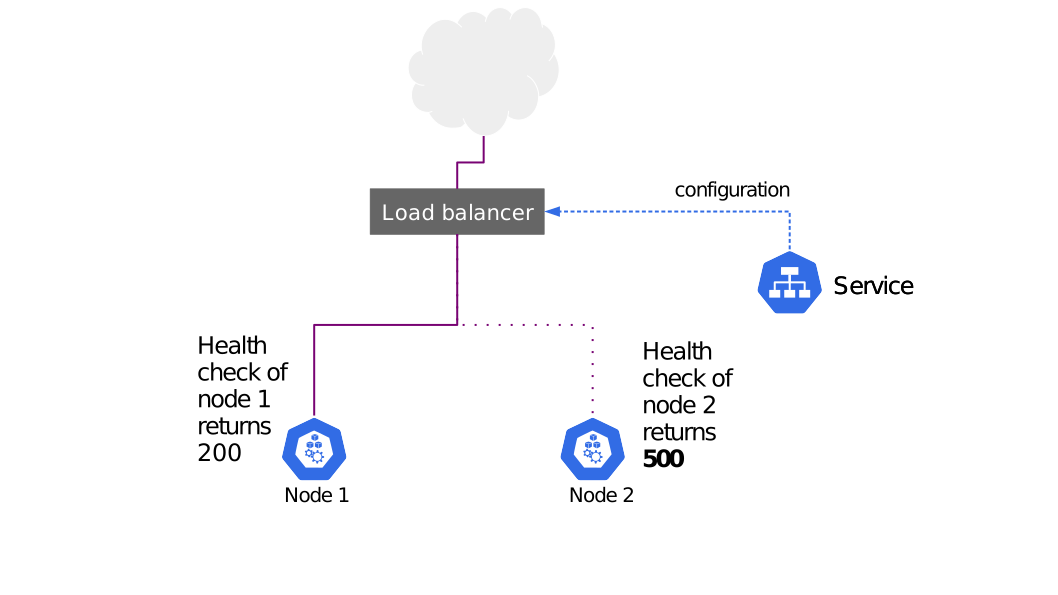
You can test this by setting the annotation:
kubectl patch svc loadbalancer -p '{"spec":{"externalTrafficPolicy":"Local"}}'
You should immediately see the service.spec.healthCheckNodePort field allocated
by Kubernetes:
kubectl get svc loadbalancer -o yaml | grep -i healthCheckNodePort
The output is similar to this:
healthCheckNodePort: 32122
The service.spec.healthCheckNodePort field points to a port on every node
serving the health check at /healthz. You can test this:
kubectl get pod -o wide -l app=source-ip-app
The output is similar to this:
NAME READY STATUS RESTARTS AGE IP NODE
source-ip-app-826191075-qehz4 1/1 Running 0 20h 10.180.1.136 kubernetes-node-6jst
Use curl to fetch the /healthz endpoint on various nodes:
# Run this locally on a node you choose
curl localhost:32122/healthz
1 Service Endpoints found
On a different node you might get a different result:
# Run this locally on a node you choose
curl localhost:32122/healthz
No Service Endpoints Found
A controller running on the
control plane is
responsible for allocating the cloud load balancer. The same controller also
allocates HTTP health checks pointing to this port/path on each node. Wait
about 10 seconds for the 2 nodes without endpoints to fail health checks,
then use curl to query the IPv4 address of the load balancer:
curl 203.0.113.140
The output is similar to this:
CLIENT VALUES:
client_address=198.51.100.79
...
Only some cloud providers offer support for source IP preservation through
Services with Type=LoadBalancer.
The cloud provider you're running on might fulfill the request for a loadbalancer
in a few different ways:
With a proxy that terminates the client connection and opens a new connection to your nodes/endpoints. In such cases the source IP will always be that of the cloud LB, not that of the client.
With a packet forwarder, such that requests from the client sent to the loadbalancer VIP end up at the node with the source IP of the client, not an intermediate proxy.
Load balancers in the first category must use an agreed upon
protocol between the loadbalancer and backend to communicate the true client IP
such as the HTTP Forwarded
or X-FORWARDED-FOR
headers, or the
proxy protocol.
Load balancers in the second category can leverage the feature described above
by creating an HTTP health check pointing at the port stored in
the service.spec.healthCheckNodePort field on the Service.
Delete the Services:
kubectl delete svc -l app=source-ip-app
Delete the Deployment, ReplicaSet and Pod:
kubectl delete deployment source-ip-app
Once you connected your Application with Service following steps like those outlined in Connecting Applications with Services, you have a continuously running, replicated application, that is exposed on a network. This tutorial helps you look at the termination flow for Pods and to explore ways to implement graceful connection draining.
There are often cases when you need to terminate a Pod - be it to upgrade or scale down. In order to improve application availability, it may be important to implement a proper active connections draining.
This tutorial explains the flow of Pod termination in connection with the corresponding endpoint state and removal by using a simple nginx web server to demonstrate the concept.
The following is the example flow described in the Termination of Pods document.
Let's say you have a Deployment containing a single nginx replica
(say just for the sake of demonstration purposes) and a Service:
apiVersion: apps/v1
kind: Deployment
metadata:
name: nginx-deployment
labels:
app: nginx
spec:
replicas: 1
selector:
matchLabels:
app: nginx
template:
metadata:
labels:
app: nginx
spec:
terminationGracePeriodSeconds: 120 # extra long grace period
containers:
- name: nginx
image: nginx:latest
ports:
- containerPort: 80
lifecycle:
preStop:
exec:
# Real life termination may take any time up to terminationGracePeriodSeconds.
# In this example - just hang around for at least the duration of terminationGracePeriodSeconds,
# at 120 seconds container will be forcibly terminated.
# Note, all this time nginx will keep processing requests.
command: [
"/bin/sh", "-c", "sleep 180"
]
apiVersion: v1
kind: Service
metadata:
name: nginx-service
spec:
selector:
app: nginx
ports:
- protocol: TCP
port: 80
targetPort: 80Now create the Deployment Pod and Service using the above files:
kubectl apply -f pod-with-graceful-termination.yaml
kubectl apply -f explore-graceful-termination-nginx.yaml
Once the Pod and Service are running, you can get the name of any associated EndpointSlices:
kubectl get endpointslice
The output is similar to this:
NAME ADDRESSTYPE PORTS ENDPOINTS AGE
nginx-service-6tjbr IPv4 80 10.12.1.199,10.12.1.201 22m
You can see its status, and validate that there is one endpoint registered:
kubectl get endpointslices -o json -l kubernetes.io/service-name=nginx-service
The output is similar to this:
{
"addressType": "IPv4",
"apiVersion": "discovery.k8s.io/v1",
"endpoints": [
{
"addresses": [
"10.12.1.201"
],
"conditions": {
"ready": true,
"serving": true,
"terminating": false
Now let's terminate the Pod and validate that the Pod is being terminated respecting the graceful termination period configuration:
kubectl delete pod nginx-deployment-7768647bf9-b4b9s
All pods:
kubectl get pods
The output is similar to this:
NAME READY STATUS RESTARTS AGE
nginx-deployment-7768647bf9-b4b9s 1/1 Terminating 0 4m1s
nginx-deployment-7768647bf9-rkxlw 1/1 Running 0 8s
You can see that the new pod got scheduled.
While the new endpoint is being created for the new Pod, the old endpoint is still around in the terminating state:
kubectl get endpointslice -o json nginx-service-6tjbr
The output is similar to this:
{
"addressType": "IPv4",
"apiVersion": "discovery.k8s.io/v1",
"endpoints": [
{
"addresses": [
"10.12.1.201"
],
"conditions": {
"ready": false,
"serving": true,
"terminating": true
},
"nodeName": "gke-main-default-pool-dca1511c-d17b",
"targetRef": {
"kind": "Pod",
"name": "nginx-deployment-7768647bf9-b4b9s",
"namespace": "default",
"uid": "66fa831c-7eb2-407f-bd2c-f96dfe841478"
},
"zone": "us-central1-c"
},
{
"addresses": [
"10.12.1.202"
],
"conditions": {
"ready": true,
"serving": true,
"terminating": false
},
"nodeName": "gke-main-default-pool-dca1511c-d17b",
"targetRef": {
"kind": "Pod",
"name": "nginx-deployment-7768647bf9-rkxlw",
"namespace": "default",
"uid": "722b1cbe-dcd7-4ed4-8928-4a4d0e2bbe35"
},
"zone": "us-central1-c"
This allows applications to communicate their state during termination and clients (such as load balancers) to implement connection draining functionality. These clients may detect terminating endpoints and implement a special logic for them.
In Kubernetes, endpoints that are terminating always have their ready status set as false.
This needs to happen for backward
compatibility, so existing load balancers will not use it for regular traffic.
If traffic draining on terminating pod is needed, the actual readiness can be
checked as a condition serving.
When Pod is deleted, the old endpoint will also be deleted.


