 This page shows how to install the
 kubeadm toolbox.
For information on how to create a cluster with kubeadm once you have performed this installation process,
see the Creating a cluster with kubeadm page.Create a production-quality Kubernetes cluster
A production-quality Kubernetes cluster requires planning and preparation. If your Kubernetes cluster is to run critical workloads, it must be configured to be resilient. This page explains steps you can take to set up a production-ready cluster, or to promote an existing cluster for production use. If you're already familiar with production setup and want the links, skip to What's next.
Typically, a production Kubernetes cluster environment has more requirements than a personal learning, development, or test environment Kubernetes. A production environment may require secure access by many users, consistent availability, and the resources to adapt to changing demands.
As you decide where you want your production Kubernetes environment to live (on premises or in a cloud) and the amount of management you want to take on or hand to others, consider how your requirements for a Kubernetes cluster are influenced by the following issues:
Availability: A single-machine Kubernetes learning environment has a single point of failure. Creating a highly available cluster means considering:
Scale: If you expect your production Kubernetes environment to receive a stable amount of demand, you might be able to set up for the capacity you need and be done. However, if you expect demand to grow over time or change dramatically based on things like season or special events, you need to plan how to scale to relieve increased pressure from more requests to the control plane and worker nodes or scale down to reduce unused resources.
Security and access management: You have full admin privileges on your own Kubernetes learning cluster. But shared clusters with important workloads, and more than one or two users, require a more refined approach to who and what can access cluster resources. You can use role-based access control (RBAC) and other security mechanisms to make sure that users and workloads can get access to the resources they need, while keeping workloads, and the cluster itself, secure. You can set limits on the resources that users and workloads can access by managing policies and container resources.
Before building a Kubernetes production environment on your own, consider handing off some or all of this job to Turnkey Cloud Solutions providers or other Kubernetes Partners. Options include:
Whether you build a production Kubernetes cluster yourself or work with partners, review the following sections to evaluate your needs as they relate to your cluster’s control plane, worker nodes, user access, and workload resources.
In a production-quality Kubernetes cluster, the control plane manages the cluster from services that can be spread across multiple computers in different ways. Each worker node, however, represents a single entity that is configured to run Kubernetes pods.
The simplest Kubernetes cluster has the entire control plane and worker node services running on the same machine. You can grow that environment by adding worker nodes, as reflected in the diagram illustrated in Kubernetes Components. If the cluster is meant to be available for a short period of time, or can be discarded if something goes seriously wrong, this might meet your needs.
If you need a more permanent, highly available cluster, however, you should consider ways of extending the control plane. By design, one-machine control plane services running on a single machine are not highly available. If keeping the cluster up and running and ensuring that it can be repaired if something goes wrong is important, consider these steps:
To learn about available options when you run control plane services, see kube-apiserver, kube-controller-manager, and kube-scheduler component pages. For highly available control plane examples, see Options for Highly Available topology, Creating Highly Available clusters with kubeadm, and Operating etcd clusters for Kubernetes. See Backing up an etcd cluster for information on making an etcd backup plan.
Production-quality workloads need to be resilient and anything they rely on needs to be resilient (such as CoreDNS). Whether you manage your own control plane or have a cloud provider do it for you, you still need to consider how you want to manage your worker nodes (also referred to simply as nodes).
In production, you may be moving from a model where you or a small group of people are accessing the cluster to where there may potentially be dozens or hundreds of people. In a learning environment or platform prototype, you might have a single administrative account for everything you do. In production, you will want more accounts with different levels of access to different namespaces.
Taking on a production-quality cluster means deciding how you want to selectively allow access by other users. In particular, you need to select strategies for validating the identities of those who try to access your cluster (authentication) and deciding if they have permissions to do what they are asking (authorization):
As someone setting up authentication and authorization on your production Kubernetes cluster, here are some things to consider:
Demands from production workloads can cause pressure both inside and outside of the Kubernetes control plane. Consider these items when setting up for the needs of your cluster's workloads:
You need to install a container runtime into each node in the cluster so that Pods can run there. This page outlines what is involved and describes related tasks for setting up nodes.
Kubernetes 1.35 requires that you use a runtime that conforms with the Container Runtime Interface (CRI).
See CRI version support for more information.
This page provides an outline of how to use several common container runtimes with Kubernetes.
Kubernetes releases before v1.24 included a direct integration with Docker Engine, using a component named dockershim. That special direct integration is no longer part of Kubernetes (this removal was announced as part of the v1.20 release). You can read Check whether Dockershim removal affects you to understand how this removal might affect you. To learn about migrating from using dockershim, see Migrating from dockershim.
If you are running a version of Kubernetes other than v1.35, check the documentation for that version.
By default, the Linux kernel does not allow IPv4 packets to be routed between interfaces. Most Kubernetes cluster networking implementations will change this setting (if needed), but some might expect the administrator to do it for them. (Some might also expect other sysctl parameters to be set, kernel modules to be loaded, etc; consult the documentation for your specific network implementation.)
To manually enable IPv4 packet forwarding:
# sysctl params required by setup, params persist across reboots
cat <<EOF | sudo tee /etc/sysctl.d/k8s.conf
net.ipv4.ip_forward = 1
EOF

# Apply sysctl params without reboot
sudo sysctl --system
Verify that net.ipv4.ip_forward is set to 1 with:
sysctl net.ipv4.ip_forward
On Linux, control groups are used to constrain resources that are allocated to processes.
Both the kubelet and the underlying container runtime need to interface with control groups to enforce resource management for pods and containers and set resources such as cpu/memory requests and limits. To interface with control groups, the kubelet and the container runtime need to use a cgroup driver. It's critical that the kubelet and the container runtime use the same cgroup driver and are configured the same.
There are two cgroup drivers available:
The cgroupfs driver is the default cgroup driver in the kubelet.
When the cgroupfs driver is used, the kubelet and the container runtime directly interface with
the cgroup filesystem to configure cgroups.
The cgroupfs driver is not recommended when
systemd is the
init system because systemd expects a single cgroup manager on
the system. Additionally, if you use cgroup v2, use the systemd
cgroup driver instead of cgroupfs.
When systemd is chosen as the init
system for a Linux distribution, the init process generates and consumes a root control group
(cgroup) and acts as a cgroup manager.
systemd has a tight integration with cgroups and allocates a cgroup per systemd
unit. As a result, if you use systemd as the init system with the cgroupfs
driver, the system gets two different cgroup managers.
Two cgroup managers result in two views of the available and in-use resources in
the system. In some cases, nodes that are configured to use cgroupfs for the
kubelet and container runtime, but use systemd for the rest of the processes become
unstable under resource pressure.
The approach to mitigate this instability is to use systemd as the cgroup driver for
the kubelet and the container runtime when systemd is the selected init system.
To set systemd as the cgroup driver, edit the
KubeletConfiguration
option of cgroupDriver and set it to systemd. For example:
apiVersion: kubelet.config.k8s.io/v1beta1
kind: KubeletConfiguration
...
cgroupDriver: systemd
cgroupDriver field under KubeletConfiguration, kubeadm defaults it to systemd.If you configure systemd as the cgroup driver for the kubelet, you must also
configure systemd as the cgroup driver for the container runtime. Refer to
the documentation for your container runtime for instructions. For example:
In Kubernetes 1.35, with the KubeletCgroupDriverFromCRI
feature gate
enabled and a container runtime that supports the RuntimeConfig CRI RPC,
the kubelet automatically detects the appropriate cgroup driver from the runtime,
and ignores the cgroupDriver setting within the kubelet configuration.
However, older versions of container runtimes (specifically,
containerd 1.y and below) do not support the RuntimeConfig CRI RPC, and
may not respond correctly to this query, and thus the Kubelet falls back to using the
value in its own --cgroup-driver flag.
In Kubernetes 1.36, this fallback behavior will be dropped, and older versions of containerd will fail with newer kubelets.
Changing the cgroup driver of a Node that has joined a cluster is a sensitive operation. If the kubelet has created Pods using the semantics of one cgroup driver, changing the container runtime to another cgroup driver can cause errors when trying to re-create the Pod sandbox for such existing Pods. Restarting the kubelet may not solve such errors.
If you have automation that makes it feasible, replace the node with another using the updated configuration, or reinstall it using automation.
systemd driver in kubeadm managed clustersIf you wish to migrate to the systemd cgroup driver in existing kubeadm managed clusters,
follow configuring a cgroup driver.
Your container runtime must support at least v1alpha2 of the container runtime interface.
Kubernetes starting v1.26 only works with v1 of the CRI API. Earlier versions default to v1 version, however if a container runtime does not support the v1 API, the kubelet falls back to using the (deprecated) v1alpha2 API instead.
This section outlines the necessary steps to use containerd as CRI runtime.
To install containerd on your system, follow the instructions on
getting started with containerd.
Return to this step once you've created a valid config.toml configuration file.
You can find this file under the path /etc/containerd/config.toml.
You can find this file under the path C:\Program Files\containerd\config.toml.
On Linux the default CRI socket for containerd is /run/containerd/containerd.sock.
On Windows the default CRI endpoint is npipe://./pipe/containerd-containerd.
systemd cgroup driverTo use the systemd cgroup driver in /etc/containerd/config.toml with runc,
set the following config based on your Containerd version
Containerd versions 1.x:
[plugins."io.containerd.grpc.v1.cri".containerd.runtimes.runc]
  ...
  [plugins."io.containerd.grpc.v1.cri".containerd.runtimes.runc.options]
    SystemdCgroup = true
Containerd versions 2.x:
[plugins.'io.containerd.cri.v1.runtime'.containerd.runtimes.runc]
  ...
  [plugins.'io.containerd.cri.v1.runtime'.containerd.runtimes.runc.options]
    SystemdCgroup = true
The systemd cgroup driver is recommended if you use cgroup v2.
If you installed containerd from a package (for example, RPM or .deb), you may find
that the CRI integration plugin is disabled by default.
You need CRI support enabled to use containerd with Kubernetes. Make sure that cri
is not included in thedisabled_plugins list within /etc/containerd/config.toml;
if you made changes to that file, also restart containerd.
If you experience container crash loops after the initial cluster installation or after
installing a CNI, the containerd configuration provided with the package might contain
incompatible configuration parameters. Consider resetting the containerd configuration
with containerd config default > /etc/containerd/config.toml as specified in
getting-started.md
and then set the configuration parameters specified above accordingly.
If you apply this change, make sure to restart containerd:
sudo systemctl restart containerd
When using kubeadm, manually configure the cgroup driver for kubelet.
In Kubernetes v1.28, you can enable automatic detection of the cgroup driver as an alpha feature. See systemd cgroup driver for more details.
In your containerd config you can overwrite the sandbox image by setting the following config:
[plugins."io.containerd.grpc.v1.cri"]
  sandbox_image = "registry.k8s.io/pause:3.10"
You might need to restart containerd as well once you've updated the config file: systemctl restart containerd.
This section contains the necessary steps to install CRI-O as a container runtime.
To install CRI-O, follow CRI-O Install Instructions.
CRI-O uses the systemd cgroup driver per default, which is likely to work fine
for you. To switch to the cgroupfs cgroup driver, either edit
/etc/crio/crio.conf or place a drop-in configuration in
/etc/crio/crio.conf.d/02-cgroup-manager.conf, for example:
[crio.runtime]
conmon_cgroup = "pod"
cgroup_manager = "cgroupfs"
You should also note the changed conmon_cgroup, which has to be set to the value
pod when using CRI-O with cgroupfs. It is generally necessary to keep the
cgroup driver configuration of the kubelet (usually done via kubeadm) and CRI-O
in sync.
In Kubernetes v1.28, you can enable automatic detection of the cgroup driver as an alpha feature. See systemd cgroup driver for more details.
For CRI-O, the CRI socket is /var/run/crio/crio.sock by default.
In your CRI-O config you can set the following config value:
[crio.image]
pause_image="registry.k8s.io/pause:3.10"
This config option supports live configuration reload to apply this change: systemctl reload crio or by sending
SIGHUP to the crio process.
cri-dockerd adapter to integrate
Docker Engine with Kubernetes.On each of your nodes, install Docker for your Linux distribution as per Install Docker Engine.
Install cri-dockerd, following the directions in the install section of the documentation.
For cri-dockerd, the CRI socket is /run/cri-dockerd.sock by default.
Mirantis Container Runtime (MCR) is a commercially available container runtime that was formerly known as Docker Enterprise Edition.
You can use Mirantis Container Runtime with Kubernetes using the open source
cri-dockerd component, included with MCR.
To learn more about how to install Mirantis Container Runtime, visit MCR Deployment Guide.
Check the systemd unit named cri-docker.socket to find out the path to the CRI
socket.
The cri-dockerd adapter accepts a command line argument for
specifying which container image to use as the Pod infrastructure container (“pause image”).
The command line argument to use is --pod-infra-container-image.
As well as a container runtime, your cluster will need a working network plugin.
There are many methods and tools for setting up your own production Kubernetes cluster. For example:
Cluster API: A Kubernetes sub-project focused on providing declarative APIs and tooling to simplify provisioning, upgrading, and operating multiple Kubernetes clusters.
kops: An automated cluster provisioning tool.
For tutorials, best practices, configuration options and information on
reaching out to the community, please check the
kOps website for details.
kubespray: A composition of Ansible playbooks, inventory, provisioning tools, and domain knowledge for generic OS/Kubernetes clusters configuration management tasks. You can reach out to the community on Slack channel #kubespray.
This page shows how to install the kubeadm toolbox.
For information on how to create a cluster with kubeadm once you have performed this installation process,
see the Creating a cluster with kubeadm page.
This installation guide is for Kubernetes v1.35. If you want to use a different Kubernetes version, please refer to the following pages instead:
kubeadm installation is done via binaries that use dynamic linking and assumes that your target system provides glibc.
This is a reasonable assumption on many Linux distributions (including Debian, Ubuntu, Fedora, CentOS, etc.)
but it is not always the case with custom and lightweight distributions which don't include glibc by default, such as Alpine Linux.
The expectation is that the distribution either includes glibc or a
compatibility layer
that provides the expected symbols.uname -rFor more information, see Linux Kernel Requirements.
systeminfoFor more information, see Windows OS version compatibility.
A Kubernetes cluster created by kubeadm depends on software that use kernel features. This software includes, but is not limited to the container runtime, the kubelet, and a Container Network Interface plugin.
To help you avoid unexpected errors as a result of an unsupported kernel version, kubeadm runs the SystemVerification
pre-flight check. This check fails if the kernel version is not supported.
You may choose to skip the check, if you know that your kernel provides the required features, even though kubeadm does not support its version.
ip link or ifconfig -asudo cat /sys/class/dmi/id/product_uuidIt is very likely that hardware devices will have unique addresses, although some virtual machines may have identical values. Kubernetes uses these values to uniquely identify the nodes in the cluster. If these values are not unique to each node, the installation process may fail.
If you have more than one network adapter, and your Kubernetes components are not reachable on the default route, we recommend you add IP route(s) so Kubernetes cluster addresses go via the appropriate adapter.
These required ports need to be open in order for Kubernetes components to communicate with each other. You can use tools like netcat to check if a port is open. For example:
nc 127.0.0.1 6443 -zv -w 2
The pod network plugin you use may also require certain ports to be open. Since this differs with each pod network plugin, please see the documentation for the plugins about what port(s) those need.
The default behavior of a kubelet is to fail to start if swap memory is detected on a node. This means that swap should either be disabled or tolerated by kubelet.
failSwapOn: false to kubelet configuration or as a command line argument.
Note: even if failSwapOn: false is provided, workloads wouldn't have swap access by default.
This can be changed by setting a swapBehavior, again in the kubelet configuration file. To use swap,
set a swapBehavior other than the default NoSwap setting.
See Swap memory management for more details.sudo swapoff -a can be used to disable swapping temporarily.
To make this change persistent across reboots, make sure swap is disabled in
config files like /etc/fstab, systemd.swap, depending how it was configured on your system.To run containers in Pods, Kubernetes uses a container runtime.
By default, Kubernetes uses the Container Runtime Interface (CRI) to interface with your chosen container runtime.
If you don't specify a runtime, kubeadm automatically tries to detect an installed container runtime by scanning through a list of known endpoints.
If multiple or no container runtimes are detected kubeadm will throw an error and will request that you specify which one you want to use.
See container runtimes for more information.
The tables below include the known endpoints for supported operating systems:
| Runtime | Path to Unix domain socket |
|---|---|
| containerd | unix:///var/run/containerd/containerd.sock |
| CRI-O | unix:///var/run/crio/crio.sock |
| Docker Engine (using cri-dockerd) | unix:///var/run/cri-dockerd.sock |
| Runtime | Path to Windows named pipe |
|---|---|
| containerd | npipe:////./pipe/containerd-containerd |
| Docker Engine (using cri-dockerd) | npipe:////./pipe/cri-dockerd |
You will install these packages on all of your machines:
kubeadm: the command to bootstrap the cluster.
kubelet: the component that runs on all of the machines in your cluster
and does things like starting pods and containers.
kubectl: the command line util to talk to your cluster.
kubeadm will not install or manage kubelet or kubectl for you, so you will
need to ensure they match the version of the Kubernetes control plane you want
kubeadm to install for you. If you do not, there is a risk of a version skew occurring that
can lead to unexpected, buggy behaviour. However, one minor version skew between the
kubelet and the control plane is supported, but the kubelet version may never exceed the API
server version. For example, the kubelet running 1.7.0 should be fully compatible with a 1.8.0 API server,
but not vice versa.
For information about installing kubectl, see Install and set up kubectl.
For more information on version skews, see:
apt.kubernetes.io and yum.kubernetes.io) have been
deprecated and frozen starting from September 13, 2023.
Using the new package repositories hosted at pkgs.k8s.io
is strongly recommended and required in order to install Kubernetes versions released after September 13, 2023.
The deprecated legacy repositories, and their contents, might be removed at any time in the future and without
a further notice period. The new package repositories provide downloads for Kubernetes versions starting with v1.24.0.
These instructions are for Kubernetes v1.35.
Update the apt package index and install packages needed to use the Kubernetes apt repository:
sudo apt-get update
# apt-transport-https may be a dummy package; if so, you can skip that package
sudo apt-get install -y apt-transport-https ca-certificates curl gpg
Download the public signing key for the Kubernetes package repositories. The same signing key is used for all repositories so you can disregard the version in the URL:
# If the directory `/etc/apt/keyrings` does not exist, it should be created before the curl command, read the note below.
# sudo mkdir -p -m 755 /etc/apt/keyrings
curl -fsSL https://pkgs.k8s.io/core:/stable:/v1.35/deb/Release.key | sudo gpg --dearmor -o /etc/apt/keyrings/kubernetes-apt-keyring.gpg
/etc/apt/keyrings does not
exist by default, and it should be created before the curl command.Add the appropriate Kubernetes apt repository. Please note that this repository have packages
only for Kubernetes 1.35; for other Kubernetes minor versions, you need to
change the Kubernetes minor version in the URL to match your desired minor version
(you should also check that you are reading the documentation for the version of Kubernetes
that you plan to install).
# This overwrites any existing configuration in /etc/apt/sources.list.d/kubernetes.list
echo 'deb [signed-by=/etc/apt/keyrings/kubernetes-apt-keyring.gpg] https://pkgs.k8s.io/core:/stable:/v1.35/deb/ /' | sudo tee /etc/apt/sources.list.d/kubernetes.list
Update the apt package index, install kubelet, kubeadm and kubectl, and pin their version:
sudo apt-get update
sudo apt-get install -y kubelet kubeadm kubectl
sudo apt-mark hold kubelet kubeadm kubectl
(Optional) Enable the kubelet service before running kubeadm:
sudo systemctl enable --now kubelet
Set SELinux to permissive mode:
These instructions are for Kubernetes 1.35.
# Set SELinux in permissive mode (effectively disabling it)
sudo setenforce 0
sudo sed -i 's/^SELINUX=enforcing$/SELINUX=permissive/' /etc/selinux/config
setenforce 0 and sed ...
effectively disables it. This is required to allow containers to access the host
filesystem; for example, some cluster network plugins require that. You have to
do this until SELinux support is improved in the kubelet.Add the Kubernetes yum repository. The exclude parameter in the
repository definition ensures that the packages related to Kubernetes are
not upgraded upon running yum update as there's a special procedure that
must be followed for upgrading Kubernetes. Please note that this repository
have packages only for Kubernetes 1.35; for other
Kubernetes minor versions, you need to change the Kubernetes minor version
in the URL to match your desired minor version (you should also check that
you are reading the documentation for the version of Kubernetes that you
plan to install).
# This overwrites any existing configuration in /etc/yum.repos.d/kubernetes.repo
cat <<EOF | sudo tee /etc/yum.repos.d/kubernetes.repo
[kubernetes]
name=Kubernetes
baseurl=https://pkgs.k8s.io/core:/stable:/v1.35/rpm/
enabled=1
gpgcheck=1
gpgkey=https://pkgs.k8s.io/core:/stable:/v1.35/rpm/repodata/repomd.xml.key
exclude=kubelet kubeadm kubectl cri-tools kubernetes-cni
EOF
Install kubelet, kubeadm and kubectl:
For systems with DNF:
sudo yum install -y kubelet kubeadm kubectl --disableexcludes=kubernetes
For systems with DNF5:
sudo yum install -y kubelet kubeadm kubectl --setopt=disable_excludes=kubernetes
(Optional) Enable the kubelet service before running kubeadm:
sudo systemctl enable --now kubelet
Install CNI plugins (required for most pod network):
CNI_PLUGINS_VERSION="v1.3.0"
ARCH="amd64"
DEST="/opt/cni/bin"
sudo mkdir -p "$DEST"
curl -L "https://github.com/containernetworking/plugins/releases/download/${CNI_PLUGINS_VERSION}/cni-plugins-linux-${ARCH}-${CNI_PLUGINS_VERSION}.tgz" | sudo tar -C "$DEST" -xz
Define the directory to download command files:
DOWNLOAD_DIR variable must be set to a writable directory.
If you are running Flatcar Container Linux, set DOWNLOAD_DIR="/opt/bin".DOWNLOAD_DIR="/usr/local/bin"
sudo mkdir -p "$DOWNLOAD_DIR"
Optionally install crictl (required for interaction with the Container Runtime Interface (CRI), optional for kubeadm):
CRICTL_VERSION="v1.31.0"
ARCH="amd64"
curl -L "https://github.com/kubernetes-sigs/cri-tools/releases/download/${CRICTL_VERSION}/crictl-${CRICTL_VERSION}-linux-${ARCH}.tar.gz" | sudo tar -C $DOWNLOAD_DIR -xz
Install kubeadm, kubelet and add a kubelet systemd service:
RELEASE="$(curl -sSL https://dl.k8s.io/release/stable.txt)"
ARCH="amd64"
cd $DOWNLOAD_DIR
sudo curl -L --remote-name-all https://dl.k8s.io/release/${RELEASE}/bin/linux/${ARCH}/{kubeadm,kubelet}
sudo chmod +x {kubeadm,kubelet}

RELEASE_VERSION="v0.16.2"
curl -sSL "https://raw.githubusercontent.com/kubernetes/release/${RELEASE_VERSION}/cmd/krel/templates/latest/kubelet/kubelet.service" | sed "s:/usr/bin:${DOWNLOAD_DIR}:g" | sudo tee /usr/lib/systemd/system/kubelet.service
sudo mkdir -p /usr/lib/systemd/system/kubelet.service.d
curl -sSL "https://raw.githubusercontent.com/kubernetes/release/${RELEASE_VERSION}/cmd/krel/templates/latest/kubeadm/10-kubeadm.conf" | sed "s:/usr/bin:${DOWNLOAD_DIR}:g" | sudo tee /usr/lib/systemd/system/kubelet.service.d/10-kubeadm.conf
glibc by default.Install kubectl by following the instructions on Install Tools page.
Optionally, enable the kubelet service before running kubeadm:
sudo systemctl enable --now kubelet
/usr directory as a read-only filesystem.
Before bootstrapping your cluster, you need to take additional steps to configure a writable directory.
See the Kubeadm Troubleshooting guide
to learn how to set up a writable directory.The kubelet is now restarting every few seconds, as it waits in a crashloop for kubeadm to tell it what to do.
Both the container runtime and the kubelet have a property called "cgroup driver", which is important for the management of cgroups on Linux machines.
Matching the container runtime and kubelet cgroup drivers is required or otherwise the kubelet process will fail.
See Configuring a cgroup driver for more details.
If you are running into difficulties with kubeadm, please consult our troubleshooting docs.
As with any program, you might run into an error installing or running kubeadm. This page lists some common failure scenarios and have provided steps that can help you understand and fix the problem.
If your problem is not listed below, please follow the following steps:
If you think your problem is a bug with kubeadm:
If you are unsure about how kubeadm works, you can ask on Slack in #kubeadm,
or open a question on StackOverflow. Please include
relevant tags like #kubernetes and #kubeadm so folks can help you.
In v1.18 kubeadm added prevention for joining a Node in the cluster if a Node with the same name already exists. This required adding RBAC for the bootstrap-token user to be able to GET a Node object.
However this causes an issue where kubeadm join from v1.18 cannot join a cluster created by kubeadm v1.17.
To workaround the issue you have two options:
Execute kubeadm init phase bootstrap-token on a control-plane node using kubeadm v1.18.
Note that this enables the rest of the bootstrap-token permissions as well.
or
Apply the following RBAC manually using kubectl apply -f ...:
apiVersion: rbac.authorization.k8s.io/v1
kind: ClusterRole
metadata:
  name: kubeadm:get-nodes
rules:
  - apiGroups:
      - ""
    resources:
      - nodes
    verbs:
      - get
---
apiVersion: rbac.authorization.k8s.io/v1
kind: ClusterRoleBinding
metadata:
  name: kubeadm:get-nodes
roleRef:
  apiGroup: rbac.authorization.k8s.io
  kind: ClusterRole
  name: kubeadm:get-nodes
subjects:
  - apiGroup: rbac.authorization.k8s.io
    kind: Group
    name: system:bootstrappers:kubeadm:default-node-token
ebtables or some similar executable not found during installationIf you see the following warnings while running kubeadm init
[preflight] WARNING: ebtables not found in system path
[preflight] WARNING: ethtool not found in system path
Then you may be missing ebtables, ethtool or a similar executable on your node.
You can install them with the following commands:
apt install ebtables ethtool.yum install ebtables ethtool.If you notice that kubeadm init hangs after printing out the following line:
[apiclient] Created API client, waiting for the control plane to become ready
This may be caused by a number of problems. The most common are:
docker ps
and investigating each container by running docker logs. For other container runtime, see
Debugging Kubernetes nodes with crictl.The following could happen if the container runtime halts and does not remove any Kubernetes-managed containers:
sudo kubeadm reset
[preflight] Running pre-flight checks
[reset] Stopping the kubelet service
[reset] Unmounting mounted directories in "/var/lib/kubelet"
[reset] Removing kubernetes-managed containers
(block)
A possible solution is to restart the container runtime and then re-run kubeadm reset.
You can also use crictl to debug the state of the container runtime. See
Debugging Kubernetes nodes with crictl.
RunContainerError, CrashLoopBackOff or Error stateRight after kubeadm init there should not be any pods in these states.
kubeadm init, please open an
issue in the kubeadm repo. coredns (or kube-dns) should be in the Pending state
until you have deployed the network add-on.RunContainerError, CrashLoopBackOff or Error state
after deploying the network add-on and nothing happens to coredns (or kube-dns),
it's very likely that the Pod Network add-on that you installed is somehow broken.
You might have to grant it more RBAC privileges or use a newer version. Please file
an issue in the Pod Network providers' issue tracker and get the issue triaged there.coredns is stuck in the Pending stateThis is expected and part of the design. kubeadm is network provider-agnostic, so the admin
should install the pod network add-on
of choice. You have to install a Pod Network
before CoreDNS may be deployed fully. Hence the Pending state before the network is set up.
HostPort services do not workThe HostPort and HostIP functionality is available depending on your Pod Network
provider. Please contact the author of the Pod Network add-on to find out whether
HostPort and HostIP functionality are available.
Calico, Canal, and Flannel CNI providers are verified to support HostPort.
For more information, see the CNI portmap documentation.
If your network provider does not support the portmap CNI plugin, you may need to use the
NodePort feature of services
or use HostNetwork=true.
Many network add-ons do not yet enable hairpin mode which allows pods to access themselves via their Service IP. This is an issue related to CNI. Please contact the network add-on provider to get the latest status of their support for hairpin mode.
If you are using VirtualBox (directly or via Vagrant), you will need to
ensure that hostname -i returns a routable IP address. By default, the first
interface is connected to a non-routable host-only network. A work around
is to modify /etc/hosts, see this
Vagrantfile
for an example.
The following error indicates a possible certificate mismatch.
# kubectl get pods
Unable to connect to the server: x509: certificate signed by unknown authority (possibly because of "crypto/rsa: verification error" while trying to verify candidate authority certificate "kubernetes")
Verify that the $HOME/.kube/config file contains a valid certificate, and
regenerate a certificate if necessary. The certificates in a kubeconfig file
are base64 encoded. The base64 --decode command can be used to decode the certificate
and openssl x509 -text -noout can be used for viewing the certificate information.
Unset the KUBECONFIG environment variable using:
unset KUBECONFIG
Or set it to the default KUBECONFIG location:
export KUBECONFIG=/etc/kubernetes/admin.conf
Another workaround is to overwrite the existing kubeconfig for the "admin" user:
mv $HOME/.kube $HOME/.kube.bak
mkdir $HOME/.kube
sudo cp -i /etc/kubernetes/admin.conf $HOME/.kube/config
sudo chown $(id -u):$(id -g) $HOME/.kube/config
By default, kubeadm configures a kubelet with automatic rotation of client certificates by using the
/var/lib/kubelet/pki/kubelet-client-current.pem symlink specified in /etc/kubernetes/kubelet.conf.
If this rotation process fails you might see errors such as x509: certificate has expired or is not yet valid
in kube-apiserver logs. To fix the issue you must follow these steps:
Backup and delete /etc/kubernetes/kubelet.conf and /var/lib/kubelet/pki/kubelet-client* from the failed node.
From a working control plane node in the cluster that has /etc/kubernetes/pki/ca.key execute
kubeadm kubeconfig user --org system:nodes --client-name system:node:$NODE > kubelet.conf.
$NODE must be set to the name of the existing failed node in the cluster.
Modify the resulted kubelet.conf manually to adjust the cluster name and server endpoint,
or pass kubeconfig user --config (see Generating kubeconfig files for additional users). If your cluster does not have
the ca.key you must sign the embedded certificates in the kubelet.conf externally.
Copy this resulted kubelet.conf to /etc/kubernetes/kubelet.conf on the failed node.
Restart the kubelet (systemctl restart kubelet) on the failed node and wait for
/var/lib/kubelet/pki/kubelet-client-current.pem to be recreated.
Manually edit the kubelet.conf to point to the rotated kubelet client certificates, by replacing
client-certificate-data and client-key-data with:
client-certificate: /var/lib/kubelet/pki/kubelet-client-current.pem
client-key: /var/lib/kubelet/pki/kubelet-client-current.pem
Restart the kubelet.
Make sure the node becomes Ready.
The following error might indicate that something was wrong in the pod network:
Error from server (NotFound): the server could not find the requested resource
If you're using flannel as the pod network inside Vagrant, then you will have to specify the default interface name for flannel.
Vagrant typically assigns two interfaces to all VMs. The first, for which all hosts
are assigned the IP address 10.0.2.15, is for external traffic that gets NATed.
This may lead to problems with flannel, which defaults to the first interface on a host.
This leads to all hosts thinking they have the same public IP address. To prevent this,
pass the --iface eth1 flag to flannel so that the second interface is chosen.
In some situations kubectl logs and kubectl run commands may return with the
following errors in an otherwise functional cluster:
Error from server: Get https://10.19.0.41:10250/containerLogs/default/mysql-ddc65b868-glc5m/mysql: dial tcp 10.19.0.41:10250: getsockopt: no route to host
This may be due to Kubernetes using an IP that can not communicate with other IPs on the seemingly same subnet, possibly by policy of the machine provider.
DigitalOcean assigns a public IP to eth0 as well as a private one to be used internally
as anchor for their floating IP feature, yet kubelet will pick the latter as the node's
InternalIP instead of the public one.
Use ip addr show to check for this scenario instead of ifconfig because ifconfig will
not display the offending alias IP address. Alternatively an API endpoint specific to
DigitalOcean allows to query for the anchor IP from the droplet:
curl http://169.254.169.254/metadata/v1/interfaces/public/0/anchor_ipv4/address
The workaround is to tell kubelet which IP to use using --node-ip.
When using DigitalOcean, it can be the public one (assigned to eth0) or
the private one (assigned to eth1) should you want to use the optional
private network. The kubeletExtraArgs section of the kubeadm
NodeRegistrationOptions structure
can be used for this.
Then restart kubelet:
systemctl daemon-reload
systemctl restart kubelet
coredns pods have CrashLoopBackOff or Error stateIf you have nodes that are running SELinux with an older version of Docker, you might experience a scenario
where the coredns pods are not starting. To solve that, you can try one of the following options:
Upgrade to a newer version of Docker.
Modify the coredns deployment to set allowPrivilegeEscalation to true:
kubectl -n kube-system get deployment coredns -o yaml | \
  sed 's/allowPrivilegeEscalation: false/allowPrivilegeEscalation: true/g' | \
  kubectl apply -f -
Another cause for CoreDNS to have CrashLoopBackOff is when a CoreDNS Pod deployed in Kubernetes detects a loop.
A number of workarounds
are available to avoid Kubernetes trying to restart the CoreDNS Pod every time CoreDNS detects the loop and exits.
allowPrivilegeEscalation to true can compromise
the security of your cluster.If you encounter the following error:
rpc error: code = 2 desc = oci runtime error: exec failed: container_linux.go:247: starting container process caused "process_linux.go:110: decoding init error from pipe caused \"read parent: connection reset by peer\""
This issue appears if you run CentOS 7 with Docker 1.13.1.84. This version of Docker can prevent the kubelet from executing into the etcd container.
To work around the issue, choose one of these options:
Roll back to an earlier version of Docker, such as 1.13.1-75
yum downgrade docker-1.13.1-75.git8633870.el7.centos.x86_64 docker-client-1.13.1-75.git8633870.el7.centos.x86_64 docker-common-1.13.1-75.git8633870.el7.centos.x86_64
Install one of the more recent recommended versions, such as 18.06:
sudo yum-config-manager --add-repo https://download.docker.com/linux/centos/docker-ce.repo
yum install docker-ce-18.06.1.ce-3.el7.x86_64
--component-extra-args flagkubeadm init flags such as --component-extra-args allow you to pass custom arguments to a control-plane
component like the kube-apiserver. However, this mechanism is limited due to the underlying type used for parsing
the values (mapStringString).
If you decide to pass an argument that supports multiple, comma-separated values such as
--apiserver-extra-args "enable-admission-plugins=LimitRanger,NamespaceExists" this flag will fail with
flag: malformed pair, expect string=string. This happens because the list of arguments for
--apiserver-extra-args expects key=value pairs and in this case NamespacesExists is considered
as a key that is missing a value.
Alternatively, you can try separating the key=value pairs like so:
--apiserver-extra-args "enable-admission-plugins=LimitRanger,enable-admission-plugins=NamespaceExists"
but this will result in the key enable-admission-plugins only having the value of NamespaceExists.
A known workaround is to use the kubeadm configuration file.
In cloud provider scenarios, kube-proxy can end up being scheduled on new worker nodes before the cloud-controller-manager has initialized the node addresses. This causes kube-proxy to fail to pick up the node's IP address properly and has knock-on effects to the proxy function managing load balancers.
The following error can be seen in kube-proxy Pods:
server.go:610] Failed to retrieve node IP: host IP unknown; known addresses: []
proxier.go:340] invalid nodeIP, initializing kube-proxy with 127.0.0.1 as nodeIP
A known solution is to patch the kube-proxy DaemonSet to allow scheduling it on control-plane nodes regardless of their conditions, keeping it off of other nodes until their initial guarding conditions abate:
kubectl -n kube-system patch ds kube-proxy -p='{
  "spec": {
    "template": {
      "spec": {
        "tolerations": [
          {
            "key": "CriticalAddonsOnly",
            "operator": "Exists"
          },
          {
            "effect": "NoSchedule",
            "key": "node-role.kubernetes.io/control-plane"
          }
        ]
      }
    }
  }
}'
The tracking issue for this problem is here.
/usr is mounted read-only on nodesOn Linux distributions such as Fedora CoreOS or Flatcar Container Linux, the directory /usr is mounted as a read-only filesystem.
For flex-volume support,
Kubernetes components like the kubelet and kube-controller-manager use the default path of
/usr/libexec/kubernetes/kubelet-plugins/volume/exec/, yet the flex-volume directory must be writeable
for the feature to work.
To workaround this issue, you can configure the flex-volume directory using the kubeadm configuration file.
On the primary control-plane Node (created using kubeadm init), pass the following
file using --config:
apiVersion: kubeadm.k8s.io/v1beta4
kind: InitConfiguration
nodeRegistration:
  kubeletExtraArgs:
  - name: "volume-plugin-dir"
    value: "/opt/libexec/kubernetes/kubelet-plugins/volume/exec/"
---
apiVersion: kubeadm.k8s.io/v1beta4
kind: ClusterConfiguration
controllerManager:
  extraArgs:
  - name: "flex-volume-plugin-dir"
    value: "/opt/libexec/kubernetes/kubelet-plugins/volume/exec/"
On joining Nodes:
apiVersion: kubeadm.k8s.io/v1beta4
kind: JoinConfiguration
nodeRegistration:
  kubeletExtraArgs:
  - name: "volume-plugin-dir"
    value: "/opt/libexec/kubernetes/kubelet-plugins/volume/exec/"
Alternatively, you can modify /etc/fstab to make the /usr mount writeable, but please
be advised that this is modifying a design principle of the Linux distribution.
kubeadm upgrade plan prints out context deadline exceeded error messageThis error message is shown when upgrading a Kubernetes cluster with kubeadm in
the case of running an external etcd. This is not a critical bug and happens because
older versions of kubeadm perform a version check on the external etcd cluster.
You can proceed with kubeadm upgrade apply ....
This issue is fixed as of version 1.19.
kubeadm reset unmounts /var/lib/kubeletIf /var/lib/kubelet is being mounted, performing a kubeadm reset will effectively unmount it.
To workaround the issue, re-mount the /var/lib/kubelet directory after performing the kubeadm reset operation.
This is a regression introduced in kubeadm 1.15. The issue is fixed in 1.20.
In a kubeadm cluster, the metrics-server
can be used insecurely by passing the --kubelet-insecure-tls to it. This is not recommended for production clusters.
If you want to use TLS between the metrics-server and the kubelet there is a problem, since kubeadm deploys a self-signed serving certificate for the kubelet. This can cause the following errors on the side of the metrics-server:
x509: certificate signed by unknown authority
x509: certificate is valid for IP-foo not IP-bar
See Enabling signed kubelet serving certificates to understand how to configure the kubelets in a kubeadm cluster to have properly signed serving certificates.
Also see How to run the metrics-server securely.
Only applicable to upgrading a control plane node with a kubeadm binary v1.28.3 or later, where the node is currently managed by kubeadm versions v1.28.0, v1.28.1 or v1.28.2.
Here is the error message you may encounter:
[upgrade/etcd] Failed to upgrade etcd: couldn't upgrade control plane. kubeadm has tried to recover everything into the earlier state. Errors faced: static Pod hash for component etcd on Node kinder-upgrade-control-plane-1 did not change after 5m0s: timed out waiting for the condition
[upgrade/etcd] Waiting for previous etcd to become available
I0907 10:10:09.109104    3704 etcd.go:588] [etcd] attempting to see if all cluster endpoints ([https://172.17.0.6:2379/ https://172.17.0.4:2379/ https://172.17.0.3:2379/]) are available 1/10
[upgrade/etcd] Etcd was rolled back and is now available
static Pod hash for component etcd on Node kinder-upgrade-control-plane-1 did not change after 5m0s: timed out waiting for the condition
couldn't upgrade control plane. kubeadm has tried to recover everything into the earlier state. Errors faced
k8s.io/kubernetes/cmd/kubeadm/app/phases/upgrade.rollbackOldManifests
	cmd/kubeadm/app/phases/upgrade/staticpods.go:525
k8s.io/kubernetes/cmd/kubeadm/app/phases/upgrade.upgradeComponent
	cmd/kubeadm/app/phases/upgrade/staticpods.go:254
k8s.io/kubernetes/cmd/kubeadm/app/phases/upgrade.performEtcdStaticPodUpgrade
	cmd/kubeadm/app/phases/upgrade/staticpods.go:338
...
The reason for this failure is that the affected versions generate an etcd manifest file with unwanted defaults in the PodSpec. This will result in a diff from the manifest comparison, and kubeadm will expect a change in the Pod hash, but the kubelet will never update the hash.
There are two way to workaround this issue if you see it in your cluster:
The etcd upgrade can be skipped between the affected versions and v1.28.3 (or later) by using:
kubeadm upgrade {apply|node} [version] --etcd-upgrade=false
This is not recommended in case a new etcd version was introduced by a later v1.28 patch version.
Before upgrade, patch the manifest for the etcd static pod, to remove the problematic defaulted attributes:
diff --git a/etc/kubernetes/manifests/etcd_defaults.yaml b/etc/kubernetes/manifests/etcd_origin.yaml
index d807ccbe0aa..46b35f00e15 100644
--- a/etc/kubernetes/manifests/etcd_defaults.yaml
+++ b/etc/kubernetes/manifests/etcd_origin.yaml
@@ -43,7 +43,6 @@ spec:
        scheme: HTTP
      initialDelaySeconds: 10
      periodSeconds: 10
-      successThreshold: 1
      timeoutSeconds: 15
    name: etcd
    resources:
@@ -59,26 +58,18 @@ spec:
        scheme: HTTP
      initialDelaySeconds: 10
      periodSeconds: 10
-      successThreshold: 1
      timeoutSeconds: 15
-    terminationMessagePath: /dev/termination-log
-    terminationMessagePolicy: File
    volumeMounts:
    - mountPath: /var/lib/etcd
      name: etcd-data
    - mountPath: /etc/kubernetes/pki/etcd
      name: etcd-certs
-  dnsPolicy: ClusterFirst
-  enableServiceLinks: true
  hostNetwork: true
  priority: 2000001000
  priorityClassName: system-node-critical
-  restartPolicy: Always
-  schedulerName: default-scheduler
  securityContext:
    seccompProfile:
      type: RuntimeDefault
-  terminationGracePeriodSeconds: 30
  volumes:
  - hostPath:
      path: /etc/kubernetes/pki/etcd
More information can be found in the tracking issue for this bug.
Using kubeadm, you can create a minimum viable Kubernetes cluster that conforms to best practices.
In fact, you can use kubeadm to set up a cluster that will pass the
Kubernetes Conformance tests.
kubeadm also supports other cluster lifecycle functions, such as
bootstrap tokens and cluster upgrades.
The kubeadm tool is good if you need:
You can install and use kubeadm on various machines: your laptop, a set
of cloud servers, a Raspberry Pi, and more. Whether you're deploying into the
cloud or on-premises, you can integrate kubeadm into provisioning systems such
as Ansible or Terraform.
To follow this guide, you need:
You also need to use a version of kubeadm that can deploy the version
of Kubernetes that you want to use in your new cluster.
Kubernetes' version and version skew support policy
applies to kubeadm as well as to Kubernetes overall.
Check that policy to learn about what versions of Kubernetes and kubeadm
are supported. This page is written for Kubernetes v1.35.
The kubeadm tool's overall feature state is General Availability (GA). Some sub-features are
still under active development. The implementation of creating the cluster may change
slightly as the tool evolves, but the overall implementation should be pretty stable.
kubeadm alpha are, by definition, supported on an alpha level.Install a container runtime and kubeadm on all the hosts. For detailed instructions and other prerequisites, see Installing kubeadm.
If you have already installed kubeadm, see the first two steps of the Upgrading Linux nodes document for instructions on how to upgrade kubeadm.
When you upgrade, the kubelet restarts every few seconds as it waits in a crashloop for kubeadm to tell it what to do. This crashloop is expected and normal. After you initialize your control-plane, the kubelet runs normally.
kubeadm similarly to other Kubernetes components tries to find a usable IP on the network interfaces associated with a default gateway on a host. Such an IP is then used for the advertising and/or listening performed by a component.
To find out what this IP is on a Linux host you can use:
ip route show # Look for a line starting with "default via"
Kubernetes components do not accept custom network interface as an option, therefore a custom IP address must be passed as a flag to all components instances that need such a custom configuration.
To configure the API server advertise address for control plane nodes created with both
init and join, the flag --apiserver-advertise-address can be used.
Preferably, this option can be set in the kubeadm API
as InitConfiguration.localAPIEndpoint and JoinConfiguration.controlPlane.localAPIEndpoint.
For kubelets on all nodes, the --node-ip option can be passed in
.nodeRegistration.kubeletExtraArgs inside a kubeadm configuration file
(InitConfiguration or JoinConfiguration).
For dual-stack see Dual-stack support with kubeadm.
The IP addresses that you assign to control plane components become part of their X.509 certificates' subject alternative name fields. Changing these IP addresses would require signing new certificates and restarting the affected components, so that the change in certificate files is reflected. See Manual certificate renewal for more details on this topic.
ip route to configure networking; your operating
system might also provide higher level network management tools. If your node's default gateway
is a public IP address, you should configure packet filtering or other security measures that
protect the nodes and your cluster.This step is optional and only applies in case you wish kubeadm init and kubeadm join
to not download the default container images which are hosted at registry.k8s.io.
Kubeadm has commands that can help you pre-pull the required images when creating a cluster without an internet connection on its nodes. See Running kubeadm without an internet connection for more details.
Kubeadm allows you to use a custom image repository for the required images. See Using custom images for more details.
The control-plane node is the machine where the control plane components run, including etcd (the cluster database) and the API Server (which the kubectl command line tool communicates with).
kubeadm cluster
to high availability
you should specify the --control-plane-endpoint to set the shared endpoint for all control-plane nodes.
Such an endpoint can be either a DNS name or an IP address of a load-balancer.kubeadm init. Depending on which
third-party provider you choose, you might need to set the --pod-network-cidr to
a provider-specific value. See Installing a Pod network add-on.kubeadm tries to detect the container runtime by using a list of well
known endpoints. To use different container runtime or if there are more than one installed
on the provisioned node, specify the --cri-socket argument to kubeadm. See
Installing a runtime.To initialize the control-plane node run:
kubeadm init <args>
While --apiserver-advertise-address can be used to set the advertised address for this particular
control-plane node's API server, --control-plane-endpoint can be used to set the shared endpoint
for all control-plane nodes.
--control-plane-endpoint allows both IP addresses and DNS names that can map to IP addresses.
Please contact your network administrator to evaluate possible solutions with respect to such mapping.
Here is an example mapping:
192.168.0.102 cluster-endpoint
Where 192.168.0.102 is the IP address of this node and cluster-endpoint is a custom DNS name that maps to this IP.
This will allow you to pass --control-plane-endpoint=cluster-endpoint to kubeadm init and pass the same DNS name to
kubeadm join. Later you can modify cluster-endpoint to point to the address of your load-balancer in a
high availability scenario.
Turning a single control plane cluster created without --control-plane-endpoint into a highly available cluster
is not supported by kubeadm.
For more information about kubeadm init arguments, see the kubeadm reference guide.
To configure kubeadm init with a configuration file see
Using kubeadm init with a configuration file.
To customize control plane components, including optional IPv6 assignment to liveness probe for control plane components and etcd server, provide extra arguments to each component as documented in custom arguments.
To reconfigure a cluster that has already been created see Reconfiguring a kubeadm cluster.
To run kubeadm init again, you must first tear down the cluster.
If you join a node with a different architecture to your cluster, make sure that your deployed DaemonSets have container image support for this architecture.
kubeadm init first runs a series of prechecks to ensure that the machine
is ready to run Kubernetes. These prechecks expose warnings and exit on errors. kubeadm init
then downloads and installs the cluster control plane components. This may take several minutes.
After it finishes you should see:
Your Kubernetes control-plane has initialized successfully!

To start using your cluster, you need to run the following as a regular user:

  mkdir -p $HOME/.kube
  sudo cp -i /etc/kubernetes/admin.conf $HOME/.kube/config
  sudo chown $(id -u):$(id -g) $HOME/.kube/config

You should now deploy a Pod network to the cluster.
Run "kubectl apply -f [podnetwork].yaml" with one of the options listed at:
  /docs/concepts/cluster-administration/addons/

You can now join any number of machines by running the following on each node
as root:

  kubeadm join <control-plane-host>:<control-plane-port> --token <token> --discovery-token-ca-cert-hash sha256:<hash>
To make kubectl work for your non-root user, run these commands, which are
also part of the kubeadm init output:
mkdir -p $HOME/.kube
sudo cp -i /etc/kubernetes/admin.conf $HOME/.kube/config
sudo chown $(id -u):$(id -g) $HOME/.kube/config
Alternatively, if you are the root user, you can run:
export KUBECONFIG=/etc/kubernetes/admin.conf
The kubeconfig file admin.conf that kubeadm init generates contains a certificate with
Subject: O = kubeadm:cluster-admins, CN = kubernetes-admin. The group kubeadm:cluster-admins
is bound to the built-in cluster-admin ClusterRole.
Do not share the admin.conf file with anyone.
kubeadm init generates another kubeconfig file super-admin.conf that contains a certificate with
Subject: O = system:masters, CN = kubernetes-super-admin.
system:masters is a break-glass, super user group that bypasses the authorization layer (for example RBAC).
Do not share the super-admin.conf file with anyone. It is recommended to move the file to a safe location.
See
Generating kubeconfig files for additional users
on how to use kubeadm kubeconfig user to generate kubeconfig files for additional users.
Make a record of the kubeadm join command that kubeadm init outputs. You
need this command to join nodes to your cluster.
The token is used for mutual authentication between the control-plane node and the joining
nodes. The token included here is secret. Keep it safe, because anyone with this
token can add authenticated nodes to your cluster. These tokens can be listed,
created, and deleted with the kubeadm token command. See the
kubeadm reference guide.
This section contains important information about networking setup and deployment order. Read all of this advice carefully before proceeding.
You must deploy a Container Network Interface (CNI) based Pod network add-on so that your Pods can communicate with each other. Cluster DNS (CoreDNS) will not start up before a network is installed.
Take care that your Pod network must not overlap with any of the host
networks: you are likely to see problems if there is any overlap.
(If you find a collision between your network plugin's preferred Pod
network and some of your host networks, you should think of a suitable
CIDR block to use instead, then use that during kubeadm init with
--pod-network-cidr and as a replacement in your network plugin's YAML).
By default, kubeadm sets up your cluster to use and enforce use of
RBAC (role based access
control).
Make sure that your Pod network plugin supports RBAC, and so do any manifests
that you use to deploy it.
If you want to use IPv6--either dual-stack, or single-stack IPv6 only networking--for your cluster, make sure that your Pod network plugin supports IPv6. IPv6 support was added to CNI in v0.6.0.
Several external projects provide Kubernetes Pod networks using CNI, some of which also support Network Policy.
See a list of add-ons that implement the Kubernetes networking model.
Please refer to the Installing Addons page for a non-exhaustive list of networking addons supported by Kubernetes. You can install a Pod network add-on with the following command on the control-plane node or a node that has the kubeconfig credentials:
kubectl apply -f <add-on.yaml>
You can install only one Pod network per cluster.
Once a Pod network has been installed, you can confirm that it is working by
checking that the CoreDNS Pod is Running in the output of kubectl get pods --all-namespaces.
And once the CoreDNS Pod is up and running, you can continue by joining your nodes.
If your network is not working or CoreDNS is not in the Running state, check out the
troubleshooting guide
for kubeadm.
By default, kubeadm enables the NodeRestriction
admission controller that restricts what labels can be self-applied by kubelets on node registration.
The admission controller documentation covers what labels are permitted to be used with the kubelet --node-labels option.
The node-role.kubernetes.io/control-plane label is such a restricted label and kubeadm manually applies it using
a privileged client after a node has been created. To do that manually you can do the same by using kubectl label
and ensure it is using a privileged kubeconfig such as the kubeadm managed /etc/kubernetes/admin.conf.
By default, your cluster will not schedule Pods on the control plane nodes for security reasons. If you want to be able to schedule Pods on the control plane nodes, for example for a single machine Kubernetes cluster, run:
kubectl taint nodes --all node-role.kubernetes.io/control-plane-
The output will look something like:
node "test-01" untainted
...
This will remove the node-role.kubernetes.io/control-plane:NoSchedule taint
from any nodes that have it, including the control plane nodes, meaning that the
scheduler will then be able to schedule Pods everywhere.
Additionally, you can execute the following command to remove the
node.kubernetes.io/exclude-from-external-load-balancers label
from the control plane node, which excludes it from the list of backend servers:
kubectl label nodes --all node.kubernetes.io/exclude-from-external-load-balancers-
See Creating Highly Available Clusters with kubeadm for steps on creating a high availability kubeadm cluster by adding more control plane nodes.
The worker nodes are where your workloads run.
The following pages show how to add Linux and Windows worker nodes to the cluster by using
the kubeadm join command:
In order to get a kubectl on some other computer (e.g. laptop) to talk to your cluster, you need to copy the administrator kubeconfig file from your control-plane node to your workstation like this:
scp root@<control-plane-host>:/etc/kubernetes/admin.conf .
kubectl --kubeconfig ./admin.conf get nodes
The example above assumes SSH access is enabled for root. If that is not the
case, you can copy the admin.conf file to be accessible by some other user
and scp using that other user instead.
The admin.conf file gives the user superuser privileges over the cluster.
This file should be used sparingly. For normal users, it's recommended to
generate an unique credential to which you grant privileges. You can do
this with the kubeadm kubeconfig user --client-name <CN>
command. That command will print out a KubeConfig file to STDOUT which you
should save to a file and distribute to your user. After that, grant
privileges by using kubectl create (cluster)rolebinding.
If you want to connect to the API Server from outside the cluster, you can use
kubectl proxy:
scp root@<control-plane-host>:/etc/kubernetes/admin.conf .
kubectl --kubeconfig ./admin.conf proxy
You can now access the API Server locally at http://localhost:8001/api/v1
If you used disposable servers for your cluster, for testing, you can
switch those off and do no further clean up. You can use
kubectl config delete-cluster to delete your local references to the
cluster.
However, if you want to deprovision your cluster more cleanly, you should first drain the node and make sure that the node is empty, then deconfigure the node.
Talking to the control-plane node with the appropriate credentials, run:
kubectl drain <node name> --delete-emptydir-data --force --ignore-daemonsets
Before removing the node, reset the state installed by kubeadm:
kubeadm reset
The reset process does not reset or clean up iptables rules or IPVS tables. If you wish to reset iptables, you must do so manually:
iptables -F && iptables -t nat -F && iptables -t mangle -F && iptables -X
If you want to reset the IPVS tables, you must run the following command:
ipvsadm -C
Now remove the node:
kubectl delete node <node name>
If you wish to start over, run kubeadm init or kubeadm join with the
appropriate arguments.
You can use kubeadm reset on the control plane host to trigger a best-effort
clean up.
See the kubeadm reset
reference documentation for more information about this subcommand and its
options.
While kubeadm allows version skew against some components that it manages, it is recommended that you match the kubeadm version with the versions of the control plane components, kube-proxy and kubelet.
kubeadm can be used with Kubernetes components that are the same version as kubeadm
or one version older. The Kubernetes version can be specified to kubeadm by using the
--kubernetes-version flag of kubeadm init or the
ClusterConfiguration.kubernetesVersion
field when using --config. This option will control the versions
of kube-apiserver, kube-controller-manager, kube-scheduler and kube-proxy.
Example:
kubernetesVersion must be at 1.35 or 1.34Similarly to the Kubernetes version, kubeadm can be used with a kubelet version that is the same version as kubeadm or three versions older.
Example:
There are certain limitations on how kubeadm commands can operate on existing nodes or whole clusters managed by kubeadm.
If new nodes are joined to the cluster, the kubeadm binary used for kubeadm join must match
the last version of kubeadm used to either create the cluster with kubeadm init or to upgrade
the same node with kubeadm upgrade. Similar rules apply to the rest of the kubeadm commands
with the exception of kubeadm upgrade.
Example for kubeadm join:
kubeadm initNodes that are being upgraded must use a version of kubeadm that is the same MINOR version or one MINOR version newer than the version of kubeadm used for managing the node.
Example for kubeadm upgrade:
To learn more about the version skew between the different Kubernetes component see the Version Skew Policy.
The cluster created here has a single control-plane node, with a single etcd database running on it. This means that if the control-plane node fails, your cluster may lose data and may need to be recreated from scratch.
Workarounds:
Regularly back up etcd. The
etcd data directory configured by kubeadm is at /var/lib/etcd on the control-plane node.
Use multiple control-plane nodes. You can read Options for Highly Available topology to pick a cluster topology that provides high-availability.
kubeadm deb/rpm packages and binaries are built for amd64, arm (32-bit), arm64, ppc64le, and s390x following the multi-platform proposal.
Multiplatform container images for the control plane and addons are also supported since v1.12.
Only some of the network providers offer solutions for all platforms. Please consult the list of network providers above or the documentation from each provider to figure out whether the provider supports your chosen platform.
If you are running into difficulties with kubeadm, please consult our troubleshooting docs.
kubeadm.kubeadm usage in the kubeadm reference documentationkubectl.This page covers how to customize the components that kubeadm deploys. For control plane components
you can use flags in the ClusterConfiguration structure or patches per-node. For the kubelet
and kube-proxy you can use KubeletConfiguration and KubeProxyConfiguration, accordingly.
All of these options are possible via the kubeadm configuration API. For more details on each field in the configuration you can navigate to our API reference pages.
ClusterConfigurationThe kubeadm ClusterConfiguration object exposes a way for users to override the default
flags passed to control plane components such as the APIServer, ControllerManager, Scheduler and Etcd.
The components are defined using the following structures:
apiServercontrollerManagerscheduleretcdThese structures contain a common extraArgs field, that consists of name / value pairs.
To override a flag for a control plane component:
extraArgs to your configuration.extraArgs field.kubeadm init with --config <YOUR CONFIG YAML>.ClusterConfiguration object with default values by running kubeadm config print init-defaults
and saving the output to a file of your choice.ClusterConfiguration object is currently global in kubeadm clusters. This means that any flags that you add,
will apply to all instances of the same component on different nodes. To apply individual configuration per component
on different nodes you can use patches.--foo multiple times, is currently not supported.
To workaround that you must use patches.For details, see the reference documentation for kube-apiserver.
Example usage:
apiVersion: kubeadm.k8s.io/v1beta4
kind: ClusterConfiguration
kubernetesVersion: v1.16.0
apiServer:
  extraArgs:
  - name: "enable-admission-plugins"
    value: "AlwaysPullImages,DefaultStorageClass"
  - name: "audit-log-path"
    value: "/home/johndoe/audit.log"
For details, see the reference documentation for kube-controller-manager.
Example usage:
apiVersion: kubeadm.k8s.io/v1beta4
kind: ClusterConfiguration
kubernetesVersion: v1.16.0
controllerManager:
  extraArgs:
  - name: "cluster-signing-key-file"
    value: "/home/johndoe/keys/ca.key"
  - name: "deployment-controller-sync-period"
    value: "50"
For details, see the reference documentation for kube-scheduler.
Example usage:
apiVersion: kubeadm.k8s.io/v1beta4
kind: ClusterConfiguration
kubernetesVersion: v1.16.0
scheduler:
  extraArgs:
  - name: "config"
    value: "/etc/kubernetes/scheduler-config.yaml"
  extraVolumes:
    - name: schedulerconfig
      hostPath: /home/johndoe/schedconfig.yaml
      mountPath: /etc/kubernetes/scheduler-config.yaml
      readOnly: true
      pathType: "File"
For details, see the etcd server documentation.
Example usage:
apiVersion: kubeadm.k8s.io/v1beta4
kind: ClusterConfiguration
etcd:
  local:
    extraArgs:
    - name: "election-timeout"
      value: 1000
Kubernetes v1.22 [beta]
Kubeadm allows you to pass a directory with patch files to InitConfiguration,
JoinConfiguration and UpgradeConfiguration.
on individual nodes. These patches can be used as the last customization step before component configuration
is written to disk.
You can pass this file to kubeadm init with --config <YOUR CONFIG YAML>:
apiVersion: kubeadm.k8s.io/v1beta4
kind: InitConfiguration
patches:
  directory: /home/user/somedir
kubeadm init you can pass a file containing both a ClusterConfiguration and InitConfiguration
separated by ---.You can pass this file to kubeadm join with --config <YOUR CONFIG YAML>:
apiVersion: kubeadm.k8s.io/v1beta4
kind: JoinConfiguration
patches:
  directory: /home/user/somedir
If you are using kubeadm upgrade apply and kubeadm upgrade node to upgrade your kubeadm
nodes, you must again provide the same patches, so that the customization is preserved after upgrade.
apiVersion: kubeadm.k8s.io/v1beta4
kind: UpgradeConfiguration
apply:
  patches:
    directory: /home/user/somedir
apiVersion: kubeadm.k8s.io/v1beta4
kind: UpgradeConfiguration
node:
  patches:
    directory: /home/user/somedir
The directory must contain files named target[suffix][+patchtype].extension.
For example, kube-apiserver0+merge.yaml or just etcd.json.
target can be one of kube-apiserver, kube-controller-manager, kube-scheduler, etcd,
kubeletconfiguration and corednsdeployment.suffix is an optional string that can be used to determine which patches are applied first
alpha-numerically.patchtype can be one of strategic, merge or json and these must match the patching formats
supported by kubectl.
The default patchtype is strategic.extension must be either json or yaml.To customize the kubelet you can add a KubeletConfiguration
next to the ClusterConfiguration or InitConfiguration separated by --- within the same configuration file.
This file can then be passed to kubeadm init and kubeadm will apply the same base KubeletConfiguration
to all nodes in the cluster.
For applying instance-specific configuration over the base KubeletConfiguration you can use the
kubeletconfiguration patch target.
Alternatively, you can use kubelet flags as overrides by passing them in the
nodeRegistration.kubeletExtraArgs field supported by both InitConfiguration and JoinConfiguration.
Some kubelet flags are deprecated, so check their status in the
kubelet reference documentation before using them.
For additional details see Configuring each kubelet in your cluster using kubeadm
To customize kube-proxy you can pass a KubeProxyConfiguration next your ClusterConfiguration or
InitConfiguration to kubeadm init separated by ---.
For more details you can navigate to our API reference pages.
KubeProxyConfiguration would apply to all instances of kube-proxy in the cluster.kubeadm allows you to customize the CoreDNS Deployment with patches against the
corednsdeployment patch target.
Patches for other CoreDNS related API objects like the kube-system/coredns
ConfigMap are currently not supported.
You must manually patch any of these objects using kubectl and recreate the CoreDNS
Pods after that.
Alternatively, you can disable the kubeadm CoreDNS deployment by including the following
option in your ClusterConfiguration:
dns:
  disabled: true
Also, by executing the following command:
kubeadm init phase addon coredns --print-manifest --config my-config.yaml`
you can obtain the manifest file kubeadm would create for CoreDNS on your setup.
This page explains the two options for configuring the topology of your highly available (HA) Kubernetes clusters.
You can set up an HA cluster:
You should carefully consider the advantages and disadvantages of each topology before setting up an HA cluster.
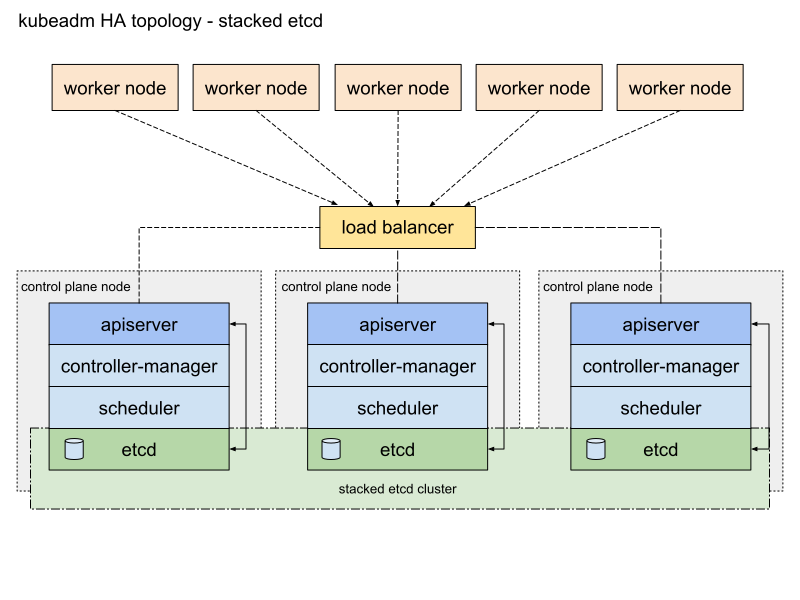
A stacked HA cluster is a topology where the distributed data storage cluster provided by etcd is stacked on top of the cluster formed by the nodes managed by kubeadm that run control plane components.
Each control plane node runs an instance of the kube-apiserver, kube-scheduler, and kube-controller-manager.
The kube-apiserver is exposed to worker nodes using a load balancer.
Each control plane node creates a local etcd member and this etcd member communicates only with
the kube-apiserver of this node. The same applies to the local kube-controller-manager
and kube-scheduler instances.
This topology couples the control planes and etcd members on the same nodes. It is simpler to set up than a cluster with external etcd nodes, and simpler to manage for replication.
However, a stacked cluster runs the risk of failed coupling. If one node goes down, both an etcd member and a control plane instance are lost, and redundancy is compromised. You can mitigate this risk by adding more control plane nodes.
You should therefore run a minimum of three stacked control plane nodes for an HA cluster.
This is the default topology in kubeadm. A local etcd member is created automatically
on control plane nodes when using kubeadm init and kubeadm join --control-plane.
An HA cluster with external etcd is a topology where the distributed data storage cluster provided by etcd is external to the cluster formed by the nodes that run control plane components.
Like the stacked etcd topology, each control plane node in an external etcd topology runs
an instance of the kube-apiserver, kube-scheduler, and kube-controller-manager.
And the kube-apiserver is exposed to worker nodes using a load balancer. However,
etcd members run on separate hosts, and each etcd host communicates with the
kube-apiserver of each control plane node.
This topology decouples the control plane and etcd member. It therefore provides an HA setup where losing a control plane instance or an etcd member has less impact and does not affect the cluster redundancy as much as the stacked HA topology.
However, this topology requires twice the number of hosts as the stacked HA topology. A minimum of three hosts for control plane nodes and three hosts for etcd nodes are required for an HA cluster with this topology.
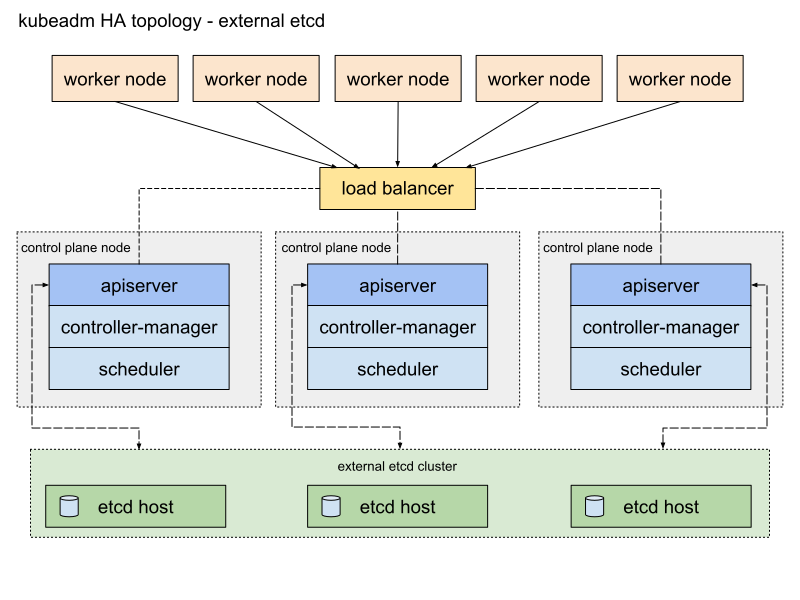
This page explains two different approaches to setting up a highly available Kubernetes cluster using kubeadm:
Before proceeding, you should carefully consider which approach best meets the needs of your applications and environment. Options for Highly Available topology outlines the advantages and disadvantages of each.
If you encounter issues with setting up the HA cluster, please report these in the kubeadm issue tracker.
See also the upgrade documentation.
The prerequisites depend on which topology you have selected for your cluster's control plane:
You need:
sudo
sudo in the examples.kubeadm and kubelet already installed on all machines.See Stacked etcd topology for context.
You need:
sudo
sudo in the examples.kubeadm and kubelet already installed on all machines.And you also need:
kubeadm and kubelet installed.See External etcd topology for context.
Each host should have access read and fetch images from the Kubernetes container image registry,
registry.k8s.io. If you want to deploy a highly-available cluster where the hosts do not have
access to pull images, this is possible. You must ensure by some other means that the correct
container images are already available on the relevant hosts.
To manage Kubernetes once your cluster is set up, you should
install kubectl on your PC. It is also useful
to install the kubectl tool on each control plane node, as this can be
helpful for troubleshooting.
Create a kube-apiserver load balancer with a name that resolves to DNS.
In a cloud environment you should place your control plane nodes behind a TCP
forwarding load balancer. This load balancer distributes traffic to all
healthy control plane nodes in its target list. The health check for
an apiserver is a TCP check on the port the kube-apiserver listens on
(default value :6443).
It is not recommended to use an IP address directly in a cloud environment.
The load balancer must be able to communicate with all control plane nodes on the apiserver port. It must also allow incoming traffic on its listening port.
Make sure the address of the load balancer always matches
the address of kubeadm's ControlPlaneEndpoint.
Read the Options for Software Load Balancing guide for more details.
Add the first control plane node to the load balancer, and test the connection:
nc -zv -w 2 <LOAD_BALANCER_IP> <PORT>
A connection refused error is expected because the API server is not yet running. A timeout, however, means the load balancer cannot communicate with the control plane node. If a timeout occurs, reconfigure the load balancer to communicate with the control plane node.
Add the remaining control plane nodes to the load balancer target group.
Initialize the control plane:
sudo kubeadm init --control-plane-endpoint "LOAD_BALANCER_DNS:LOAD_BALANCER_PORT" --upload-certs
You can use the --kubernetes-version flag to set the Kubernetes version to use.
It is recommended that the versions of kubeadm, kubelet, kubectl and Kubernetes match.
The --control-plane-endpoint flag should be set to the address or DNS and port of the load balancer.
The --upload-certs flag is used to upload the certificates that should be shared
across all the control-plane instances to the cluster. If instead, you prefer to copy certs across
control-plane nodes manually or using automation tools, please remove this flag and refer to Manual
certificate distribution section below.
kubeadm init flags --config and --certificate-key cannot be mixed, therefore if you want
to use the kubeadm configuration
you must add the certificateKey field in the appropriate config locations
(under InitConfiguration and JoinConfiguration: controlPlane).--pod-network-cidr, or if you are using a kubeadm configuration file
set the podSubnet field under the networking object of ClusterConfiguration.The output looks similar to:
...
You can now join any number of control-plane node by running the following command on each as a root:
    kubeadm join 192.168.0.200:6443 --token 9vr73a.a8uxyaju799qwdjv --discovery-token-ca-cert-hash sha256:7c2e69131a36ae2a042a339b33381c6d0d43887e2de83720eff5359e26aec866 --control-plane --certificate-key f8902e114ef118304e561c3ecd4d0b543adc226b7a07f675f56564185ffe0c07

Please note that the certificate-key gives access to cluster sensitive data, keep it secret!
As a safeguard, uploaded-certs will be deleted in two hours; If necessary, you can use kubeadm init phase upload-certs to reload certs afterward.

Then you can join any number of worker nodes by running the following on each as root:
    kubeadm join 192.168.0.200:6443 --token 9vr73a.a8uxyaju799qwdjv --discovery-token-ca-cert-hash sha256:7c2e69131a36ae2a042a339b33381c6d0d43887e2de83720eff5359e26aec866
Copy this output to a text file. You will need it later to join control plane and worker nodes to the cluster.
When --upload-certs is used with kubeadm init, the certificates of the primary control plane
are encrypted and uploaded in the kubeadm-certs Secret.
To re-upload the certificates and generate a new decryption key, use the following command on a control plane node that is already joined to the cluster:
sudo kubeadm init phase upload-certs --upload-certs
You can also specify a custom --certificate-key during init that can later be used by join.
To generate such a key you can use the following command:
kubeadm certs certificate-key
The certificate key is a hex encoded string that is an AES key of size 32 bytes.
kubeadm-certs Secret and the decryption key expire after two hours.Apply the CNI plugin of your choice: Follow these instructions to install the CNI provider. Make sure the configuration corresponds to the Pod CIDR specified in the kubeadm configuration file (if applicable).
Type the following and watch the pods of the control plane components get started:
kubectl get pod -n kube-system -w
For each additional control plane node you should:
Execute the join command that was previously given to you by the kubeadm init output on the first node.
It should look something like this:
sudo kubeadm join 192.168.0.200:6443 --token 9vr73a.a8uxyaju799qwdjv --discovery-token-ca-cert-hash sha256:7c2e69131a36ae2a042a339b33381c6d0d43887e2de83720eff5359e26aec866 --control-plane --certificate-key f8902e114ef118304e561c3ecd4d0b543adc226b7a07f675f56564185ffe0c07
--control-plane flag tells kubeadm join to create a new control plane.--certificate-key ... will cause the control plane certificates to be downloaded
from the kubeadm-certs Secret in the cluster and be decrypted using the given key.kubectl -n kube-system rollout restart deployment coredns after at least one new node is joined.Setting up a cluster with external etcd nodes is similar to the procedure used for stacked etcd with the exception that you should setup etcd first, and you should pass the etcd information in the kubeadm config file.
Follow these instructions to set up the etcd cluster.
Set up SSH as described here.
Copy the following files from any etcd node in the cluster to the first control plane node:
export CONTROL_PLANE="ubuntu@10.0.0.7"
scp /etc/kubernetes/pki/etcd/ca.crt "${CONTROL_PLANE}":
scp /etc/kubernetes/pki/apiserver-etcd-client.crt "${CONTROL_PLANE}":
scp /etc/kubernetes/pki/apiserver-etcd-client.key "${CONTROL_PLANE}":
CONTROL_PLANE with the user@host of the first control-plane node.Create a file called kubeadm-config.yaml with the following contents:
---
apiVersion: kubeadm.k8s.io/v1beta4
kind: ClusterConfiguration
kubernetesVersion: stable
controlPlaneEndpoint: "LOAD_BALANCER_DNS:LOAD_BALANCER_PORT" # change this (see below)
etcd:
  external:
    endpoints:
      - https://ETCD_0_IP:2379 # change ETCD_0_IP appropriately
      - https://ETCD_1_IP:2379 # change ETCD_1_IP appropriately
      - https://ETCD_2_IP:2379 # change ETCD_2_IP appropriately
    caFile: /etc/kubernetes/pki/etcd/ca.crt
    certFile: /etc/kubernetes/pki/apiserver-etcd-client.crt
    keyFile: /etc/kubernetes/pki/apiserver-etcd-client.key
external object for etcd.
In the case of the stacked etcd topology, this is managed automatically.Replace the following variables in the config template with the appropriate values for your cluster:
LOAD_BALANCER_DNSLOAD_BALANCER_PORTETCD_0_IPETCD_1_IPETCD_2_IPThe following steps are similar to the stacked etcd setup:
Run sudo kubeadm init --config kubeadm-config.yaml --upload-certs on this node.
Write the output join commands that are returned to a text file for later use.
Apply the CNI plugin of your choice.
The steps are the same as for the stacked etcd setup:
--certificate-key expires after two hours, by default.Worker nodes can be joined to the cluster with the command you stored previously
as the output from the kubeadm init command:
sudo kubeadm join 192.168.0.200:6443 --token 9vr73a.a8uxyaju799qwdjv --discovery-token-ca-cert-hash sha256:7c2e69131a36ae2a042a339b33381c6d0d43887e2de83720eff5359e26aec866
If you choose to not use kubeadm init with the --upload-certs flag this means that
you are going to have to manually copy the certificates from the primary control plane node to the
joining control plane nodes.
There are many ways to do this. The following example uses ssh and scp:
SSH is required if you want to control all nodes from a single machine.
Enable ssh-agent on your main device that has access to all other nodes in the system:
eval $(ssh-agent)
Add your SSH identity to the session:
ssh-add ~/.ssh/path_to_private_key
SSH between nodes to check that the connection is working correctly.
When you SSH to any node, add the -A flag. This flag allows the node that you
have logged into via SSH to access the SSH agent on your PC. Consider alternative
methods if you do not fully trust the security of your user session on the node.
ssh -A 10.0.0.7
When using sudo on any node, make sure to preserve the environment so SSH forwarding works:
sudo -E -s
After configuring SSH on all the nodes you should run the following script on the first
control plane node after running kubeadm init. This script will copy the certificates from
the first control plane node to the other control plane nodes:
In the following example, replace CONTROL_PLANE_IPS with the IP addresses of the
other control plane nodes.
USER=ubuntu # customizable
CONTROL_PLANE_IPS="10.0.0.7 10.0.0.8"
for host in ${CONTROL_PLANE_IPS}; do
    scp /etc/kubernetes/pki/ca.crt "${USER}"@$host:
    scp /etc/kubernetes/pki/ca.key "${USER}"@$host:
    scp /etc/kubernetes/pki/sa.key "${USER}"@$host:
    scp /etc/kubernetes/pki/sa.pub "${USER}"@$host:
    scp /etc/kubernetes/pki/front-proxy-ca.crt "${USER}"@$host:
    scp /etc/kubernetes/pki/front-proxy-ca.key "${USER}"@$host:
    scp /etc/kubernetes/pki/etcd/ca.crt "${USER}"@$host:etcd-ca.crt
    # Skip the next line if you are using external etcd
    scp /etc/kubernetes/pki/etcd/ca.key "${USER}"@$host:etcd-ca.key
done
Then on each joining control plane node you have to run the following script before running kubeadm join.
This script will move the previously copied certificates from the home directory to /etc/kubernetes/pki:
USER=ubuntu # customizable
mkdir -p /etc/kubernetes/pki/etcd
mv /home/${USER}/ca.crt /etc/kubernetes/pki/
mv /home/${USER}/ca.key /etc/kubernetes/pki/
mv /home/${USER}/sa.pub /etc/kubernetes/pki/
mv /home/${USER}/sa.key /etc/kubernetes/pki/
mv /home/${USER}/front-proxy-ca.crt /etc/kubernetes/pki/
mv /home/${USER}/front-proxy-ca.key /etc/kubernetes/pki/
mv /home/${USER}/etcd-ca.crt /etc/kubernetes/pki/etcd/ca.crt
# Skip the next line if you are using external etcd
mv /home/${USER}/etcd-ca.key /etc/kubernetes/pki/etcd/ca.key
By default, kubeadm runs a local etcd instance on each control plane node. It is also possible to treat the etcd cluster as external and provision etcd instances on separate hosts. The differences between the two approaches are covered in the Options for Highly Available topology page.
This task walks through the process of creating a high availability external etcd cluster of three members that can be used by kubeadm during cluster creation.
registry.k8s.io) or list/pull the required etcd image using
kubeadm config images list/pull. This guide will set up etcd instances as
static pods managed by a kubelet.ssh and scp
can satisfy this requirement.The general approach is to generate all certs on one node and only distribute the necessary files to the other nodes.
Configure the kubelet to be a service manager for etcd.
cat << EOF > /etc/systemd/system/kubelet.service.d/kubelet.conf
# Replace "systemd" with the cgroup driver of your container runtime. The default value in the kubelet is "cgroupfs".
# Replace the value of "containerRuntimeEndpoint" for a different container runtime if needed.
#
apiVersion: kubelet.config.k8s.io/v1beta1
kind: KubeletConfiguration
authentication:
  anonymous:
    enabled: false
  webhook:
    enabled: false
authorization:
  mode: AlwaysAllow
cgroupDriver: systemd
address: 127.0.0.1
containerRuntimeEndpoint: unix:///var/run/containerd/containerd.sock
staticPodPath: /etc/kubernetes/manifests
EOF

cat << EOF > /etc/systemd/system/kubelet.service.d/20-etcd-service-manager.conf
[Service]
ExecStart=
ExecStart=/usr/bin/kubelet --config=/etc/systemd/system/kubelet.service.d/kubelet.conf
Restart=always
EOF

systemctl daemon-reload
systemctl restart kubelet
Check the kubelet status to ensure it is running.
systemctl status kubelet
Create configuration files for kubeadm.
Generate one kubeadm configuration file for each host that will have an etcd member running on it using the following script.
# Update HOST0, HOST1 and HOST2 with the IPs of your hosts
export HOST0=10.0.0.6
export HOST1=10.0.0.7
export HOST2=10.0.0.8

# Update NAME0, NAME1 and NAME2 with the hostnames of your hosts
export NAME0="infra0"
export NAME1="infra1"
export NAME2="infra2"

# Create temp directories to store files that will end up on other hosts
mkdir -p /tmp/${HOST0}/ /tmp/${HOST1}/ /tmp/${HOST2}/

HOSTS=(${HOST0} ${HOST1} ${HOST2})
NAMES=(${NAME0} ${NAME1} ${NAME2})

for i in "${!HOSTS[@]}"; do
HOST=${HOSTS[$i]}
NAME=${NAMES[$i]}
cat << EOF > /tmp/${HOST}/kubeadmcfg.yaml
---
apiVersion: "kubeadm.k8s.io/v1beta4"
kind: InitConfiguration
nodeRegistration:
    name: ${NAME}
localAPIEndpoint:
    advertiseAddress: ${HOST}
---
apiVersion: "kubeadm.k8s.io/v1beta4"
kind: ClusterConfiguration
etcd:
    local:
        serverCertSANs:
        - "${HOST}"
        peerCertSANs:
        - "${HOST}"
        extraArgs:
        - name: initial-cluster
          value: ${NAMES[0]}=https://${HOSTS[0]}:2380,${NAMES[1]}=https://${HOSTS[1]}:2380,${NAMES[2]}=https://${HOSTS[2]}:2380
        - name: initial-cluster-state
          value: new
        - name: name
          value: ${NAME}
        - name: listen-peer-urls
          value: https://${HOST}:2380
        - name: listen-client-urls
          value: https://${HOST}:2379
        - name: advertise-client-urls
          value: https://${HOST}:2379
        - name: initial-advertise-peer-urls
          value: https://${HOST}:2380
EOF
done
Generate the certificate authority.
If you already have a CA then the only action that is copying the CA's crt and
key file to /etc/kubernetes/pki/etcd/ca.crt and
/etc/kubernetes/pki/etcd/ca.key. After those files have been copied,
proceed to the next step, "Create certificates for each member".
If you do not already have a CA then run this command on $HOST0 (where you
generated the configuration files for kubeadm).
kubeadm init phase certs etcd-ca
This creates two files:
/etc/kubernetes/pki/etcd/ca.crt/etc/kubernetes/pki/etcd/ca.keyCreate certificates for each member.
kubeadm init phase certs etcd-server --config=/tmp/${HOST2}/kubeadmcfg.yaml
kubeadm init phase certs etcd-peer --config=/tmp/${HOST2}/kubeadmcfg.yaml
kubeadm init phase certs etcd-healthcheck-client --config=/tmp/${HOST2}/kubeadmcfg.yaml
kubeadm init phase certs apiserver-etcd-client --config=/tmp/${HOST2}/kubeadmcfg.yaml
cp -R /etc/kubernetes/pki /tmp/${HOST2}/
# cleanup non-reusable certificates
find /etc/kubernetes/pki -not -name ca.crt -not -name ca.key -type f -delete

kubeadm init phase certs etcd-server --config=/tmp/${HOST1}/kubeadmcfg.yaml
kubeadm init phase certs etcd-peer --config=/tmp/${HOST1}/kubeadmcfg.yaml
kubeadm init phase certs etcd-healthcheck-client --config=/tmp/${HOST1}/kubeadmcfg.yaml
kubeadm init phase certs apiserver-etcd-client --config=/tmp/${HOST1}/kubeadmcfg.yaml
cp -R /etc/kubernetes/pki /tmp/${HOST1}/
find /etc/kubernetes/pki -not -name ca.crt -not -name ca.key -type f -delete

kubeadm init phase certs etcd-server --config=/tmp/${HOST0}/kubeadmcfg.yaml
kubeadm init phase certs etcd-peer --config=/tmp/${HOST0}/kubeadmcfg.yaml
kubeadm init phase certs etcd-healthcheck-client --config=/tmp/${HOST0}/kubeadmcfg.yaml
kubeadm init phase certs apiserver-etcd-client --config=/tmp/${HOST0}/kubeadmcfg.yaml
# No need to move the certs because they are for HOST0

# clean up certs that should not be copied off this host
find /tmp/${HOST2} -name ca.key -type f -delete
find /tmp/${HOST1} -name ca.key -type f -delete
Copy certificates and kubeadm configs.
The certificates have been generated and now they must be moved to their respective hosts.
USER=ubuntu
HOST=${HOST1}
scp -r /tmp/${HOST}/* ${USER}@${HOST}:
ssh ${USER}@${HOST}
USER@HOST $ sudo -Es
root@HOST $ chown -R root:root pki
root@HOST $ mv pki /etc/kubernetes/
Ensure all expected files exist.
The complete list of required files on $HOST0 is:
/tmp/${HOST0}
└── kubeadmcfg.yaml
---
/etc/kubernetes/pki
├── apiserver-etcd-client.crt
├── apiserver-etcd-client.key
└── etcd
    ├── ca.crt
    ├── ca.key
    ├── healthcheck-client.crt
    ├── healthcheck-client.key
    ├── peer.crt
    ├── peer.key
    ├── server.crt
    └── server.key
On $HOST1:
$HOME
└── kubeadmcfg.yaml
---
/etc/kubernetes/pki
├── apiserver-etcd-client.crt
├── apiserver-etcd-client.key
└── etcd
    ├── ca.crt
    ├── healthcheck-client.crt
    ├── healthcheck-client.key
    ├── peer.crt
    ├── peer.key
    ├── server.crt
    └── server.key
On $HOST2:
$HOME
└── kubeadmcfg.yaml
---
/etc/kubernetes/pki
├── apiserver-etcd-client.crt
├── apiserver-etcd-client.key
└── etcd
    ├── ca.crt
    ├── healthcheck-client.crt
    ├── healthcheck-client.key
    ├── peer.crt
    ├── peer.key
    ├── server.crt
    └── server.key
Create the static pod manifests.
Now that the certificates and configs are in place it's time to create the
manifests. On each host run the kubeadm command to generate a static manifest
for etcd.
root@HOST0 $ kubeadm init phase etcd local --config=/tmp/${HOST0}/kubeadmcfg.yaml
root@HOST1 $ kubeadm init phase etcd local --config=$HOME/kubeadmcfg.yaml
root@HOST2 $ kubeadm init phase etcd local --config=$HOME/kubeadmcfg.yaml
Optional: Check the cluster health.
If etcdctl isn't available, you can run this tool inside a container image.
You would do that directly with your container runtime using a tool such as
crictl run and not through Kubernetes
ETCDCTL_API=3 etcdctl \
--cert /etc/kubernetes/pki/etcd/peer.crt \
--key /etc/kubernetes/pki/etcd/peer.key \
--cacert /etc/kubernetes/pki/etcd/ca.crt \
--endpoints https://${HOST0}:2379 endpoint health
...
https://[HOST0 IP]:2379 is healthy: successfully committed proposal: took = 16.283339ms
https://[HOST1 IP]:2379 is healthy: successfully committed proposal: took = 19.44402ms
https://[HOST2 IP]:2379 is healthy: successfully committed proposal: took = 35.926451ms
${HOST0}to the IP address of the host you are testing.Once you have an etcd cluster with 3 working members, you can continue setting up a highly available control plane using the external etcd method with kubeadm.
Kubernetes v1.11 [stable]
The lifecycle of the kubeadm CLI tool is decoupled from the kubelet, which is a daemon that runs on each node within the Kubernetes cluster. The kubeadm CLI tool is executed by the user when Kubernetes is initialized or upgraded, whereas the kubelet is always running in the background.
Since the kubelet is a daemon, it needs to be maintained by some kind of an init system or service manager. When the kubelet is installed using DEBs or RPMs, systemd is configured to manage the kubelet. You can use a different service manager instead, but you need to configure it manually.
Some kubelet configuration details need to be the same across all kubelets involved in the cluster, while
other configuration aspects need to be set on a per-kubelet basis to accommodate the different
characteristics of a given machine (such as OS, storage, and networking). You can manage the configuration
of your kubelets manually, but kubeadm now provides a KubeletConfiguration API type for
managing your kubelet configurations centrally.
The following sections describe patterns to kubelet configuration that are simplified by using kubeadm, rather than managing the kubelet configuration for each Node manually.
You can provide the kubelet with default values to be used by kubeadm init and kubeadm join
commands. Interesting examples include using a different container runtime or setting the default subnet
used by services.
If you want your services to use the subnet 10.96.0.0/12 as the default for services, you can pass
the --service-cidr parameter to kubeadm:
kubeadm init --service-cidr 10.96.0.0/12
Virtual IPs for services are now allocated from this subnet. You also need to set the DNS address used
by the kubelet, using the --cluster-dns flag. This setting needs to be the same for every kubelet
on every manager and Node in the cluster. The kubelet provides a versioned, structured API object
that can configure most parameters in the kubelet and push out this configuration to each running
kubelet in the cluster. This object is called
KubeletConfiguration.
The KubeletConfiguration allows the user to specify flags such as the cluster DNS IP addresses expressed as
a list of values to a camelCased key, illustrated by the following example:
apiVersion: kubelet.config.k8s.io/v1beta1
kind: KubeletConfiguration
clusterDNS:
- 10.96.0.10
For more details on the KubeletConfiguration have a look at this section.
Some hosts require specific kubelet configurations due to differences in hardware, operating system, networking, or other host-specific parameters. The following list provides a few examples.
The path to the DNS resolution file, as specified by the --resolv-conf kubelet
configuration flag, may differ among operating systems, or depending on whether you are using
systemd-resolved. If this path is wrong, DNS resolution will fail on the Node whose kubelet
is configured incorrectly.
The Node API object .metadata.name is set to the machine's hostname by default,
unless you are using a cloud provider. You can use the --hostname-override flag to override the
default behavior if you need to specify a Node name different from the machine's hostname.
Currently, the kubelet cannot automatically detect the cgroup driver used by the container runtime,
but the value of --cgroup-driver must match the cgroup driver used by the container runtime to ensure
the health of the kubelet.
To specify the container runtime you must set its endpoint with the
--container-runtime-endpoint=<path> flag.
The recommended way of applying such instance-specific configuration is by using
KubeletConfiguration patches.
It is possible to configure the kubelet that kubeadm will start if a custom
KubeletConfiguration
API object is passed with a configuration file like so kubeadm ... --config some-config-file.yaml.
By calling kubeadm config print init-defaults --component-configs KubeletConfiguration you can
see all the default values for this structure.
It is also possible to apply instance-specific patches over the base KubeletConfiguration.
Have a look at Customizing the kubelet
for more details.
kubeadm initWhen you call kubeadm init, the kubelet configuration is marshalled to disk
at /var/lib/kubelet/config.yaml, and also uploaded to a kubelet-config
ConfigMap in the kube-system namespace of the cluster.
Additionally, the kubeadm tool detects the CRI socket on the node and writes its details
(including the socket path) into a local configuration, /var/lib/kubelet/instance-config.yaml.
A kubelet configuration file is also written to /etc/kubernetes/kubelet.conf
with the baseline cluster-wide configuration for all kubelets in the cluster. This configuration file
points to the client certificates that allow the kubelet to communicate with the API server. This
addresses the need to
propagate cluster-level configuration to each kubelet.
To address the second pattern of
providing instance-specific configuration details,
kubeadm writes an environment file to /var/lib/kubelet/kubeadm-flags.env, which contains a list of
flags to pass to the kubelet when it starts. The flags are presented in the file like this:
KUBELET_KUBEADM_ARGS="--flag1=value1 --flag2=value2 ..."
In addition to the flags used when starting the kubelet, the file also contains dynamic parameters such as the cgroup driver.
After marshalling these two files to disk, kubeadm attempts to run the following two commands, if you are using systemd:
systemctl daemon-reload && systemctl restart kubelet
If the reload and restart are successful, the normal kubeadm init workflow continues.
kubeadm joinWhen you run kubeadm join, kubeadm uses the Bootstrap Token credential to perform
a TLS bootstrap, which fetches the credential needed to download the
kubelet-config ConfigMap and writes it to /var/lib/kubelet/config.yaml.
Additionally, the kubeadm tool detects the CRI socket on the node and writes its details
(including the socket path) into a local configuration, /var/lib/kubelet/instance-config.yaml.
The dynamic environment file is generated in exactly the same way as kubeadm init.
Next, kubeadm runs the following two commands to load the new configuration into the kubelet:
systemctl daemon-reload && systemctl restart kubelet
After the kubelet loads the new configuration, kubeadm writes the
/etc/kubernetes/bootstrap-kubelet.conf KubeConfig file, which contains a CA certificate and Bootstrap
Token. These are used by the kubelet to perform the TLS Bootstrap and obtain a unique
credential, which is stored in /etc/kubernetes/kubelet.conf.
When the /etc/kubernetes/kubelet.conf file is written, the kubelet has finished performing the TLS Bootstrap.
Kubeadm deletes the /etc/kubernetes/bootstrap-kubelet.conf file after completing the TLS Bootstrap.
kubeadm ships with configuration for how systemd should run the kubelet.
Note that the kubeadm CLI command never touches this drop-in file.
This configuration file installed by the kubeadm
package is written to
/usr/lib/systemd/system/kubelet.service.d/10-kubeadm.conf and is used by systemd.
It augments the basic
kubelet.service.
If you want to override that further, you can make a directory /etc/systemd/system/kubelet.service.d/
(not /usr/lib/systemd/system/kubelet.service.d/) and put your own customizations into a file there.
For example, you might add a new local file /etc/systemd/system/kubelet.service.d/local-overrides.conf
to override the unit settings configured by kubeadm.
Here is what you are likely to find in /usr/lib/systemd/system/kubelet.service.d/10-kubeadm.conf:
[Service]
Environment="KUBELET_KUBECONFIG_ARGS=--bootstrap-kubeconfig=/etc/kubernetes/bootstrap-kubelet.conf --kubeconfig=/etc/kubernetes/kubelet.conf"
Environment="KUBELET_CONFIG_ARGS=--config=/var/lib/kubelet/config.yaml"
# This is a file that "kubeadm init" and "kubeadm join" generate at runtime, populating
# the KUBELET_KUBEADM_ARGS variable dynamically
EnvironmentFile=-/var/lib/kubelet/kubeadm-flags.env
# This is a file that the user can use for overrides of the kubelet args as a last resort. Preferably,
# the user should use the .NodeRegistration.KubeletExtraArgs object in the configuration files instead.
# KUBELET_EXTRA_ARGS should be sourced from this file.
EnvironmentFile=-/etc/default/kubelet
ExecStart=
ExecStart=/usr/bin/kubelet $KUBELET_KUBECONFIG_ARGS $KUBELET_CONFIG_ARGS $KUBELET_KUBEADM_ARGS $KUBELET_EXTRA_ARGS
This file specifies the default locations for all of the files managed by kubeadm for the kubelet.
/etc/kubernetes/bootstrap-kubelet.conf,
but it is only used if /etc/kubernetes/kubelet.conf does not exist./etc/kubernetes/kubelet.conf./var/lib/kubelet/config.yaml.KUBELET_KUBEADM_ARGS is sourced from /var/lib/kubelet/kubeadm-flags.env.KUBELET_EXTRA_ARGS is sourced from
/etc/default/kubelet (for DEBs), or /etc/sysconfig/kubelet (for RPMs). KUBELET_EXTRA_ARGS
is last in the flag chain and has the highest priority in the event of conflicting settings.The DEB and RPM packages shipped with the Kubernetes releases are:
| Package name | Description |
|---|---|
kubeadm |
Installs the /usr/bin/kubeadm CLI tool and the kubelet drop-in file for the kubelet. |
kubelet |
Installs the /usr/bin/kubelet binary. |
kubectl |
Installs the /usr/bin/kubectl binary. |
cri-tools |
Installs the /usr/bin/crictl binary from the cri-tools git repository. |
kubernetes-cni |
Installs the /opt/cni/bin binaries from the plugins git repository. |
Kubernetes v1.23 [stable]
Your Kubernetes cluster includes dual-stack networking, which means that cluster networking lets you use either address family. In a cluster, the control plane can assign both an IPv4 address and an IPv6 address to a single Pod or a Service.
You need to have installed the kubeadm tool, following the steps from Installing kubeadm.
For each server that you want to use as a node, make sure it allows IPv6 forwarding.
To check if IPv6 packet forwarding is enabled:
sysctl net.ipv6.conf.all.forwarding
If the output is net.ipv6.conf.all.forwarding = 1 it is already enabled.
Otherwise it is not enabled yet.
To manually enable IPv6 packet forwarding:
# sysctl params required by setup, params persist across reboots
cat <<EOF | sudo tee -a /etc/sysctl.d/k8s.conf
net.ipv6.conf.all.forwarding = 1
EOF

# Apply sysctl params without reboot
sudo sysctl --system
You need to have an IPv4 and and IPv6 address range to use. Cluster operators typically
use private address ranges for IPv4. For IPv6, a cluster operator typically chooses a global
unicast address block from within 2000::/3, using a range that is assigned to the operator.
You don't have to route the cluster's IP address ranges to the public internet.
The size of the IP address allocations should be suitable for the number of Pods and Services that you are planning to run.
kubeadm upgrade command,
kubeadm does not support making modifications to the pod IP address range
(“cluster CIDR”) nor to the cluster's Service address range (“Service CIDR”).To create a dual-stack cluster with kubeadm init you can pass command line arguments
similar to the following example:
# These address ranges are examples
kubeadm init --pod-network-cidr=10.244.0.0/16,2001:db8:42:0::/56 --service-cidr=10.96.0.0/16,2001:db8:42:1::/112
To make things clearer, here is an example kubeadm
configuration file
kubeadm-config.yaml for the primary dual-stack control plane node.
---
apiVersion: kubeadm.k8s.io/v1beta4
kind: ClusterConfiguration
networking:
  podSubnet: 10.244.0.0/16,2001:db8:42:0::/56
  serviceSubnet: 10.96.0.0/16,2001:db8:42:1::/112
---
apiVersion: kubeadm.k8s.io/v1beta4
kind: InitConfiguration
localAPIEndpoint:
  advertiseAddress: "10.100.0.1"
  bindPort: 6443
nodeRegistration:
  kubeletExtraArgs:
  - name: "node-ip"
    value: "10.100.0.2,fd00:1:2:3::2"
advertiseAddress in InitConfiguration specifies the IP address that the API Server
will advertise it is listening on. The value of advertiseAddress equals the
--apiserver-advertise-address flag of kubeadm init.
Run kubeadm to initiate the dual-stack control plane node:
kubeadm init --config=kubeadm-config.yaml
The kube-controller-manager flags --node-cidr-mask-size-ipv4|--node-cidr-mask-size-ipv6
are set with default values. See configure IPv4/IPv6 dual stack.
--apiserver-advertise-address flag does not support dual-stack.Before joining a node, make sure that the node has IPv6 routable network interface and allows IPv6 forwarding.
Here is an example kubeadm configuration file
kubeadm-config.yaml for joining a worker node to the cluster.
apiVersion: kubeadm.k8s.io/v1beta4
kind: JoinConfiguration
discovery:
  bootstrapToken:
    apiServerEndpoint: 10.100.0.1:6443
    token: "clvldh.vjjwg16ucnhp94qr"
    caCertHashes:
    - "sha256:a4863cde706cfc580a439f842cc65d5ef112b7b2be31628513a9881cf0d9fe0e"
    # change auth info above to match the actual token and CA certificate hash for your cluster
nodeRegistration:
  kubeletExtraArgs:
  - name: "node-ip"
    value: "10.100.0.2,fd00:1:2:3::3"
Also, here is an example kubeadm configuration file
kubeadm-config.yaml for joining another control plane node to the cluster.
apiVersion: kubeadm.k8s.io/v1beta4
kind: JoinConfiguration
controlPlane:
  localAPIEndpoint:
    advertiseAddress: "10.100.0.2"
    bindPort: 6443
discovery:
  bootstrapToken:
    apiServerEndpoint: 10.100.0.1:6443
    token: "clvldh.vjjwg16ucnhp94qr"
    caCertHashes:
    - "sha256:a4863cde706cfc580a439f842cc65d5ef112b7b2be31628513a9881cf0d9fe0e"
    # change auth info above to match the actual token and CA certificate hash for your cluster
nodeRegistration:
  kubeletExtraArgs:
  - name: "node-ip"
    value: "10.100.0.2,fd00:1:2:3::4"
advertiseAddress in JoinConfiguration.controlPlane specifies the IP address that the
API Server will advertise it is listening on. The value of advertiseAddress equals
the --apiserver-advertise-address flag of kubeadm join.
kubeadm join --config=kubeadm-config.yaml
To make things more clear, here is an example kubeadm
configuration file
kubeadm-config.yaml for the single-stack control plane node.
apiVersion: kubeadm.k8s.io/v1beta4
kind: ClusterConfiguration
networking:
  podSubnet: 10.244.0.0/16
  serviceSubnet: 10.96.0.0/16
This page provides a list of Kubernetes certified solution providers. From each provider page, you can learn how to install and setup production ready clusters.